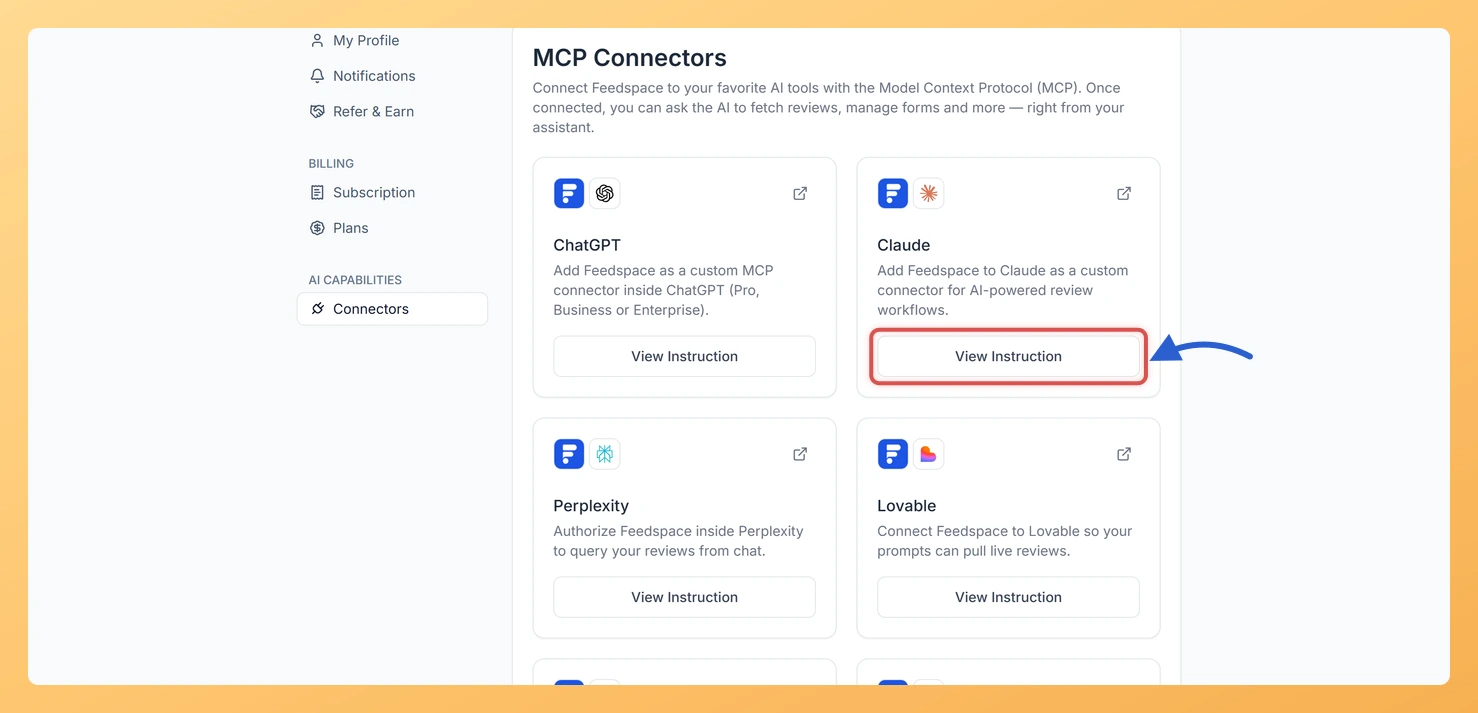
The Connectors tab in Feedspace lets you link your account to popular AI tools using the Model Context Protocol (MCP). Once connected, you can ask AI tools to access and use your Feedspace review data directly inside those platforms. Feedspace supports six AI tools: Claude, ChatGPT, Perplexity, Lovable, Bolt, and v0.
How to open Connectors
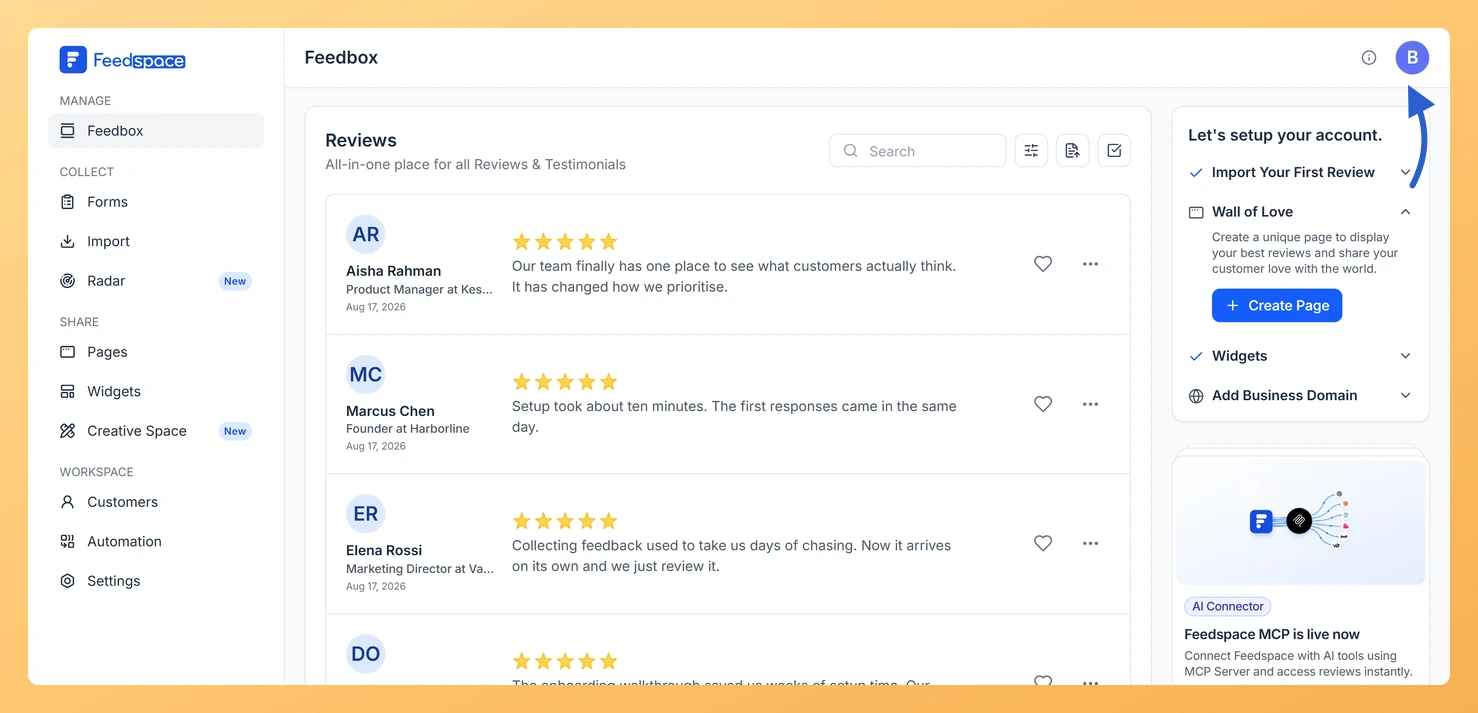
Click the avatar button at the top-right of the header.
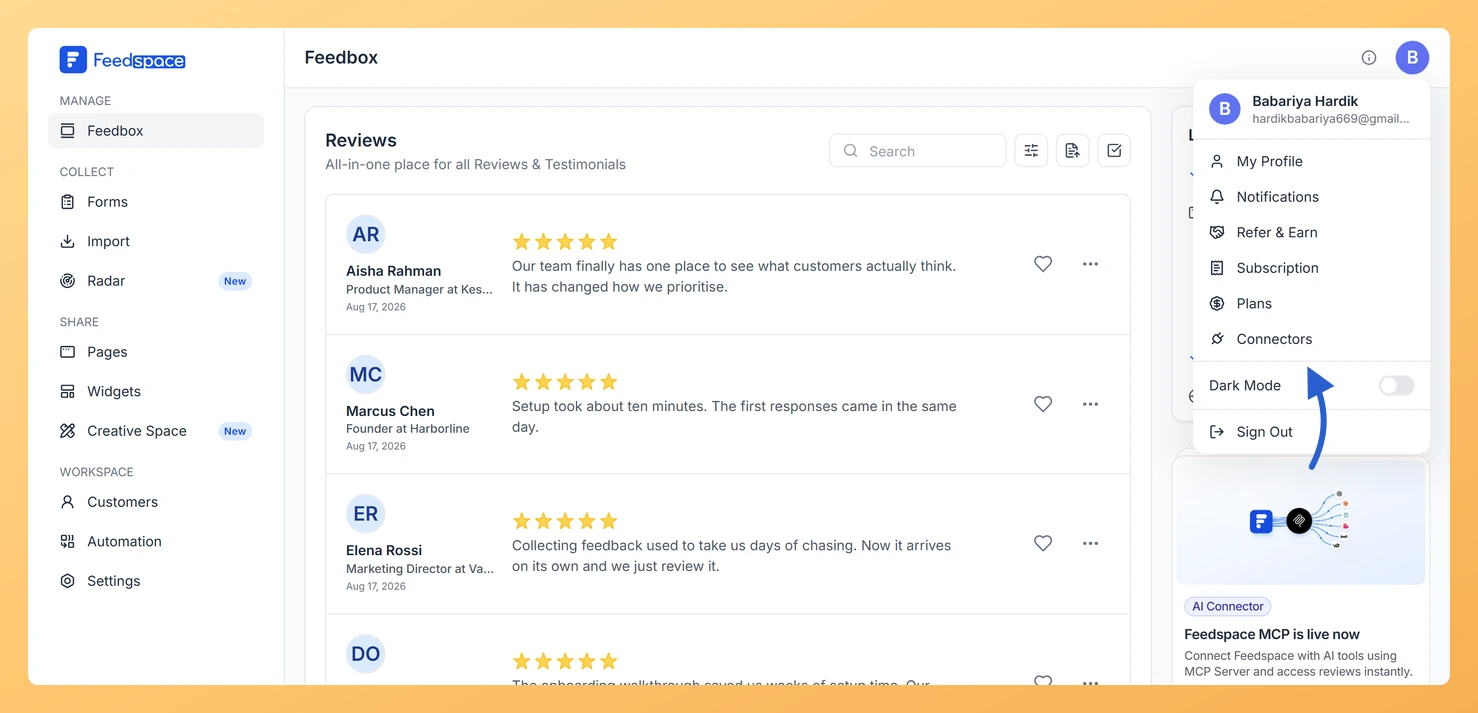
Click Connectors from the menu. The Connectors tab shows a card for each supported AI platform.
How to connect Feedspace to an AI tool
Step 1: Find the card for your AI tool
Find the card for the AI tool you want to connect (Claude, ChatGPT, Perplexity, Lovable, Bolt, or v0).
Step 2: Copy the MCP URL
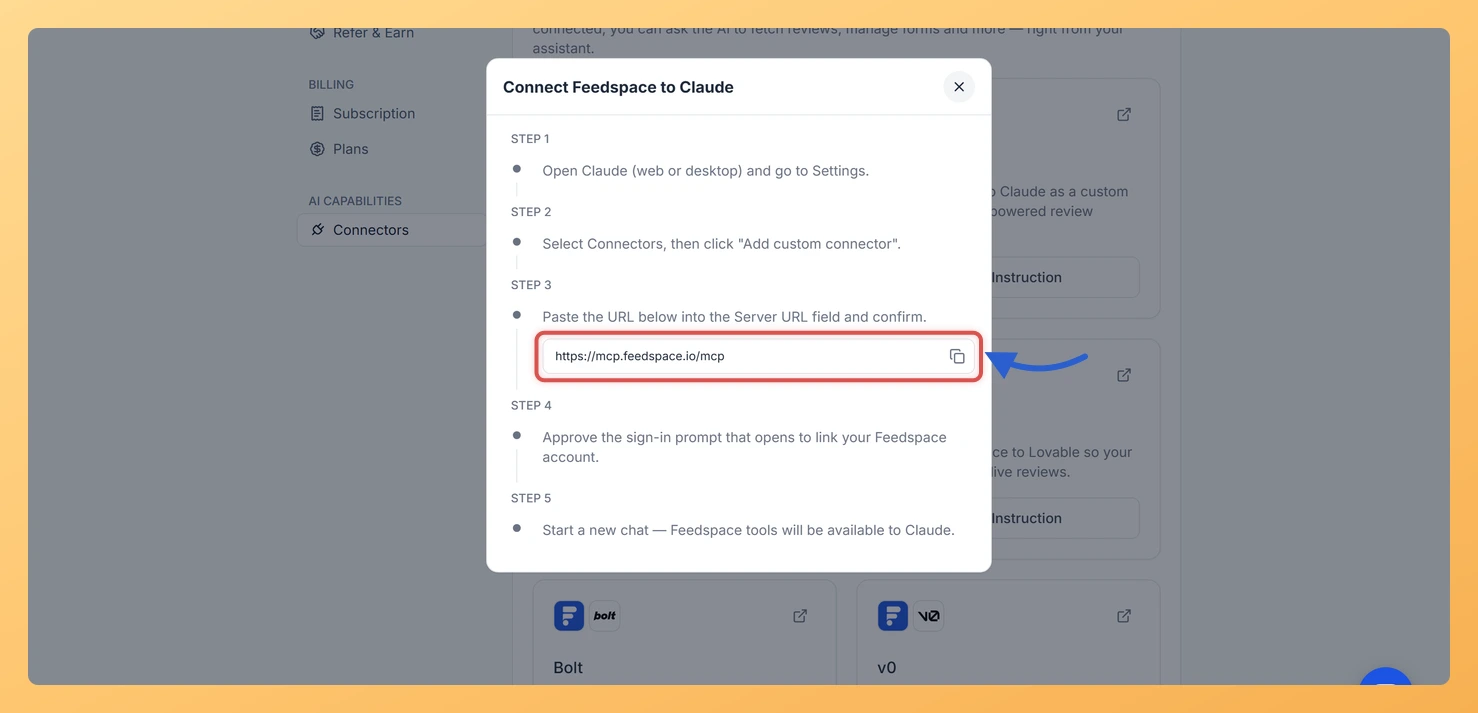
Click View Instruction on the card. A dialog opens with platform-specific steps and a read-only input showing the MCP URL (https://mcp.feedspace.io/mcp). Click the copy icon in the dialog to copy the URL.
Step 3: Paste it into the platform
Open that platform’s settings in a new tab by clicking the external link icon on the card. Follow the steps in the instruction dialog to paste the MCP URL in the right place.
Supported AI platforms
Claude (Anthropic): Add the MCP URL in Claude’s connector settings at claude.ai.
ChatGPT (OpenAI): Add the MCP URL in ChatGPT’s Connectors settings at chatgpt.com.
Perplexity: Add the MCP URL in Perplexity’s account connector settings at perplexity.ai.
Lovable: Add the MCP URL in Lovable’s dashboard connector settings at lovable.dev.
Bolt: Add the MCP URL in Bolt’s MCP server settings at bolt.new.
v0: Add the MCP URL in v0’s MCP connections settings at v0.app.
Common questions
Does connecting require a sign-in or authorisation step?
Yes, on most platforms. After pasting the MCP URL you authorise the connection so the platform can reach your Feedspace account: Claude and Perplexity open a Feedspace sign-in prompt, while Bolt, Lovable and v0 use an OAuth method you confirm in their own settings. The exact step is listed in that platform’s View Instruction dialog.
The MCP URL copy button shows an error
If the copy button fails, manually select and copy the URL text shown on the card: https://mcp.feedspace.io/mcp. Paste it directly into the AI platform’s connector settings.
Is there a different URL for each platform?
No. The MCP URL is the same for all supported platforms: https://mcp.feedspace.io/mcp. Only the location where you paste it differs between platforms.
What you can do next
Click View Instruction on any platform card for the full step-by-step connection guide specific to that tool.
Generate an API Key in the Automation tab if you want to connect via the Feedspace REST API instead.
You might also find helpful
What Is the Feedspace MCP Connector?
What Is MCP? MCP stands for Model Context Protocol. It is an open standard that lets AI tools securely access data from external services. When you connect Feedspace to an AI tool via MCP, the AI tool can read your review data, testimonials, and workspace information to help you generate...
How Do I Generate API Keys in Feedspace?
Overview The API tab in the Automation section lets you generate an API Key and a Secret Key for programmatic access to your Feedspace workspace. Use these credentials when building custom integrations, fetching reviews from your own code, or connecting Feedspace to a CRM or other software system. Before you...
How Do I Generate My Automation Secret Key in Feedspace?
Overview The Automation Secret Key is a unique credential that authenticates your Feedspace form automation with external tools such as Pabbly Connect, Make, n8n, and Zapier. You need to copy this key and paste it into the integration platform to allow it to trigger actions in your Feedspace account. Steps...