Feedspace lets you add custom JavaScript code to your custom domain pages, such as Google Analytics, Facebook Pixel, or any other tracking script. Once saved, the script runs on the pages served from your Feedspace custom domain.
This feature is available only after your custom domain has been successfully added.
Step 1: Go to domain settings
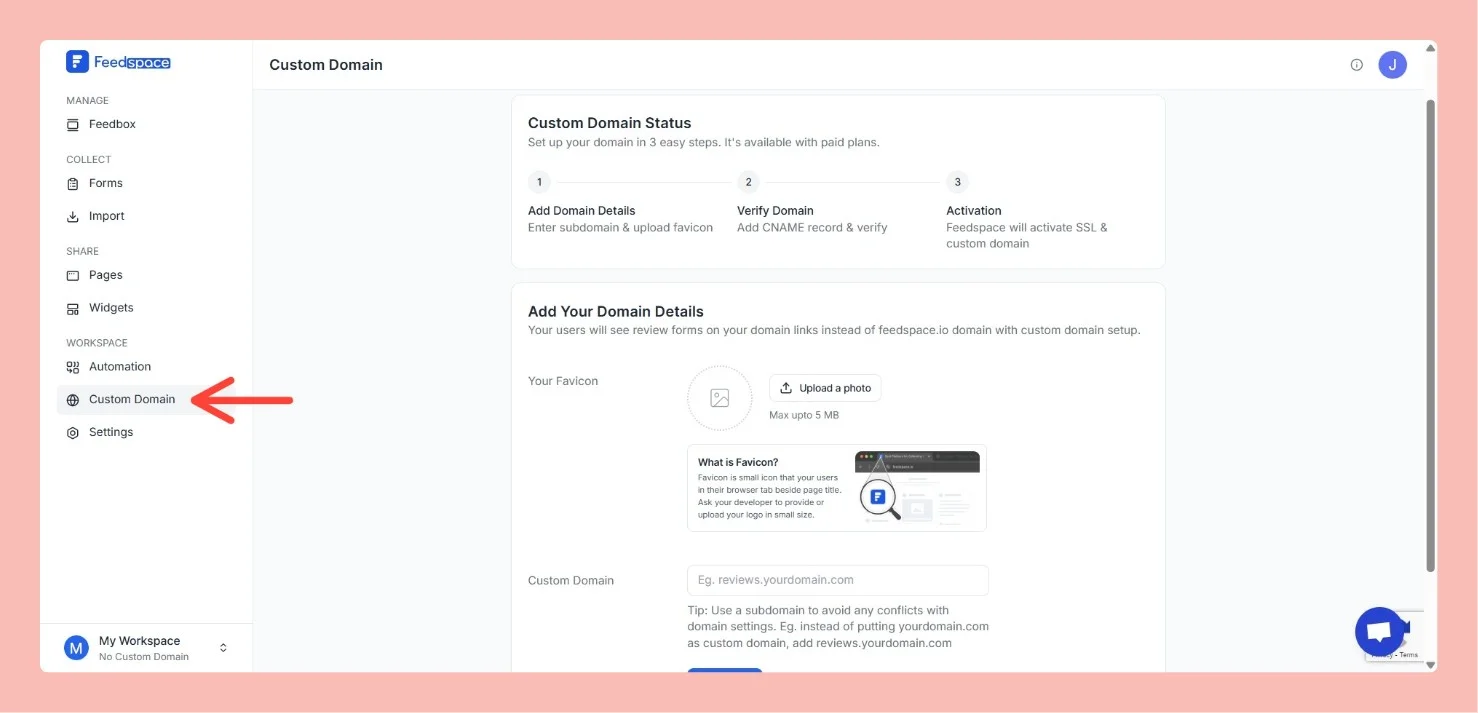
Log in to Feedspace, click Settings, then open Domain. The Custom Script section appears once your domain has been added and verified.
Step 2: Click Add Script
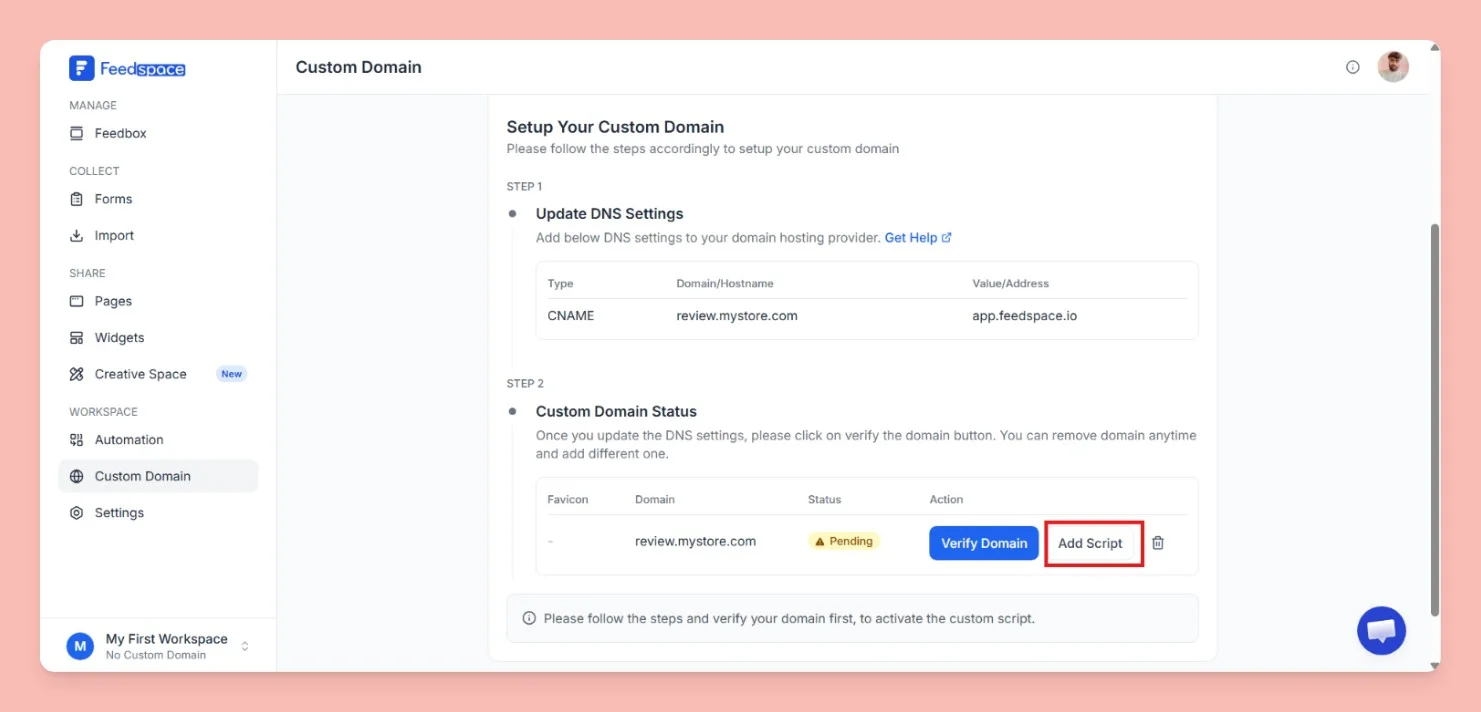
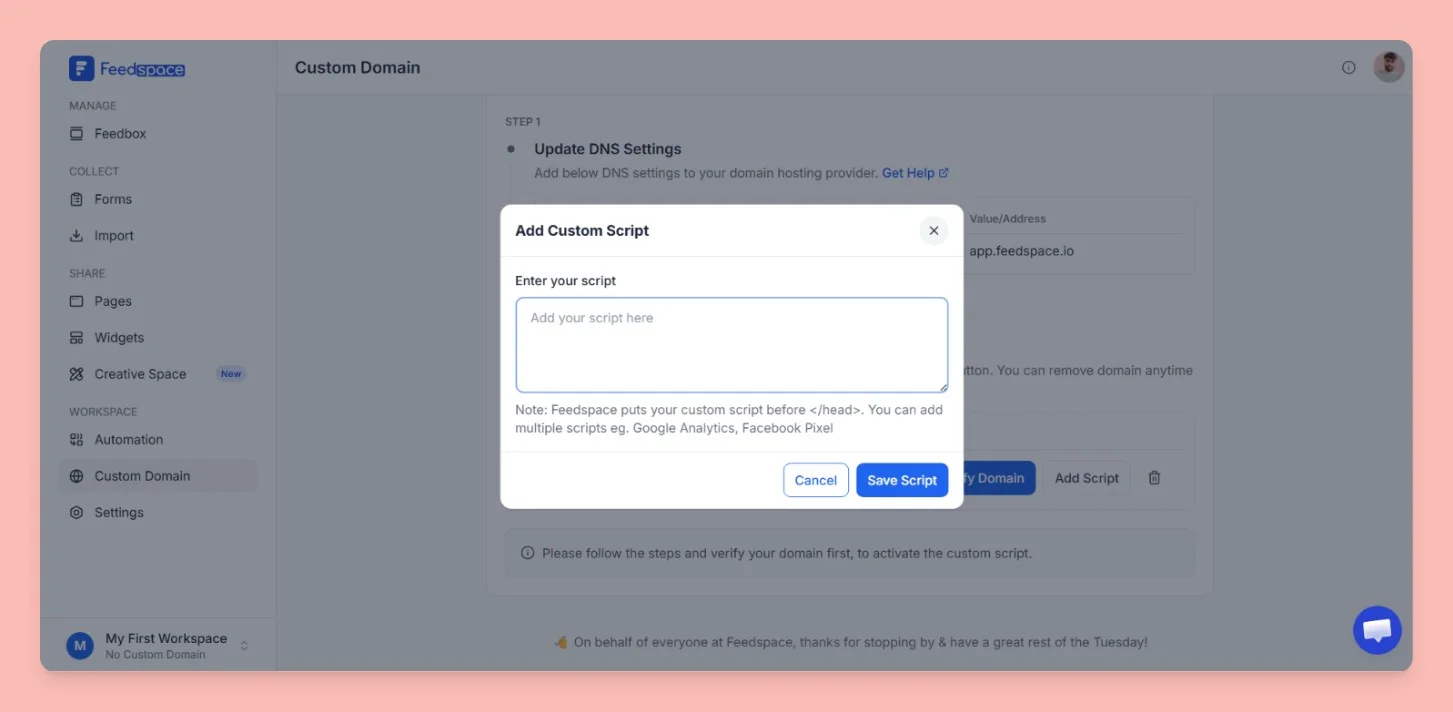
In the Custom Script section below your domain, click Add Script. A drawer slides in from the right with a text area for your code.
Step 3: Enter your script
In the drawer, paste your JavaScript code into the text area. You can add multiple scripts (e.g. Google Analytics and Facebook Pixel) together, up to a total of 1000 characters.
Step 4: Save the script
Click Save Changes. The drawer closes and the Custom Script section shows a read-only preview of your saved code. Your script then runs on your Feedspace custom domain pages.
Step 5: Edit or remove a saved script
Once a script is saved, the Custom Script section shows a read-only preview of your code with an Edit Script button in place of Add Script. Click Edit Script to reopen the drawer, then update your code and click Save Changes. To remove the script entirely, clear the text area in the drawer and save. The Save Changes button stays disabled until you change the script from its saved value.
Common questions
How do I update or remove a script I already saved?
Open the Custom Script section under Domain and click Edit Script. Change the code and click Save Changes to update it, or clear the text area and save to remove it. The drawer closes and the preview updates to reflect what you saved.
You might also find helpful
How to Add a CNAME Record in GoDaddy
Overview With custom domain setup, you can display your review forms on your own branded domain instead of the default Feedspace link. This allows you to create a more professional and consistent user experience for your visitors. In this section, you’ll add a custom domain or subdomain (e.g., reviews.yourdomain.com). Using a subdomain...
How to Add a CNAME Record in Namecheap
Overview With custom domain setup, you can display your review forms on your own branded domain instead of the default Feedspace link. This allows you to create a more professional and consistent user experience for your visitors. In this section, you’ll add a custom domain or subdomain (e.g., reviews.yourdomain.com). Using a subdomain...
How to Add a CNAME Record in Cloudflare
Overview With custom domain setup, you can display your review forms on your own branded domain instead of the default Feedspace link. This allows you to create a more professional and consistent user experience for your visitors. In this section, you’ll add a custom domain or subdomain (e.g., reviews.yourdomain.com). Using a subdomain...