
Feedspace Home Dashboard

How to Remove a Custom Domain from Feedspace

Last updated on May 20, 2026

Overview

Removing a custom domain from Feedspace will revert all your review forms and Wall of Love back to the default feedspace.io domain. This action cannot be undone — you will need to go through the full setup again if you want to re-add the domain.

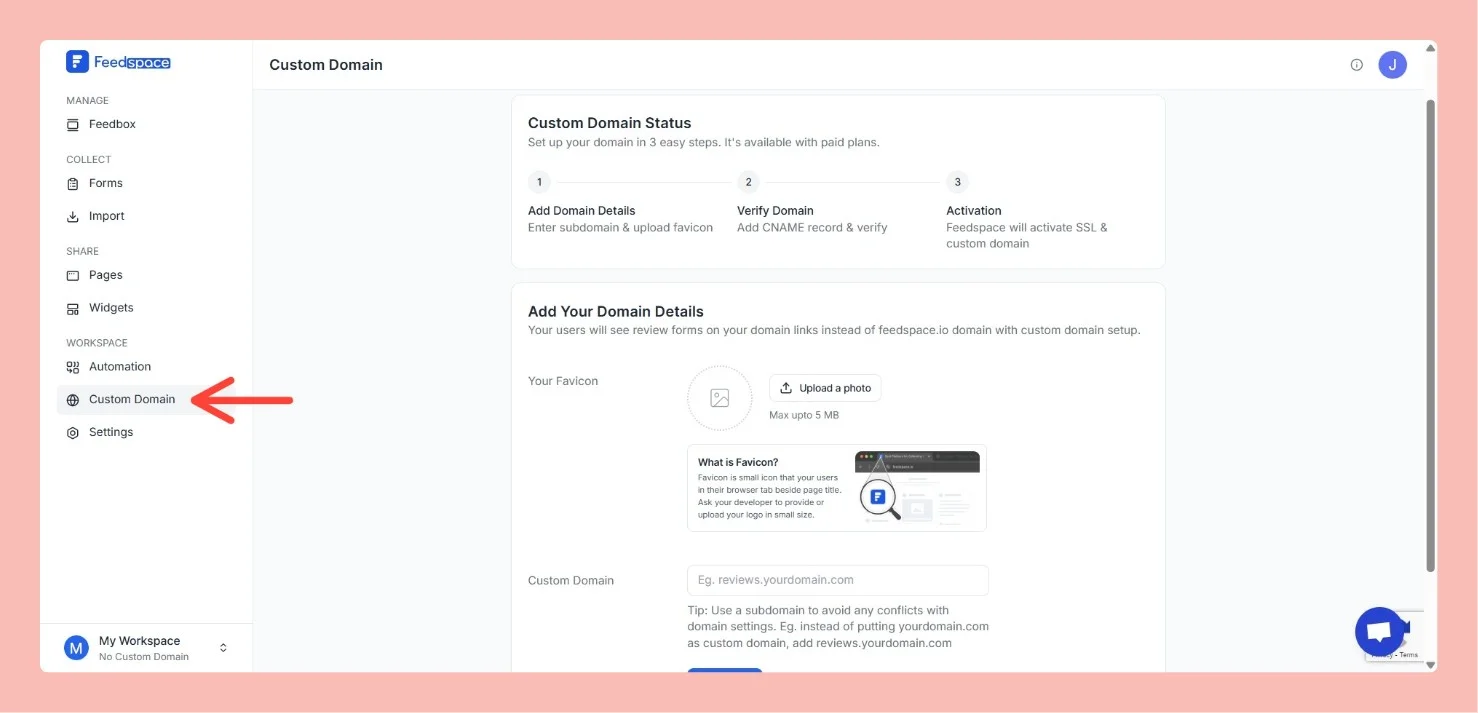
Step 1 – Go to Custom Domain Settings

Log in to Feedspace and navigate to Settings → Custom Domain from the left-hand sidebar.

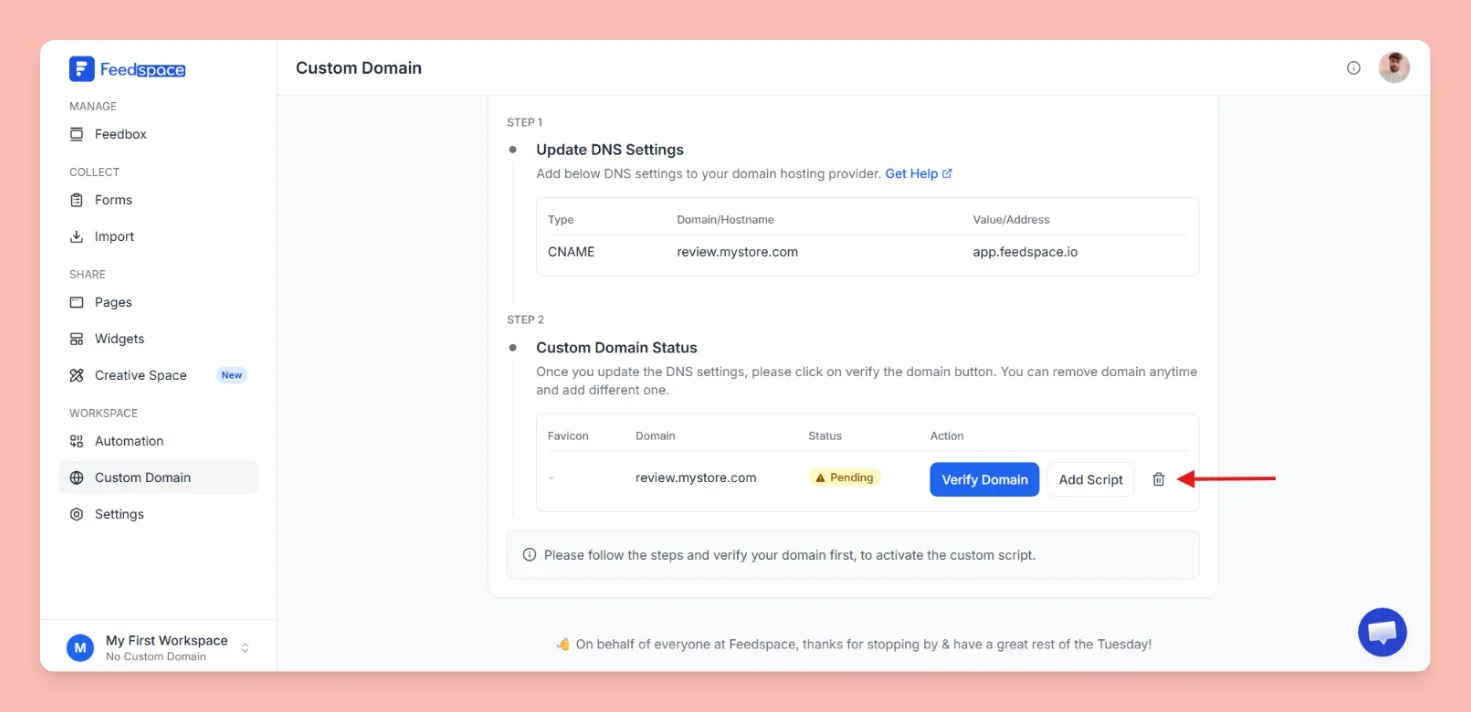
Step 2 – Click the Delete Icon

In the domain status table, click the trash icon next to your domain.

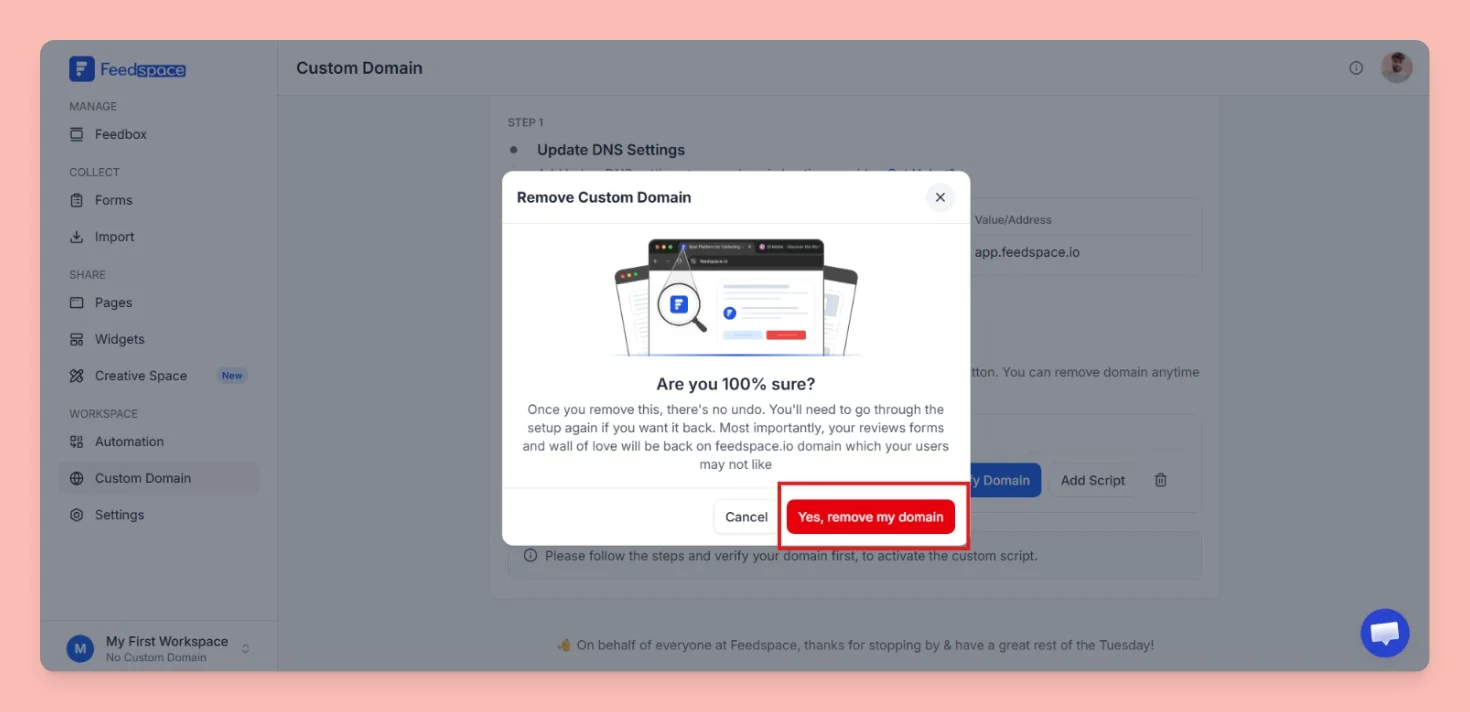
Step 3 – Confirm Removal

A confirmation popup will appear saying “Are you 100% sure?”. Read the warning carefully — once removed, your review forms and Wall of Love will go back to the feedspace.io domain. Click “Yes, remove my domain” to confirm, or “Cancel” to go back.

Step 4 – Domain Removed

Your custom domain is now removed. All your review forms, Wall of Love, and widgets will automatically go back to the feedspace.io domain.

You might also find helpful

How to Add a CNAME Record in Cloudflare

Overview With custom domain setup, you can display your review forms on your own branded domain instead of the default Feedspace link. This allows you to create a more professional and consistent user experience for your visitors. In this section, you’ll add a custom domain or subdomain (e.g., reviews.yourdomain.com). Using a subdomain...

How to Add a CNAME Record in Namecheap

Overview With custom domain setup, you can display your review forms on your own branded domain instead of the default Feedspace link. This allows you to create a more professional and consistent user experience for your visitors. In this section, you’ll add a custom domain or subdomain (e.g., reviews.yourdomain.com). Using a subdomain...

How to Add a CNAME Record in SiteGround

Overview With custom domain setup, you can display your review forms on your own branded domain instead of the default Feedspace link. This allows you to create a more professional and consistent user experience for your visitors. In this section, you’ll add a custom domain or subdomain (e.g., reviews.yourdomain.com). Using...