
Feedspace Home Dashboard

How to Import Comments from Figma Plugin into Feedspace

Last updated on May 25, 2026

Overview

Feedspace lets you import comments from Figma Plugin directly into your Feedbox. Figma plugin comments from the Figma Community are genuine feedback from designers and developers who use your plugin daily. Figma Plugin uses a secure, request-based import process — once you submit your request, the Feedspace team will manually retrieve your comments and notify you when they are ready in your account.

Step 1 – Log In to Feedspace

  1. Go to Feedspace and log in to your account.
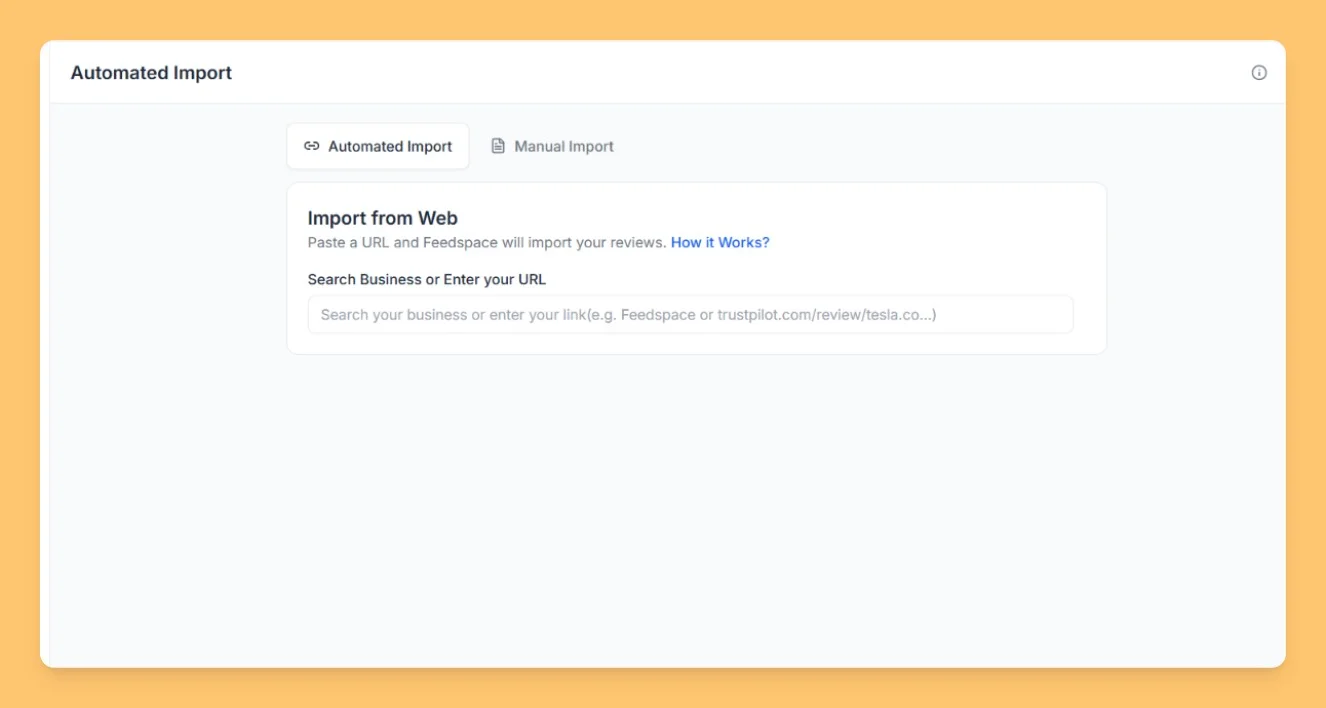
  2. Click on Import in the left sidebar to open the import panel.

Step 2 – Enter Your Figma Plugin URL

  1. Navigate to your plugin page in the Figma Community. The URL should follow the format figma.com/community/plugin/your-plugin-id/your-plugin-name.
  2. Copy the URL from your browser’s address bar.
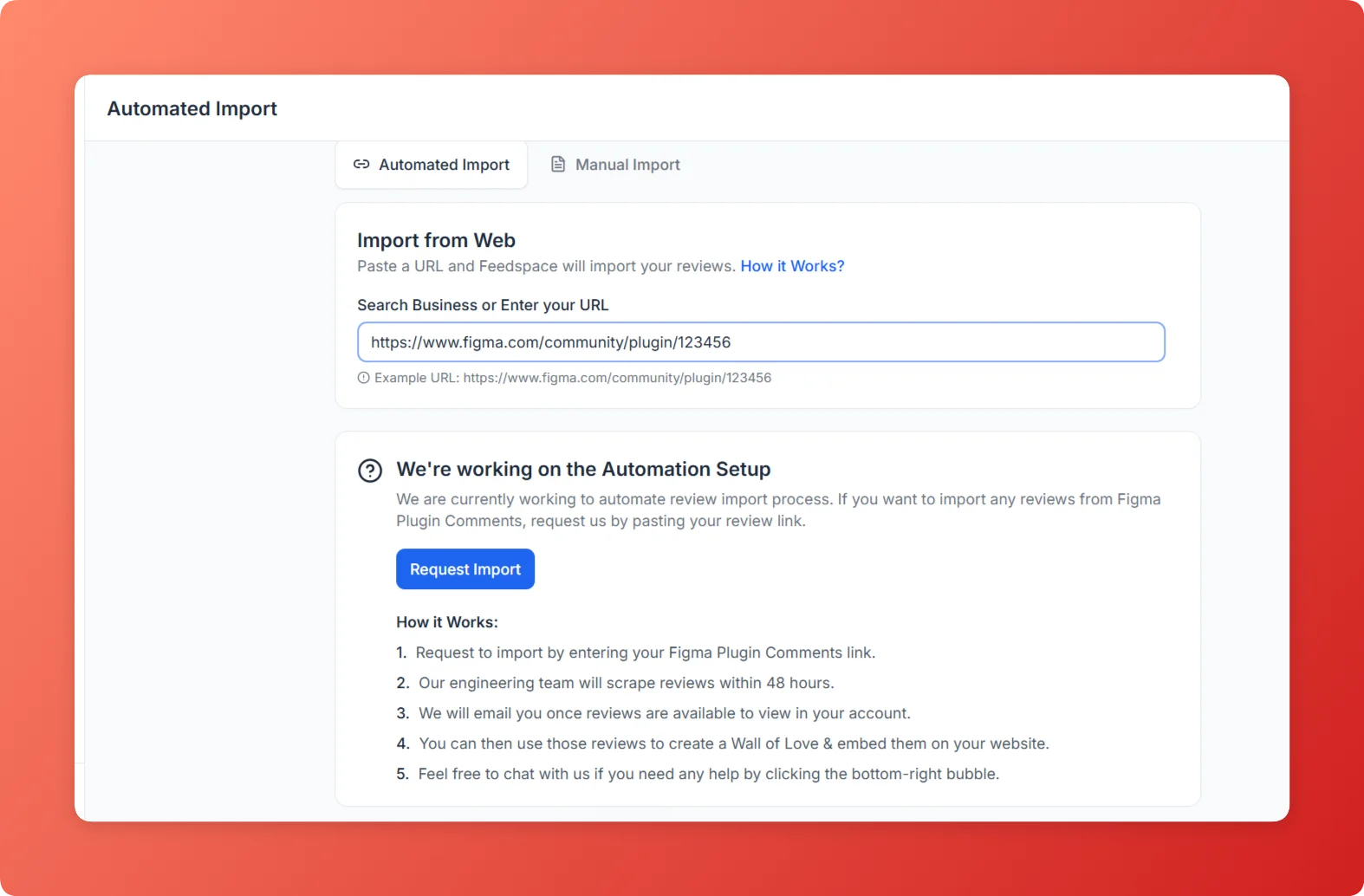
  3. Paste the copied URL into the URL input field and press Enter.
Enter Figma Plugin URL in Feedspace import URL input field

Step 3 – Select Import Comments

  1. In the import options panel, select Import Comments.
  2. Feedspace will display the available import settings for your Figma Plugin URL.

Step 4 – Click Request Import

  1. Click the Request Import button to submit your request.
  2. A confirmation popup will appear with the details of your import request.

Step 5 – View Your Imported Comments

  1. Once the Feedspace team processes your request, your comments from Figma Plugin will appear in your Feedbox.
  2. You can now use them in widgets, pages, or any other Feedspace feature to showcase them to your audience.

Why Import Comments from Figma Plugin?

  1. Showcase Designer Feedback: Display authentic Figma community comments to build credibility with designers and design teams.
  2. Highlight Plugin Value: Real user comments from Figma demonstrate your plugin’s impact in a way that ratings alone cannot.
  3. Centralize Developer Reviews: Combine your Figma, Chrome Extension, and other software reviews in one Feedspace Feedbox.

That’s it! Your Figma Plugin comments are now inside Feedspace and ready to use as testimonials, in widgets, or on your pages.

You might also find helpful

How to Import Reviews from Atlassian Marketplace into Feedspace

Overview Feedspace enables businesses to showcase customer feedback by importing reviews from Atlassian Marketplace. Atlassian Marketplace is the official marketplace for Atlassian products (Jira, Confluence, Trello) featuring apps with verified user reviews. By integrating Atlassian Marketplace reviews into your Feedspace dashboard, you can display authentic customer experiences on your website,...

How to Import Reviews from Zendesk Marketplace into Feedspace

Overview Feedspace enables businesses to showcase customer feedback by importing reviews from Zendesk Marketplace. Zendesk Marketplace is the official marketplace for Zendesk customer service platform featuring apps and integrations with reviews. By integrating Zendesk Marketplace reviews into your Feedspace dashboard, you can display authentic customer experiences on your website, build...

How to Import Reviews from Google Workspace into Feedspace

Overview Feedspace enables businesses to showcase customer feedback by importing reviews from Google Workspace. Google Workspace is Google’s suite of productivity tools with a marketplace of thousands of add-ons and integrations rated by real users. By integrating Google Workspace reviews into your Feedspace dashboard, you can display authentic customer experiences...