
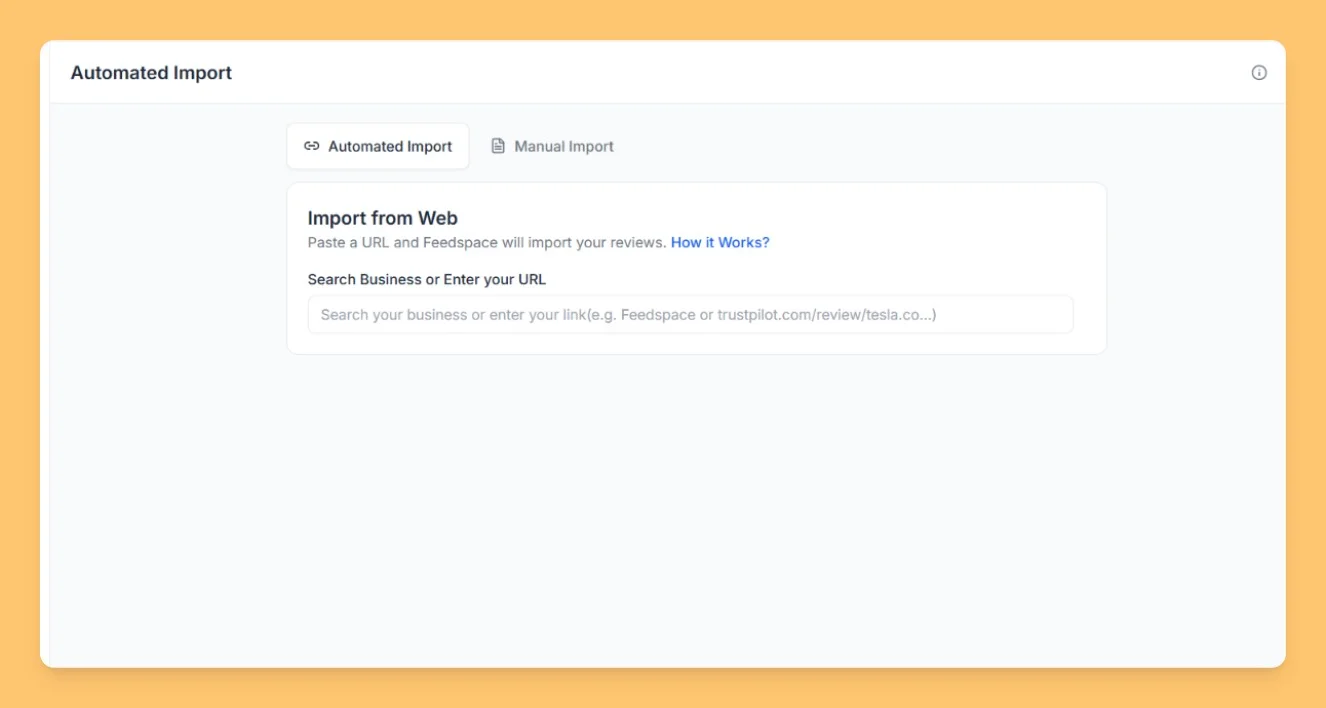
Feedspace Home Dashboard

How to Import Reviews from Cars.com into Feedspace

Last updated on June 22, 2026

Overview

If you collect dealership or automotive service reviews through Cars.com, you can easily import them into Feedspace to display on your Feedbox, Wall of Love, or website widgets.

Feedspace automates the process: paste your review link, fetch the reviews, pick the ones you want, and import them into your dashboard in a few clicks.

Step 1: Open Import in Feedspace

  1. Log in to your Feedspace account.
  2. From the left sidebar, click Import.

Step 2: Paste your Cars.com review link

  1. Go to your Cars.com dealer or business review page.
    • Example: https://www.cars.com/dealers/106780/auto-showcase-of-carol-stream/#Reviews
  2. Copy the URL and paste it into the URL input field. Feedspace detects Cars.com from the link automatically.
  3. Click Fetch Reviews.
Import Reviews in Feedspace

Step 3: Select the reviews you want

  1. Feedspace shows the fetched reviews with each reviewer’s name, date, rating, and text.
  2. Select the reviews you want to import, or use Select All to choose them all.

Step 4: Import your reviews

  1. Click Import Review in the footer to save the selected reviews.
  2. The imported reviews appear in your Feedspace dashboard right away.

What’s next

After the reviews are imported:

  • View them in your Feedbox.
  • Use them to create a Wall of Love or embed on your website using Feedspace Widgets.

You might also find helpful

How to Import Reviews from CarGurus into Feedspace

Overview You can import customer and dealership reviews directly from CarGurus into Feedspace to showcase on your website, create a Wall of Love, or share as social proof.Feedspace automates the process: paste your CarGurus review link, fetch the reviews, and select the ones you want to import. Step 1: Open...

How to Import Reviews from Booking.com into Feedspace

Overview Booking.com is a widely used platform for hotels, accommodations, and travel experiences. Customer reviews on Booking.com provide valuable insights and credibility for businesses. By importing these reviews into Feedspace, you can showcase authentic feedback directly on your website. Displaying Booking.com reviews on your site can help potential customers make...

How to Import Reviews from Better Business Bureau into Feedspace

Overview Feedspace allows you to collect and display verified customer reviews from multiple platforms, including the Better Business Bureau (BBB).If your business is listed on BBB, you can request to import your customer reviews directly into your Feedspace account: perfect for showcasing credibility on your Wall of Love or widgets....