You can import all your ProvenExpert reviews directly into Feedspace in just a few clicks. This allows you to showcase your existing ProvenExpert testimonials on your Feedspace Wall of Love, widgets, or website — keeping all your social proof in one place.
Choose the workspace where you want to import the ProvenExpert reviews.
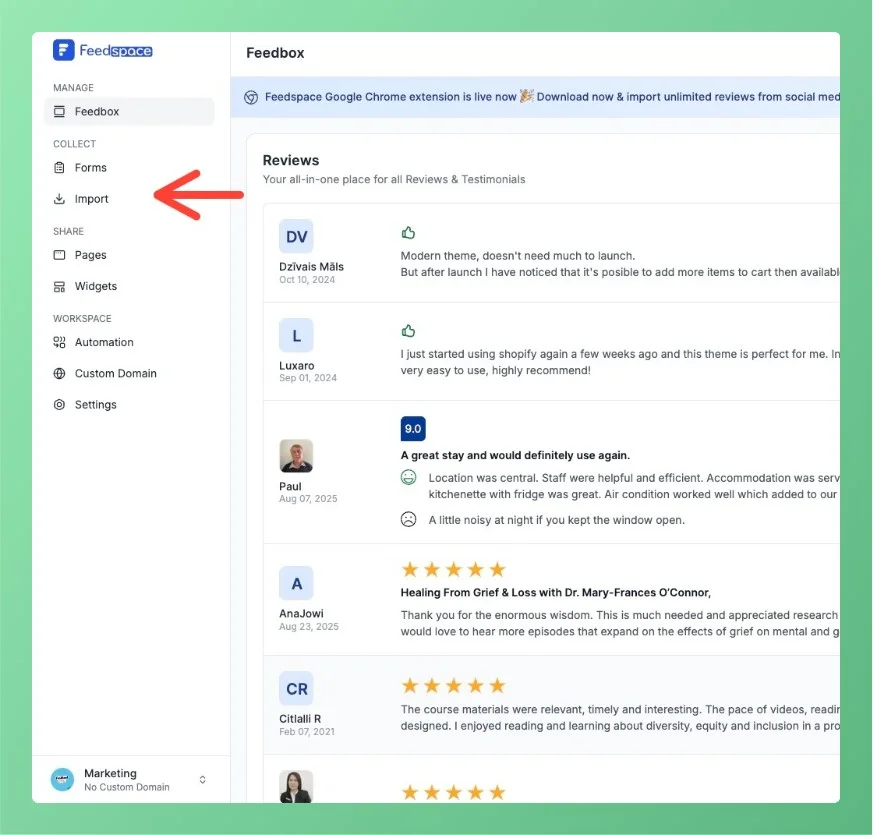
Step 3 – Navigate to the Import Page
Next, Click on Import in the left sidebar to start the review import process.
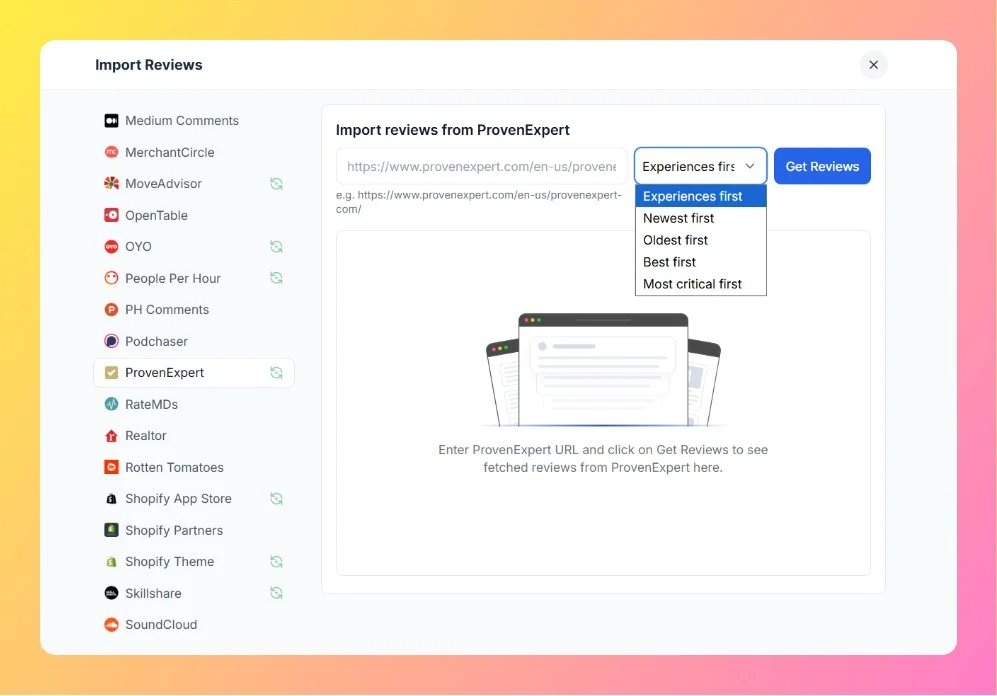
Step 4 – Select ProvenExpert
From the list of platforms, click on ProvenExpert.
A ProvenExpert import screen will appear on the right side.
Step 5 – Enter Your ProvenExpert URL
Copy your ProvenExpert profile URL (e.g., https://www.provenexpert.com/en-us/your-company-name/)
Paste it into the URL field labeled Enter ProvenExpert URL.
Step 6 – Choose the Sorting Option
Use the dropdown next to the URL field to choose how reviews should be fetched:
Experiences first – Default option; shows customer experience reviews.
Newest first – Fetches the latest reviews.
Oldest first – Imports reviews starting from the earliest ones.
Best first – Prioritizes top-rated reviews.
Most critical first – Displays constructive or lower-rated reviews first.
Step 7 – Fetch Reviews
After entering the URL and selecting the order, click the Get Reviews button.
Feedspace will automatically fetch all reviews from your ProvenExpert account.
You’ll see a preview of the imported reviews before saving them.
Displaying ProvenExpert Reviews on Your Website
Once imported, you can easily showcase your ProvenExpert reviews using Wall of Love. This feature allows you to display reviews in a stylish and customizable manner on your website. Whether you want to change the layout, design, or colors, Feedspace gives you full control to match your website’s aesthetic.
Need Help? Book a Demo!
If you need further assistance, feel free to book a demo with our expert. We’re here to guide you through the process and help you get the most out of Feedspace.
You might also find helpful
How to Import Reviews from G2
Overview The Feedspace Chrome Extension allows you to import G2 software reviews directly into your Feedspace workspace. This is a great way for SaaS companies and software vendors to showcase authentic customer reviews from G2 on websites, landing pages, or testimonial walls. Step 1 – Open the G2 Review Go...
How to Import Reviews from Capterra into Feedspace
Overview Capterra reviews provide evaluations of software tools, including aspects like usability, support, and value. Importing these reviews into Feedspace allows you to organize and display them on your website or Wall of Love. Here’s a quick guide on how to import Capterra reviews into Feedspace: Steps to Import Reviews...
How to Import Reviews from Trustpilot into Feedspace
Overview Trustpilot is a widely recognized platform where customers share their experiences with businesses. Displaying Trustpilot reviews on your website through Feedspace helps you show authentic feedback and build trust with potential customers. Feedspace allows you to import reviews from Trustpilot efficiently and organize them in a way that fits...