
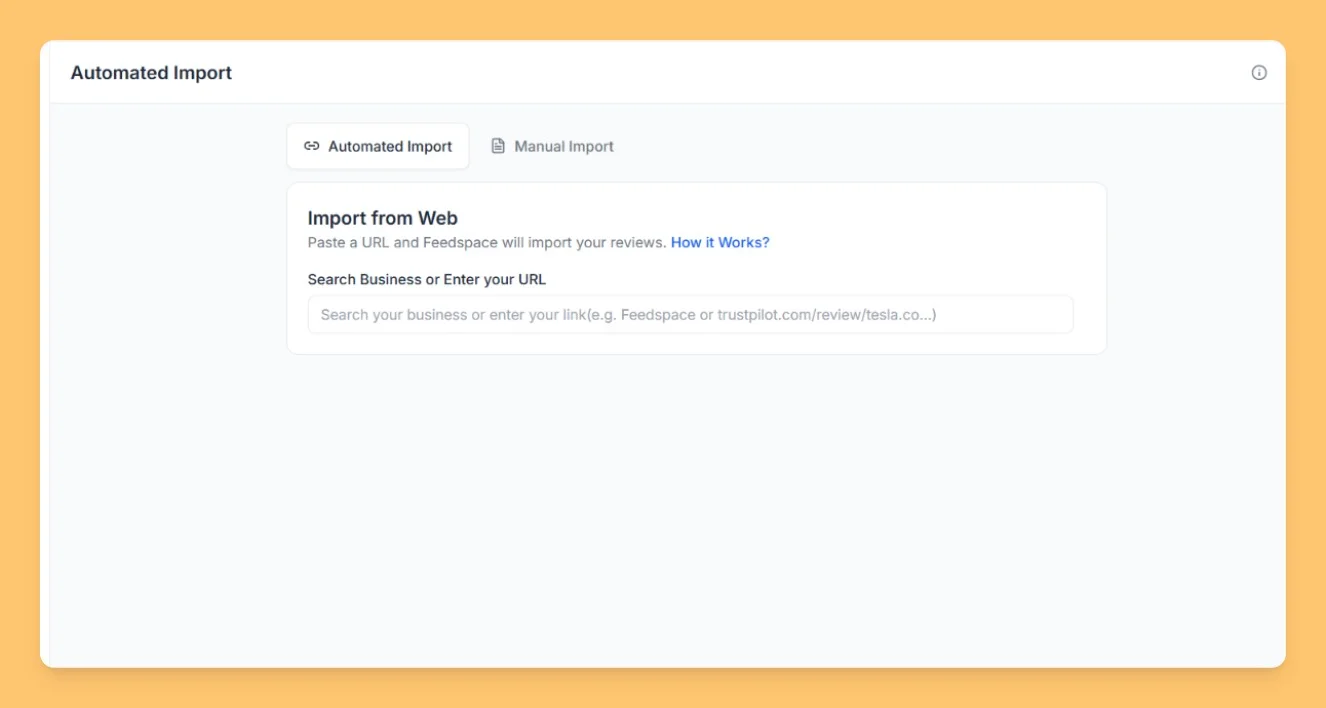
Feedspace Home Dashboard

How to Import Reviews from Swiggy into Feedspace

Last updated on June 22, 2026

Overview

Feedspace enables restaurant owners and delivery partners to showcase customer feedback by importing reviews from Swiggy. By integrating Swiggy reviews into your Feedspace dashboard, you can display authentic food delivery experiences on your website, build credibility, and attract more customers.

Step 1: Open import in Feedspace

  1. Log in to your Feedspace account.
  2. Click Import in the left sidebar.

Step 2: Enter your Swiggy review link

  1. Visit your Swiggy restaurant or store page.
  2. Copy the full page URL.
  3. Paste the URL into the input field. Feedspace detects the platform automatically.
  4. Click Fetch Reviews.
Import Reviews in Feedspace

Step 3: Select and import reviews

  1. Feedspace shows the reviews fetched from your Swiggy page.
  2. Select the reviews you want to import.
  3. Click Import Review in the footer to save them to your dashboard.

Step 4: Manage and publish reviews

After reviews are imported successfully:

  • Check and organize them in your Feedspace dashboard.
  • Select which reviews you want to feature publicly.
  • Use them to create a Wall of Love or embed them on your restaurant’s website to highlight customer satisfaction.

Step 5: Support assistance

If you need help or have any questions about the process, click the chat bubble in the bottom-right corner of your Feedspace dashboard for support.

You might also find helpful

How to Import Reviews from Zomato into Feedspace

Overview Zomato is a well-known platform for discovering restaurants and reading customer reviews. Importing Zomato reviews into Feedspace allows you to display authentic customer feedback directly on your website. By doing so, you can showcase guest experiences, highlight popular menu items, or provide social proof for your restaurant or business....

How to Import Reviews from GreatSchools into Feedspace

Overview Feedspace allows you to import school reviews from GreatSchools, a trusted platform for parent and community ratings on educational institutions. This integration helps schools, education consultants, or community organizations display authentic feedback directly on their websites or Walls of Love to build credibility and trust. Step 1: Open import...

How to Import Reviews from Hotels.com into Feedspace

Overview Feedspace makes it easy to import customer reviews directly from Hotels.com using the Feedspace Chrome Extension. This helps you collect authentic guest feedback and showcase it beautifully on your website or Wall of Love to build trust with future customers. Step 1: Install Chrome Extension Click on the Get...