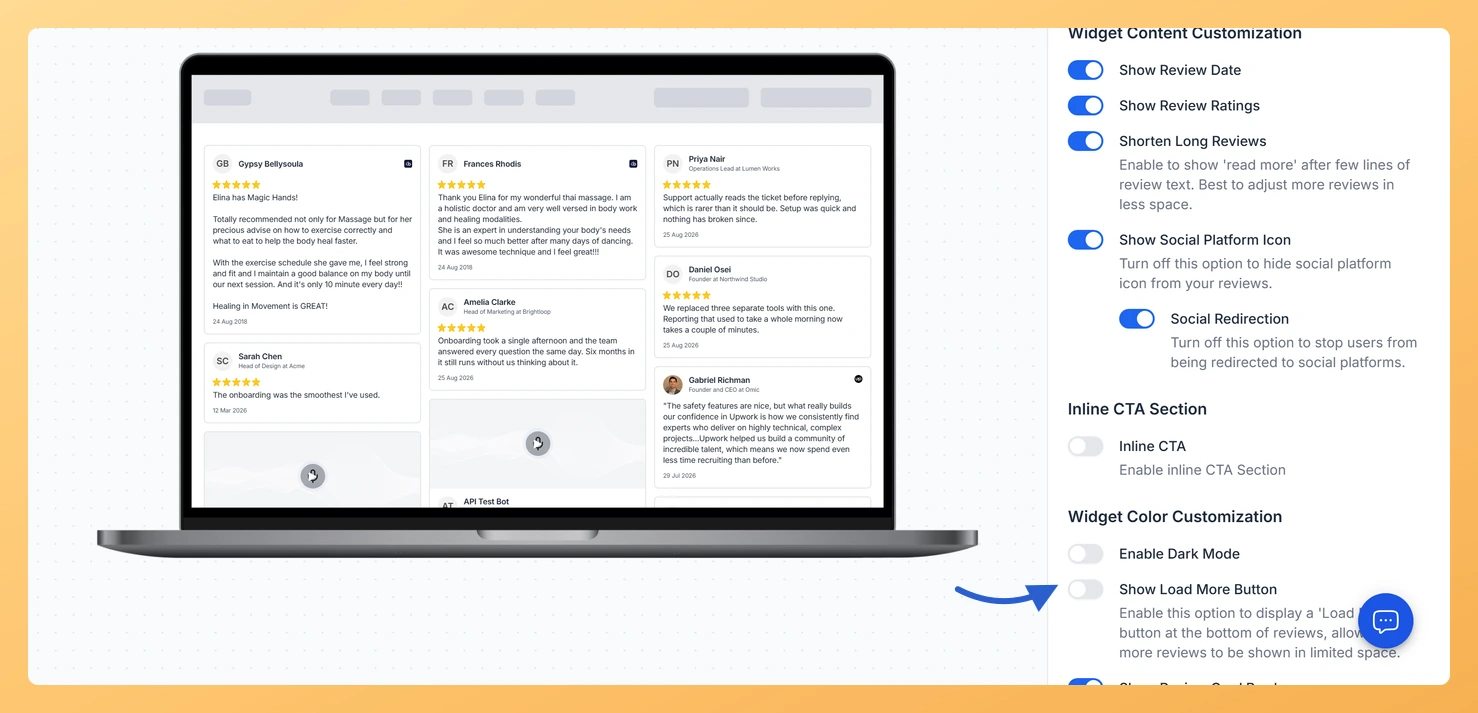
The Masonry widget displays your testimonials in a Pinterest-style staggered grid, arranging cards across multiple columns at varying heights to fit as many reviews as possible into a compact, visually engaging layout. Because the Masonry grid loads a fixed set of cards on the initial view, visitors may not realise there are more testimonials available below the visible area.
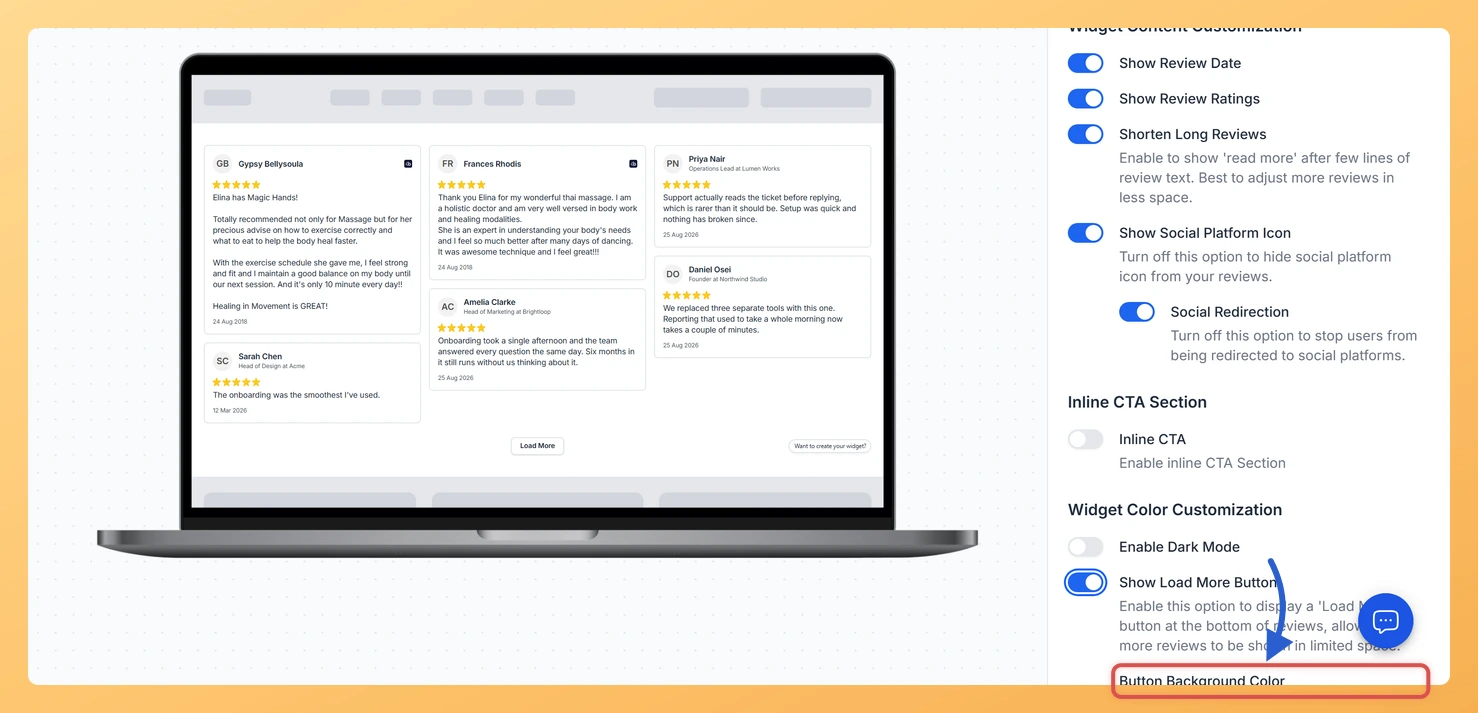
The Show Load More Button toggle, found in the Widget Color Customization section, solves this by placing a clearly visible button beneath the grid. When a visitor clicks it, additional testimonial cards load directly into the existing Masonry layout, extending the staggered columns without navigating away from the page. This keeps visitors engaged with your social proof longer and avoids the abrupt cut-off that occurs when reviews simply stop mid-grid.
Once you enable the toggle, three color pickers appear so you can style the button to match your brand: Button Background Color, Button Border Color, and Button Text Color.
How to add a load more button to your Masonry widget
Step 1: Open the Widgets section
Log in to your Feedspace account. In the left-hand navigation, click Widgets to open the list of all widgets you have created.
Step 2: Edit your Masonry widget
Pick the Masonry widget you want to change and click the pencil Edit icon on its card to open the editor. If you have not built a Masonry widget yet, create one first and come back to this step.
Step 3: Go to the Design tab
Inside the widget editor, click the Design tab at the top of the page. This tab contains all visual and color customization options for your Masonry widget, including the Widget Color Customization section.
Step 4: Find the Widget Color Customization section
Scroll down the Design tab until you reach the Widget Color Customization section. This section contains color settings specific to the Masonry widget layout, including the Show Load More Button toggle.
Step 5: Enable the Show Load More Button toggle
Click the Show Load More Button toggle to turn it on. Once enabled, three color pickers will appear directly below the toggle:
Button Background Color: sets the fill color of the button.
Button Border Color: sets the color of the button’s outline.
Button Text Color: sets the color of the label text on the button.
Step 6: Customize the button colors
Click each color picker to choose a color that matches your website’s branding. You can enter a hex code directly or use the color selector. Adjust all three values until the button looks consistent with your page design.
Step 7: Save your changes
Once you are satisfied with the button colors, click Save & Next to apply your changes. The Load More button will now appear beneath your embedded Masonry widget, allowing visitors to load additional testimonial cards into the staggered grid.
What’s next
Change the card background color on your Masonry widget to further align the grid’s appearance with your brand colors.
Adjust the number of columns displayed in your Masonry widget so the grid fills the available space on your page before the Load More button appears.
Preview the Masonry widget on your live page to confirm the Load More button renders correctly at your chosen button and text colors.
Explore other widget design options on the Design tab, such as card border radius and font settings, to create a fully cohesive testimonial display.
Common questions
Why did three color pickers appear when I turned the button on?
Turning on Show Load More Button reveals Button Background Color, Button Border Color and Button Text Color underneath it, so the button can be styled to match the rest of your page rather than arriving in a default blue.
You might also find helpful
How Do I Change the Card Background Color on My Masonry Widget in Feedspace?
Overview The Masonry widget displays your reviews in a Pinterest-style staggered grid, arranging cards across multiple columns at varying heights so visitors can take in many reviews at once. Because each card floats independently in that open grid layout, the card background color is one of the most visible design...
How to Create a Masonry Widget in Feedspace
Overview The Masonry widget in Feedspace arranges your reviews in an elegant grid layout of varying card sizes, similar to Pinterest-style walls. It’s perfect for showcasing multiple reviews together while maintaining a modern, responsive design that automatically adjusts across devices. How to Access Step 1 – Log in to Feedspace...
How Do I Customize the Design of My Widget in Feedspace?
Overview Feedspace widgets come with a powerful Design tab that lets you tailor every visual aspect of your widget. From card colors and fonts to dark mode and call-to-action buttons, you can fully customize the look to match your website’s brand without writing any code. How to Customize the Widget...