The Vertical Scroll widget displays your review cards in a continuously scrolling, looping feed that moves vertically without user interaction. Because every card passes through the viewer’s focus one at a time, the feed is a natural place to insert a call-to-action at precisely the moment a visitor is already engaged with social proof.
The Inline CTA option in the Design tab lets you inject a styled CTA card directly into that scrolling stream. You control the heading, body text, button label, button URL, button colour, card background colour, and card border. For the Vertical Scroll widget you also choose the CTA position: either at a random interval or after every fixed number of review cards. The result is a non-disruptive prompt to act, embedded inside the review flow rather than placed above or below it.
How to add an inline CTA to your Vertical Scroll widget
Step 1: Open the Widgets section
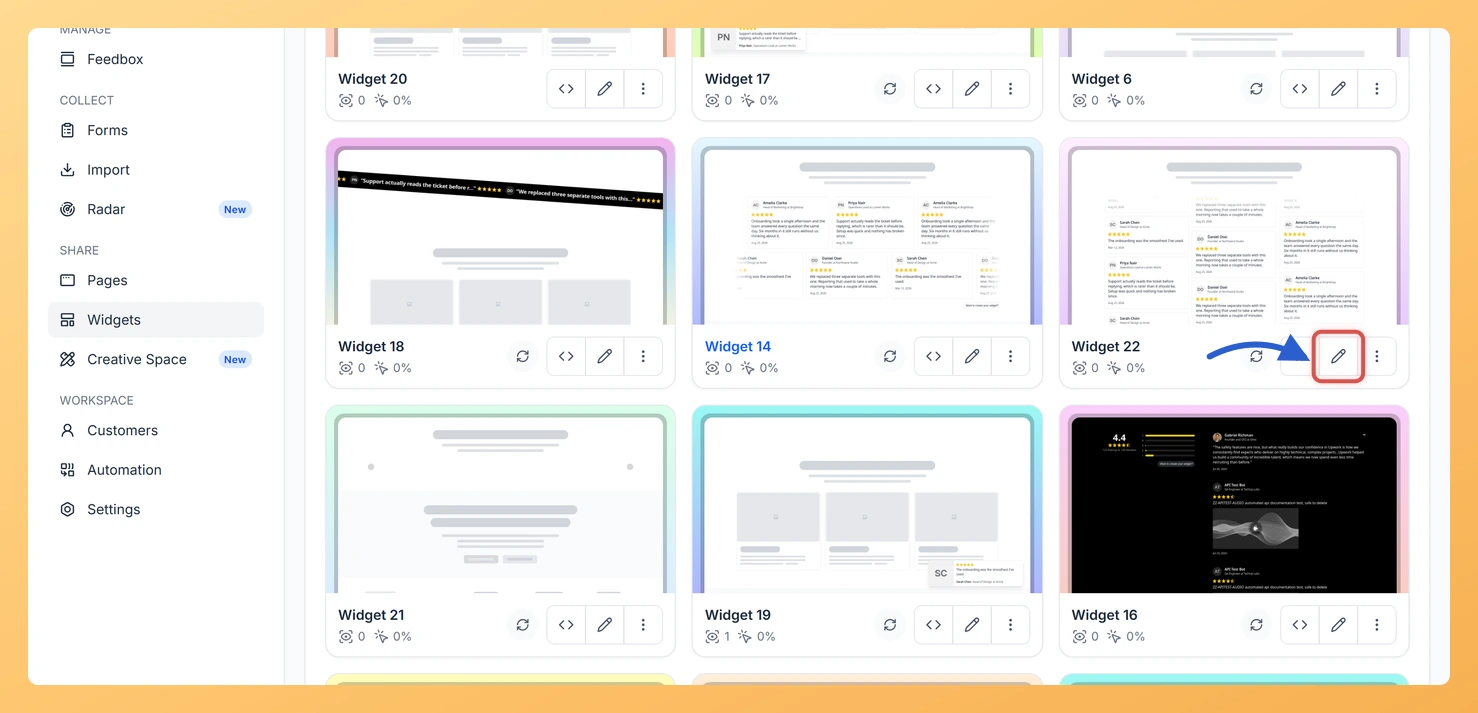
Log in to Feedspace and navigate to the Widgets section from the left sidebar. You will see a list of all widgets you have created.
Step 2: Open your Vertical Scroll widget
Locate the Vertical Scroll widget you want to update and click the Edit (pencil) icon on the widget card to open its settings panel.
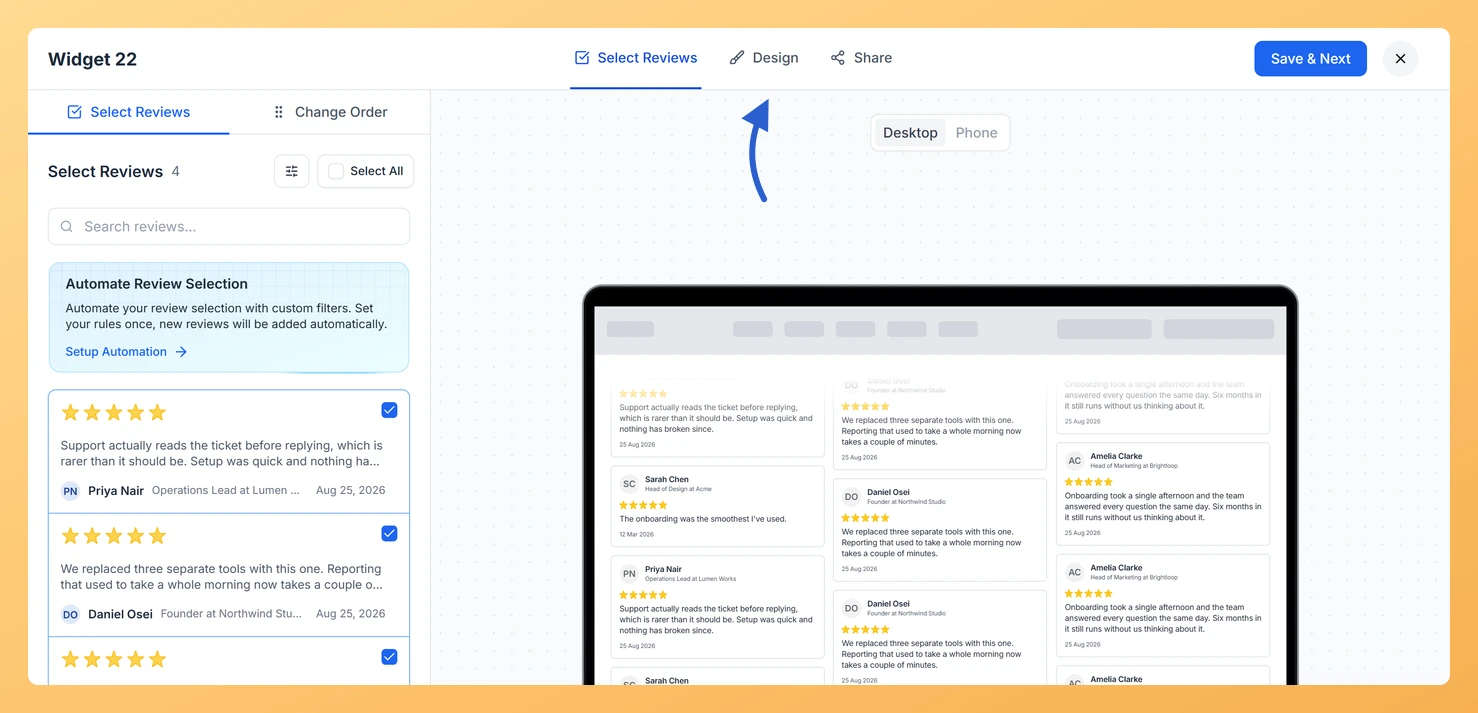
Step 3: Go to the Design tab
Inside the widget editor, click the Design tab at the top of the settings panel. This tab contains all visual customisation options for the widget, including the Inline CTA section.
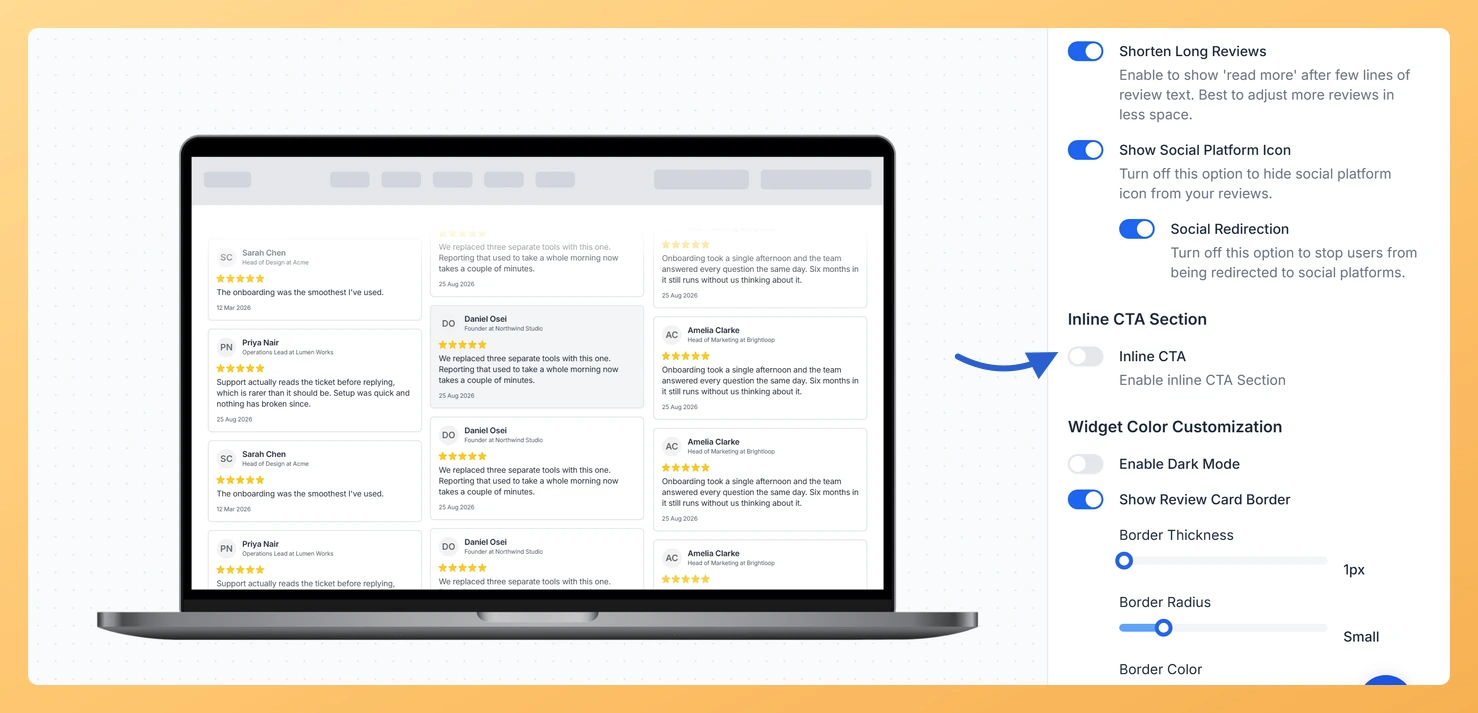
Step 4: Turn on Inline CTA
Scroll down within the Design tab until you find the Inline CTA section. Click the toggle to enable it. The CTA configuration fields will expand below the toggle once it is turned on.
Step 5: Fill in the CTA card fields
Fill in each field to define what your CTA card will display and how it will look inside the scrolling feed:
CTA Heading Text: A short, attention-grabbing headline for the card (for example, “Ready to get started?”).
CTA Body Text: One or two supporting sentences that give context or reinforce the offer.
CTA Button Label: The text shown on the button (for example, “Start Free Trial”).
CTA Button URL: The full URL the button should open when clicked.
CTA Button Color: The background colour of the button. Use a hex value or the colour picker.
CTA Card Background: The background colour of the entire CTA card as it appears in the feed.
CTA Card Border: The border colour or style applied around the card to help it stand out from review cards.
Step 6: Set CTA Position
Because this is a Vertical Scroll widget, you can also choose where in the feed the CTA card appears. Under CTA Position, choose one of the two options:
Random Order: the CTA card appears at a random point in the looping review stream, so its position varies each time the widget cycles.
Select Interval: set a number between 4 and 15 to place the CTA card after that many review cards, giving you predictable, evenly spaced placement down the feed.
Step 7: Save and preview
Once all fields are filled in and the position is set, click Save & Next. Open the live preview of your widget to confirm the CTA card appears inside the scrolling feed at the expected position and with the correct styling.
What’s next
Adjust the CTA position frequency to test whether placing it after every 3 reviews or every 7 reviews drives more clicks in your Vertical Scroll feed.
Customise the card background and border colours so the CTA card matches your brand while still standing out from the review cards around it.
Update the CTA Button URL to point to a specific landing page, sign-up form, or product page to track conversions from the widget directly.
Explore other design options in the Design tab, such as card layout and typography settings, to further refine the overall appearance of your Vertical Scroll widget.
Common questions
How often can the CTA card appear?
With Select Interval you can place it after as few as 4 review cards and as many as 15. Pick a larger number if your feed is short, so the same CTA does not come round twice in quick succession.
You might also find helpful
How Do I Customize the Design of My Widget in Feedspace?
Overview Feedspace widgets come with a powerful Design tab that lets you tailor every visual aspect of your widget. From card colors and fonts to dark mode and call-to-action buttons, you can fully customize the look to match your website’s brand without writing any code. How to Customize the Widget...
How to Create a Vertical Scroll Widget in Feedspace
Overview The Vertical Scroll widget in Feedspace displays reviews in a continuous upward-scrolling format. It’s ideal for pages with limited horizontal space, such as sidebars, landing pages, or testimonials sections. You can enable cross-scrolling animations, customize borders, and adjust colors to match your brand. How to Access Step 1 –...
How Do I Customize the Design of My Widget in Feedspace?
Overview Feedspace widgets come with a powerful Design tab that lets you tailor every visual aspect of your widget. From card colors and fonts to dark mode and call-to-action buttons, you can fully customize the look to match your website’s brand without writing any code. How to Customize the Widget...