The Horizontal Scroll widget moves rows of review cards sideways across your page like a news ticker. A widget set in a different typeface from the rest of your page is the quickest way for visitors to spot that the reviews came from somewhere else.
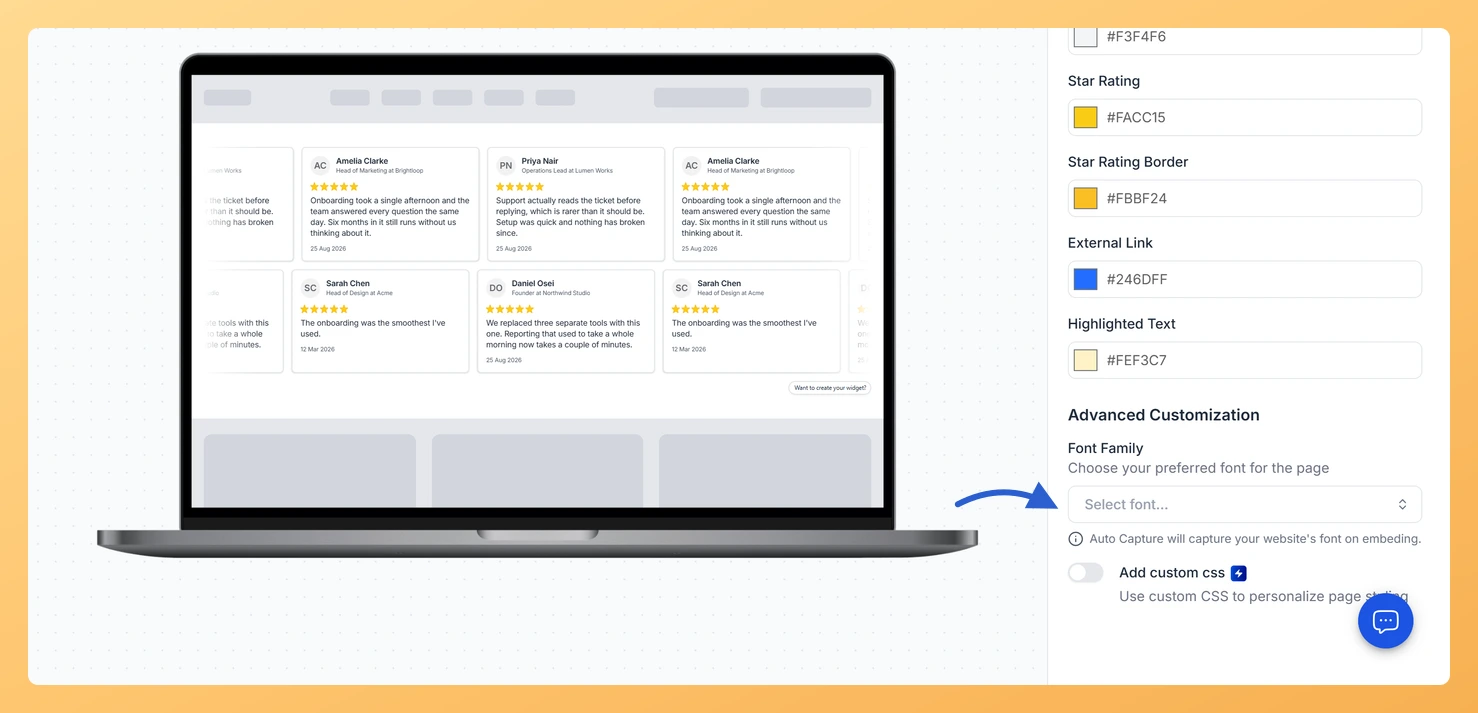
Font Family in the Advanced Customization section lets you pick the typeface for the widget. The field is searchable, so you can type a name instead of scrolling the list, and its note reads “Auto Capture will capture your website’s font on embeding.”
How to change the font on your Horizontal Scroll widget
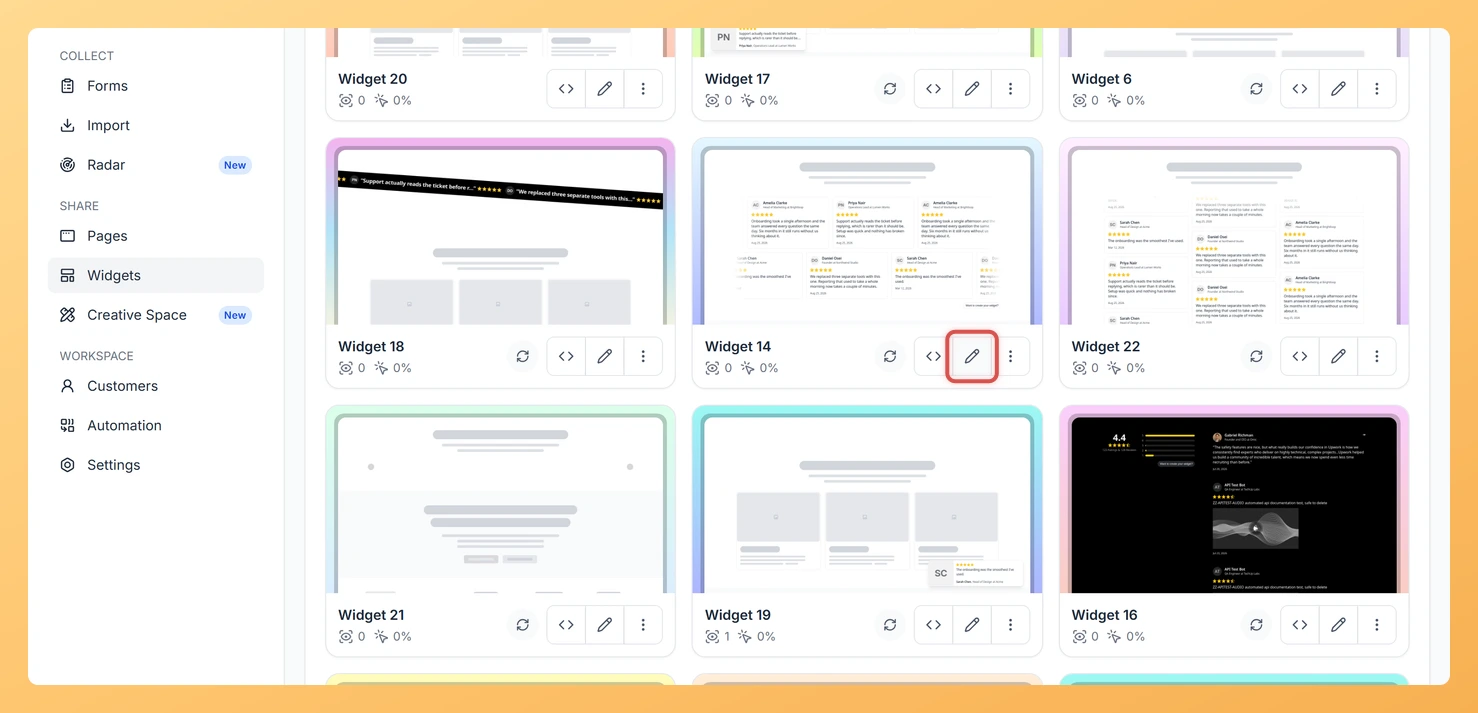
Step 1: Head to Widgets
Once you are signed in to Feedspace, click Widgets in the sidebar.
Step 2: Start editing
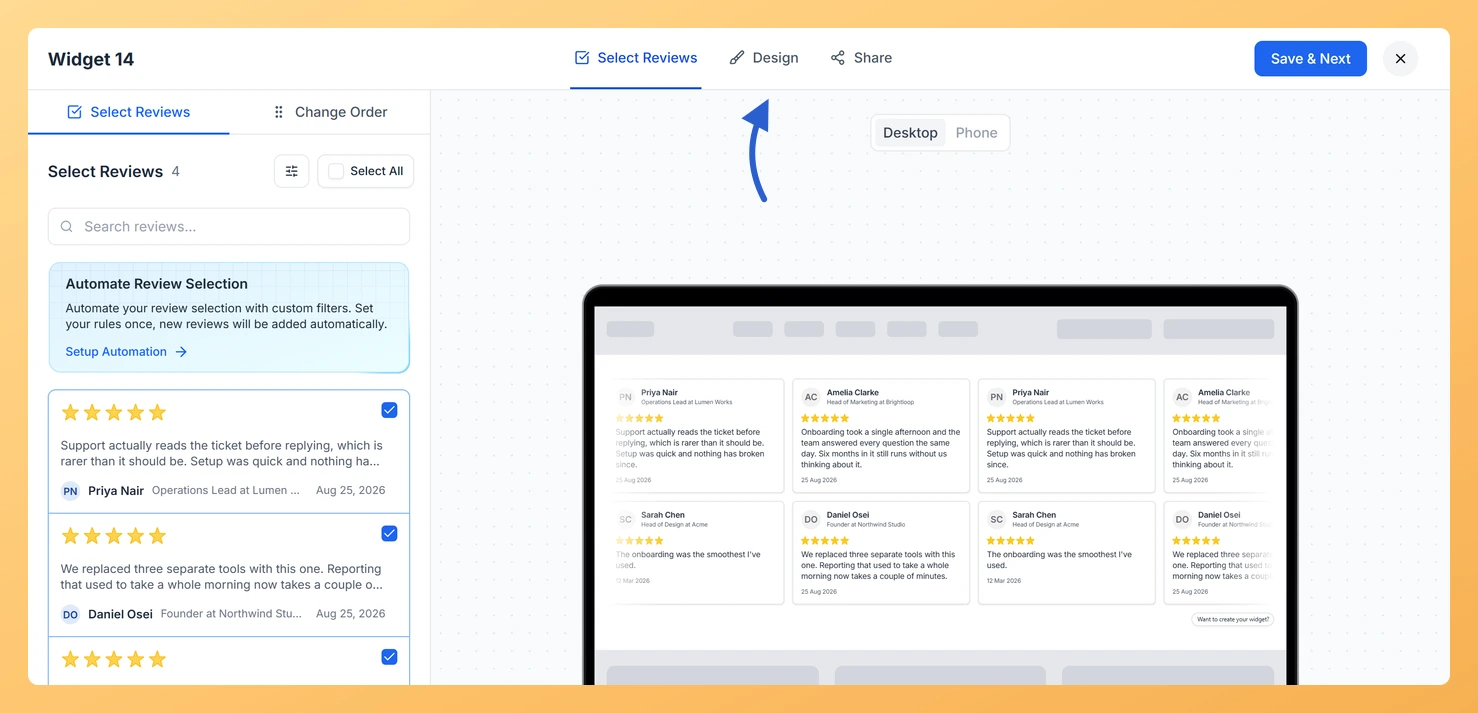
Click the Edit (pencil) icon on your Horizontal Scroll widget. The editor opens on Select Reviews.
Step 3: Go to the Design tab
Click the Design tab to see the styling settings.
Step 4: Scroll to Advanced Customization
Advanced Customization is the last section in the settings panel on the right.
Step 5: Pick a font in Font Family
Click the Font Family field, which shows a “Select font” placeholder until you choose one, and pick the typeface you want. The preview redraws in that font.
Step 6: Save the widget
Click Save & Next. There is no need to paste the embed code again, because the embedded widget updates automatically.
It does not have to, but it usually should. If you leave it alone, the note under the field says the embed captures your website’s font instead.
You might also find helpful
How Do I Change the Text Color on My Horizontal Scroll Widget in Feedspace?
Overview The Horizontal Scroll widget moves rows of review cards sideways across your page like a news ticker. Matching the text on those cards to your site keeps the reviews easy to read and makes the widget look like part of the page. Two fields in the Custom Colors group...
How to Create a Horizontal Scroll Widget in Feedspace
Overview The Horizontal Scroll widget in Feedspace showcases your reviews in a smooth side-by-side scrolling motion. It is perfect for sections where you want continuous movement and visual engagement, such as website headers, testimonial rows, or landing pages. How to Access Step 1 – Log in to Feedspace Go to...
How Do I Customize the Design of My Widget in Feedspace?
Overview Feedspace widgets come with a powerful Design tab that lets you tailor every visual aspect of your widget. From card colors and fonts to dark mode and call-to-action buttons, you can fully customize the look to match your website’s brand without writing any code. How to Customize the Widget...