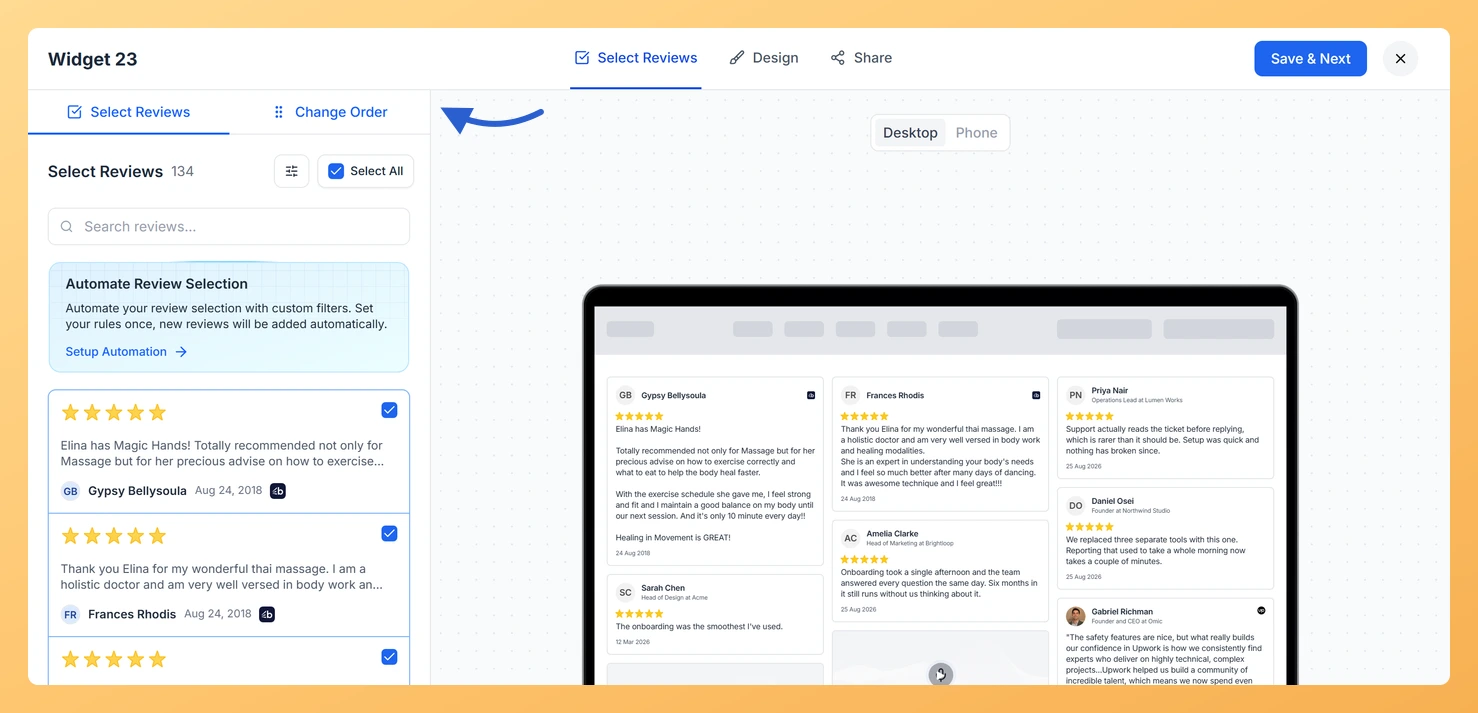
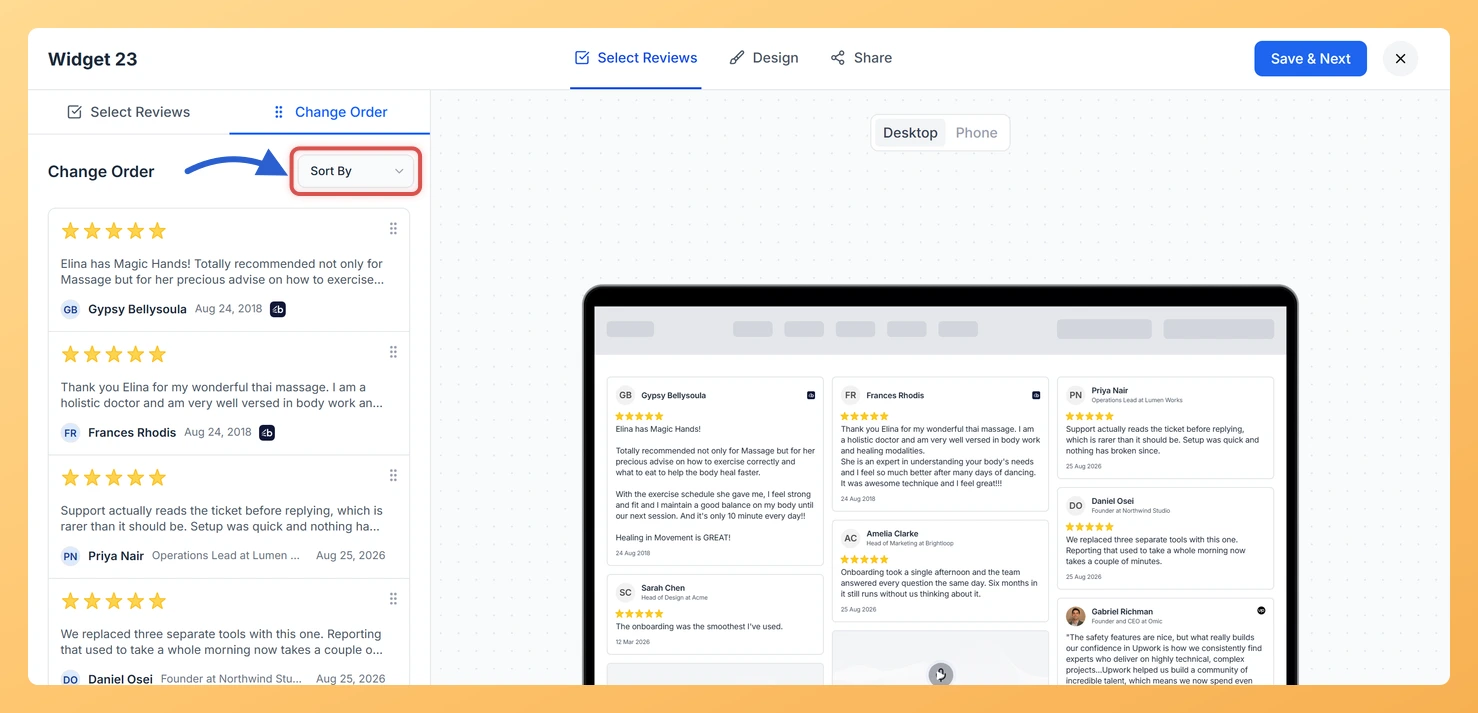
The Masonry widget on Feedspace displays your reviews in a Pinterest-style staggered grid, filling columns top to bottom with cards of varying heights. Because visitors scan each column independently, the position of a review determines which column it lands in and how early it appears in that column. Controlling review order lets you spread your strongest testimonials across different columns so every part of the grid opens with compelling social proof, rather than clustering all your best reviews in a single column.
Feedspace gives you two ways to set that order inside the widget editor: the Change Order sub-tab for manual drag-and-drop sequencing, and the Sort By dropdown for quick chronological sorting. Both options are described step by step below.
How to change the order of reviews for your Masonry widget
Step 1: Open your Masonry widget in the editor
Log in to your Feedspace account and navigate to the Widgets section from the left sidebar. Find your Masonry widget in the list and click the Edit (pencil) icon on its card, which opens the editor on Select Reviews.
Step 2: Go to the Select Reviews tab
Inside the widget editor, click the Reviews tab at the top of the settings panel. This tab contains all controls for choosing and ordering the reviews that appear in your Masonry grid.
Step 3: Select the Change Order sub-tab
Within the Reviews tab you will see two sub-tabs: Select Reviews and Change Order. Click Change Order to switch to the manual ordering view. You will see a list of all reviews currently selected for this widget, each displayed as a draggable card.
Step 4: Drag and drop reviews into your preferred sequence
Click and hold the drag handle on any review card, then drag it up or down to a new position in the list. Release to drop it in place. Repeat this for as many reviews as you want to reposition. Remember that in a Masonry layout, reviews fill columns top to bottom, so spreading your top testimonials across different positions ensures a strong review appears near the top of each column rather than all stacking in the first column.
Step 5: Use Sort By to apply a chronological order (optional)
If you prefer a date-based order instead of a manual sequence, use the Sort By dropdown at the top of the Change Order sub-tab. Select Newest First to show the most recent reviews at the top, or Oldest First to show the earliest reviews first. Applying a Sort By option will reorder all cards in the list automatically.
Step 6: Save your changes
Once you are happy with the sequence, click Save & Next to apply the new order. Your Masonry widget will immediately reflect the updated review sequence wherever it is embedded.
What’s next
Add or remove reviews from your Masonry widget using the Select Reviews sub-tab to ensure the right testimonials are available for ordering.
Adjust the number of columns in your Masonry widget layout so you can plan how many top reviews to spread across the grid.
Customise the appearance of your Masonry widget, including card style, font, and colours, to match your brand after finalising review order.
Copy the embed code for your Masonry widget and place it on your website or landing page so visitors see your reordered reviews right away.
Common questions
Where is the save button on Change Order?
There is not one, and nothing is lost because of it. Dragging a review into a new position and changing Sort By both save on their own the moment you do them.
You might also find helpful
How Do I Select Reviews for My Masonry Widget in Feedspace?
Overview The Masonry widget in Feedspace displays your reviews in a Pinterest-style staggered grid, arranging cards in columns of varying heights so many reviews are visible at once. Because the Masonry layout is designed to fill the screen with social proof, the reviews you select directly shape how impressive and...
How to Create a Masonry Widget in Feedspace
Overview The Masonry widget in Feedspace arranges your reviews in an elegant grid layout of varying card sizes, similar to Pinterest-style walls. It’s perfect for showcasing multiple reviews together while maintaining a modern, responsive design that automatically adjusts across devices. How to Access Step 1 – Log in to Feedspace...
What is a Widget in Feedspace?
Overview In Feedspace, a widget is a customizable display tool that allows you to showcase your collected reviews, testimonials, or feedback directly on your website. With widgets, you can turn customer voices into social proof, helping you build trust and credibility with visitors. Instead of just collecting reviews, widgets let...