The Masonry widget displays your reviews in a Pinterest-style staggered grid, arranging cards across multiple columns of varying heights so visitors can scan many testimonials at once. Because cards differ in height and density, the text inside each card must stand out clearly against whatever background color is set, regardless of column position or card length.
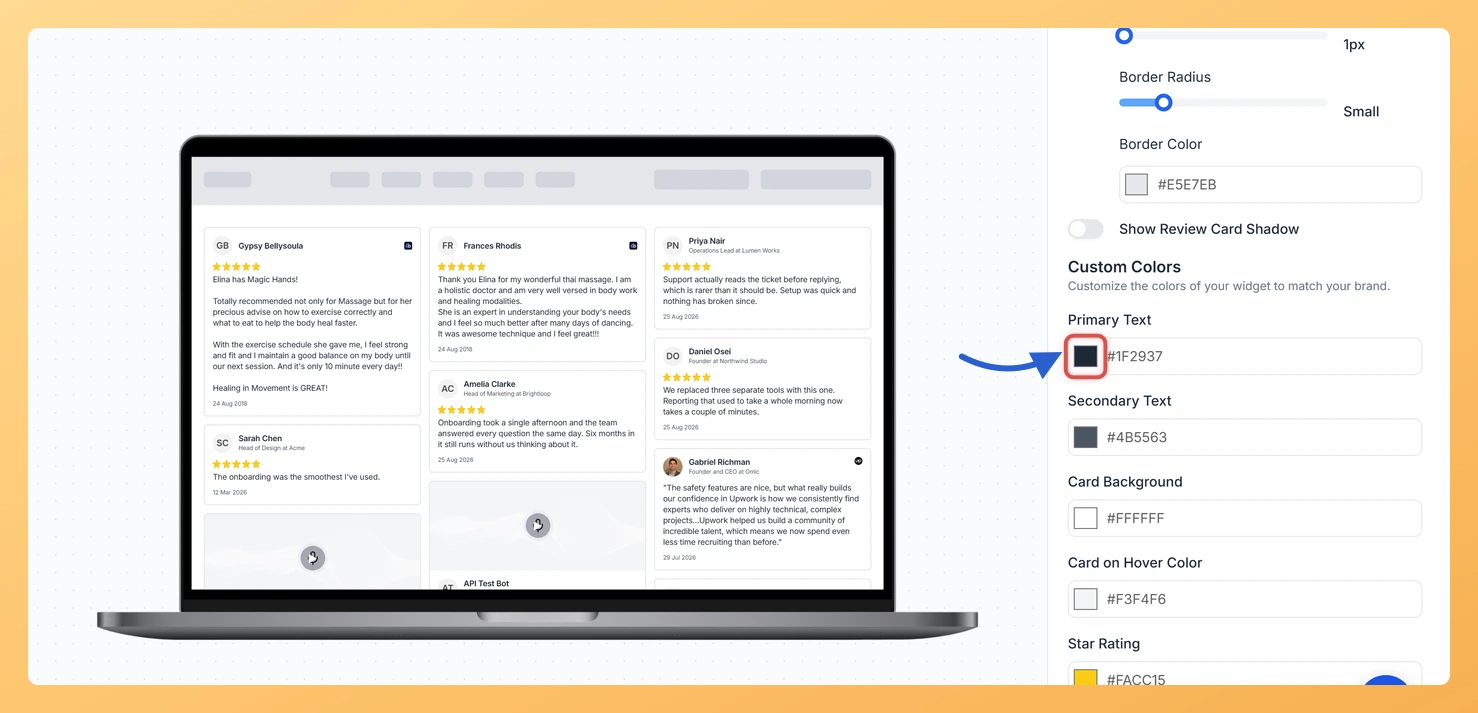
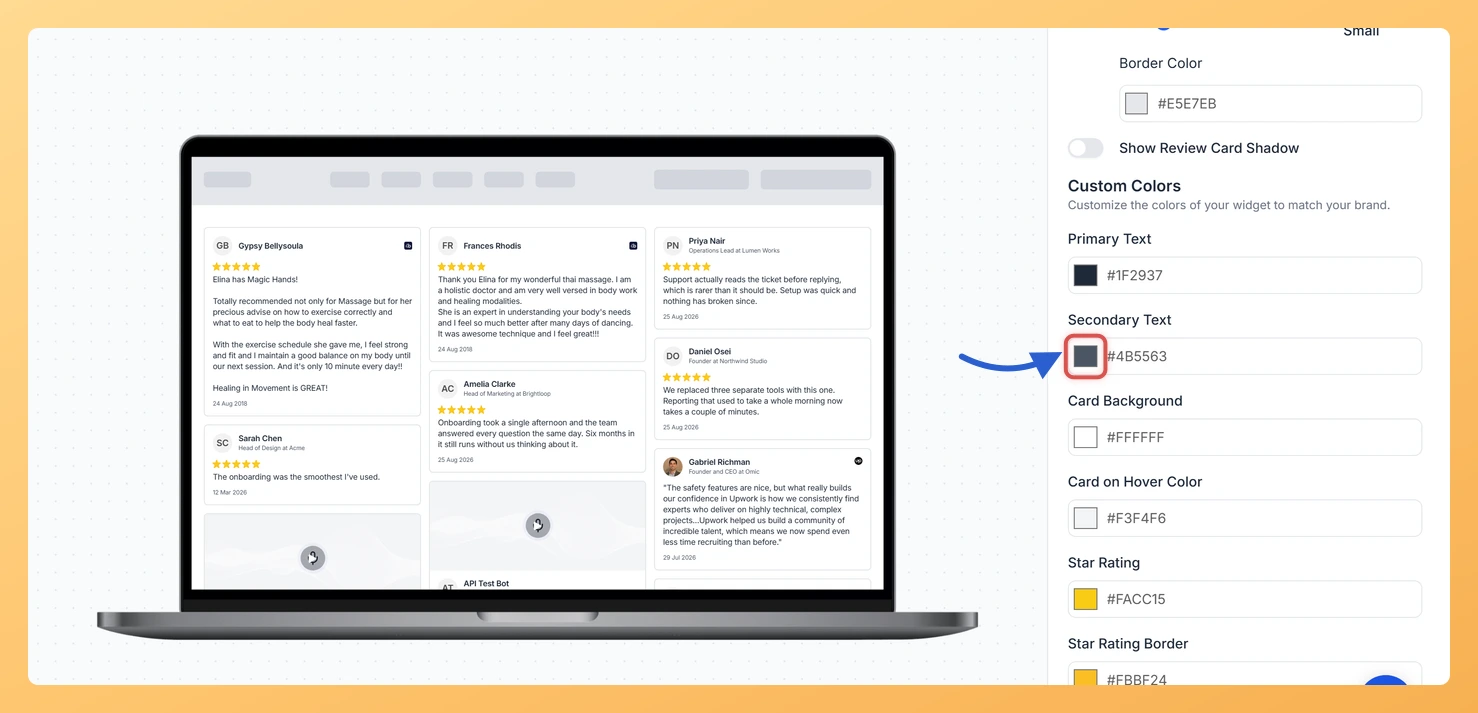
Widget Color Customization gives you two dedicated color pickers to control all text in the grid. The Primary Text Color applies to the review title and body text, which make up the main reading content of each card. The Secondary Text Color applies to the reviewer name, date, and any metadata shown beneath the review. Keeping these two colors visually distinct helps readers quickly separate the review content from the reviewer attribution as their eye moves across the staggered layout.
How to change the text color for your Masonry widget
Step 1: Open the Widgets section
Log in to your Feedspace account and navigate to the Widgets section from the left sidebar. You will see a list of all widgets you have created.
Step 2: Edit your Masonry widget
Track down the Masonry widget you want to recolor and click the Edit (pencil) icon on its card. The editor opens for that widget alone.
Step 3: Go to the Design tab
Inside the widget editor, click the Design tab at the top of the panel. This tab contains all visual customization options for your Masonry widget, including layout, colors, and typography settings.
Step 4: Find the Widget Color Customization section
Scroll down within the Design tab until you reach the Widget Color Customization section. This section contains the color pickers for controlling the appearance of text and other elements across all cards in the grid.
Step 5: Set the Primary Text color
Click the color picker next to Primary Text Color. Choose the color you want to apply to the review title and body text on every card in the Masonry grid. You can enter a hex code directly or use the color palette to select a shade. The live preview updates automatically so you can see how the color looks across the staggered columns.
Step 6: Set the Secondary Text color
Click the color picker next to Secondary Text Color. Choose the color you want to apply to the reviewer name, date, and metadata displayed at the bottom of each card. Using a slightly muted or contrasting shade compared to the Primary Text Color helps guide the reader’s attention from the review content to the attribution without visual confusion.
Step 7: Save your changes
Once you are satisfied with both color selections, click Save & Next to apply your changes. The updated text colors will take effect immediately on any page where the Masonry widget is embedded.
What’s next
Adjust the card background color to ensure your chosen text colors have sufficient contrast across every card in the Masonry grid.
Preview your Masonry widget on both light and dark page backgrounds to confirm that the Primary and Secondary Text Colors remain legible in all contexts.
Explore other design options in the Design tab, such as border radius and card spacing, to further refine the appearance of the staggered grid layout.
Copy the updated embed code from the widget editor and replace the existing snippet on your website so visitors see the refreshed text color styling immediately.
Common questions
Why can I not find the text color pickers?
They sit inside the custom colors block, which Enable Dark Mode hides while it is switched on. Turn Dark Mode off and the color pickers reappear.
You might also find helpful
How Do I Change the Card Background Color on My Masonry Widget in Feedspace?
Overview The Masonry widget displays your reviews in a Pinterest-style staggered grid, arranging cards across multiple columns at varying heights so visitors can take in many reviews at once. Because each card floats independently in that open grid layout, the card background color is one of the most visible design...
How to Create a Masonry Widget in Feedspace
Overview The Masonry widget in Feedspace arranges your reviews in an elegant grid layout of varying card sizes, similar to Pinterest-style walls. It’s perfect for showcasing multiple reviews together while maintaining a modern, responsive design that automatically adjusts across devices. How to Access Step 1 – Log in to Feedspace...
How Do I Customize the Design of My Widget in Feedspace?
Overview Feedspace widgets come with a powerful Design tab that lets you tailor every visual aspect of your widget. From card colors and fonts to dark mode and call-to-action buttons, you can fully customize the look to match your website’s brand without writing any code. How to Customize the Widget...