The Vertical Scroll widget displays your review cards in a continuously looping vertical feed, typically arranged in two or more columns that all scroll in the same upward direction. When you enable the Cross Scrolling Animation toggle, adjacent columns begin scrolling in alternating opposite directions at the same time. One column moves upward while the column next to it moves downward, creating a dynamic multi-directional effect that draws the visitor’s eye across the entire widget rather than following a single flow.
This design option is especially useful when you want your Vertical Scroll widget to feel more visually engaging without changing the number of reviews shown or the overall layout. Because the columns still loop continuously, every review remains visible and the motion never stops, giving your testimonial display a premium, animated feel that stands out on any page.
How to turn on alternate direction scrolling for your Vertical Scroll widget
Step 1: Open the Widgets section
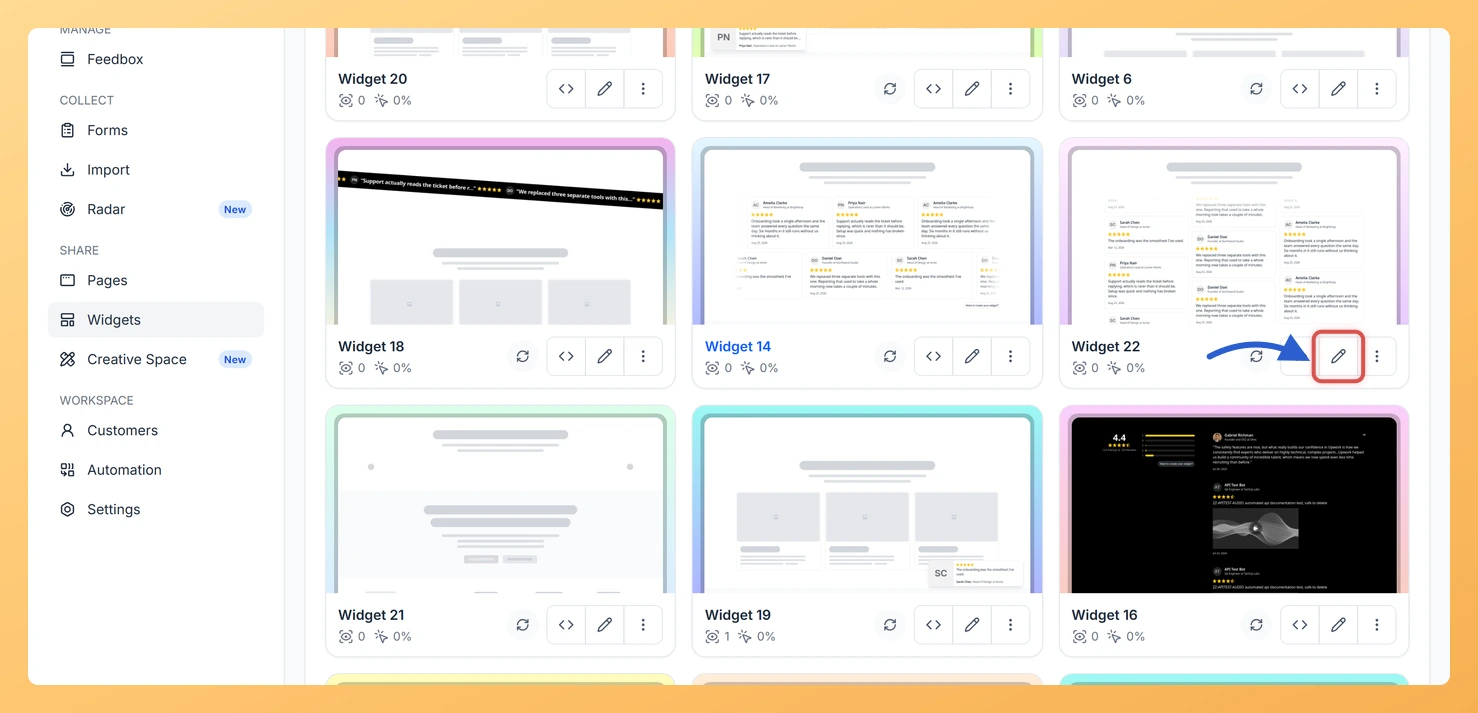
Log in to your Feedspace account and navigate to the Widgets section from the left sidebar. You will see a list of all the widgets you have created for your workspace.
Step 2: Open your Vertical Scroll widget
Locate the Vertical Scroll widget you want to update and click the Edit (pencil) icon on the widget card. The widget editor will open, showing the preview and settings panels.
Step 3: Go to the Design tab
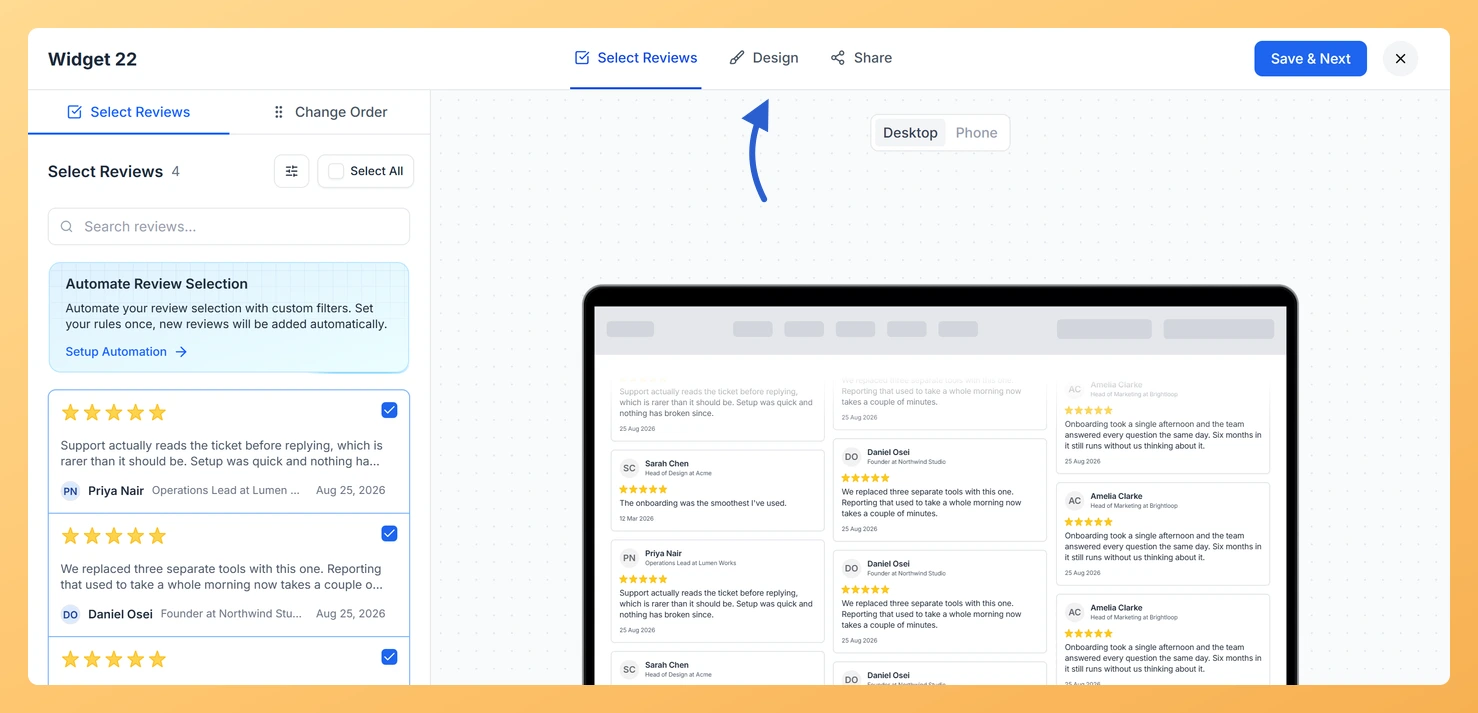
Inside the widget editor, click the Design tab at the top of the settings panel. This tab contains all visual and layout options for your widget, including colors, card styles, and animation settings.
Step 4: Find Layout Design
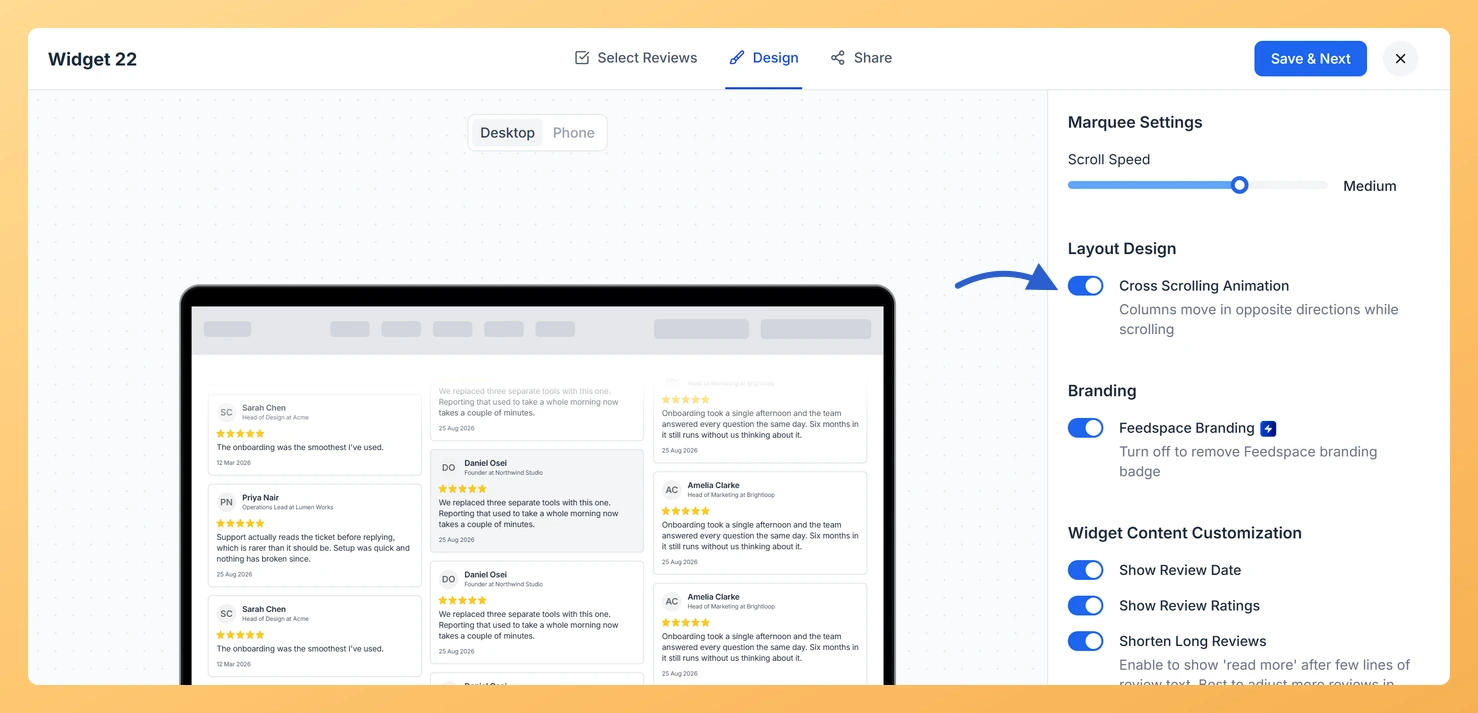
Scroll down within the Design tab until you reach the Layout Design section. This section groups the options that control how the scrolling animation behaves across the columns of your Vertical Scroll widget.
Step 5: Turn on Cross Scrolling Animation
Inside the Layout Design section, find the Cross Scrolling Animation toggle and switch it on. Once enabled, the columns in your Vertical Scroll widget will immediately begin scrolling in alternating opposite directions. Check the live preview to confirm the multi-directional effect is working as expected, then click Save & Next to apply the change.
What’s next
Adjust the scroll speed of your Vertical Scroll widget so the alternating columns move at a pace that matches your page design.
Change the number of columns in your Vertical Scroll widget to see how the cross scrolling animation looks with two, three, or more alternating tracks.
Customize the card colors, fonts, and spacing in the Design tab to ensure the animated multi-column layout matches your brand style.
Watch the preview for a full loop to confirm the alternating columns read well at your chosen scroll speed.
Common questions
Does this change how fast the columns move?
No. Speed is set separately by the Scroll Speed slider under Marquee Settings. Cross Scrolling Animation only changes the direction each column travels in.
You might also find helpful
How Do I Adjust the Scroll Speed on My Vertical Scroll Widget in Feedspace?
Overview The Vertical Scroll widget moves columns of review cards up and down your page. How fast those cards move decides how much a visitor actually reads: too quick and the words blur past, too slow and the section feels still. The Scroll Speed slider at the top of the...
How to Create a Vertical Scroll Widget in Feedspace
Overview The Vertical Scroll widget in Feedspace displays reviews in a continuous upward-scrolling format. It’s ideal for pages with limited horizontal space, such as sidebars, landing pages, or testimonials sections. You can enable cross-scrolling animations, customize borders, and adjust colors to match your brand. How to Access Step 1 –...
How Do I Customize the Design of My Widget in Feedspace?
Overview Feedspace widgets come with a powerful Design tab that lets you tailor every visual aspect of your widget. From card colors and fonts to dark mode and call-to-action buttons, you can fully customize the look to match your website’s brand without writing any code. How to Customize the Widget...