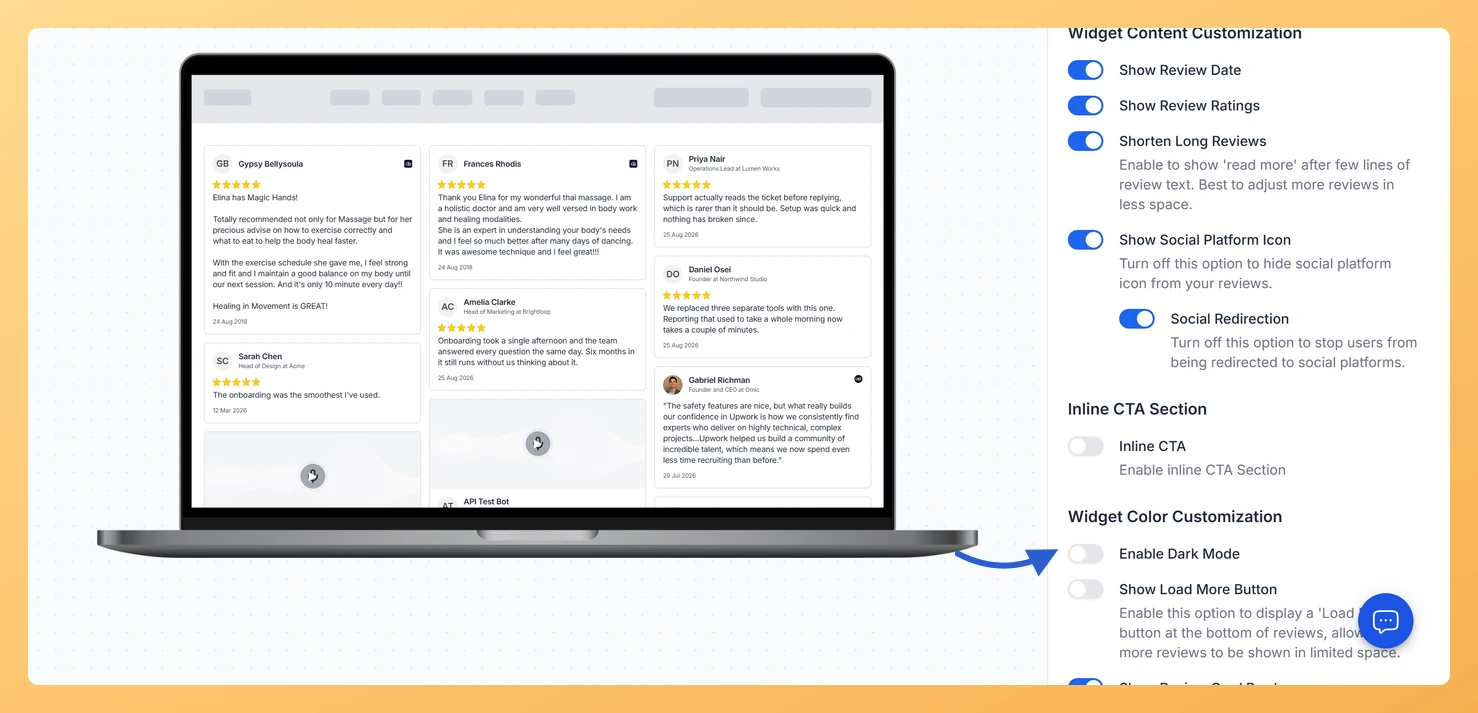
The Masonry widget displays your reviews in a Pinterest-style staggered grid, arranging cards across multiple columns of varying heights so visitors can scan a large collection of testimonials at a glance. Because this layout fills the screen with many cards simultaneously, the background tone of the widget has a strong visual impact on how those cards feel as a group.
The Dark Mode toggle, found in the Widget Color Customization section of the Design tab, switches the entire Masonry widget to a dark background theme. When enabled, Feedspace automatically adjusts card colors and text to suit the dark style, keeping every review readable without any manual color tweaking. This is especially useful when you embed the widget on a dark-themed website or landing page, where a light widget would stand out awkwardly against the surrounding design.
How to Enable Dark Mode for your Masonry widget
Step 1: Open the Widgets section
Log in to your Feedspace account and navigate to the Widgets section from the main sidebar. You will see a list of all the widgets you have created.
Step 2: Edit your Masonry widget
Find the Masonry widget you want to switch over and click the Edit (pencil) icon on its card to open its editor.
Step 3: Go to the Design tab
Inside the widget editor, click the Design tab at the top of the panel. This tab contains all visual customization options for your Masonry widget, including layout settings and color controls.
Step 4: Find the Widget Color Customization section
Scroll down within the Design tab until you reach the Widget Color Customization section. This section groups all color-related controls for the Masonry widget, including the Dark Mode option.
Step 5: Enable the Dark Mode toggle
Click the Dark Mode toggle to turn it on. The widget preview will immediately switch to a dark background theme, with card colors and text automatically adjusted to remain legible and visually consistent across the staggered Masonry grid.
Step 6: Save your changes
Once you are satisfied with how the dark theme looks in the preview, click Save & Next to apply the changes. The updated dark mode styling will now appear wherever you have embedded or shared this Masonry widget.
What’s next
Adjust the card background color to a custom dark shade that matches your brand by visiting the card color settings in the same Widget Color Customization section of your Masonry widget.
Copy the updated embed code for your Masonry widget and paste it into your dark-themed webpage so the widget blends with the surrounding layout.
Preview how the dark Masonry grid looks across different screen sizes using the responsive preview options in the widget editor before publishing.
Explore other design options in the Design tab, such as the card colors and card spacing, to further refine the staggered grid layout of your dark mode Masonry widget.
Common questions
What happens to the border and color settings I already chose?
They are set aside rather than thrown away. Dark Mode supplies its own card styling, so the border, shadow and custom color controls are hidden while it is on, and they come back exactly as you left them when you turn it off.
You might also find helpful
How Do I Change the Card Background Color on My Masonry Widget in Feedspace?
Overview The Masonry widget displays your reviews in a Pinterest-style staggered grid, arranging cards across multiple columns at varying heights so visitors can take in many reviews at once. Because each card floats independently in that open grid layout, the card background color is one of the most visible design...
How to Create a Masonry Widget in Feedspace
Overview The Masonry widget in Feedspace arranges your reviews in an elegant grid layout of varying card sizes, similar to Pinterest-style walls. It’s perfect for showcasing multiple reviews together while maintaining a modern, responsive design that automatically adjusts across devices. How to Access Step 1 – Log in to Feedspace...
How Do I Customize the Design of My Widget in Feedspace?
Overview Feedspace widgets come with a powerful Design tab that lets you tailor every visual aspect of your widget. From card colors and fonts to dark mode and call-to-action buttons, you can fully customize the look to match your website’s brand without writing any code. How to Customize the Widget...