Feedspace Home Dashboard

How Do I Preview My Avatar Card Carousel Widget on Desktop and Mobile in Feedspace?

Last updated on June 12, 2026

Overview

The Avatar Card Carousel widget in Feedspace presents testimonials as sliding cards, each pairing a reviewer’s avatar photo and name directly alongside their testimonial text. Because this layout depends so heavily on how the avatar and identity elements sit next to the review content, the appearance can shift noticeably between a wide desktop screen and a narrow mobile screen.

Before you embed the widget on your site, use the Desktop and Phone preview toggles inside the widget editor to see exactly how the carousel renders on each screen size. This lets you catch issues such as avatar images being clipped, reviewer names wrapping awkwardly, or card spacing looking too tight on a phone, before any visitor sees them.

How to Preview Your Avatar Card Carousel Widget on Desktop and Mobile

Step 1: Open Your Avatar Card Carousel Widget

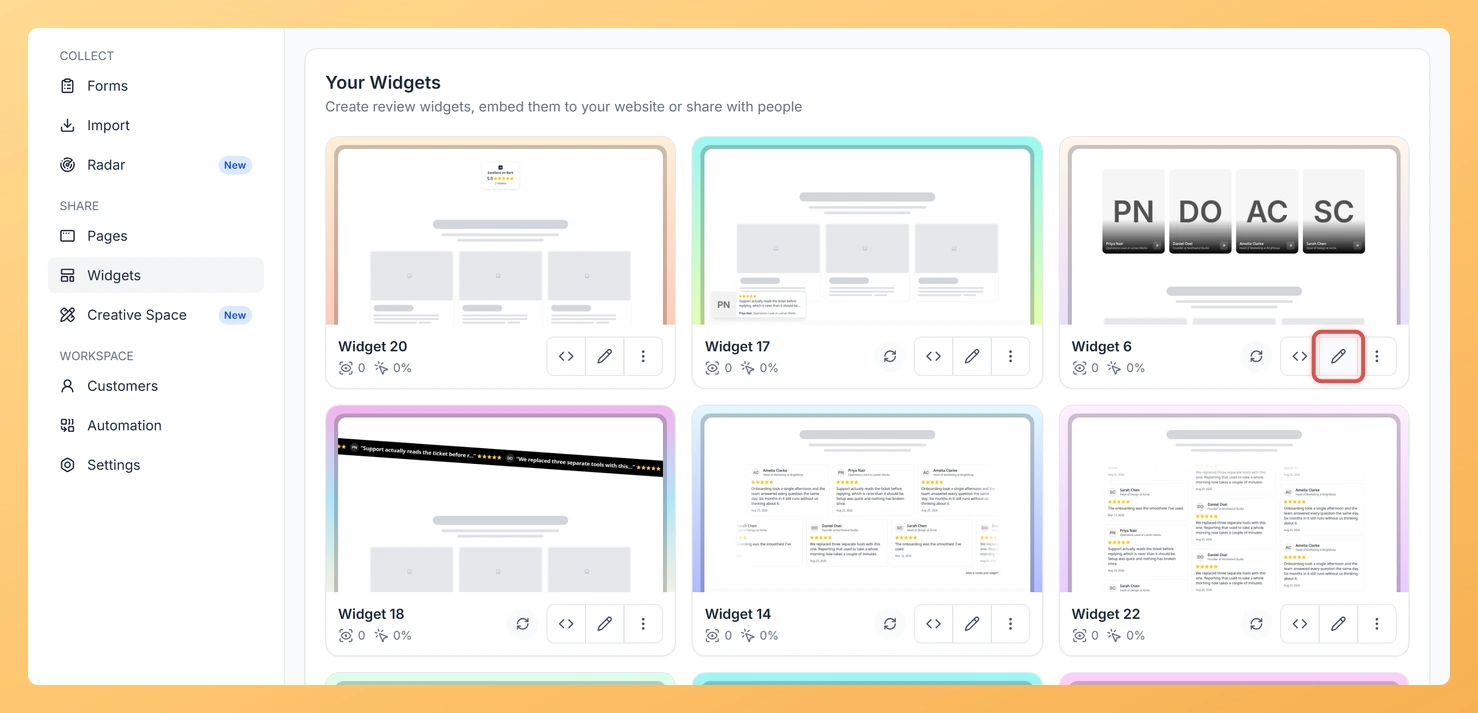
Log in to Feedspace and navigate to the Share Reviews section from the left sidebar. Locate your Avatar Card Carousel widget in the list and click on it to open the widget editor.

Step 2: Locate the Preview Toggle Controls

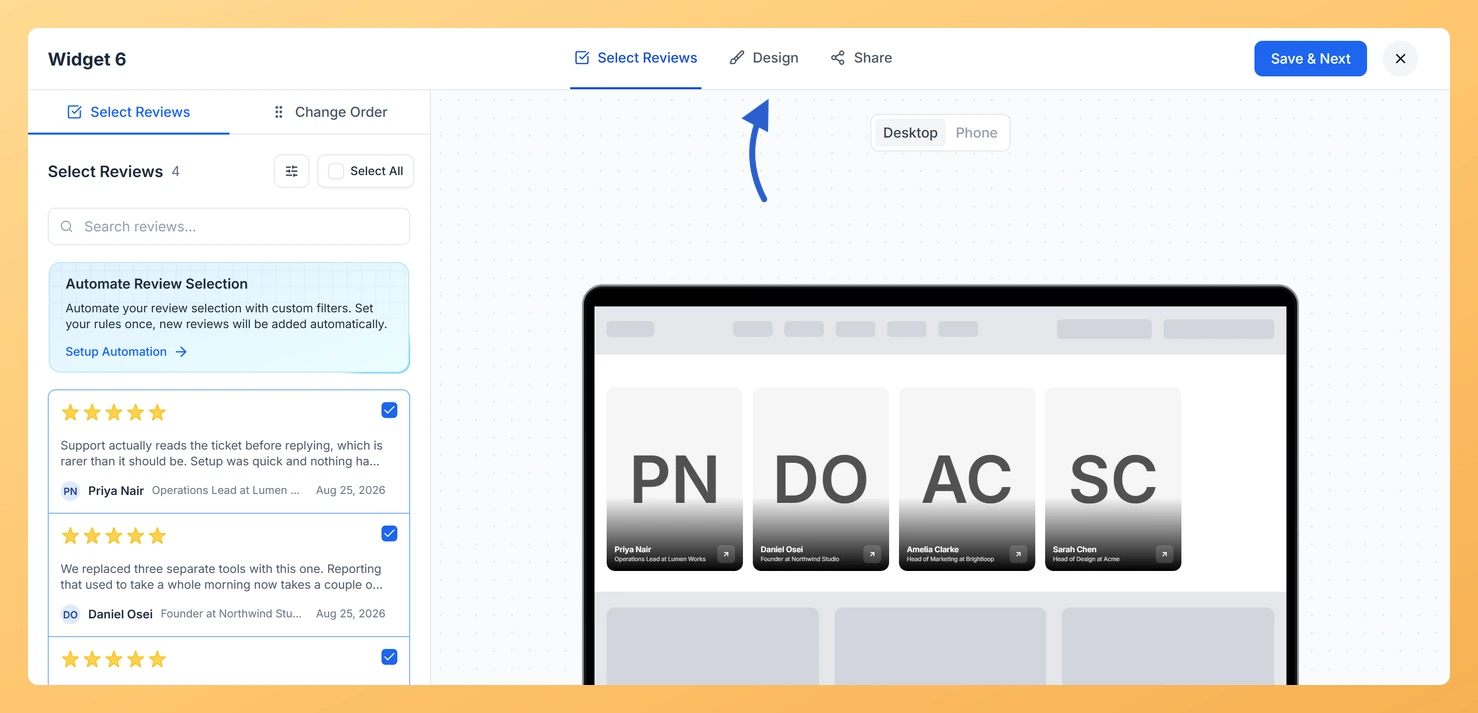
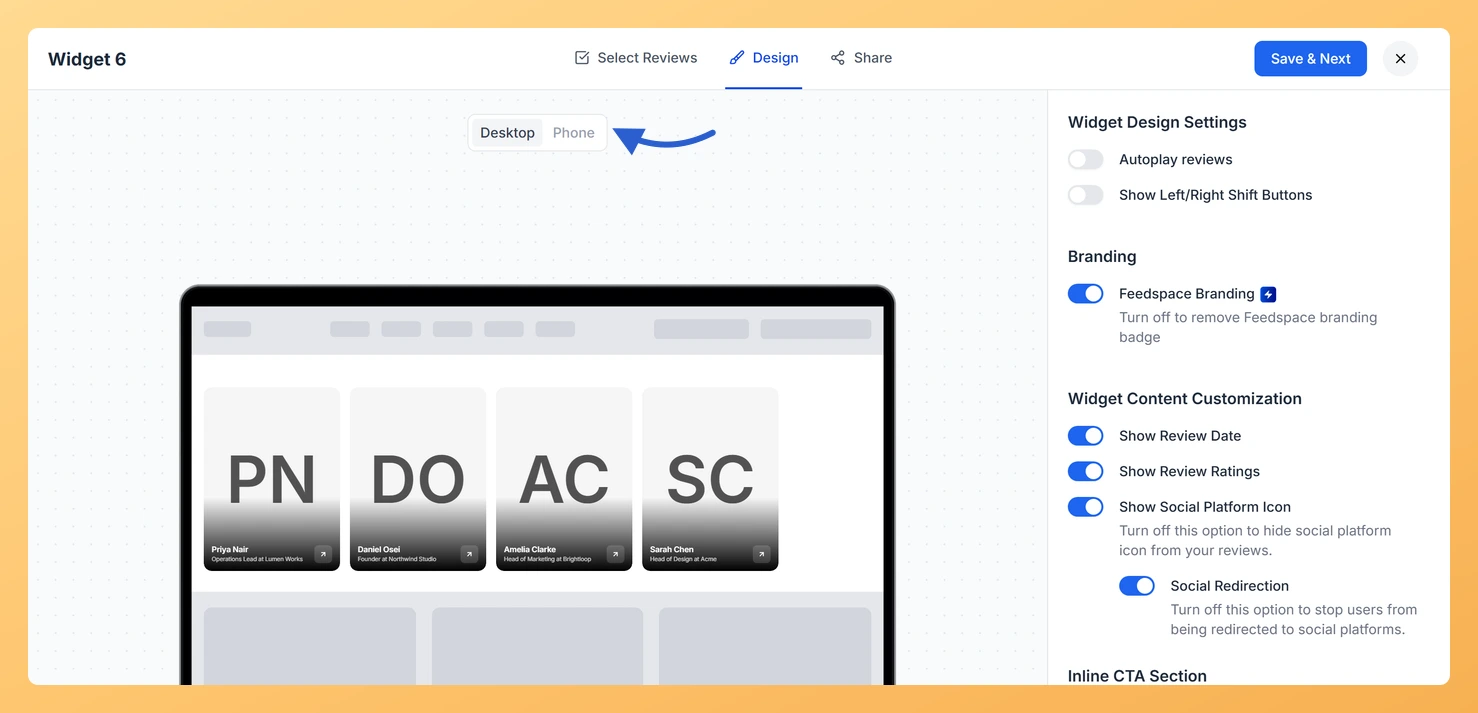
Inside the widget editor, look for the preview area where your Avatar Card Carousel is displayed. Above or alongside the live preview, you will see two toggle buttons: one for Desktop and one for Phone. These controls let you switch the preview viewport between screen sizes without leaving the editor.

Step 3: Check the Desktop Preview

Click the Desktop toggle to view how the Avatar Card Carousel renders on a larger screen. In the desktop view, verify the following:

  • Avatar photos appear at the correct size and are not cropped or distorted.
  • Reviewer names and any accompanying details such as job title or company display cleanly beside or below the avatar.
  • Testimonial text is fully visible within each card without overflow.
  • The carousel navigation controls are clearly visible and positioned correctly.

Step 4: Switch to the Phone Preview

Click the Phone toggle to switch the preview to a mobile viewport. This is the most important check for the Avatar Card Carousel layout. On a smaller screen, verify that avatar cards in the carousel are legible and the reviewer photo and name display correctly. Specifically, confirm:

  • The reviewer’s avatar photo is still prominently displayed and not squeezed into an unrecognisable size.
  • The reviewer name and any subtitle text remain readable without wrapping into multiple short lines.
  • Testimonial text fits within the card bounds and does not overflow or become truncated unexpectedly.
  • The sliding carousel interaction still makes sense in a single-column mobile layout.

Step 5: Adjust Design Settings If Needed

If the Phone preview reveals any layout issues, such as avatar images appearing too small or reviewer names overlapping testimonial text, switch to the design or customisation panel within the widget editor. Make the necessary adjustments, then toggle back to the Phone preview to confirm the changes look correct before saving.

Step 6: Save and Embed Your Widget

Once you are satisfied that the Avatar Card Carousel looks correct on both Desktop and Phone previews, save your widget settings. You can then copy the embed code from the widget editor and paste it into your website. The widget will render responsively, matching the layouts you verified in the preview.

What You Can Do Next

  • Customise the avatar card design, including card background colour, avatar size, and font styles, to better match your brand before embedding the carousel.
  • Filter which testimonials appear in your Avatar Card Carousel by rating, source, or tag so that only your strongest reviews with clear reviewer identities are displayed.
  • Copy the embed code for your Avatar Card Carousel and add it to a landing page, homepage, or testimonials page to showcase social proof with reviewer photos front and centre.
  • Explore other widget formats available in Feedspace to find the layout that best suits each page on your site, whether a grid, list, or a different carousel style.

You might also find helpful

How to Create an Avatar Card Carousel Widget in Feedspace

Overview Feedspace’s Avatar Card Carousel widget combines the sliding motion of a carousel with prominent reviewer profile pictures. Each card highlights the reviewer’s avatar alongside their testimonial, making your social proof feel more personal and trustworthy. Step 1: Log in to Feedspace Go to your Feedspace Dashboard and log in...

How Do I Preview a Widget in Feedspace?

Overview Before embedding a widget on your website, it is a good idea to preview how it looks to visitors. Feedspace lets you open a live public preview of any widget directly from the widget editor, so you can verify the design, review layout, and overall appearance before going live....

How Do I Customize the Design of My Widget in Feedspace?

Overview Feedspace widgets come with a powerful Design tab that lets you tailor every visual aspect of your widget. From card colors and fonts to dark mode and call-to-action buttons, you can fully customize the look to match your website’s brand without writing any code. How to Customize the Widget...