The Carousel widget in Feedspace displays your reviews as a continuously sliding row of cards, showing one or a few at a time and looping through them with optional autoplay. Because the carousel lays out cards horizontally, the number of cards visible at once changes significantly between a wide desktop screen and a narrow phone screen. A layout that looks balanced on desktop may show cards that are too narrow or text that is too small to read comfortably on mobile. The Desktop and Phone preview toggles inside the Carousel widget editor let you switch between both views instantly, so you can confirm the carousel looks polished and readable before you embed it on your site.
How to preview your Carousel widget on desktop and mobile
Step 1: Open the Widgets section
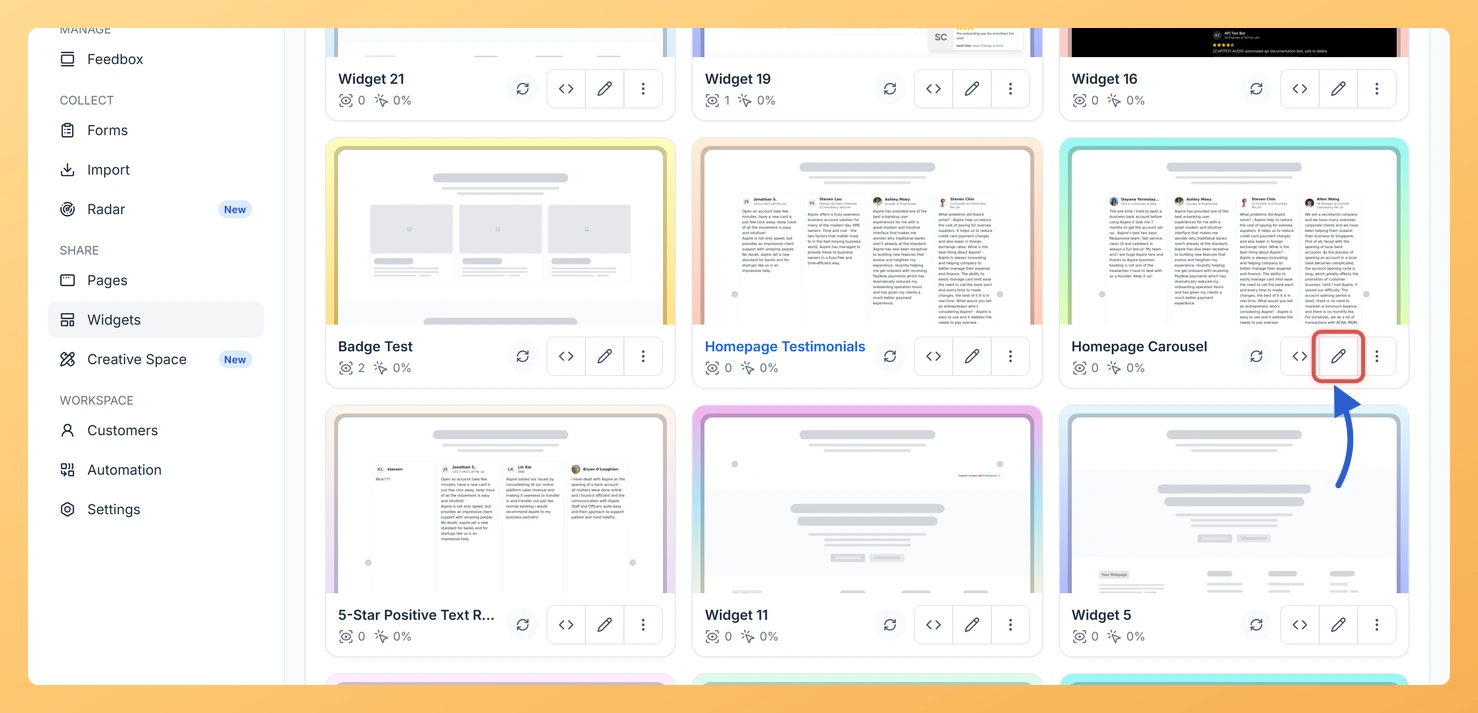
Log in to your Feedspace account. In the left sidebar, click Widgets to open the widgets list.
Step 2: Open your Carousel widget
Find your Carousel widget in the list and click the pencil (edit) icon on its card. This opens the Carousel widget editor, where you can adjust reviews, design settings, and preview the result.
Step 3: Find the Desktop and Phone toggle
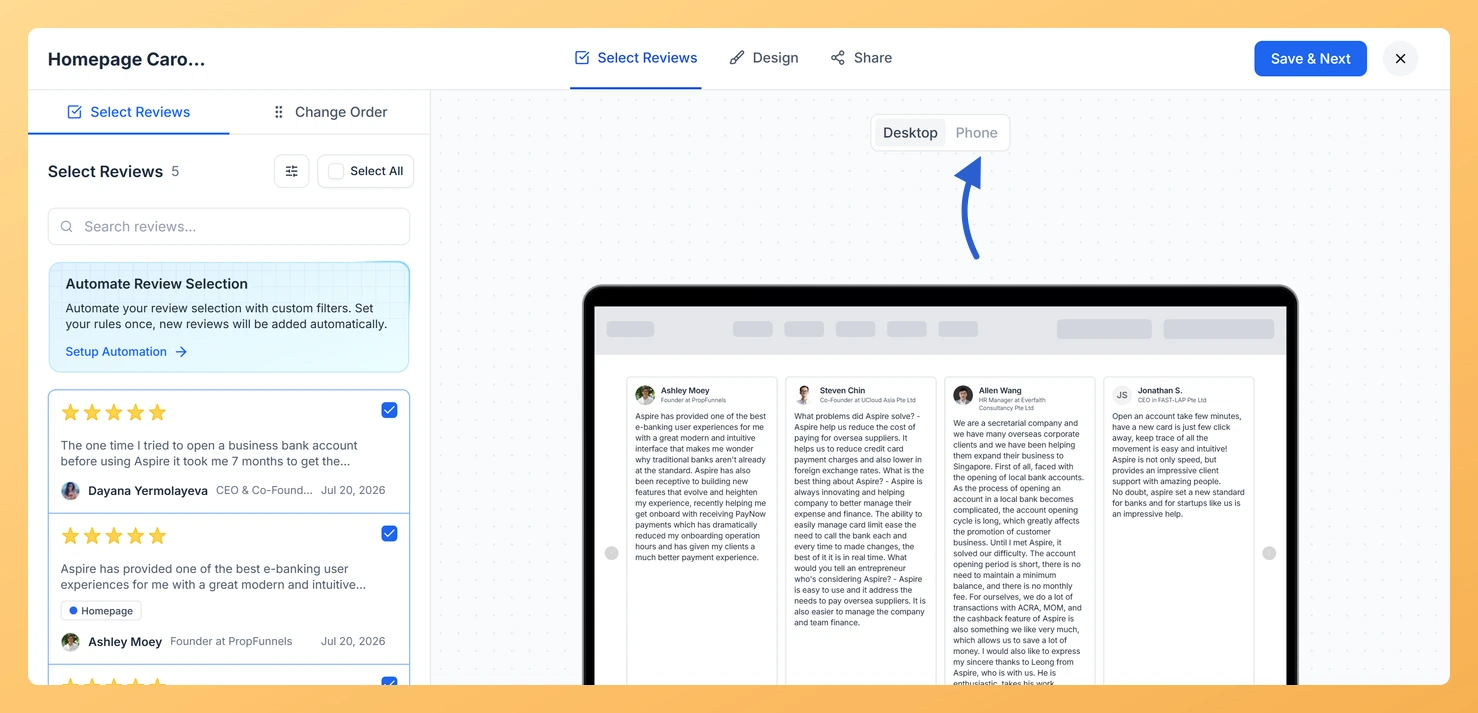
Inside the Carousel widget editor, look for the preview area at the top or center of the screen. You will see two toggle buttons labeled Desktop and Phone. These controls are specific to the editor preview and do not affect your live embed. Click either button to switch the preview between the two screen size modes.
Step 4: Check the Desktop preview
With Desktop selected, the editor renders the carousel at a full-width desktop viewport. Verify that the number of cards visible at once looks correct, that card text is legible, and that the overall horizontal layout fits your site’s design.
Step 5: Switch to the Phone preview
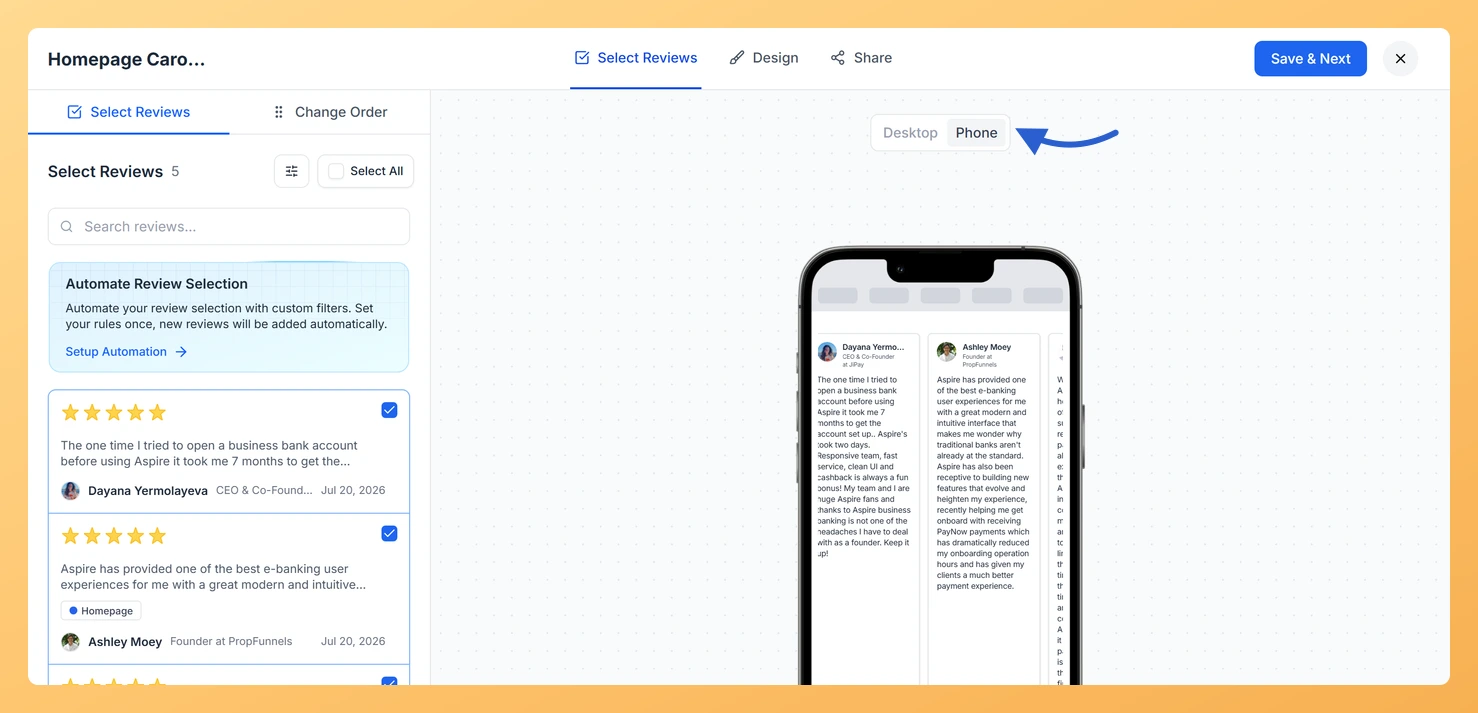
Click the Phone toggle to switch the preview to a mobile viewport. This is the most important check for the Carousel widget, because many of your visitors will be browsing on a phone. Confirm that the carousel cards are fully readable on mobile: check that the reviewer name, star rating, and review text are all clearly visible within the narrower card width, and that the autoplay and navigation controls remain accessible on a smaller screen.
Step 6: Adjust the design if needed
If the Phone preview reveals any readability or layout issues, switch to the Design tab and update the relevant settings, such as the card border, shadow, colours, or font. After saving your changes, return to the preview and toggle between Desktop and Phone again to confirm the adjustments look right on both sizes.
What’s next
Embed the carousel on your site: Once the Desktop and Phone previews both look correct, click Save & Next to get your embed code and add the Carousel widget to your website or landing page.
Adjust autoplay speed for mobile visitors: Return to the Design tab and fine-tune the carousel speed (Slow, Medium, or Fast) so the sliding pace feels comfortable for phone users who may be reading on a smaller screen.
Customize card design and colors: Use the border, shadow, and color settings in the Design tab to make each review card stand out at both desktop and mobile widths, keeping the carousel visually consistent with your brand.
Select additional reviews for the carousel: Go to the Select Reviews tab to add or remove reviews from the carousel rotation, ensuring only your most impactful testimonials are shown as the widget slides through them.
Common questions
Why does the widget look smaller in the preview than on my site?
The preview renders the widget at half size inside a laptop or phone mockup so the whole layout fits on screen. Judge the proportions and the line breaks here, then open the live preview in a new tab to see it at full size.
You might also find helpful
How to Create a Carousel Widget in Feedspace
Overview The Carousel widget in Feedspace lets you display multiple reviews in a continuously sliding format. You can enable autoplay, customize speed, and fine-tune design elements such as border, background color, and text colors. It’s a great way to keep your testimonials engaging and visually dynamic. How to Access Step...
How Do I Preview a Widget in Feedspace?
Overview Before embedding a widget on your website, it is a good idea to preview how it looks to visitors. Feedspace lets you open a live public preview of any widget directly from the widget editor, so you can verify the design, review layout, and overall appearance before going live....
How Do I Customize the Design of My Widget in Feedspace?
Overview Feedspace widgets come with a powerful Design tab that lets you tailor every visual aspect of your widget. From card colors and fonts to dark mode and call-to-action buttons, you can fully customize the look to match your website’s brand without writing any code. How to Customize the Widget...