
Feedspace Home Dashboard

How Do I Preview My Vertical Scroll Widget on Desktop and Mobile in Feedspace?

Last updated on June 12, 2026

Overview

The Vertical Scroll widget in Feedspace displays your reviews in a continuously looping, smoothly animated vertical feed. Because the widget is always in motion, the way it looks and feels on a smaller phone screen can differ noticeably from how it appears on a wide desktop layout. Text that scrolls at a comfortable pace on a large monitor may feel too fast, or too cramped, on a phone screen.

The widget editor provides two built-in preview toggles, Desktop and Phone, so you can watch the live scroll animation at each screen size before you copy the embed code. This lets you catch readability issues, adjust scroll speed or card sizing, and feel confident the widget works well for every visitor, regardless of the device they use.

How to Preview Your Vertical Scroll Widget on Desktop and Mobile

Step 1: Open Your Vertical Scroll Widget in the Editor

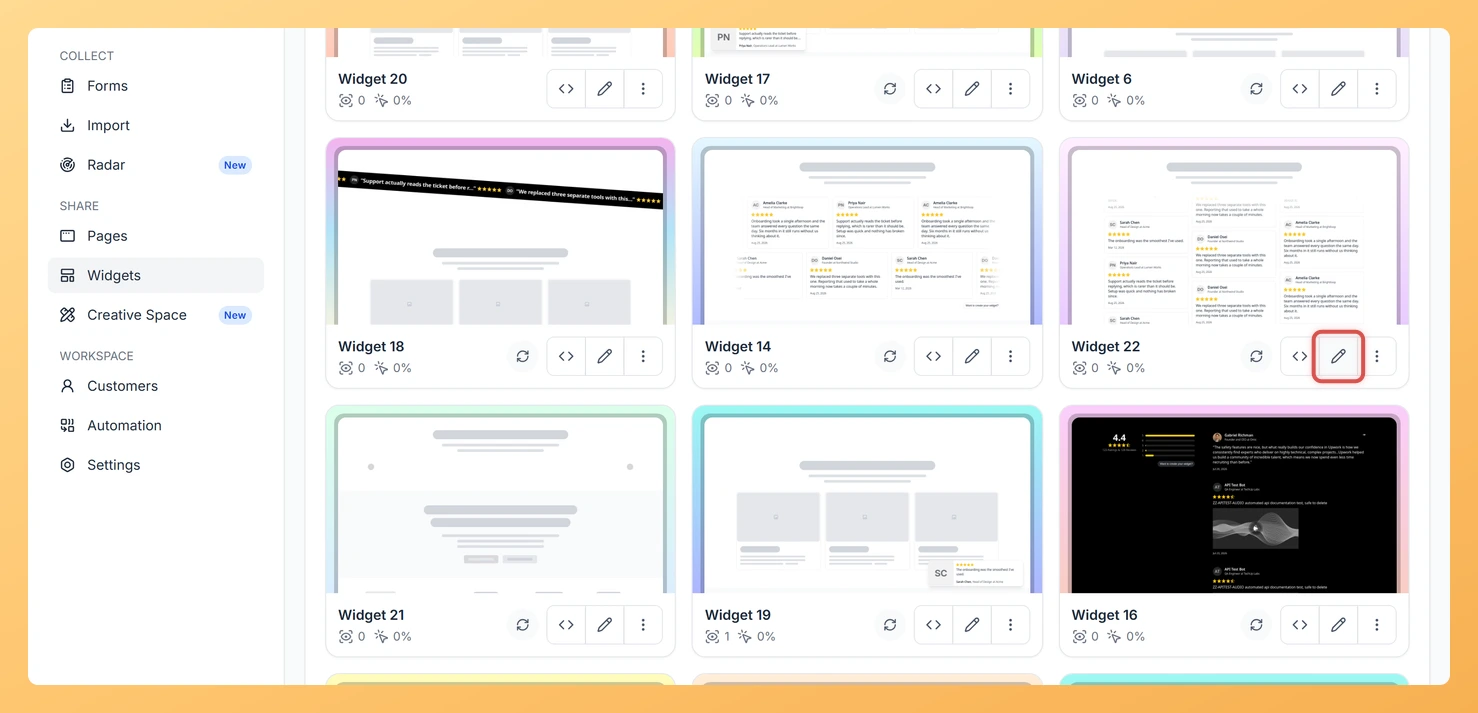
Log in to your Feedspace account and navigate to the Share Reviews section from the left sidebar. Locate the Vertical Scroll widget you want to check and click on it to open the widget editor.

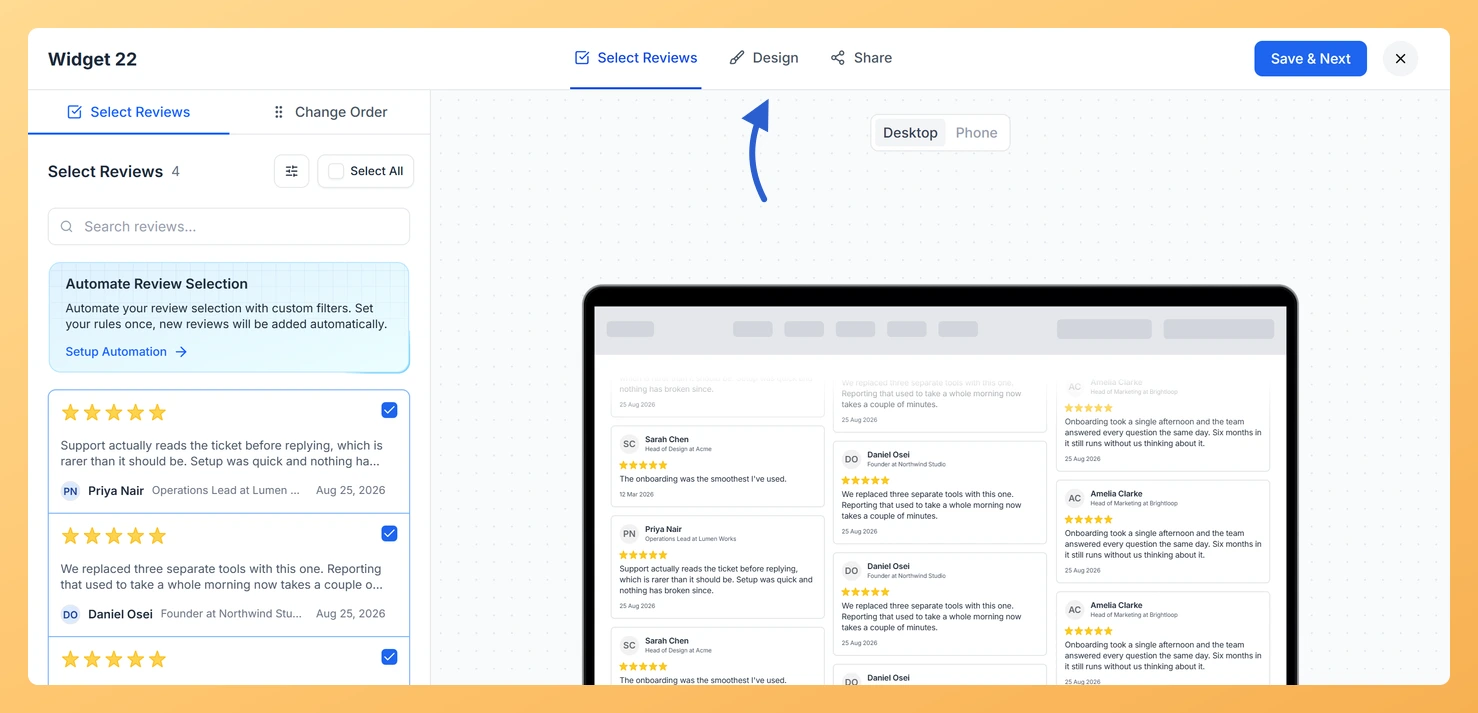
Step 2: Locate the Desktop and Phone Preview Toggles

Once the editor is open, look for the preview panel on the right side of the screen. At the top of this panel you will find two toggle buttons: Desktop and Phone. These controls let you switch the preview between a wide desktop viewport and a narrow phone-sized viewport without leaving the editor.

Step 3: Check the Desktop Preview

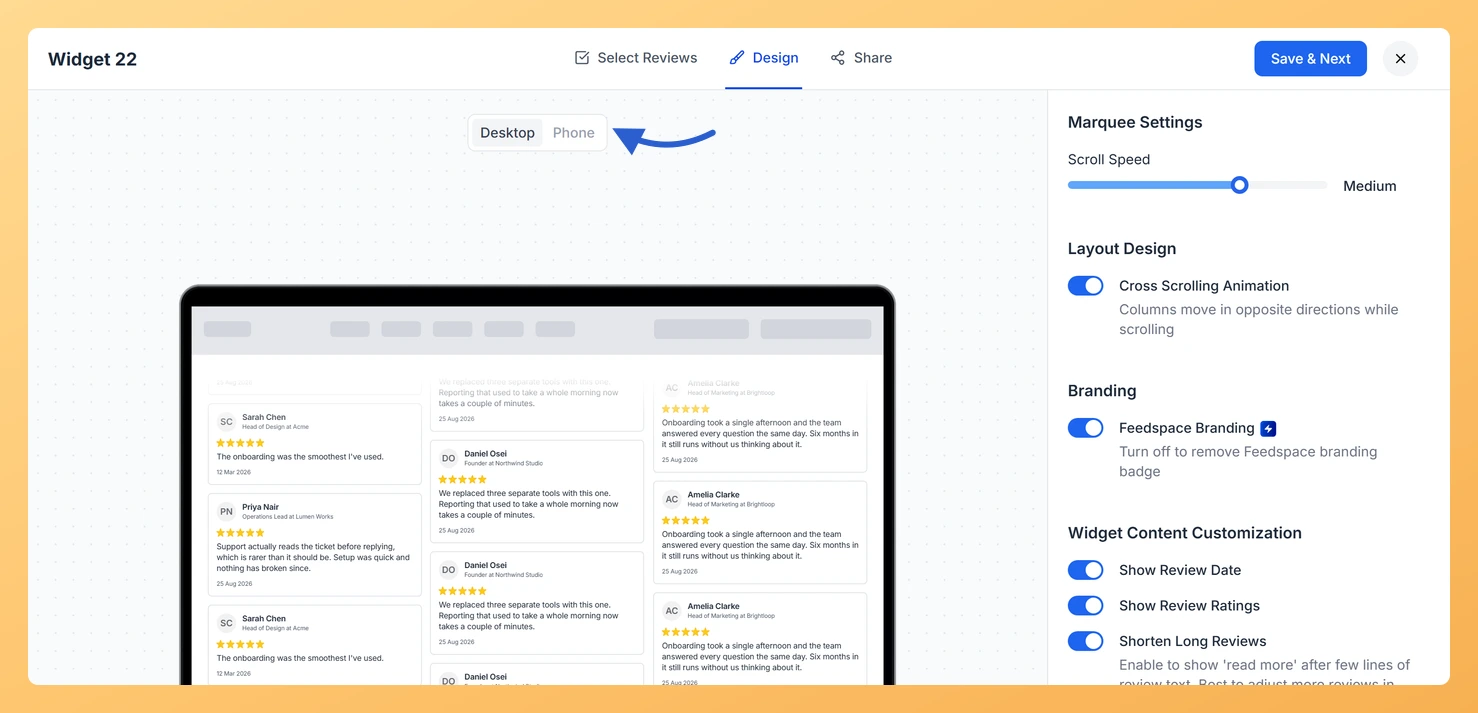
Click the Desktop toggle to see how the Vertical Scroll widget renders in a full-width layout. Watch the looping animation play through several cycles to confirm that the scroll speed feels natural, the review cards are well spaced, and all text, including reviewer names and testimonial content, is easy to read at this size.

Step 4: Switch to the Phone Preview and Check the Scroll Animation

Click the Phone toggle to switch the preview panel to a phone-sized viewport. Watch the Vertical Scroll animation carefully in this narrower frame. Confirm that the scroll speed still feels natural and that text remains readable on the smaller screen. If the cards feel too dense or the scroll moves too quickly for a phone visitor to read comfortably, return to the design settings and adjust the speed or card layout before embedding.

Step 5: Make Design Adjustments and Re-preview as Needed

If either preview reveals an issue, use the design settings in the left panel to make changes, such as adjusting scroll speed, card padding, font size, or the number of visible cards. After saving any change, toggle between Desktop and Phone again to re-confirm the result looks correct on both screen sizes.

Step 6: Copy the Embed Code

Once you are satisfied with how the Vertical Scroll widget looks and animates on both Desktop and Phone, click the Get Code or Embed button to copy the embed code. Paste it into your website wherever you want the looping review feed to appear.

What You Can Do Next

  • Customize the scroll speed and card spacing of your Vertical Scroll widget so the animation feels smooth on every device.
  • Add or remove reviews from the Vertical Scroll widget feed to control which testimonials appear in the looping display.
  • Embed the Vertical Scroll widget on a landing page or homepage to give visitors a continuously updated stream of social proof.
  • Explore other widget types in Feedspace, such as the horizontal scroll or grid layout, to find the display style that best fits your page design.

You might also find helpful

How to Create a Vertical Scroll Widget in Feedspace

Overview The Vertical Scroll widget in Feedspace displays reviews in a continuous upward-scrolling format. It’s ideal for pages with limited horizontal space, such as sidebars, landing pages, or testimonials sections. You can enable cross-scrolling animations, customize borders, and adjust colors to match your brand. How to Access Step 1 –...

How Do I Preview a Widget in Feedspace?

Overview Before embedding a widget on your website, it is a good idea to preview how it looks to visitors. Feedspace lets you open a live public preview of any widget directly from the widget editor, so you can verify the design, review layout, and overall appearance before going live....

How Do I Customize the Design of My Widget in Feedspace?

Overview Feedspace widgets come with a powerful Design tab that lets you tailor every visual aspect of your widget. From card colors and fonts to dark mode and call-to-action buttons, you can fully customize the look to match your website’s brand without writing any code. How to Customize the Widget...