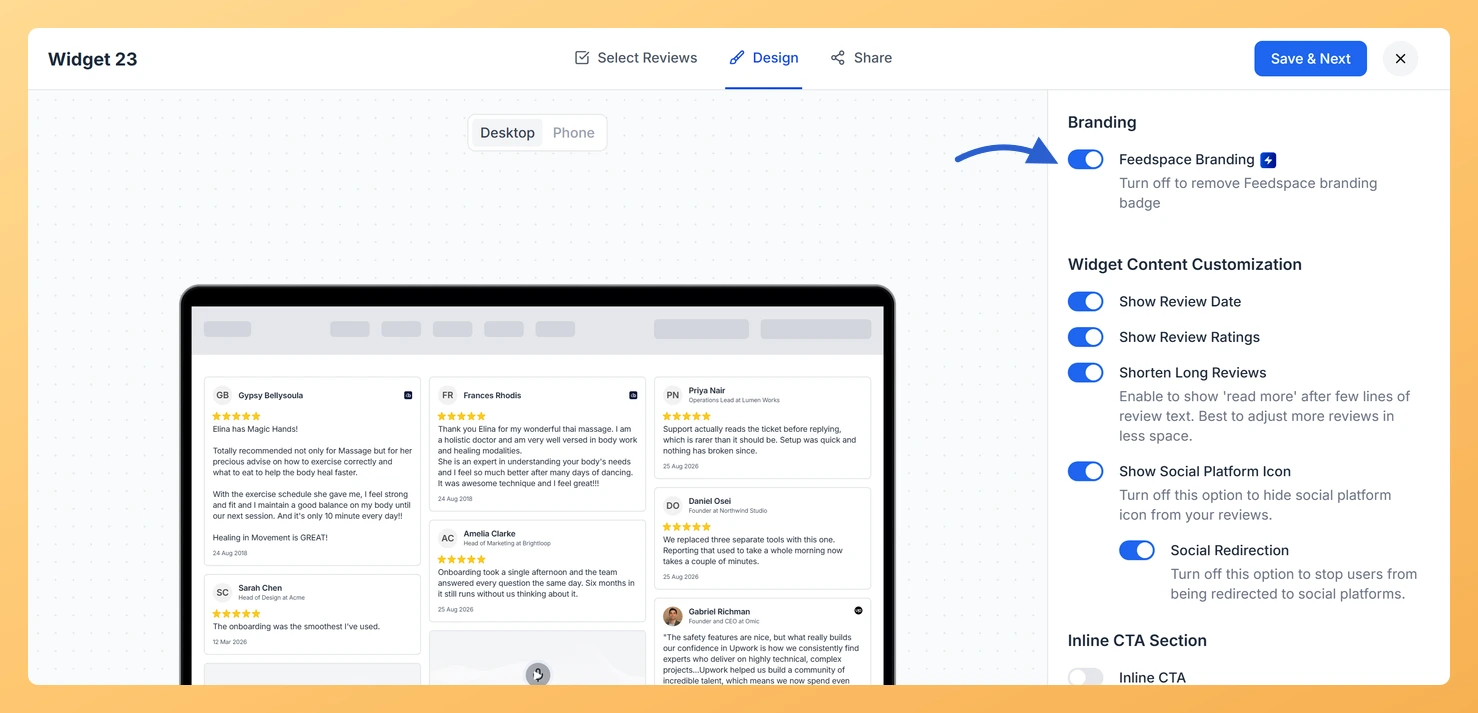
The Masonry widget displays your reviews in a Pinterest-style staggered grid, arranging multiple columns of varying heights so visitors can scan a large collection of testimonials at a glance. Because the Masonry layout fills the full width of the page with card after card, any persistent badge sits in plain view across every column, drawing the eye away from the review content itself.
The Feedspace Branding toggle, found in the Branding section of the Design tab, controls whether the Feedspace badge appears at the bottom of your Masonry widget. Turning this toggle off removes the badge entirely, so the only thing visitors see is your reviews in a clean, uninterrupted grid. This is a premium feature, indicated by the lightning bolt icon, and requires an eligible paid plan. Once disabled, your Masonry widget presents a fully on-brand display that reinforces your own identity rather than Feedspace’s.
How to remove Feedspace Branding from your Masonry widget
Step 1: Open the Widgets section
Log in to your Feedspace account. In the left sidebar, click Widgets to open the list of all widgets you have created for your workspace.
Step 2: Open your Masonry widget for editing
Locate the Masonry widget you want to update. Click the edit icon next to it to open the widget editor. The editor loads a live preview of your staggered grid alongside the configuration panel.
Step 3: Go to the Design tab
Inside the widget editor, click the Design tab at the top of the configuration panel. This tab contains all visual customisation options for your Masonry widget, including layout, colors, typography, and branding settings.
Step 4: Find the Branding section
Scroll down within the Design tab until you reach the Branding section. You will see the Feedspace Branding toggle. A lightning bolt icon next to the toggle indicates this is a premium feature available on eligible paid plans.
Step 5: Turn off the Feedspace Branding toggle
Click the Feedspace Branding toggle to turn it off. The toggle switches to its off state and the live preview of your Masonry grid updates immediately, showing the widget without the Feedspace badge. Once you are satisfied with the result, save your widget to apply the change to all published instances of this Masonry widget.
What’s next
Adjust the the card colors and card spacing in the Design tab to control how densely reviews fill the Masonry grid.
Customise the card background color and typography in the Design tab so every review card matches your site’s visual style.
Copy the embed code for your updated Masonry widget and paste it into your website to publish the branding-free grid immediately.
Filter which reviews appear in the Masonry widget by star rating or tag so the grid highlights only your strongest testimonials.
Common questions
The toggle is already on. Do I switch it on or off?
Off. Feedspace Branding starts switched on, and that is the state that shows the badge. The hint under it says so directly: “Turn off to remove Feedspace branding badge”.
You might also find helpful
How Do I Customize the Design of My Widget in Feedspace?
Overview Feedspace widgets come with a powerful Design tab that lets you tailor every visual aspect of your widget. From card colors and fonts to dark mode and call-to-action buttons, you can fully customize the look to match your website’s brand without writing any code. How to Customize the Widget...
How to Create a Masonry Widget in Feedspace
Overview The Masonry widget in Feedspace arranges your reviews in an elegant grid layout of varying card sizes, similar to Pinterest-style walls. It’s perfect for showcasing multiple reviews together while maintaining a modern, responsive design that automatically adjusts across devices. How to Access Step 1 – Log in to Feedspace...
How Do I Customize the Design of My Widget in Feedspace?
Overview Feedspace widgets come with a powerful Design tab that lets you tailor every visual aspect of your widget. From card colors and fonts to dark mode and call-to-action buttons, you can fully customize the look to match your website’s brand without writing any code. How to Customize the Widget...