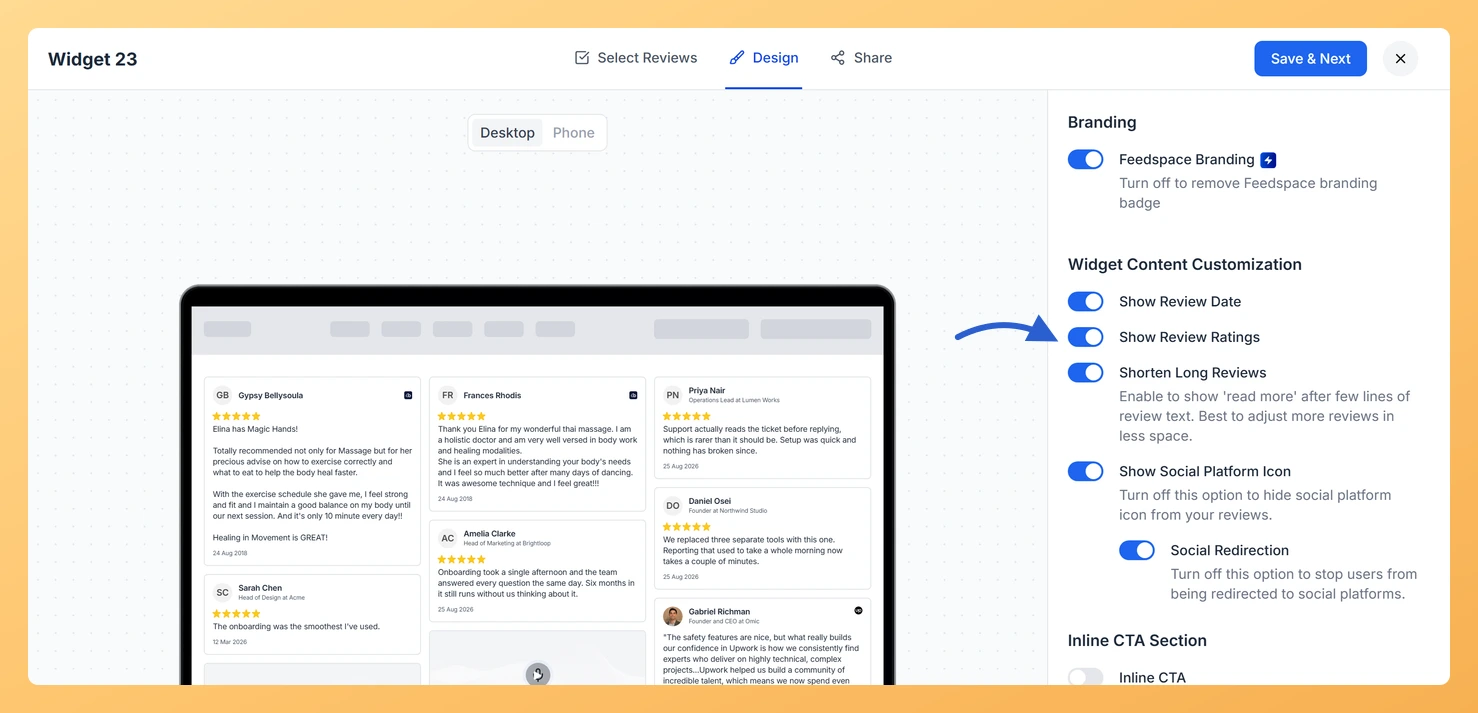
The Masonry widget displays your reviews in a Pinterest-style staggered grid, spreading cards across multiple columns of varying heights. Because the layout fits as many review cards as possible into the available space, each card needs to communicate the review’s value quickly. The Show Review Ratings toggle, found in the Widget Content Customization section of the Design tab, controls whether star ratings appear on every card in that grid.
When the toggle is turned on, each Masonry card shows a star rating below the reviewer’s name, giving visitors an at-a-glance trust signal without having to read the full review text. When the toggle is turned off, the cards show only the review text and reviewer information, producing a cleaner, text-focused look that works well when all your reviews are consistently positive and the written words speak for themselves. Choosing the right setting lets you match the visual weight of the Masonry grid to your page’s design goals.
How to show or hide Star Ratings for your Masonry widget
Step 1: Open the Widgets section
Log in to your Feedspace account. In the left-hand navigation menu, click Widgets to open the list of all widgets you have created.
Step 2: Edit your Masonry widget
Decide which Masonry widget you are changing, then click the Edit (pencil) icon on that widget’s card to open the editor.
Step 3: Go to the Design tab
Inside the widget editor, click the Design tab at the top of the editor panel. This tab contains all visual and layout customization options for your Masonry widget.
Step 4: Locate the Widget Content Customization section
Scroll down within the Design tab until you reach the Widget Content Customization section. This section groups all the toggles that control which elements appear on each review card in the Masonry grid.
Step 5: Configure the Show Review Ratings toggle
Find the Show Review Ratings toggle within the Widget Content Customization section. Click the toggle to turn it on or off:
Toggle on: Star ratings are displayed on each review card across the Masonry grid, giving visitors an immediate visual cue about the rating alongside the review text.
Toggle off: Star ratings are hidden from all cards in the Masonry grid. Only the review text and reviewer information (such as the reviewer’s name and photo) are shown.
After changing the toggle, the live preview of your Masonry widget updates immediately so you can see how the grid looks with the setting applied before saving.
Step 6: Save your changes
Once you are satisfied with the preview, click Save & Next to apply the change. Your embedded Masonry widget will reflect the updated setting wherever it is published on your site.
What’s next
Change the star rating color to match your brand by visiting the star rating color settings for your Masonry widget.
Adjust the number of columns in your Masonry grid so the card layout balances the extra visual weight of displayed star ratings.
Use the Widget Content Customization section to also toggle reviewer photos and review dates on or off, refining how much information each Masonry card shows.
Copy the updated embed code for your Masonry widget and re-paste it on any page where you want the new star rating visibility setting to take effect immediately.
Common questions
Does hiding the stars change the rating on the review itself?
No. The toggle only controls whether this widget draws the stars. The rating stays on the review in your Feedbox, and any other widget or page showing that review is unaffected.
You might also find helpful
How Do I Change the Star Rating Color on My Masonry Widget in Feedspace?
Overview The Masonry widget displays your reviews in a Pinterest-style staggered grid, arranging cards across multiple columns of varying heights so visitors can scan many testimonials at once. Because the layout is visually dense, every design detail, including the star rating icons, contributes to the overall impression your social proof...
How to Create a Masonry Widget in Feedspace
Overview The Masonry widget in Feedspace arranges your reviews in an elegant grid layout of varying card sizes, similar to Pinterest-style walls. It’s perfect for showcasing multiple reviews together while maintaining a modern, responsive design that automatically adjusts across devices. How to Access Step 1 – Log in to Feedspace...
How Do I Customize the Design of My Widget in Feedspace?
Overview Every Feedspace widget has a Design tab where you decide how it looks on your site: colors, font, card borders and shadows, what each review card shows, and an optional call-to-action card. Each change appears in the live preview as you make it. A common case: you embed a...