The Floating Cards widget in Feedspace displays your reviews in stack-like cards that float over your website layout. You can position them on the left, center, or right side of the screen. This widget is perfect for showing continuous feedback without interrupting the visitor’s browsing experience.
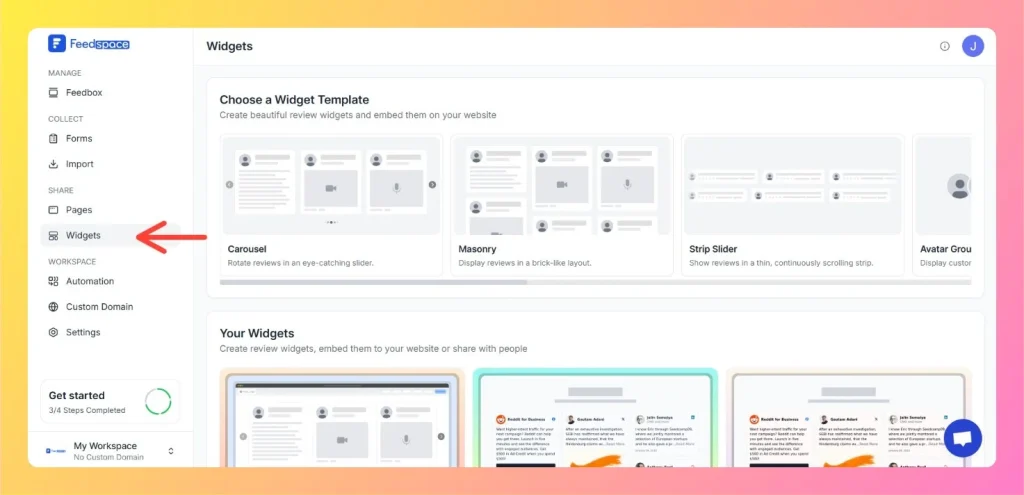
From the left sidebar, open Share Reviews, then click Widgets.
In the template strip at the top, click the Floating Cards template card. The widget is created and the editor opens on the Select Reviews tab.
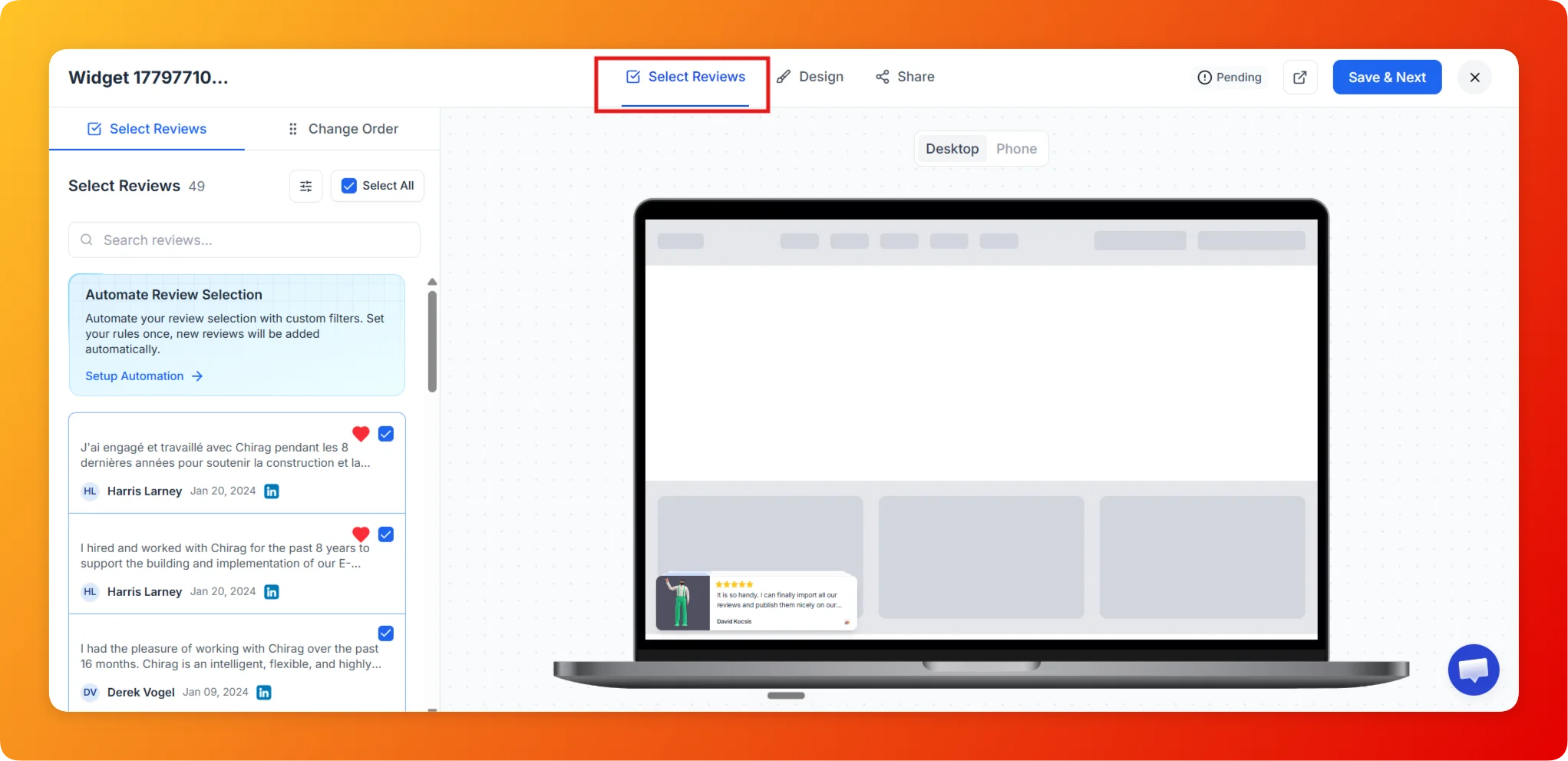
Step 3: Select reviews
On the Select Reviews tab, tick the reviews you want to display in the Floating Cards widget. You can search, open the filter panel to narrow the list, or click Select All. The live preview updates as you choose.
Step 4: Open the Design tab
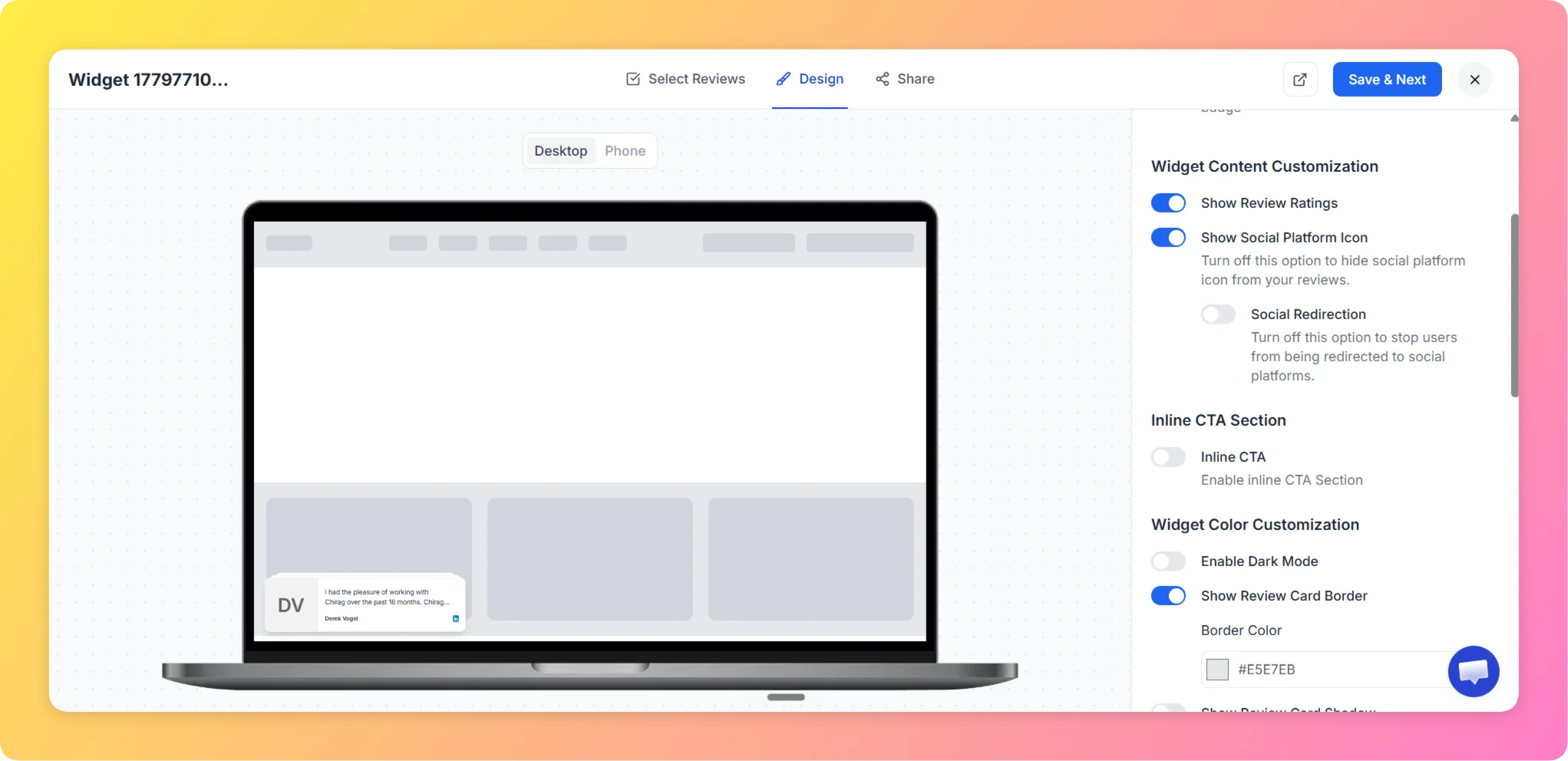
Click Save and Next, or click the Design tab in the editor header, to open the design settings panel where you adjust layout, colors, and content options.
Layout design
Step 5: Adjust widget position
Use the Widget Position selector to choose where the Floating Cards appear on your page:
Left
Center
Right
You can also toggle Hide on Mobile on if you prefer not to show the widget on smaller screens.
Branding
Step 6: Manage branding options
Toggle Remove Feedspace Branding to hide the Feedspace badge from your widget for a more branded look. This option is available on eligible paid plans.
Widget content design
Step 7: Choose what to display
Show Review Ratings: Show star ratings below the reviewer name.
Enable Dark Mode: Change to a darker color palette for your floating cards.
Show Border: Add a border around each floating card.
Color: Default is #E5E7EB.
Show Shadow: Add shadow depth to create a lifted effect for each card.
Color settings
Step 8: Customize colors
Match your widget’s colors to your website’s theme using these options:
Primary Text Color: #1f2937
Secondary Text Color: #6b7280
Card Background Color: #f9fbff
Card on Hover Color: #d3d5d8
Star Rating Color: #FACC15
Star Rating Border Color: #EAB308
Advanced options
Step 9: Add custom CSS
Toggle Custom CSS on to add your own styles such as transitions, animations, or font changes. This option is available on eligible paid plans.
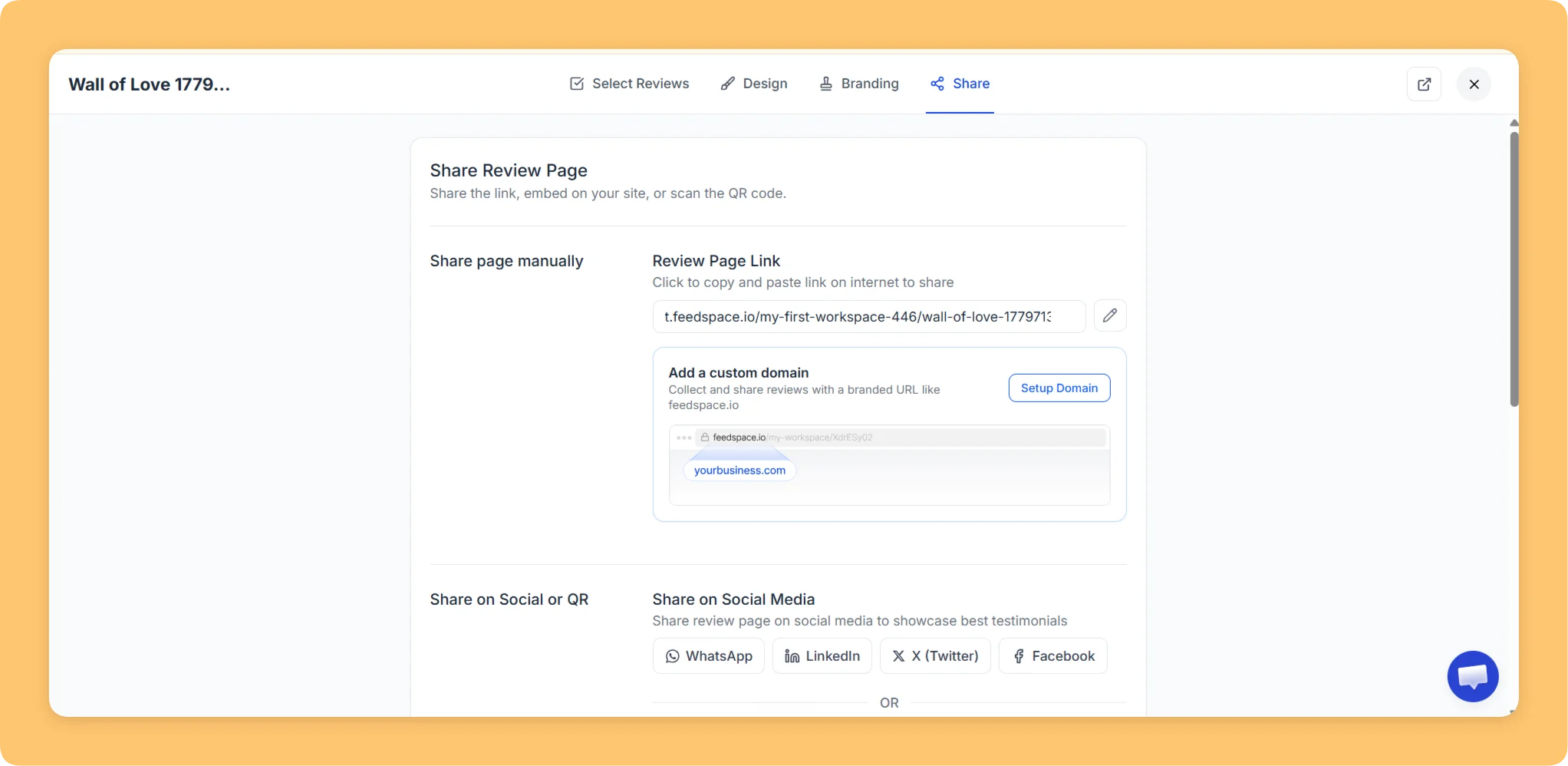
Step 10: Save and embed
Once all settings are configured:
Click Save and Next.
Copy the embed code generated.
Paste it into your website HTML or use your CMS integration (like WordPress, Webflow, or Wix) to publish.
The Floating Cards widget is a great choice for highlighting short testimonials or quick feedback on any webpage. It remains visible yet unobtrusive, creating an engaging and interactive review experience for site visitors.
Common questions
Where does the floating widget appear on my site?
The Floating Cards widget appears wherever you paste its embed code on your page. Its horizontal placement is set by the Widget Position selector in the Design settings, where you choose Left, Center, or Right. If you turn on Hide on Mobile, the widget does not display on smaller screens.
You might also find helpful
How to Create a Widget in Feedspace
Overview Widgets in Feedspace allow you to showcase your collected reviews directly on your website. They are easy to set up, customizable, and come in different layouts to match your site’s design. This guide walks you through the steps to create your first widget and explains all the available widget...
How to Create a Horizontal Scroll Widget in Feedspace
Overview The Horizontal Scroll widget in Feedspace showcases your reviews in a smooth side-by-side scrolling motion. It is perfect for sections where you want continuous movement and visual engagement, such as website headers, testimonial rows, or landing pages. How to Access Step 1 – Log in to Feedspace Go to...
How to Create a Vertical Scroll Widget in Feedspace
Overview The Vertical Scroll widget in Feedspace displays reviews in a continuous upward-scrolling format. It’s ideal for pages with limited horizontal space, such as sidebars, landing pages, or testimonials sections. You can enable cross-scrolling animations, customize borders, and adjust colors to match your brand. How to Access Step 1 –...