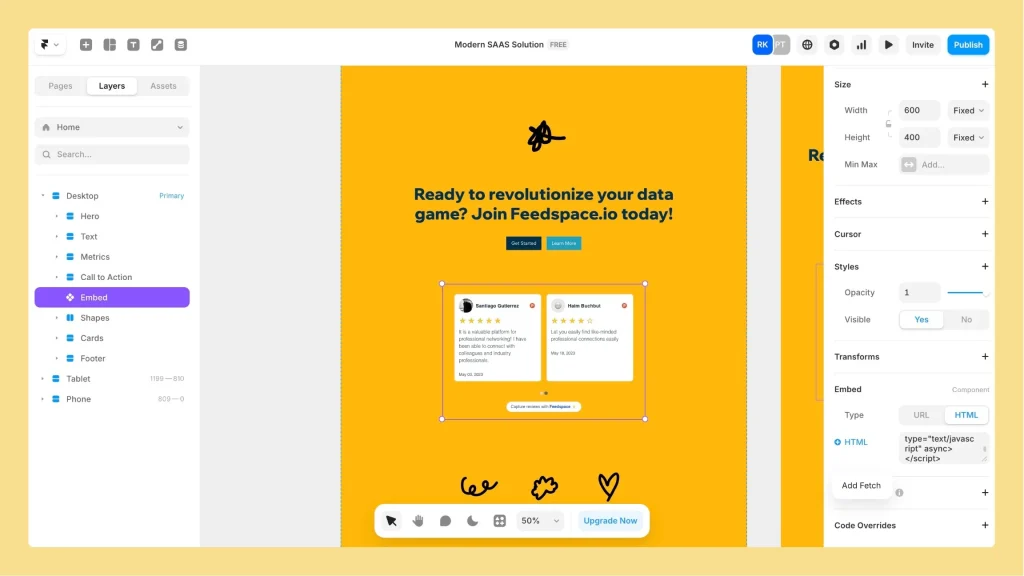
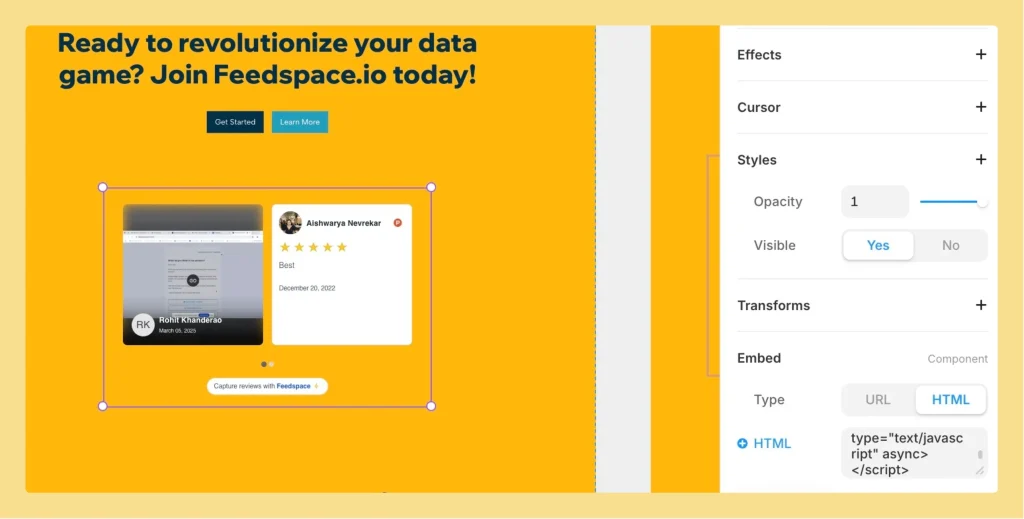
Framer lets you add custom embed elements to any page, and Feedspace widgets work inside them directly. You paste the widget embed code into a Framer Embed block and the widget renders on your published site.
A typical use: a SaaS team embeds a carousel widget on their Framer landing page to show customer testimonials alongside product feature sections.
Step 1: Log in to your Framer account
Head to Framer and sign in with your account details.
Step 2: Choose the page for the widget
From your project dashboard, select the page where you want the widget to appear or start from a new blank page.
Step 3: Insert an Embed element
In the Framer editor, click the Insert (+) button.
Select the Embed element from the list.
Step 4: Add your widget embed code
Click inside the Embed box.
Paste your Feedspace widget embed code into the code editor.
Save the changes.
Step 5: Adjust size and layout
Drag the edges of the Embed block to resize the widget.
Move the element to position it within your page design.
Step 6: Publish your website
Click Publish to push the changes live and make your Feedspace widget visible on your Framer site.
If the widget is the wrong height or won’t scroll in Framer
The Framer-specific embed code (from the Share tab in the widget editor, under the Framer framework tab) uses height: "100%", which means the widget inherits its height from the Framer frame that contains it. If the Framer frame doesn’t have an explicit fixed height set, the widget may appear with no visible height, be too short, or clip its content.
To fix this: in the Framer editor, select the frame or container holding the widget embed and set a fixed height (for example, 600px) on that element. The widget then fills the full height of that frame.
If you’re using the HTML Embed element approach (Steps 3 and 4 above), drag the edges of the Embed block to resize it to the height you want. This gives you direct visual control without needing to set a numeric height on a parent frame.
If scrolling animations inside the widget are not playing in Framer (for example, the Horizontal Scroll or Vertical Scroll widget appears static), check the container’s Overflow setting in the Framer editor and set it to Visible or Scroll.
What’s next
To get the embed code for a widget, open the widget editor, go to the Share tab, and copy the code from the HTML/WordPress tab. If you also want to embed a Wall of Love page in Framer, see How to embed a Wall of Love in Framer.
Common questions
Does the widget update automatically when I add new reviews?
Yes. The embed code loads the widget dynamically, so any reviews you add or change in Feedspace appear on your Framer page without you needing to re-publish or update the embed code.
Can I embed more than one widget on the same Framer page?
Yes. Add a separate Embed element for each widget and paste each widget’s embed code into the corresponding block. Each widget has its own unique ID in the embed code, so they load independently.
You might also find helpful
How to Embed Wall Of Love in Framer
Overview You can embed the Feedspace Wall of Love directly on any Framer site. This simple process allows you to showcase customer trust and testimonials inside your Framer project. Step 1: Sign In to Framer Go to Framer and log in with your account credentials. Step 2: Open the Project...
How to Embed Wall Of Love in Webflow
Overview Feedspace Wall of Love embed code can be easily added to any Webflow page. This simple process helps you showcase customer trust directly on your Webflow site. By following the steps below, you can embed the code in minutes. Step 1: Log in to Your Webflow Account Go to...
How to Embed Widget in Webflow
Overview You can easily embed Feedspace widgets in any Webflow project. This lets you highlight customer testimonials and social proof on your Webflow site. Step 1: Sign In to Webflow Go to Webflow and log in to your account. Step 2: Open Your Project Select the project you want to...