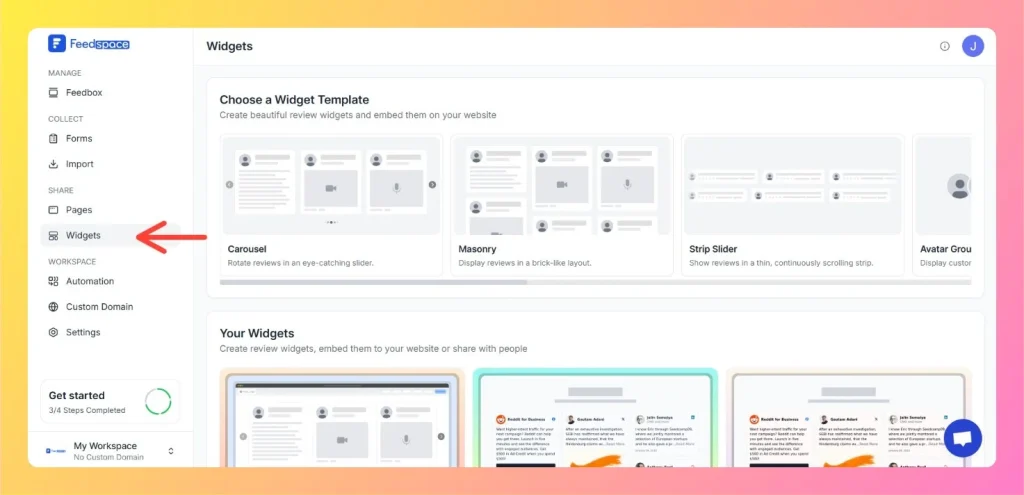
Widgets from Feedspace let you display dynamic pieces like testimonial sliders, review cards, or feedback forms right inside your website pages. Embedding widgets helps ensure that your site visitors see real user content (reviews, testimonials, etc.) without leaving your domain.
Create the widget you want, or pick an existing one (Carousel, Masonry, Strip Slider, Avatar Group, and more)
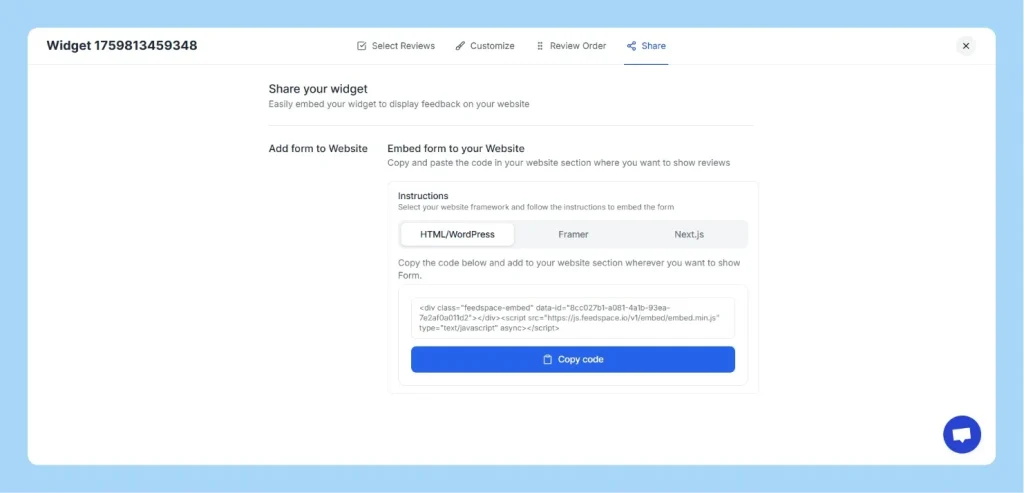
Click the Code (embed) icon on the widget card to open the editor on the Share tab
On the HTML/WordPress tab, click Copy code to copy the full embed snippet, which looks like this:
Step 2: Choose where to embed on your website
Decide which page(s) you want the widget to appear on (homepage, testimonials page, sidebar, footer, etc.).
Step 3: Insert the widget code in your site
Depending on your website builder or CMS, the method will differ. Here are common patterns:
Using HTML / Custom Code block or section
Open the page editor
Add an “HTML”, “Custom Code”, or “Embed” section or block
Paste the full embed code (both div and script)
Save / update the page
Using a text editor with source mode
Add a normal text or content block
Switch to HTML / source view (often via a <> or “Insert code” option)
Paste the widget code there
Save the block
Step 4: Save, publish, and test
Save or publish your changes
Visit the live page and refresh to ensure the widget loads properly
Confirm functionality and appearance across different screen sizes
The widget embed code is plain HTML, so it works on any website builder or platform that accepts a custom HTML or code block, including Ghost, Webflow, Squarespace, and most other site builders. Add a custom HTML, code, or embed block on the page, paste the full embed code into it, then save and publish.
Common questions
Does this work on any website builder?
Yes. The embed code is standard HTML with a div and a script, so any platform that lets you paste custom HTML or code (Ghost, Webflow, Squarespace, Wix, and similar) can show the widget. Add a custom HTML, code, or embed block, paste the full code, and save the page.
Where is my Widget ID?
Open the widget editor and click the Share tab. The Widget ID appears in a copy input on the HTML/WordPress tab next to the plugin install box, and it is also part of the embed code itself.
Need help?
If you’re unsure about embedding your widget or need additional guidance, you can book a demo with our expert for a personalized walkthrough.
You might also find helpful
How to Create a Widget in Feedspace
Overview Widgets in Feedspace allow you to showcase your collected reviews directly on your website. They are easy to set up, customizable, and come in different layouts to match your site’s design. This guide walks you through the steps to create your first widget and explains all the available widget...
How to Create a Carousel Widget in Feedspace
Overview The Carousel widget in Feedspace lets you display multiple reviews in a continuously sliding format. You can enable autoplay, customize speed, and fine-tune design elements such as border, background color, and text colors. It’s a great way to keep your testimonials engaging and visually dynamic. How to Access Step...
How to Create a Masonry Widget in Feedspace
Overview The Masonry widget in Feedspace arranges your reviews in an elegant grid layout of varying card sizes, similar to Pinterest-style walls. It’s perfect for showcasing multiple reviews together while maintaining a modern, responsive design that automatically adjusts across devices. How to Access Step 1 – Log in to Feedspace...