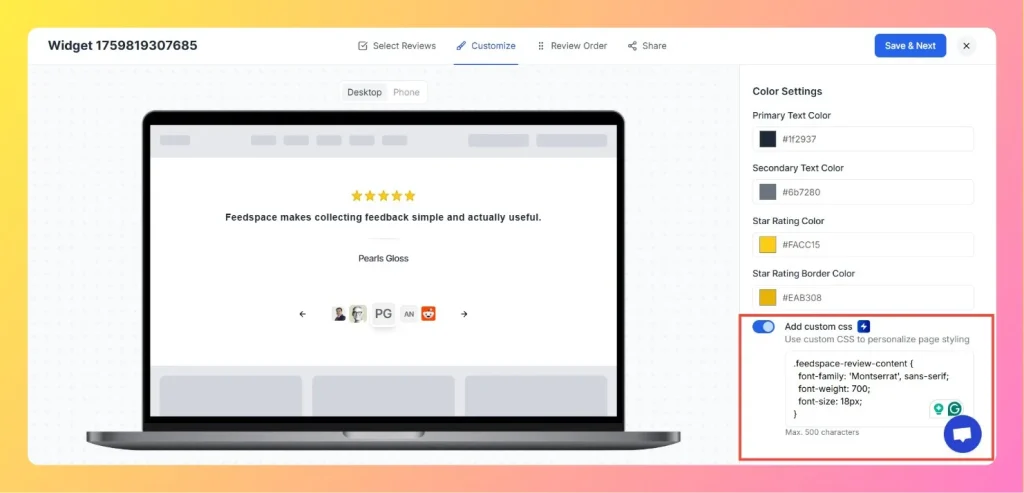
Feedspace lets you apply Custom CSS to any widget directly from the widget editor. Use it to adjust fonts, colors, spacing, and typography to match your website’s design.
Custom CSS is available on plans that include it. If your current plan does not, turning on the Custom CSS toggle opens an upgrade prompt instead of the code box.
This snippet changes the font to Montserrat, increases the text size, and makes the review text bolder for better readability.
Step 4: Preview the design
The preview on the left side updates automatically as you make CSS changes.
You can switch between Desktop and Phone views to ensure your widget looks perfect on all devices.
Step 5: Save and apply
Once you’re satisfied with the design, click Save and Next in the top-right corner to apply your custom styles.
Tips
Use CSS to modify fonts, text colors, star icons, spacing, and more.
Keep the CSS minimal to maintain widget responsiveness.
If something doesn’t look right, simply clear your CSS box to revert to default styling.
Common questions
Is there a limit on how much CSS I can add?
Yes. The Custom CSS box holds up to 1,500 characters. Keep your rules focused on the elements you want to restyle so you stay within that limit.
Why does the Custom CSS toggle show an upgrade prompt?
Custom CSS is available on plans that include it. If your plan does not, switching the toggle on opens an upgrade prompt. Once you are on a plan that includes Custom CSS, the toggle reveals the code box.
You might also find helpful
How to Set Text Alignment Right-to-Left for Widget
Overview If your Feedspace widget needs to support right-to-left (RTL) languages such as Arabic or Hebrew, you can easily change the text direction by adding a simple CSS rule in the widget customization panel.This ensures that all reviews, text content, and layout elements align properly for RTL reading flow. Step...
How to Use Custom CSS Option in Wall of Love
Overview Feedspace gives you the flexibility to customize the look and feel of your Wall of Love using Custom CSS. This feature allows you to personalize font styles, colors, spacing, and other design elements to match your brand identity. With Custom CSS you can restyle fonts, text and button colors,...
How to Use Custom CSS in Feedspace Review Forms
Overview Feedspace gives you the flexibility to fully personalize your Review Forms using the Custom CSS feature.With this option, you can change the font style, colors, button design, and spacing to match your brand’s visual identity and enhance your form’s overall appearance. Step 1: Open Review Form Settings Step 2:...