To record in HD, set your screen recording software to HD (1080p or higher), and use reliable software. Ensure your computer can handle HD recording and set the frame rate to at least 30 fps. Also, ensure your screen resolution is set to HD (1920×1080) or higher for the best quality.
Introduction
In 2024, screen recording software have become a staple for anyone needing to capture what’s on their screen. Whether you’re a content creator, teacher, or business professional, these tools can help you create, share, and present content like a pro. With so many options, choosing the right tool can be overwhelming.
That’s why we’ve rounded up the top 10 screen recording software you should consider this year.
Best screen recording software to Try in 2024
| Tool | Best Feature | Best For | Pricing |
|---|---|---|---|
| OBS Studio | Scene switching, audio mixing, no watermarks | Advanced users and live streamers | Free |
| Camtasia | All-in-one recording and editing tool | Professional-quality video production | $179.88 – $499, free trial available |
| Feedspace | Feedback collection through screen recordings | Product managers, online business owners | Free Forever: $0/month, Plus: $25/month, Professional: $50/month, Business: $75/month |
| Loom | Instant sharing via links | Quick video communication for teams | Free version, Paid plans from $8 per user/month |
| ScreenFlow | Powerful editing tools with screen recording | Mac users creating polished videos | Single: $149, Super Pak: $209, Super Pak + Support: $239 (one-time fees) |
| Snagit | Dual functionality: screen recording and screenshots | Educators and quick tutorial creators | $37.99 – $62.99, free trial available |
| ScreenPal | Budget-friendly with basic editing features | Beginners needing an affordable solution | Free version (with watermark), Paid: Deluxe $1.65/month, Premier $4.00/month |
| ShareX | Customizable and versatile (screen recording + GIF creation) | Tech-savvy users needing free customization | Free |
| Bandicam | 4K Ultra HD recording with small file sizes | Gamers | Free (with watermark), 1-PC license: $39.95, 2-PC license: $59.96 |
| FlashBack Express | No watermarks, unlimited recording time | Beginners needing a simple free tool | Free version available, Paid: $49.00 one-time fee |
1. OBS Studio
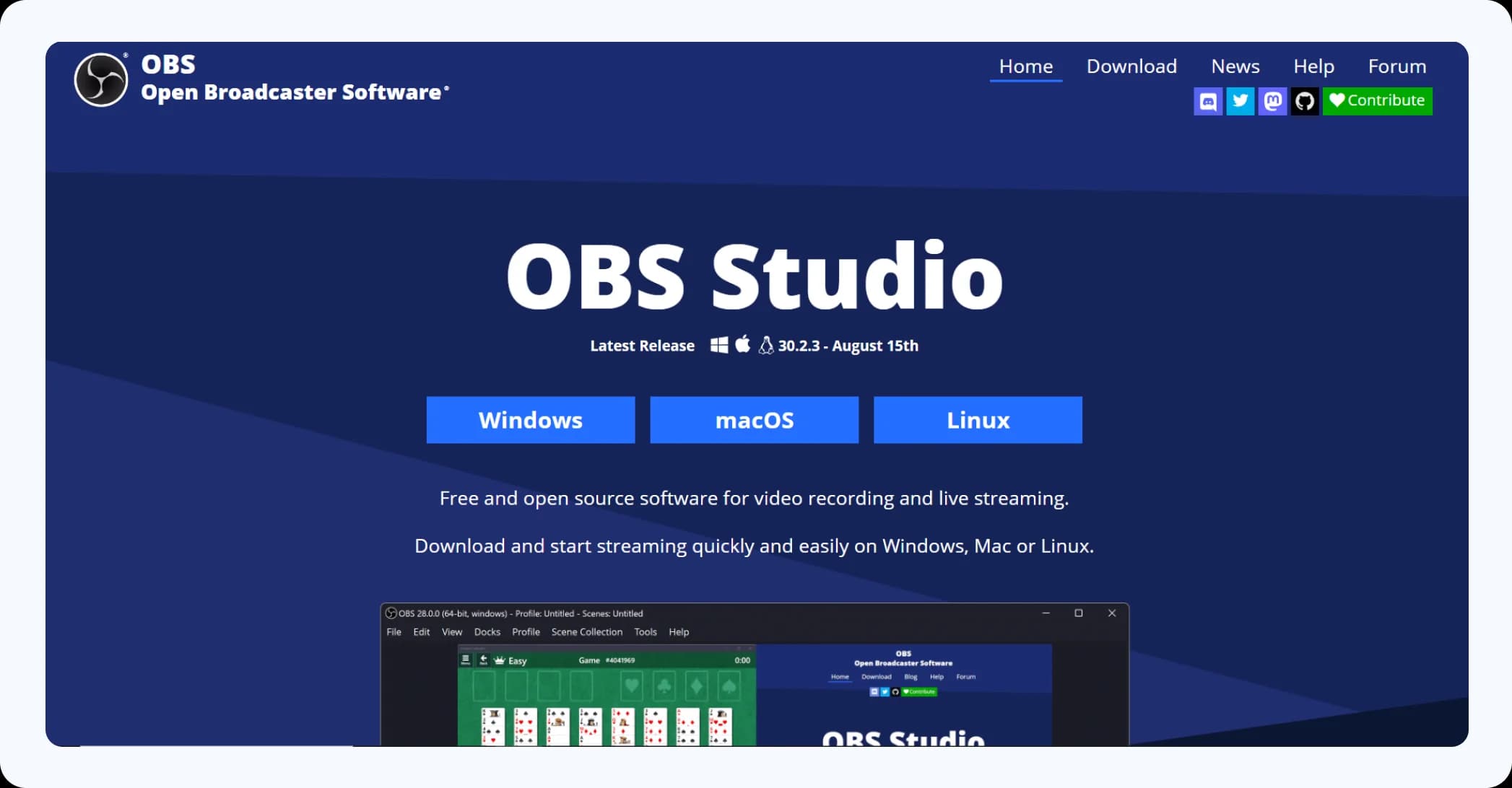
OBS Studio is a free and open-source screen recording software that’s incredibly popular among live streamers and advanced users. It’s packed with features like scene switching, audio mixing, and no watermarks or time limits.
However, it has a bit of a learning curve, so it’s best for those who are comfortable with more complex software.
Pros
- Free and open-source software
- Packed with features like scene switching, audio mixing, no watermarks or time limits
- Supports live streaming on multiple platforms
- Captures screen, webcam, and audio simultaneously
- Highly customizable with various filters and effects
Cons
- Steep learning curve, best for advanced users
- Can be resource-intensive on older computers
- Occasional bugs and glitches reported by some users
Pricing
- OBS Studio is completely free with no paid tiers
2. Camtasia
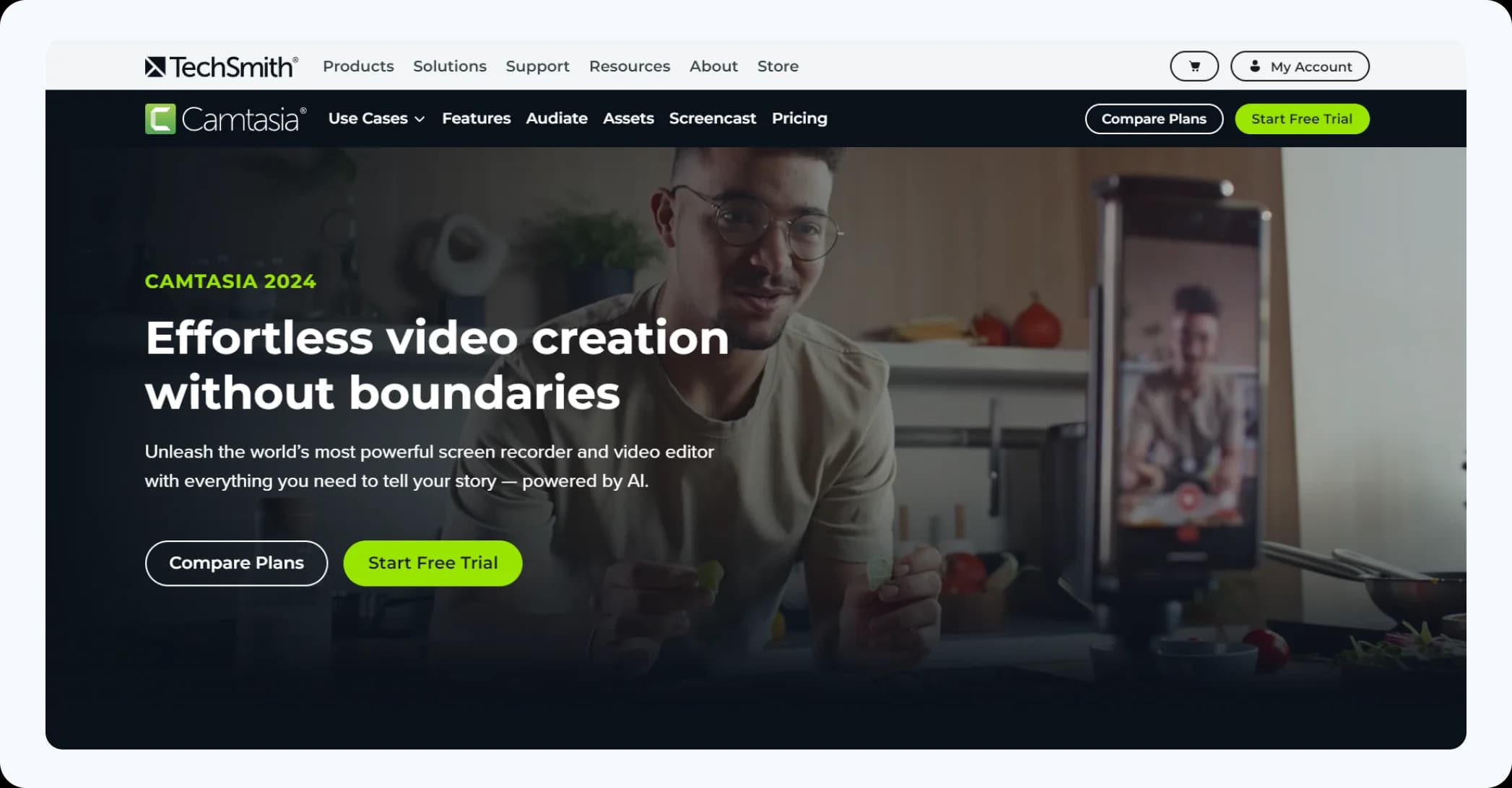
Camtasia is an all-in-one screen recording and video editing tool that’s perfect for creating professional-quality videos. It offers features like animations, quizzes, and multiple editing tracks, making it ideal for tutorials, presentations, and more.
While it comes with a price tag, the investment is worth it if you’re serious about video production.
Pros
- All-in-one tool for screen recording and video editing
- User-friendly interface with drag-and-drop functionality
- Features like animations, quizzes, and multiple editing tracks
- Ideal for creating professional-quality tutorials and presentations
- Offers a library of royalty-free music and sound effects
Cons
- Relatively high price compared to other tools
- Limited to Windows and Mac operating systems
- Some features may be overwhelming for beginners
Pricing
- Camtasia has 4 pricing editions, from $179.88 to $499. A free trial of Camtasia is also available.
Camtasia is perfect for users who want a comprehensive solution for both recording and editing videos.
3. Feedspace
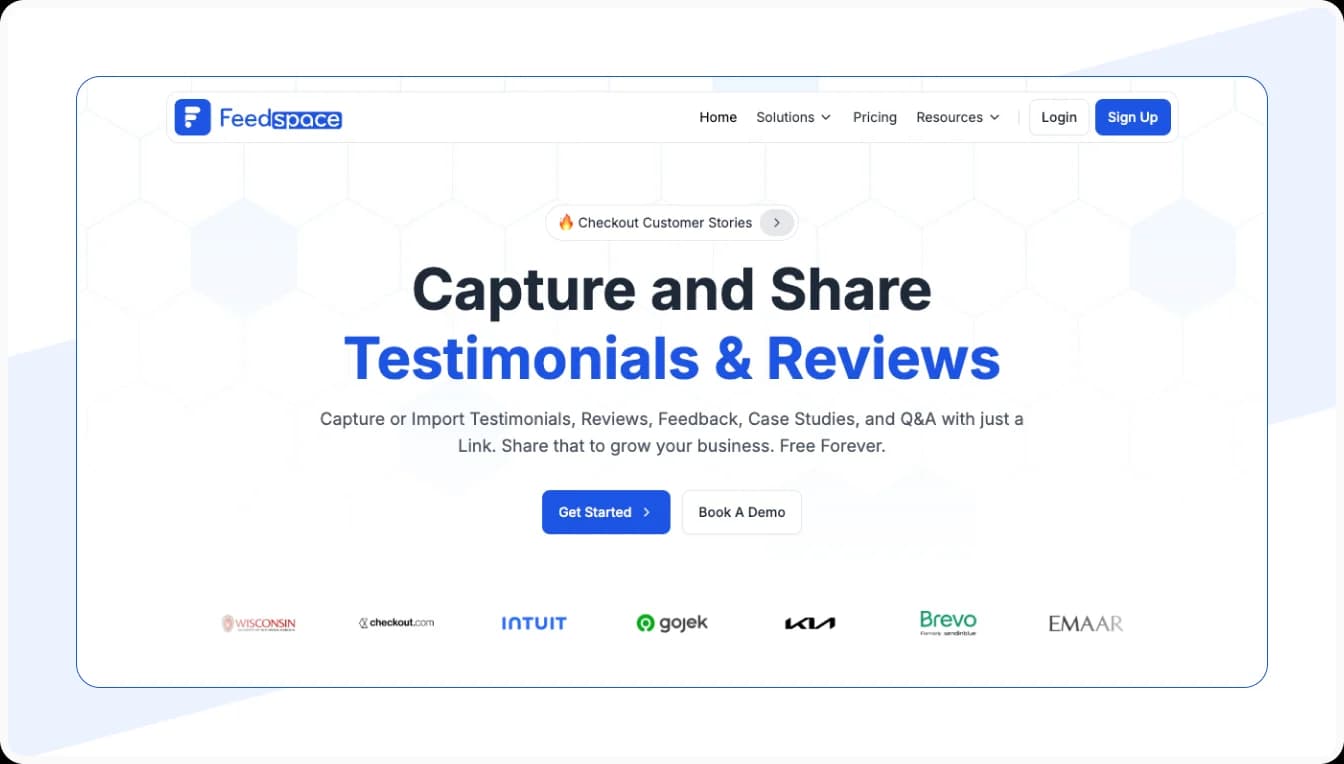
Feedspace is a unique tool on this list because it goes beyond screen recording. It’s a platform designed to capture and collect feedback in various formats, including screen recordings.
For example, if a product manager needs user feedback on a new feature, Feedspace allows users to easily share their thoughts through screen recordings.
Everything is organized in one place, making it easy to review and act on the feedback. If you’re looking for a tool that simplifies feedback collection and usage, Feedspace is the way to go.
Pros
- Focuses on collecting feedback through screen recordings
- Organizes feedback in one place for easy review
- Useful for product managers and teams needing user insights
- Supports various feedback formats
Cons
- Not primarily a screen recording software, which may confuse some users
- Limited features for video editing
Pricing
Feedspace offers a free plan with limits.
- Free Forever Plan: Create a wall of love, unlimited imports, 1 workspace, 2 review forms, and more.
- Plus Plan: $25/month, billed annually- 5 review forms, 5 GB storage space and up to 150 videos, and more.
- Professional Plan: $50/month, billed annually- 5 workspaces, 10 review forms, 50 GB storage space, unlimited videos and 10 wall of love, and more.
- Business Plan: $75/month, billed annually- 5 workspaces, 20 review forms, 20 wall of love, 100 GB storage space, and more.
Feedspace is unique in its approach to feedback collection, making it valuable for teams looking to gather user insights effectively.
4. Loom
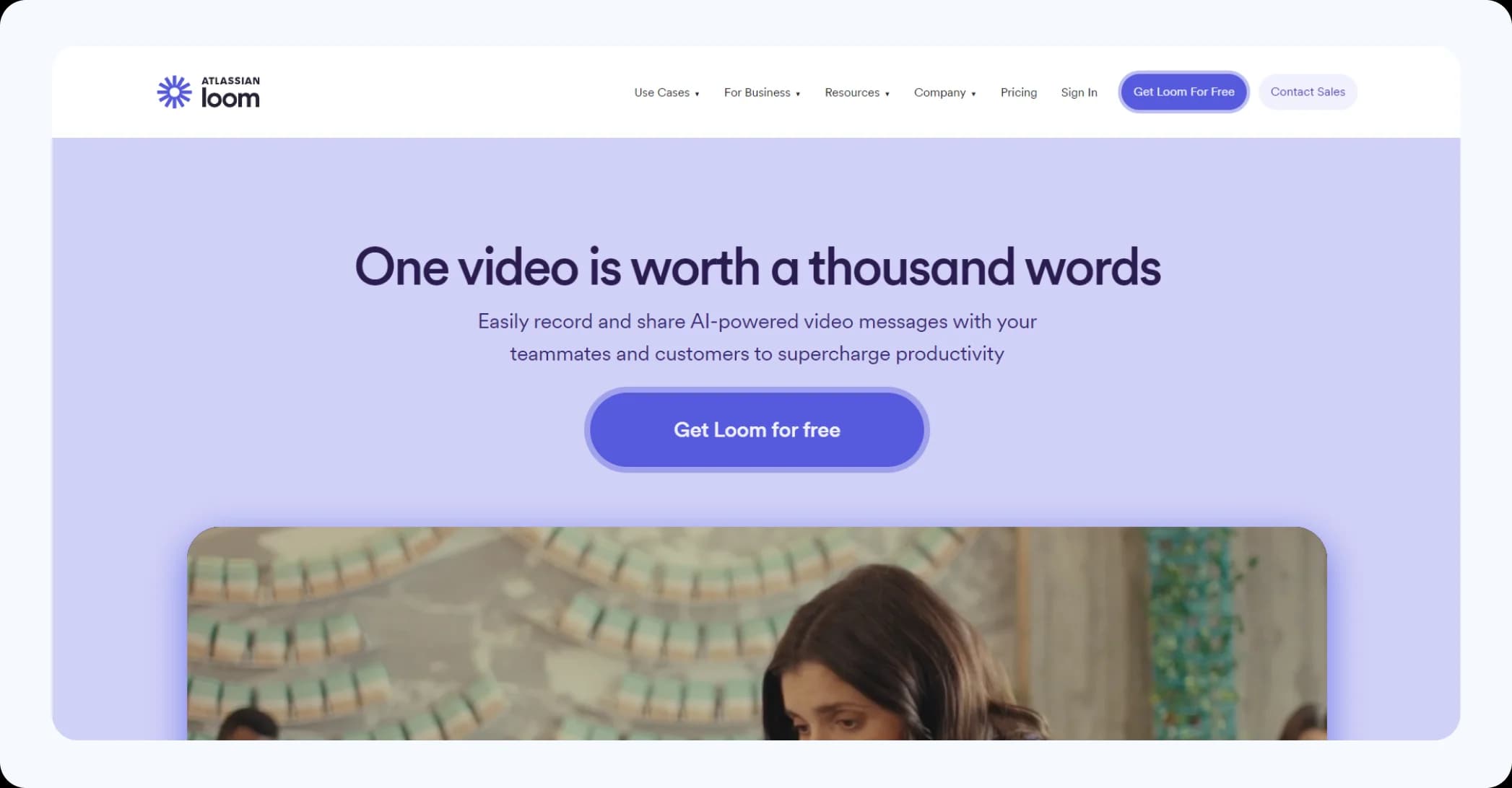
Loom is all about simplicity and speed. This tool allows you to record your screen and webcam simultaneously, making it perfect for presentations or explaining something quickly to your team.
The free version is quite generous, letting you create and share videos instantly via a link. If you need to communicate visually and quickly, Loom is a fantastic choice.
Pros
- Simple and fast screen and webcam recording
- Generous free version allowing easy sharing via links
- User-friendly interface, ideal for quick presentations
- Integrates well with other tools like Google Drive and Slack
Cons
- Limited editing features in the free version
- Paid plans can get expensive for larger teams
- Storage limits on free accounts
Pricing
- Loom offers a free version, with paid plans starting at $8 per user per month for additional features.
Loom is excellent for quick video communication, particularly in team settings. Its ease of use makes it ideal for those who need to create videos rapidly.
5. ScreenFlow
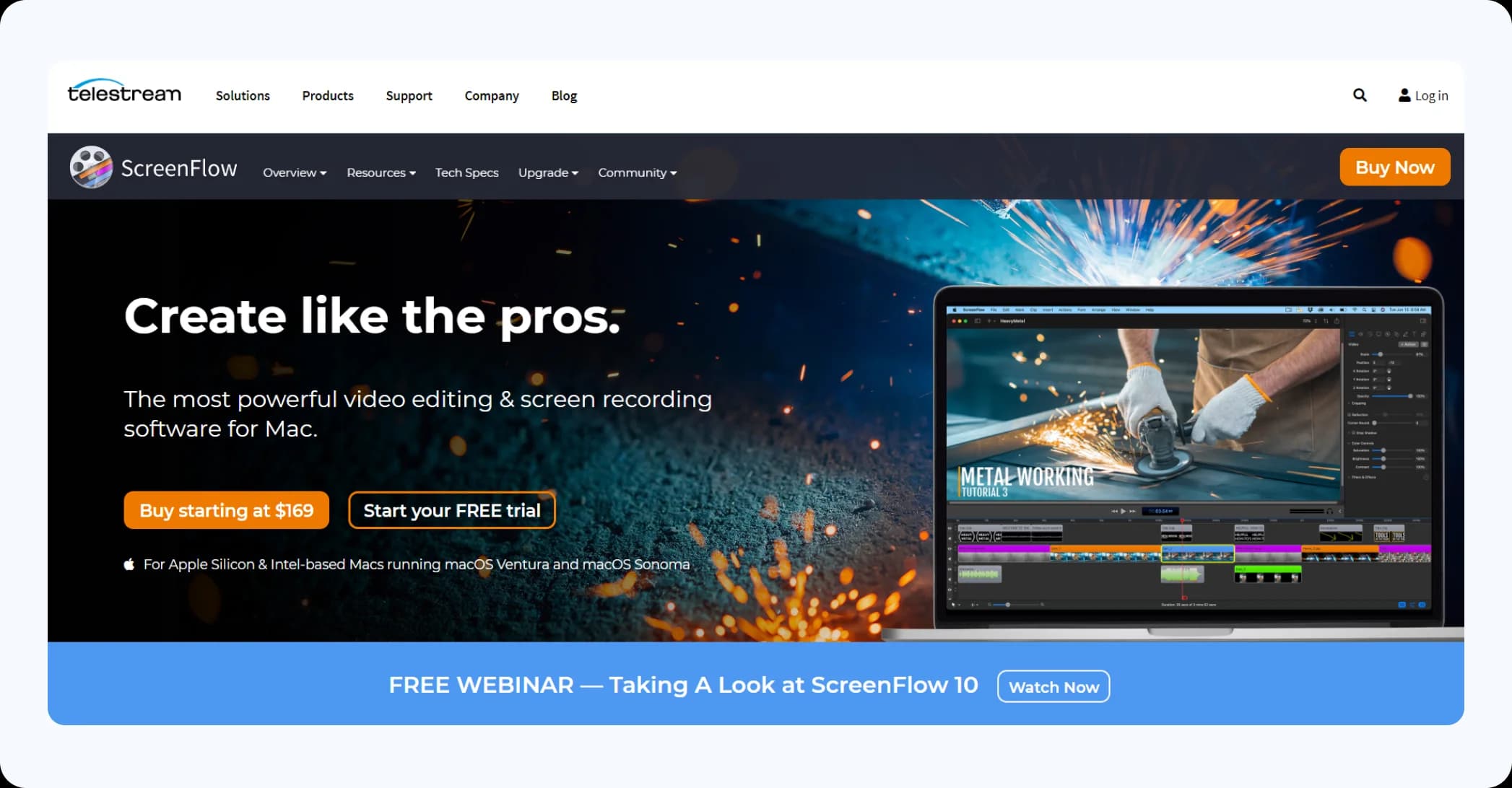
Exclusively available for Mac users, ScreenFlow is known for its smooth interface and powerful editing features. It allows you to record your screen, edit videos, and add effects and animations, all within the same platform.
While it’s a bit pricey, it’s the go-to tool for Mac users who want high-quality, polished videos.
Pros
- Exclusive to Mac, offering a smooth user interface
- Powerful video editing features alongside screen recording
- Allows adding effects and animations easily
- High-quality output suitable for professional videos
Cons
- Higher price point compared to other options
- Only available for Mac users
- Some users may find it less intuitive than other tools
Pricing
ScreenFlow has the following pricing plans:
- Single at $149 one-time license fee
- Super Pak at $209 one-time license fee.
- Super Pak + Premium Support at $239
ScreenFlow is ideal for Mac users who want a robust tool for creating polished videos. Its seamless integration of recording and editing features makes it a strong contender for video professionals.
6. Snagit
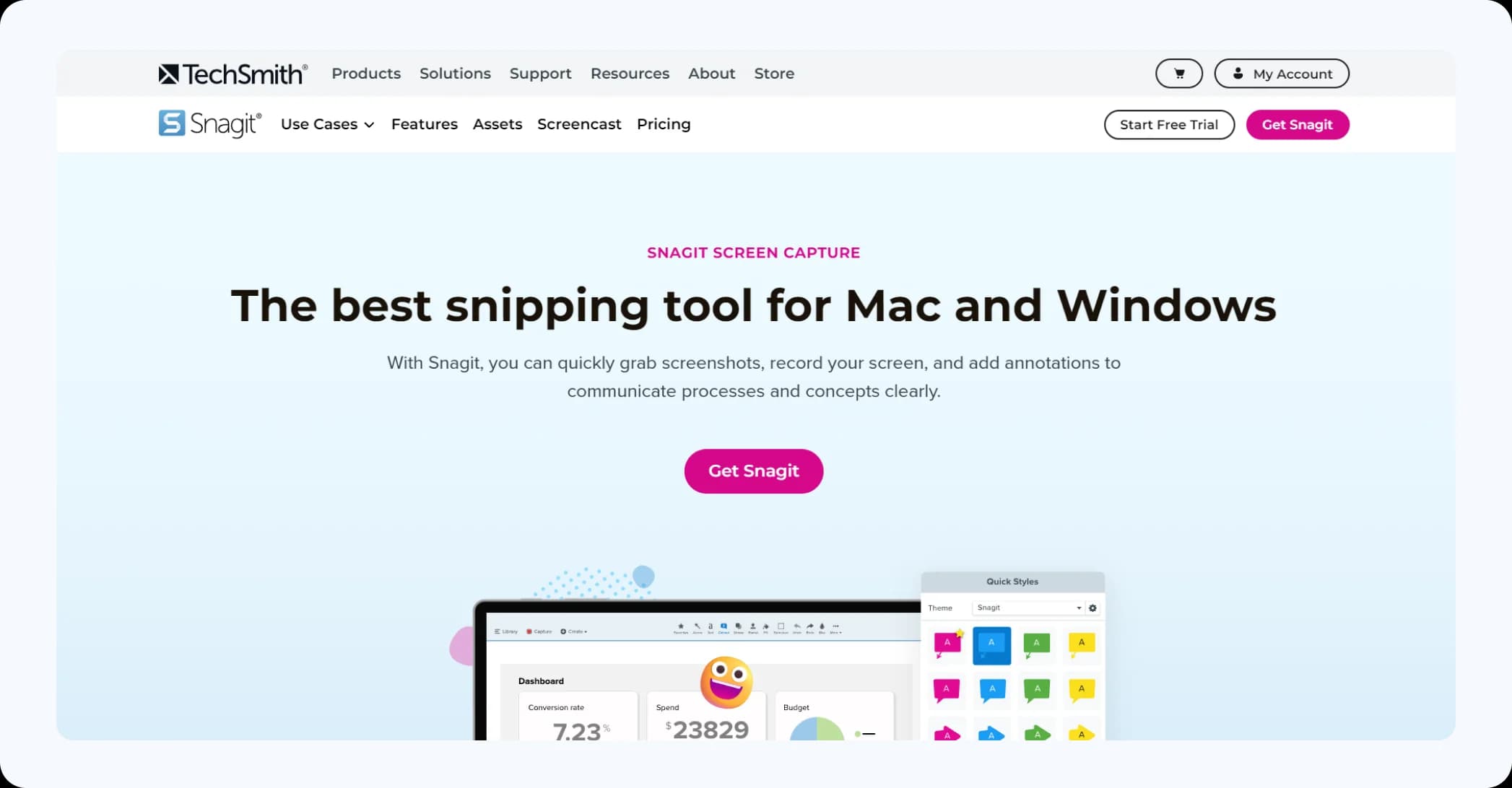
Snagit is a dual-purpose tool that combines screen recording and screenshot capabilities. It’s perfect for creating tutorials, guides, or anything that requires a mix of video and images.
Snagit is easy to use and comes with simple editing tools, making it a favorite for educators and professionals who need to create visual content quickly.
Pros
- Combines screen recording and screenshot capabilities
- Easy to use with simple editing tools
- Great for creating tutorials and guides
- Supports various image formats and editing options
Cons
- Limited video editing features compared to dedicated software
- Not free; some may find it pricey for basic needs
- Primarily designed for quick content creation
Pricing
- Snagit has 3 pricing editions, from $37.99 to $62.99. A free trial of Snagit is also available.
Snagit is a great tool for educators and professionals needing quick visual content creation. Its dual functionality makes it versatile, though it may not satisfy those needing advanced video editing.
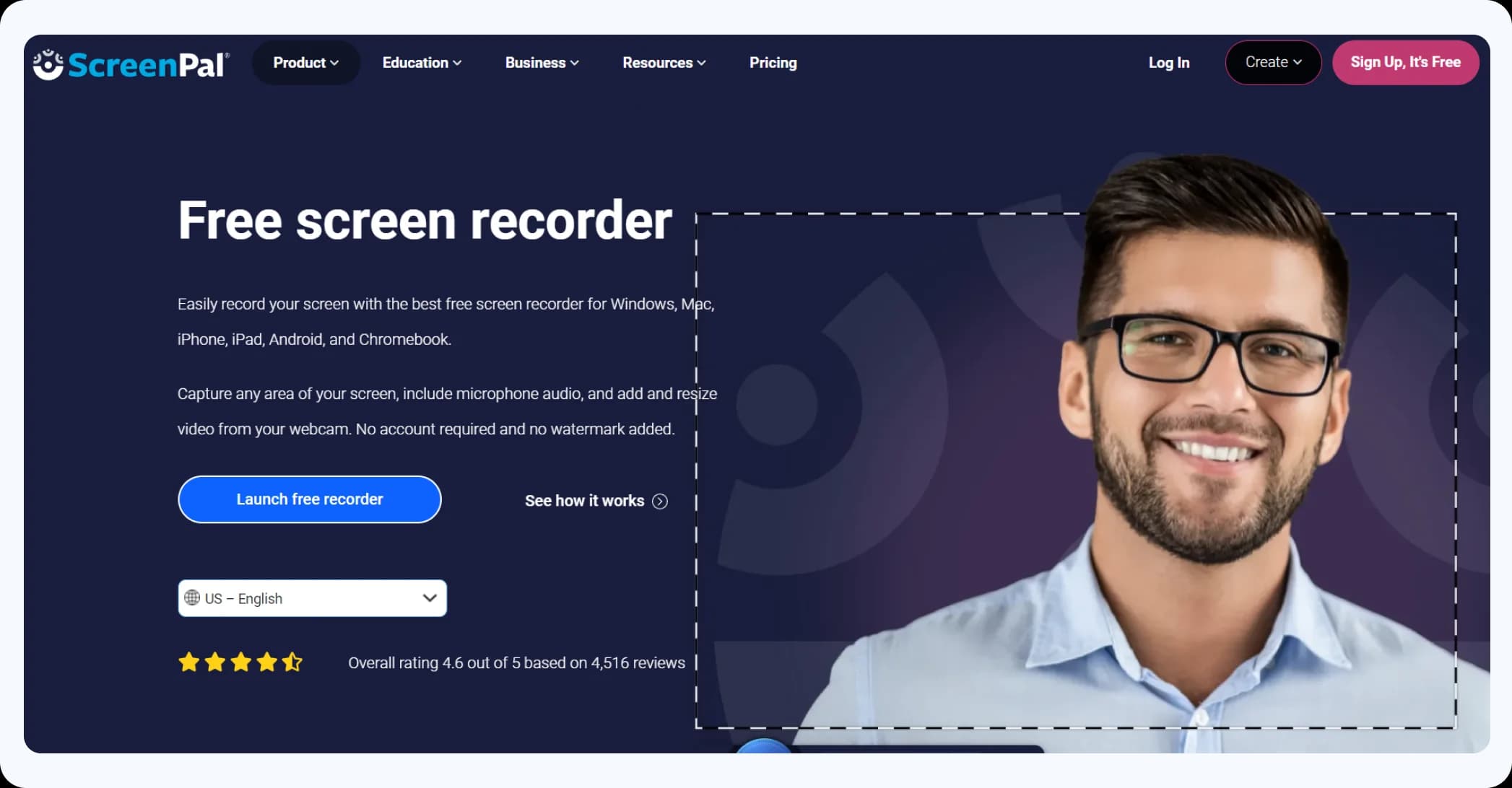
7. ScreenPal
If you’re looking for a budget-friendly screen recording software, ScreenPal is a solid option. It allows you to record your screen, webcam, and audio, with basic editing tools available in the free version.
The paid version offers more advanced features like drawing on your screen and removing watermarks. It’s an excellent choice for anyone who needs a straightforward, affordable tool.
Pros
- Budget-friendly with a solid free version
- Allows recording of screen, webcam, and audio
- Basic editing tools available in the free version
- Easy to use for beginners
Cons
- Free version includes watermarks
- Limited features in the free version compared to paid plans
- Advanced features require a subscription
Pricing
- There are two paid pro versions: Deluxe ($1.65/month, billed annually) and Premier ($4.00/month, billed annually).
ScreenPal is an excellent choice for those on a budget who need a straightforward screen recording software. Its affordability makes it accessible to a wide range of users.
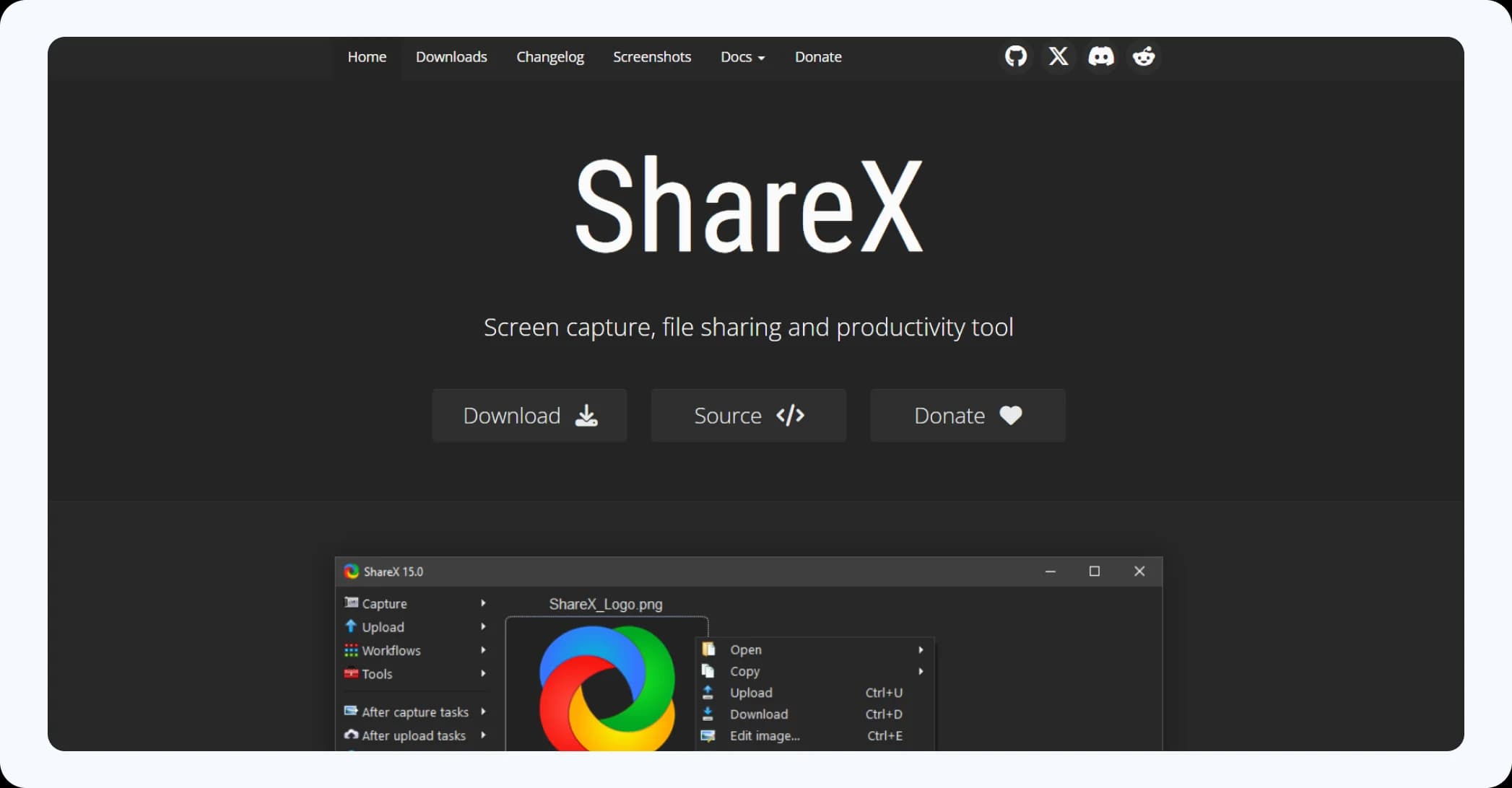
8. ShareX
ShareX is a powerful, free, and open-source tool that’s highly customizable. It offers not only screen recording but also screenshot capturing, GIF creation, and file sharing.
However, the interface can be a bit clunky, so it’s best for users who are comfortable with more advanced settings and customization.
Pros
- Free and open-source with extensive customization options
- Supports screen recording, screenshot capturing, and GIF creation
- Highly versatile with many features and integrations
- No watermarks or time limits
Cons
- The interface can be clunky and overwhelming for new users
- May require a learning curve for full customization
- Limited support compared to paid tools
Pricing
- ShareX is completely free with no paid tiers.
ShareX is a powerful tool for users who appreciate customization and versatility. It’s best suited for those comfortable with technology and looking for a feature-rich solution.
9. Bandicam
Bandicam is well-known for its ability to record high-quality videos with minimal file sizes, making it popular among gamers.
It supports 4K Ultra HD recording and allows you to capture either your entire screen or just a specific area. The free version includes a watermark, but the paid version offers a more professional experience.

Pros
- High-quality video recording with minimal file sizes
- Supports 4K Ultra HD recording
- Allows capturing specific areas of the screen or the entire screen
- User-friendly interface
Cons
- Free version includes a watermark
- Limited editing features
- Primarily designed for gamers, which may not suit all users
Pricing
The Bandicam pricing is as below:
- 1-PC license: $39.95
- 2-PC License: $59.96
You need to pay $27.79 per computer to upgrade your license count.
Bandicam is popular among gamers for its high-quality recording capabilities. It’s a solid choice for users who need a reliable tool for capturing gameplay.
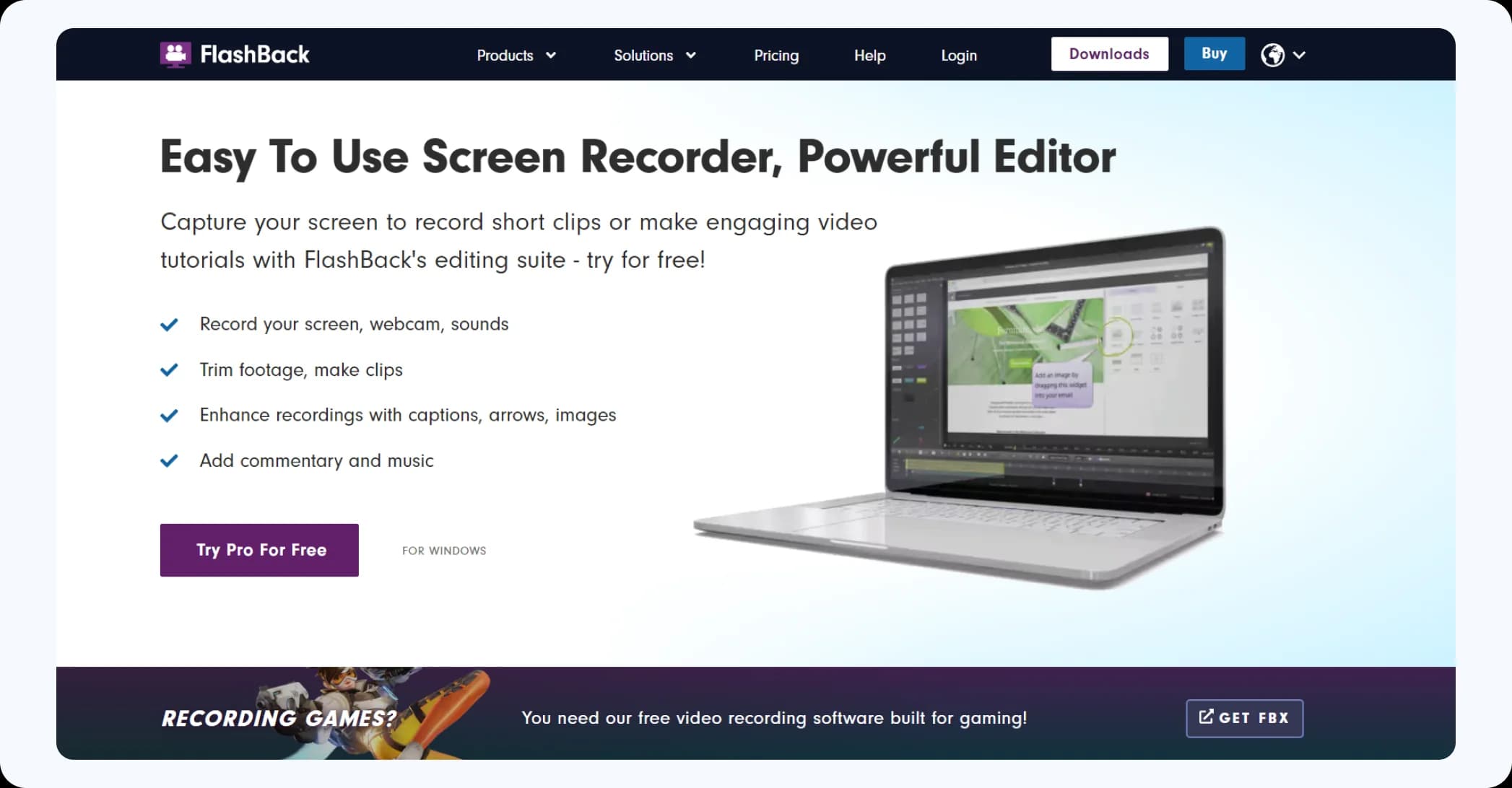
10. FlashBack Express
FlashBack Express is a free tool that offers screen, webcam, and sound recording without watermarks or time limits. It’s perfect for beginners due to its simple and clean interface.
You can save your recordings in various formats and even upload them directly to YouTube. If you need more editing features, there’s a paid version, but the free one is already quite robust.
Pros
- Free tool with no watermarks or time limits
- Simple and clean interface, great for beginners
- Allows recording of screen, webcam, and sound
- Supports saving in various formats and direct YouTube uploads
Cons
- Limited editing features compared to the paid version
- Advanced features require an upgrade
- May lack some professional-grade tools
Pricing
FlashBack Express pricing is as below:
- Starting price: $49.00 one time
- Free trial: Available
- Free version: Available
FlashBack Express is an excellent choice for beginners needing a straightforward screen recording tool. Its free version is robust, making it ideal for users just starting.
Conclusion
Screen recording software in 2024 are more versatile than ever. Whether you’re a content creator, educator, or professional, there’s a tool on this list that can meet your needs. From the powerful, feature-packed OBS Studio to the feedback-focused Feedspace, these tools offer a range of options to help you capture and share your screen with ease. So, explore these tools, find the one that suits you best, and start creating amazing content today!