Feedspace supports a direct MCP connection with Lovable, an AI-powered web app builder. Once connected, your Lovable prompts can pull live review data straight from your Feedspace account, making it straightforward to build apps, landing pages, or components that display real customer testimonials without manually copying and pasting review content.
You need a Lovable account with access to the dashboard settings or MCP Connectors section.
Step 1: Copy the Feedspace MCP URL
Open your profile menu
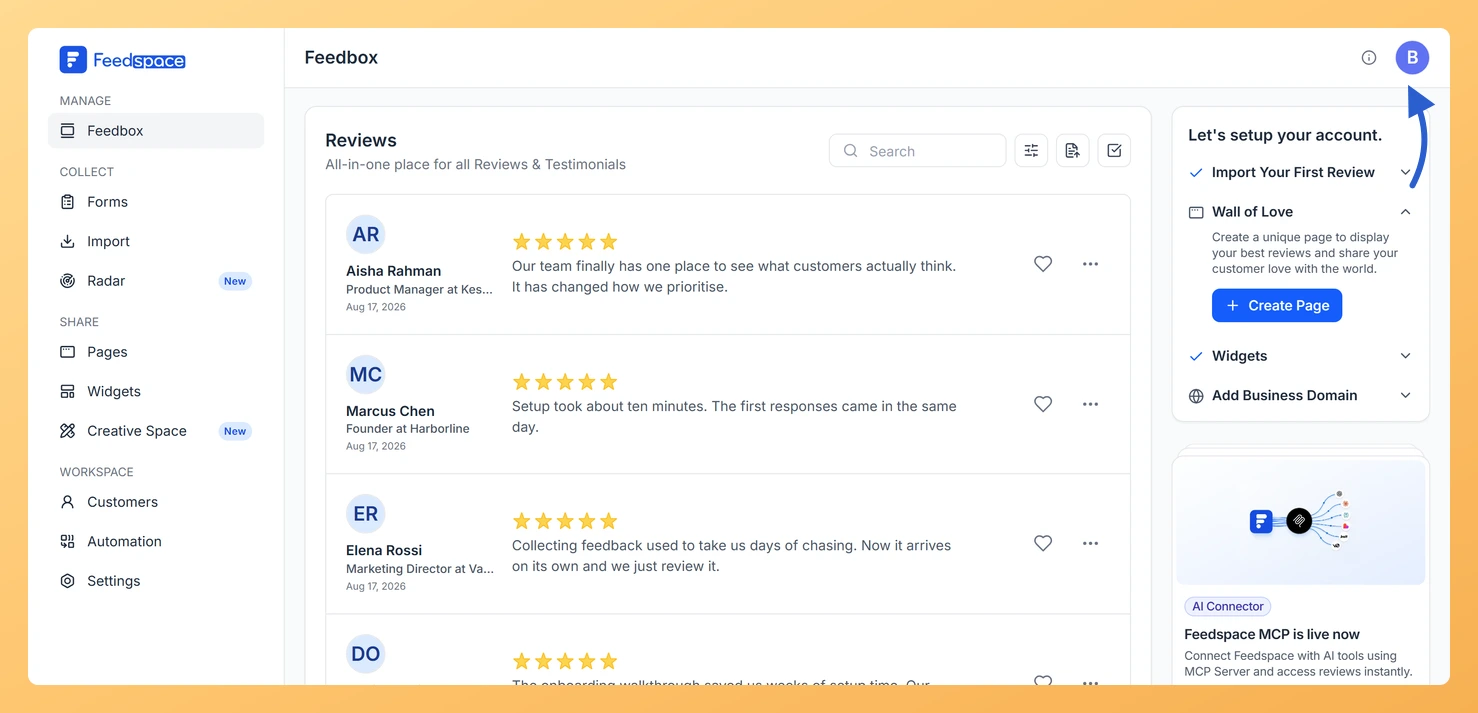
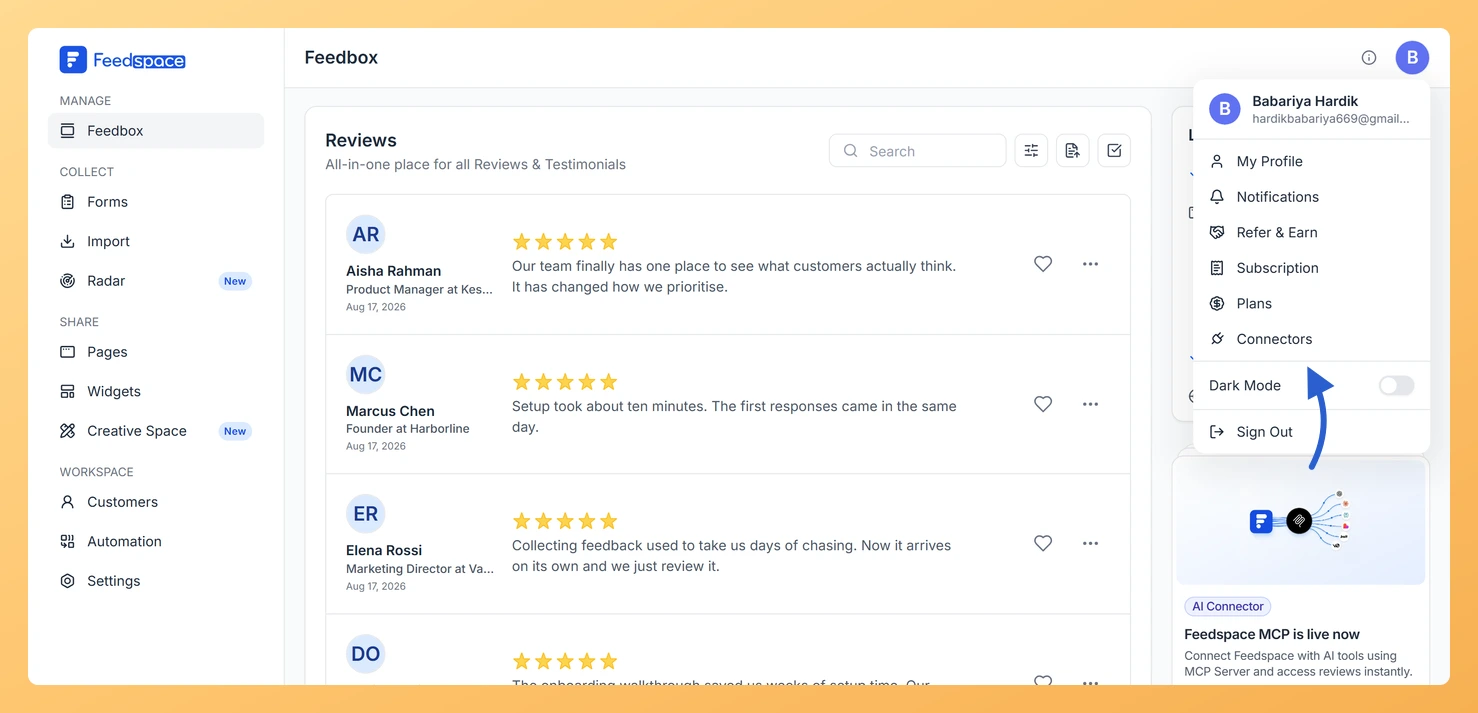
Log in to Feedspace and click the avatar button at the top-right of the header, then click Connectors. The My Account panel opens on the Connectors tab.
Open the Lovable instructions
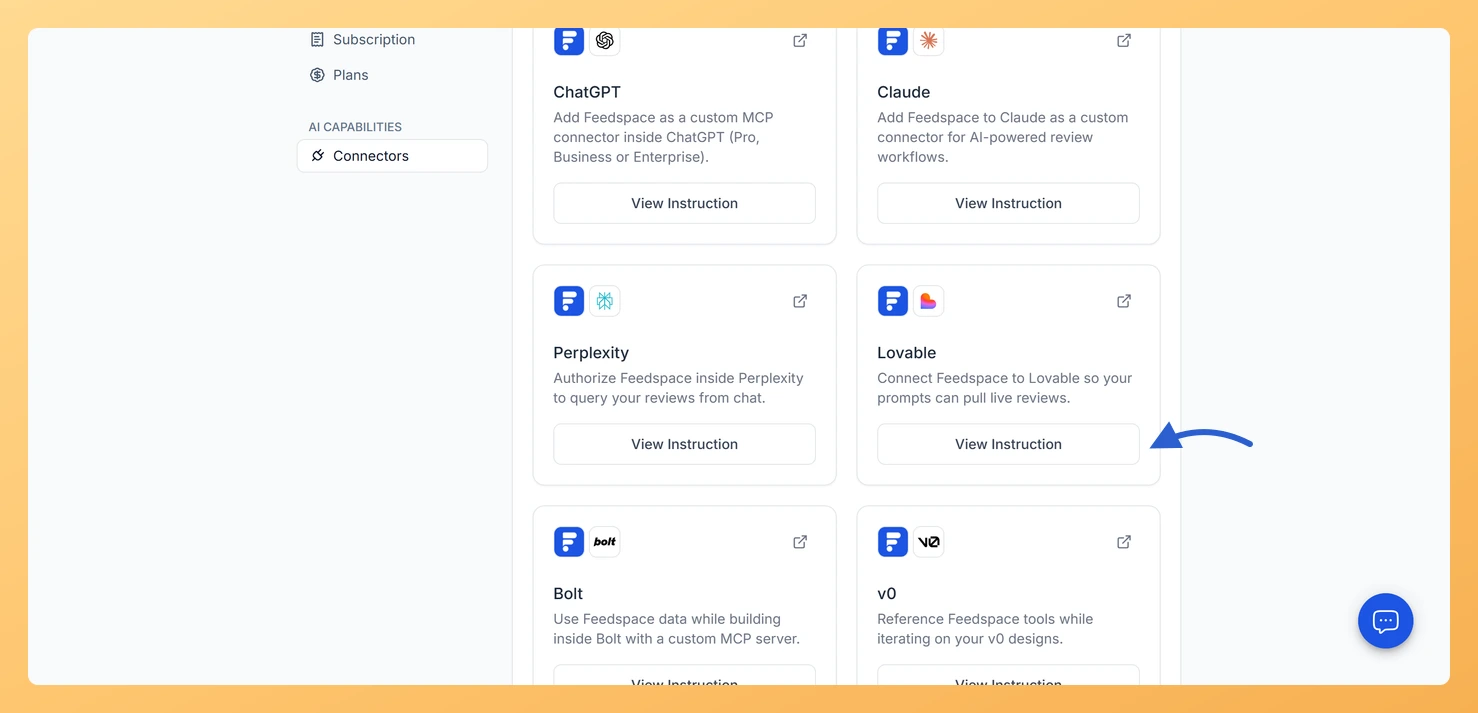
Find the Lovable card and click View Instruction.
Copy the MCP URL
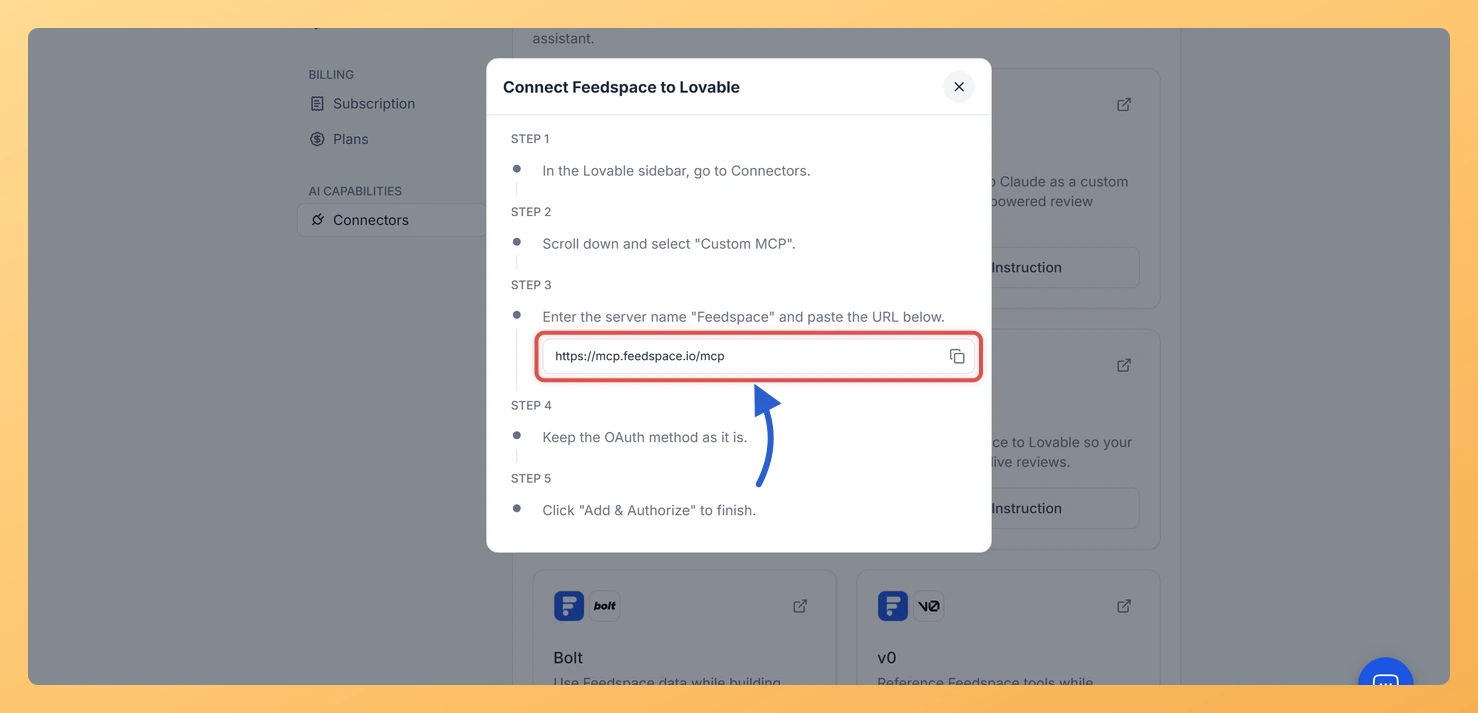
In the dialog that opens, click the copy icon next to the MCP URL to copy it. The URL is https://mcp.feedspace.io/mcp.
Enter the server name Feedspace and paste the MCP URL: https://mcp.feedspace.io/mcp.
Keep the OAuth method as it is.
Click Add & Authorize to finish.
Step 3: Use Feedspace data in a Lovable prompt
Once the connector is saved, you can reference your Feedspace reviews directly in any Lovable prompt. Lovable will fetch live data from your account and use it when generating your app or component.
What you can build
Testimonial section: Prompt Lovable to build a testimonial section using your real Feedspace reviews, so the output is populated with actual customer quotes and star ratings rather than placeholder text.
Landing page with live feedback: Create a landing page that displays live customer feedback pulled directly from your Feedspace workspace.
Review display component: Prototype a review display component populated with actual data, ready to drop into any web app you are building in Lovable.
Common questions
Is the MCP URL the same for all AI platforms?
Yes. The Feedspace MCP URL is https://mcp.feedspace.io/mcp for all supported platforms including Lovable, Claude, ChatGPT, Perplexity, Bolt, and v0. Only the location where you paste it differs between platforms.
What does the OAuth method in Lovable do?
OAuth is how Lovable links the connector to your Feedspace account. Leave the method on its default when you add the custom MCP server, then click Add & Authorize to complete the link. Changing it stops Lovable from reaching your reviews.
The copy icon in the View Instruction dialog does not respond
If the copy icon does not respond, manually select the URL shown in the View Instruction dialog and copy it: https://mcp.feedspace.io/mcp. Paste it directly into Lovable’s connector settings.
What you can do next
Connect Feedspace to other AI tools such as Claude, ChatGPT, Bolt, or v0 using the same Connectors tab in your account settings.
Click View Instruction on any platform card in the Connectors tab for a guided walkthrough specific to that tool.
You might also find helpful
How Do I Connect Feedspace to AI Tools?
Overview The Connectors tab in Feedspace lets you link your account to popular AI tools using the Model Context Protocol (MCP). Once connected, you can ask AI tools to access and use your Feedspace review data directly inside those platforms. Feedspace supports six AI tools: Claude, ChatGPT, Perplexity, Lovable, Bolt,...
What Is the Feedspace MCP Connector?
What Is MCP? MCP stands for Model Context Protocol. It is an open standard that lets AI tools securely access data from external services. When you connect Feedspace to an AI tool via MCP, the AI tool can read your review data, testimonials, and workspace information to help you generate...
How Do I Connect Feedspace to v0?
Overview v0 by Vercel is an AI UI generation tool that turns prompts into React and shadcn/ui components. By connecting Feedspace to v0 via the MCP connector, your v0 prompts can pull live review data from your Feedspace account and use it when generating UI components. This means you can...