Labels in Feedspace let you tag and categorize reviews so you can filter and organize them quickly. The Labels tab in Settings is where you create, edit, and delete the labels available across your workspace. Once a label exists, you can apply it to individual reviews from the review management pages.
How to access the labels page
Step 1: Open Settings
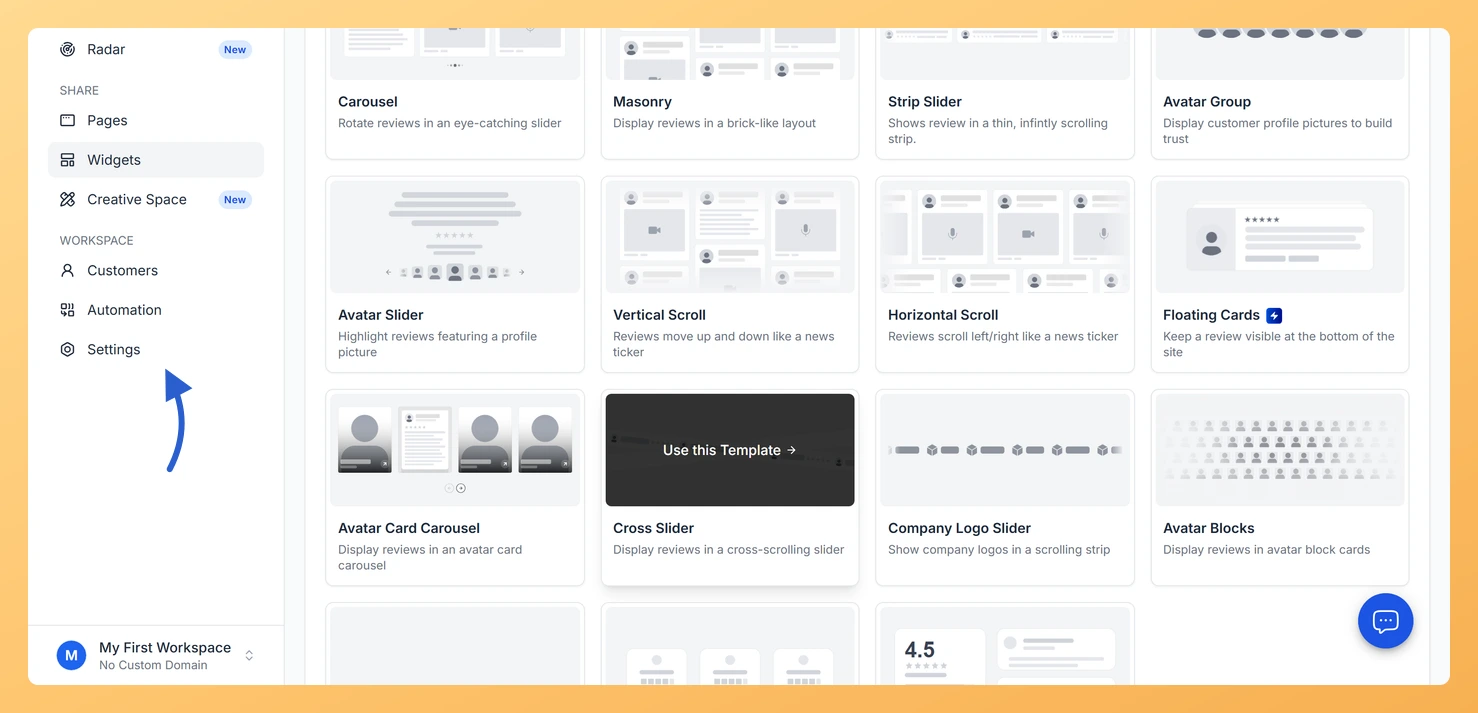
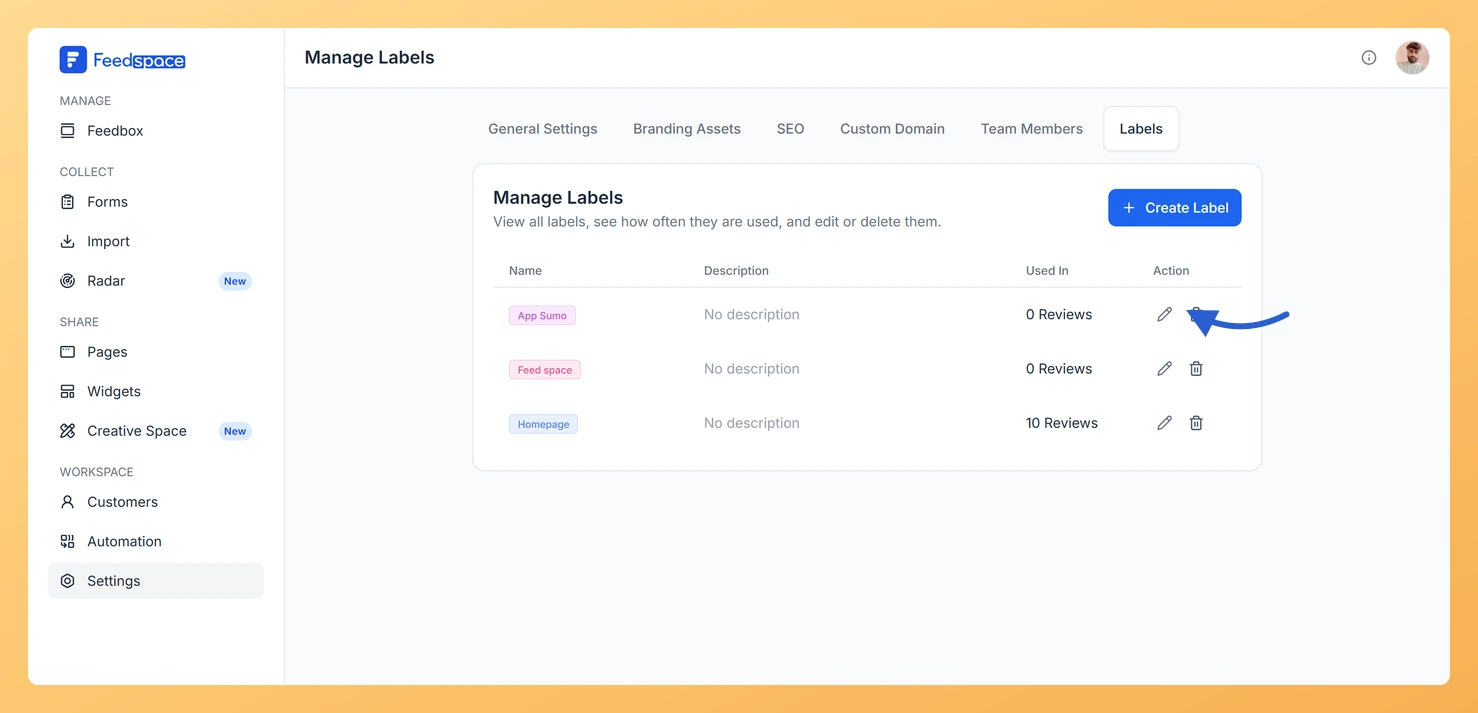
In the left sidebar, click Settings under the Workspace section.
Step 2: Open the Labels tab
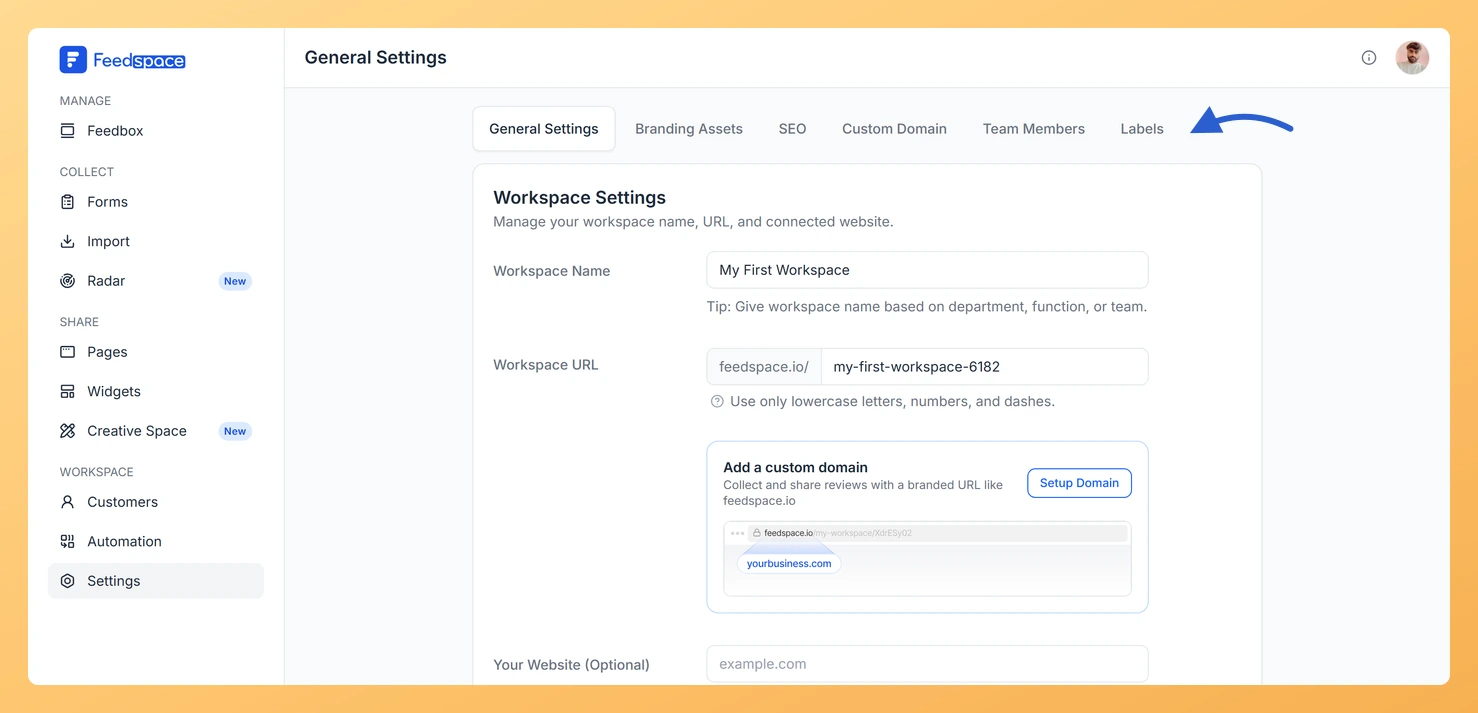
Click the Labels tab at the top of the Settings page.
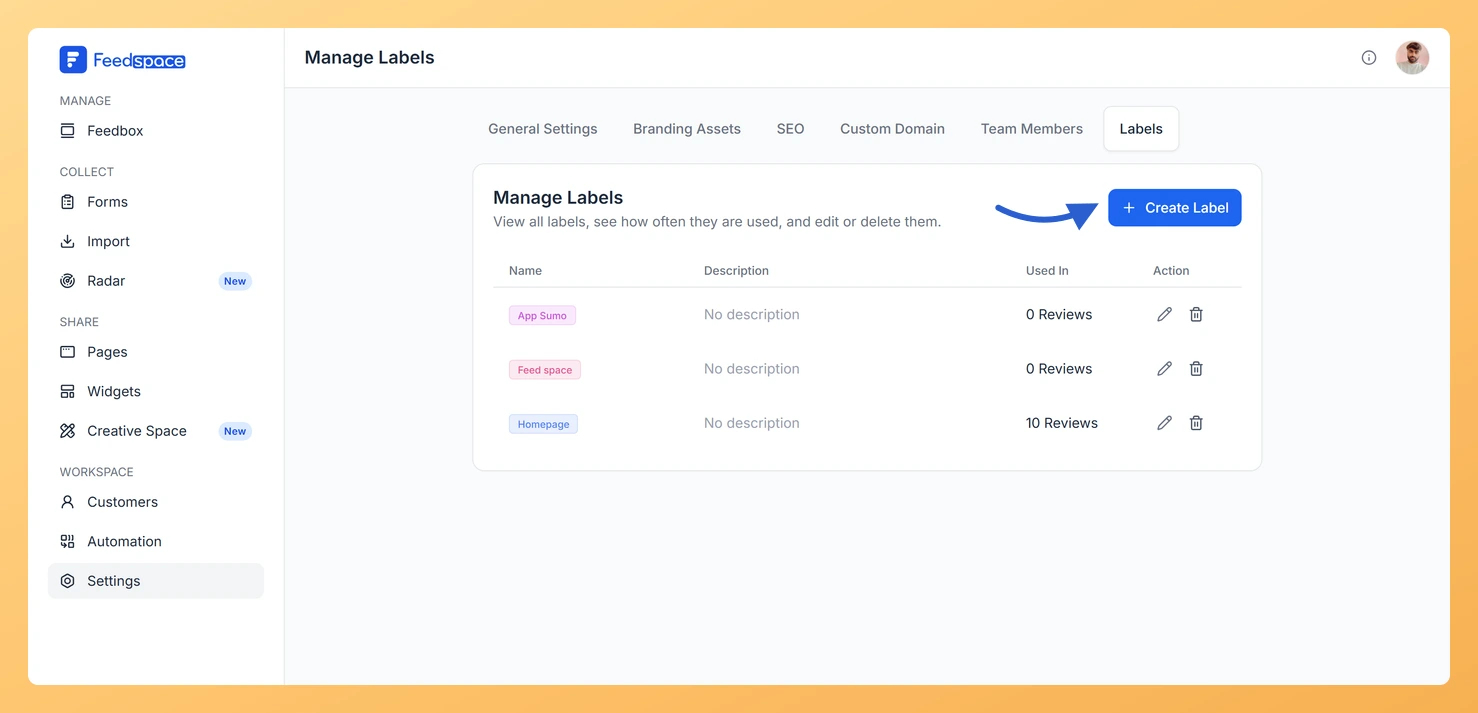
The Labels page shows a table with four columns: Name (a coloured label chip), Description, Used In (how many reviews use the label), and Action (edit and delete icons for each row).
How to create a label
Step 1: Open the Create label modal
On the Labels page, click Create Label. The Create label modal opens.
Step 2: Name the label and pick a colour
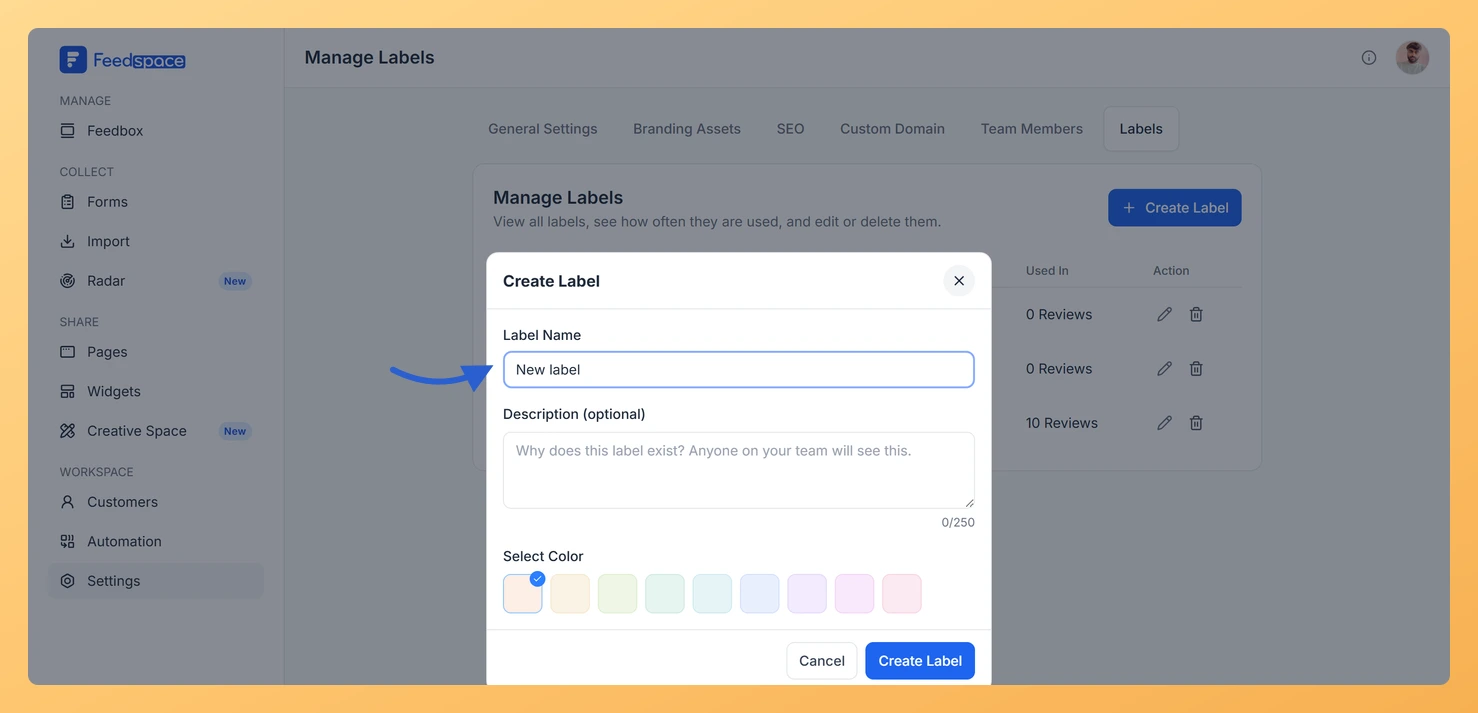
Type a name in the Label Name field, replacing the pre-filled “New label” text. Click a colour swatch in the picker below, then click Create Label to save.
The new label appears in the table and is now available to apply to reviews across your workspace.
How to edit a label
Step 1: Open the Edit label modal
In the Labels table, find the label you want to update and click the pencil (edit) icon in its row. The Edit label modal opens, pre-filled with the current name and colour. Update the name or pick a new colour, then click Update Label to save.
Changes apply to all reviews that already have this label. The updated name and color show on every review using it.
How to delete a label
Step 1: Click the delete icon
In the Labels table, click the trash (delete) icon next to the label.
Step 2: Confirm the deletion
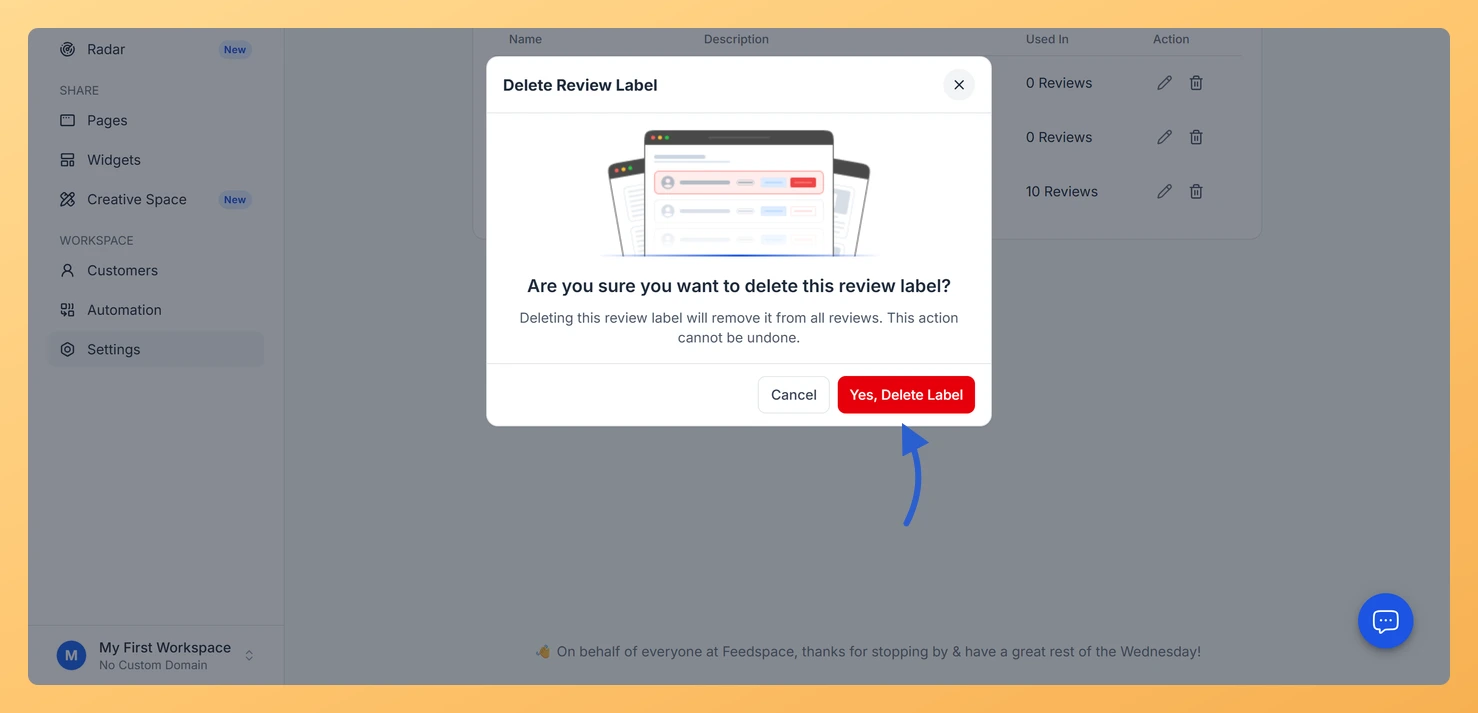
A confirmation modal opens with a warning that the label will be removed from all reviews. Click Yes, Delete Label to confirm.
The label is permanently removed from the workspace and from all reviews that had it applied.
Common questions
What is the difference between labels in Settings and labels on reviews?
The Labels tab in Settings is where you define your label library. Once you have created labels here, you can apply them to individual reviews from the review management pages. Think of Settings as the place to manage label types, and the review pages as where you assign those labels.
Can I delete a label that is in use?
Yes. Deleting a label removes it from all reviews that have it applied. The label count shown in the Used In column tells you how many reviews will be affected before you confirm the deletion.
How do I apply a label to a review?
You apply labels in Feedbox. Click Feedbox in the left sidebar, open the dropdown menu on a review card or in the review detail view, then click a label to assign it. Click an assigned label again to remove it. For the full walkthrough, including how to label several reviews at once, see how to add and remove labels for reviews.
What’s next
Apply your new labels to reviews from the review management pages.
Use labels to filter reviews by category when viewing your review lists.
You might also find helpful
How to Manage Review Labels in Feedspace
Overview Feedspace allows you to manage your review labels at the workspace level. This includes options to rename and delete existing labels, ensuring that any changes made will apply to all reviews within the workspace that are assigned those labels. Step 1 Log in to Feedspace Start by logging into...
How to Bulk Manage Review Labels in Feedspace
Overview The Bulk Review Label feature in Feedspace allows you to apply labels to multiple reviews at once, making it easier to organize and manage your reviews. Labels can also be used as filters to streamline review search and analysis. Step 1 Log in to Feedspace Start by logging into...
What is Workspace in Feedspace?
Overview In Feedspace, a Workspace is a dedicated environment where all your review-related data and tools are organized. Think of it as a container that holds everything you need for managing testimonials and reviews in one place. A workspace typically includes: This structure helps you keep things organized and segregated,...