The Feedspace Chrome Extension lets you easily capture Amazon product reviews and import them directly into your Feedspace workspace. This is especially useful for showcasing authentic customer feedback on your website, landing pages, or marketing materials.
Step 1: Open the Amazon review
Go to Amazon and open the product page where customer reviews are listed. Scroll to the review you want to import.
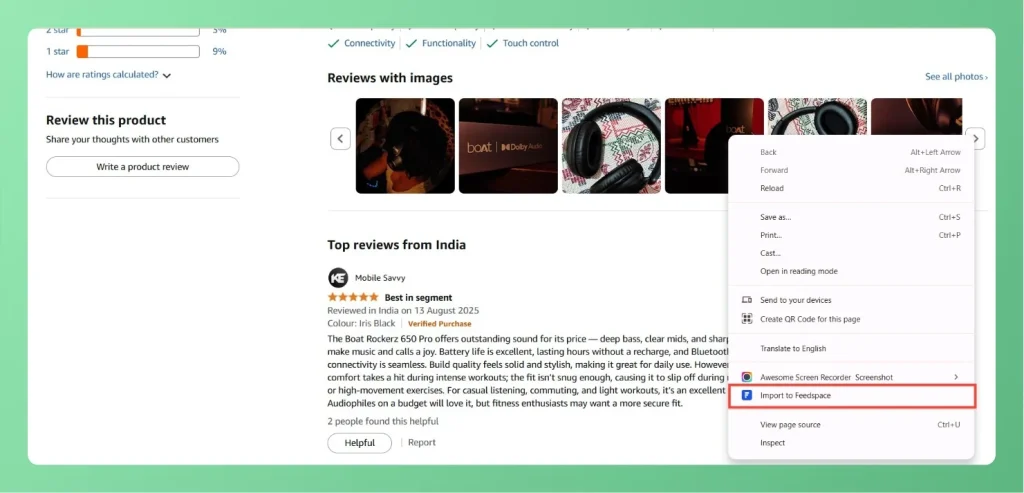
Step 2: Right-click on the review
Hover over the review section. Right-click on the post. From the context menu, choose Import to Feedspace.
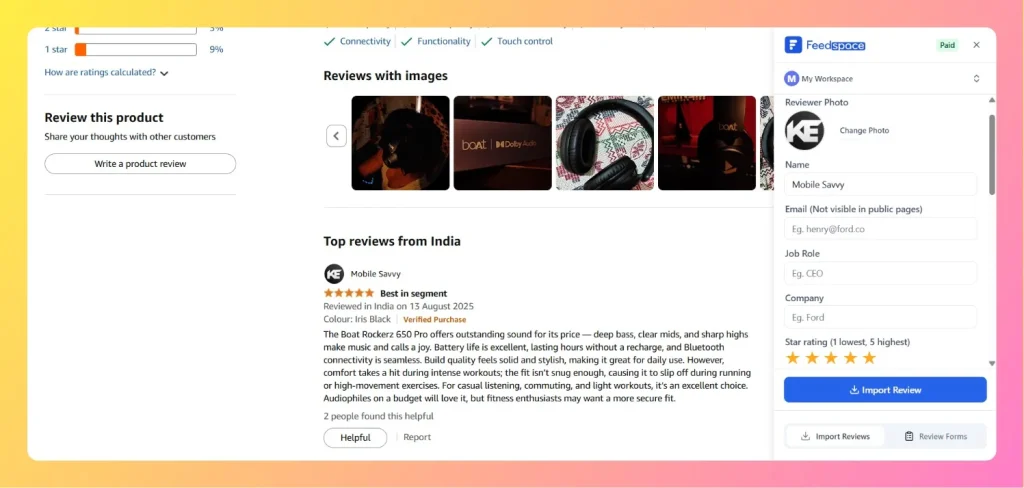
Step 3: Confirm and save
A Feedspace import panel will appear on the right side. Review the details such as Name, Email, Job Role, Company, and Rating, Review Text, Image, Date, etc. Make edits if necessary.
Click Import Review to save the Amazon review into your Feedspace workspace.
Your Amazon review is now successfully imported into Feedspace.
If the captured details come in blank or partial
If some fields in the import panel arrive empty or only partly filled, the review usually was not fully loaded on the page when you captured it. Work through these checks and capture again.
Make sure you are on the product or review page and the review is fully loaded and expanded before you right-click. If the review text is cut off behind a Read more link, expand it first.
Refresh the page, scroll the review back into view, and try the capture again.
Confirm the Feedspace Chrome Extension is installed and that you are logged in to Feedspace.
You can fill in any missing details after import by editing the review in Feedbox.
Yes. Open the imported review in Feedbox and edit the name, rating, review text, or any other field that came in empty. The capture is a starting point, so anything Amazon did not pass through you can add by hand afterward.
You might also find helpful
How to Install the Feedspace Chrome Extension
Overview The Feedspace Chrome Extension makes it easier to collect and manage reviews or testimonials directly from your browser. With just a click, you can capture customer feedback while browsing or working in different platforms, without switching tabs or logging into the Feedspace dashboard. You can install the extension from...
How to Import Reviews from X (Twitter) Posts
Overview With the Feedspace Chrome Extension, you can easily import tweets (posts) from X and save them directly into your Feedspace workspace as testimonials. Step 1 – Select the X Post Go to the X (Twitter) post you want to import as a review or testimonial. Step 2 – Right-click...
How to Import Reviews from YouTube Comments
Overview The Feedspace Chrome Extension makes it simple to import YouTube comments as testimonials or reviews directly into your Feedspace workspace. Follow the steps below to get started: Step 1 – Select the YouTube Comment Open the YouTube video containing the comment you want to import. Highlight or select the...