With the Feedspace Chrome Extension, you can easily import your LinkedIn Recommendations into Feedspace. Follow these steps:
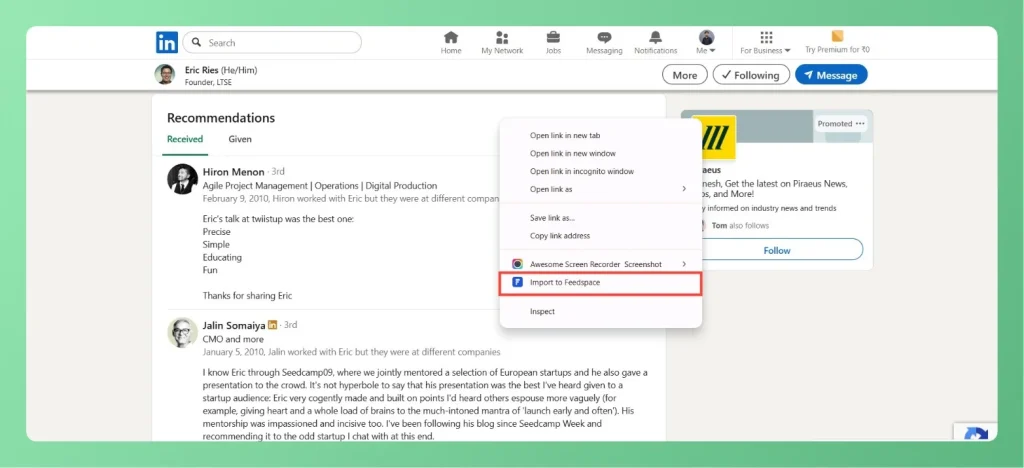
Step 1: Select Recommendation
Go to your LinkedIn profile and navigate to the Recommendations section. Choose the recommendation you want to import.
Step 2: Right-click & Import
Right-click on the recommendation and select Import to Feedspace from the context menu.
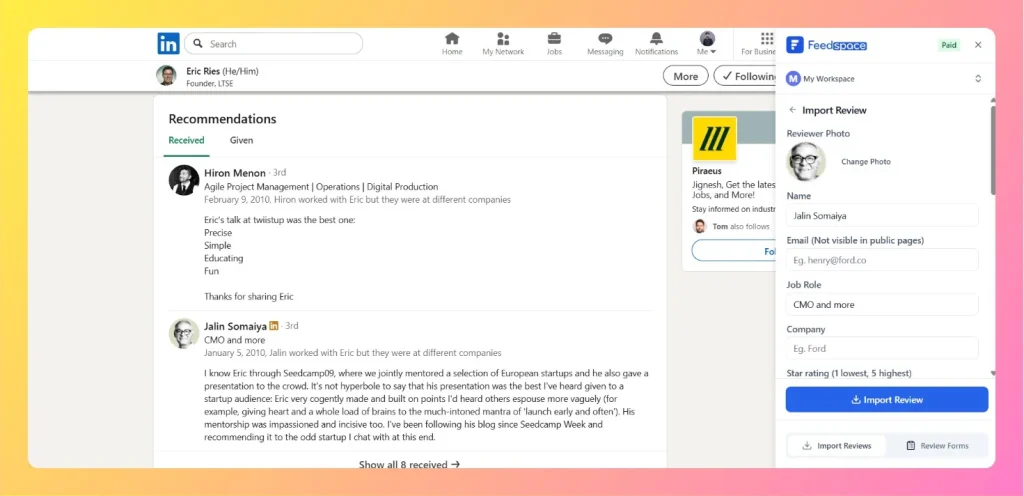
Step 3: Confirm Details & Import
A Feedspace import panel will appear on the right side. Review the details such as Name, Email, Job Role, Company, and Rating, Review Text, Image, Date, etc. Make edits if necessary.
Click Import Review to add the recommendation into Feedspace.
Now your LinkedIn Recommendations will be stored and managed directly within Feedspace, making it easy to showcase them on your pages and widgets.
If the import option does not appear
If right-clicking the recommendation does not show Import to Feedspace, or the option appears but captures nothing, work through these checks:
Confirm the Feedspace Chrome Extension is installed and enabled in the same browser you are browsing LinkedIn in.
Make sure you are logged in to Feedspace in that same browser. The extension needs an active session to import.
Refresh the LinkedIn page after installing or enabling the extension, then try the right-click again.
Right-click directly on the recommendation text. Clicking on surrounding empty space or an image can cause the menu to capture nothing.
If the option still does not appear, reload the extension from your browser’s extensions page, or contact support@feedspace.io.
Common questions
Why is Import to Feedspace missing from the right-click menu?
The most common cause is that the extension is not enabled or you are not logged in to Feedspace in the same browser. Install and enable the extension, log in to Feedspace, refresh the LinkedIn page, then right-click on the recommendation text again.
The option appears but nothing imports. What should I do?
Right-click directly on the recommendation text rather than on empty space or an image, so the extension has content to capture. If it still does not work, reload the extension from your browser’s extensions page, or reach out to support@feedspace.io.
You might also find helpful
How to Import Reviews from LinkedIn Posts
Overview The Feedspace Chrome Extension makes it easy to capture testimonials from LinkedIn posts directly into your Feedspace workspace. Perfect for preserving praise, posts, or comments from LinkedIn without copying manually. Step 1 – Open the LinkedIn Post Go to the LinkedIn post you want to import as a testimonial or...
How to Import Posts from LinkedIn into Feedspace
Overview LinkedIn posts often feature professional reviews, shoutouts, and thought leadership. Importing LinkedIn posts into Feedspace lets you highlight these valuable moments on your website. Steps to import posts from LinkedIn Step 1: Log into Feedspace Log in with your Feedspace credentials, then click Import in the left sidebar. Step...
How to Share a Testimonial Form on LinkedIn
Overview Collecting testimonials, reviews, and feedback on LinkedIn is a powerful way to build trust and credibility for your brand. With Feedspace, you can easily create testimonial forms (text, video, or audio) and share them directly with your LinkedIn connections. Follow this step-by-step guide to share your testimonial form on...