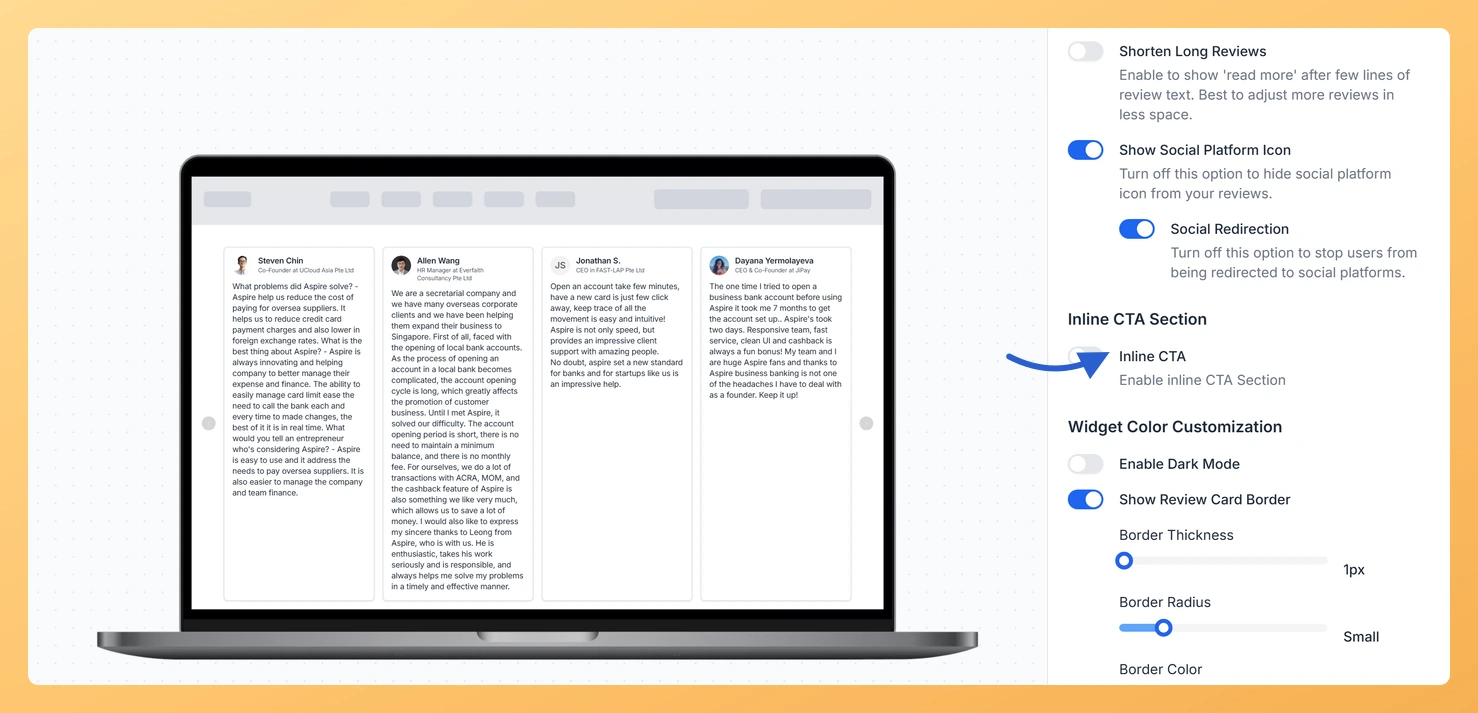
Feedspace widgets don’t have a dedicated title or description field in the widget editor. The widget starts directly with the review cards. You have two practical ways to add a title above or alongside the widget: place a heading on your page directly above the embed code, or use the widget’s built-in Inline CTA Section to insert a call-to-action button card inside the widget between review cards.
Option 1: Add a heading above the embed code on your page
The simplest approach is to place an HTML heading element just before the Feedspace embed code in your page’s HTML or custom code block. For example:
Replace YOUR_WIDGET_ID with your actual widget ID from the Share tab. Style the heading to match your site’s typography. This works in any website builder that lets you add HTML or custom code blocks.
Option 2: Use the inline CTA feature
The widget editor includes an Inline CTA Section that lets you insert a call-to-action button card directly inside the widget, between the review cards. You set the button label, destination URL, and color. Visitors see the card between reviews and can click the button to go to any URL you choose.
How to enable inline CTA
Click Widgets in the left sidebar, then click the pencil icon on the widget you want to edit.
Go to the Design tab.
Scroll to the Inline CTA Section and turn on the Inline CTA toggle.
Enter a label in the CTA Button Label field and a destination URL in the CTA Button URL field.
Optionally choose a button color using the CTA Button Color picker.
Click Save and Next.
The CTA button card appears inside the widget between your review cards, visible to all visitors as they scroll through the widget.
Does the Inline CTA replace the regular review cards?
No. The CTA button card appears inside the widget alongside your review cards. Enabling the Inline CTA toggle does not remove any reviews from the widget.
Will the title show on every widget type?
The heading sits above the reviews wherever the layout has room for it. Check the preview beside the settings to see how it lands on yours.
You might also find helpful
How to Embed Reviews Using Feedspace Widgets
Overview Feedspace has an easy way to display your customer reviews stylishly on your website. By embedding reviews through Feedspace widgets, you can enhance your website’s credibility and design. With options like Carousel and Masonry widgets, you can showcase your reviews in a way that best fits your site’s look....
How to Use Custom CSS in Feedspace Widgets
Overview Feedspace lets you apply Custom CSS to any widget directly from the widget editor. Use it to adjust fonts, colors, spacing, and typography to match your website’s design. Custom CSS is available on plans that include it. If your current plan does not, turning on the Custom CSS toggle...
How to Create a Carousel Widget in Feedspace
Overview The Carousel widget in Feedspace lets you display multiple reviews in a continuously sliding format. You can enable autoplay, customize speed, and fine-tune design elements such as border, background color, and text colors. It’s a great way to keep your testimonials engaging and visually dynamic. How to Access Step...