Feedspace lets you import posts and reels from Instagram and display them as testimonials on your website. You can use this to showcase real customer mentions, product posts, and brand stories without asking customers to submit anything manually.
For example, if a customer posts a reel showing your product in action, you can import that post directly into Feedspace and add it to a Wall of Love on your site.
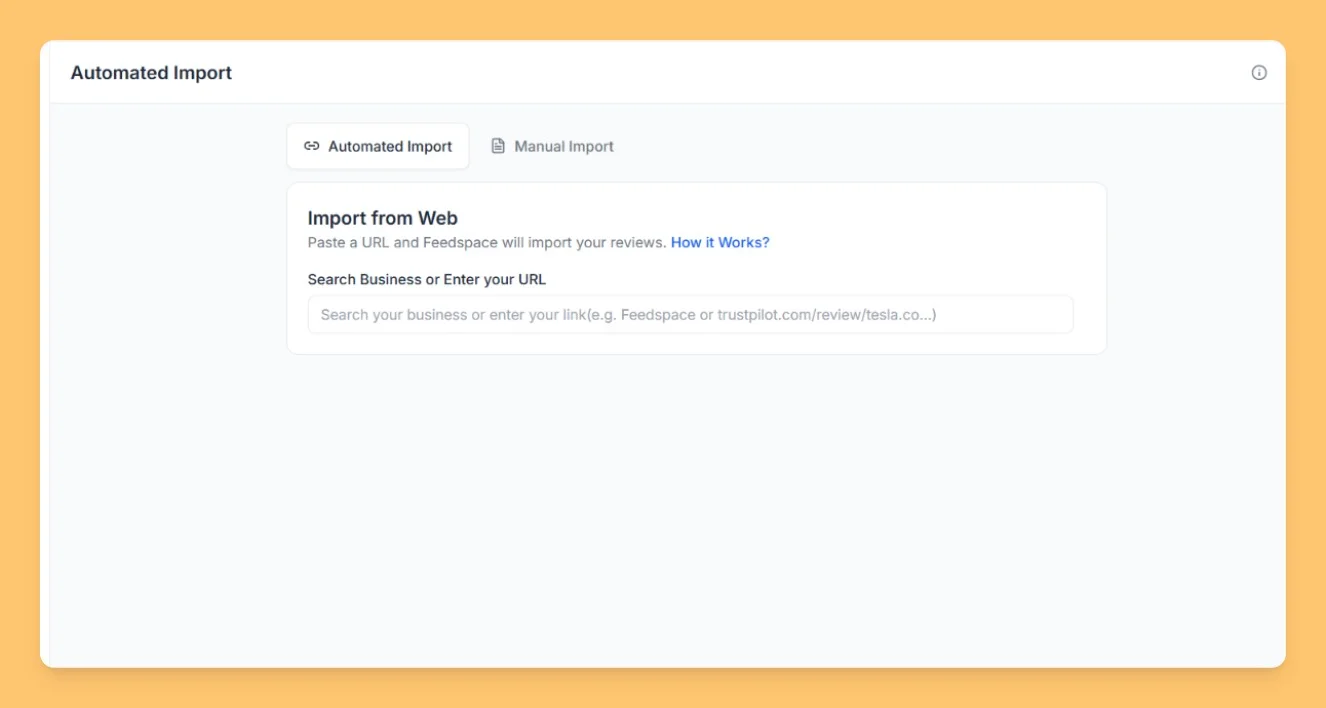
Click Import in the left sidebar. Then click the Automated Import tab.
Step 3: Paste your Instagram URL
Paste the URL of the Instagram post or reel you want to import into the URL input field. Feedspace detects Instagram automatically as you type.
Step 4: Install the Chrome Extension if prompted
Instagram requires the Feedspace Chrome Extension to fetch posts. If you have not installed it yet, a Chrome Extension card appears with a Get Extension button. Click it to install the extension from the Chrome Web Store, then return to Feedspace and paste your URL again.
Step 5: Select and import
Once the post is fetched, it appears in the review view. Click the row for the post you want to import, or click Select All to select all fetched posts. A sticky footer bar shows the count. Click Import Review in the footer bar to save the selected posts into your workspace.
What’s next
After importing, you can display your Instagram posts using a Feedspace widget or add them to a Wall of Love. Click Create Wall of Love on the success screen to go directly to the Pages module, or click Import More Reviews to import another post.
Common questions
Can I import posts from a private Instagram account?
No. Feedspace can only import posts that are publicly visible. If the post is from a private account, make sure it is set to public before importing.
Can I import an entire Instagram profile at once?
No. Feedspace imports individual posts, not an entire profile feed. Each post or reel must be imported using its own URL. Pasting a profile URL like instagram.com/username will not work.
Do I need the Chrome Extension every time?
You install the extension once. After that, Feedspace uses it automatically whenever you import an Instagram post.
You might also find helpful
How to Import Reviews from Instagram Posts
Overview With the Feedspace Chrome Extension, you can easily import Instagram posts as testimonials or reviews into your Feedspace workspace. Step 1 – Select the Instagram Post Open the Instagram post you want to import as a review. Step 2 – Right-click and Import Right-click on the post. From the...
Share Testimonial Form Easily on Instagram
Overview Reach your audience where they spend their time – Instagram! With Feedspace, sharing Review Forms (text, video, or audio) is simple and just a few taps away. Step 1 – Log in to Feedspace Head to your Feedspace account and open the workspace where you want to collect responses....
How to Import Reviews from Facebook Posts
Overview The Feedspace Chrome Extension allows you to seamlessly import Facebook posts into your Feedspace workspace. This helps you capture customer shoutouts, testimonials, or brand mentions directly from Facebook. Step 1 – Select the Facebook Post Open the Facebook post you’d like to import as a testimonial or review. Step...