
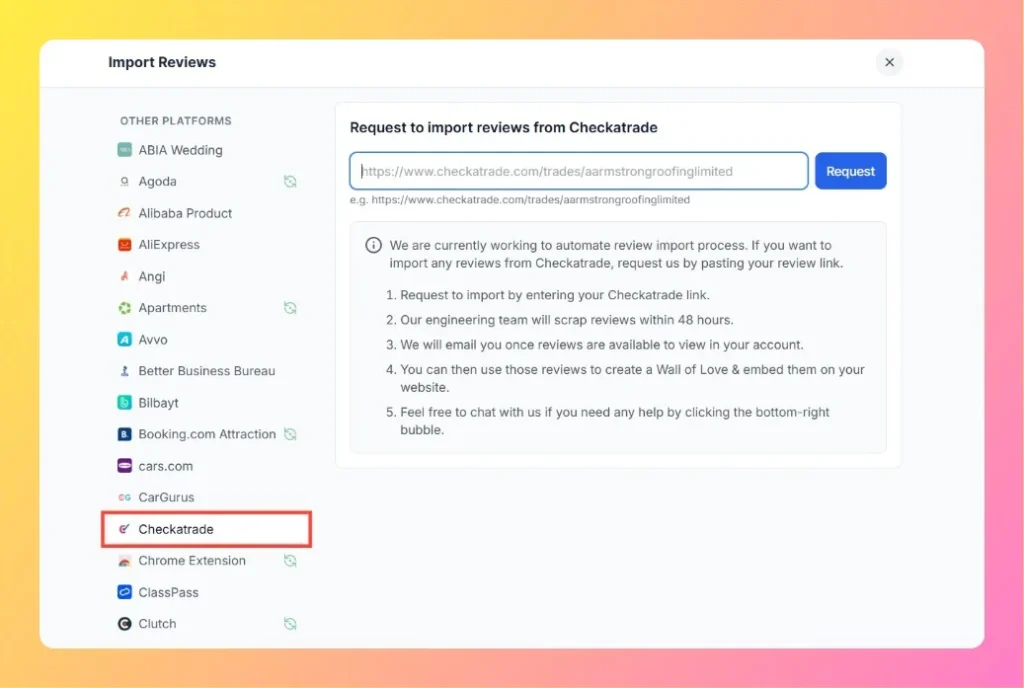
Feedspace Home Dashboard

How to Import Reviews from Checkatrade into Feedspace

Last updated on October 30, 2025

Overview

Feedspace allows you to import reviews from Checkatrade so you can display them on your website, in a Wall of Love, or within any of your Feedspace widgets. You only need to provide your Checkatrade review link, and Feedspace will handle the rest automatically.

Step 1 – Open Import Reviews in Feedspace

  1. Log in to your Feedspace account.
  2. From the left sidebar, go to Import Reviews.
  3. Scroll down to the Other Platforms category.
  4. Click on Checkatrade.

Step 2 – Enter Your Checkatrade Review Link

  1. Go to your Checkatrade business profile.
    Example: https://www.checkatrade.com/trades/aarmstrongroofinglimited
  2. Copy the profile or review page URL.
  3. Paste the link into the input box in Feedspace.
  4. Click the Request button.
Enter Checkatrade Review Link

Step 3 – Review Scraping

  1. The Feedspace engineering team will scrape reviews from your Checkatrade page within 48 hours.
  2. You will receive an email notification once your reviews are imported and ready to view.

Step 4 – Use Your Imported Reviews

After your Checkatrade reviews appear in Feedspace, you can:

  • View and manage them in your Feedbox.
  • Create a Wall of Love.
  • Embed them on your website using Feedspace widgets.

Step 5 – Support

If you need help or encounter any issues, click the chat bubble in the bottom-right corner of your Feedspace dashboard to contact the support team.

You might also find helpful

How to Import Reviews from Capterra into Feedspace

Overview Capterra reviews provide evaluations of software tools, including aspects like usability, support, and value. Importing these reviews into Feedspace allows you to organize and display them on your website or Wall of Love. Here’s a quick guide on how to import Capterra reviews into Feedspace: Steps to Import Reviews...

How to Import Reviews from Cars.com into Feedspace

Overview If you collect dealership or automotive service reviews through Cars.com, you can easily import them into Feedspace to display on your Feedbox, Wall of Love, or website widgets. Feedspace automates the process — you just submit your review link, and our team handles the rest. Step 1 – Open...

How to Import Reviews from CarGurus into Feedspace

Overview You can import customer and dealership reviews directly from CarGurus into Feedspace to showcase on your website, create a Wall of Love, or share as social proof.Feedspace automates the process — all you need to do is submit your CarGurus review link. Step 1 – Open Import Reviews in...