
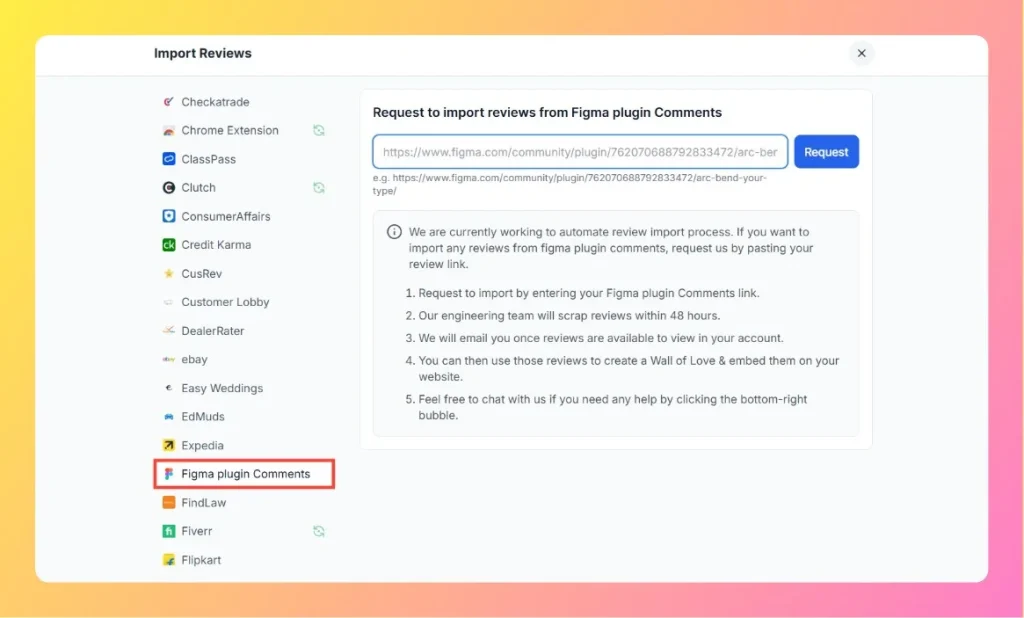
Feedspace Home Dashboard

How to Import Reviews from Figma Plugin Comments into Feedspace

Last updated on October 31, 2025

Overview

Feedspace allows developers and designers to import reviews directly from Figma Plugin Comments. If you’ve received feedback or testimonials on your published Figma plugin, you can easily collect those comments and display them on your website or Wall of Love through Feedspace.

Step 1 – Open Import Reviews in Feedspace

  1. Log in to your Feedspace account.
  2. From the left-hand sidebar, click Import Reviews.
  3. Under the Other Platforms section, select Figma Plugin Comments.

Step 2 – Enter Your Figma Plugin Comments Link

  1. Visit your plugin’s page on the Figma Community.
    Example: https://www.figma.com/community/plugin/762070688792833472/arc-bend-your-type/
  2. Copy the full plugin URL from your browser.
  3. Paste the link into the input field in Feedspace.
  4. Click the Request button.
Enter Figma Review Link

Step 3 – Review Scraping Process

  1. The Feedspace engineering team will scrape your Figma plugin comments within 48 hours.
  2. Once reviews are available, you’ll receive an email notification.

Step 4 – Manage and Display Reviews

After reviews are imported into your account, you can:

  • Manage them under your Feedbox.
  • Add them to your Wall of Love.
  • Embed them on your website or portfolio using Feedspace widgets.

Step 5 – Support

If you need help at any stage, click the chat bubble at the bottom-right corner of your Feedspace dashboard to connect with our support team.

You might also find helpful

How to Import Reviews from Upwork

Overview The Feedspace Chrome Extension allows you to easily capture your Upwork client reviews and add them to your Feedspace workspace. This way, you can showcase your Upwork feedback as testimonials on your website or social media. Step 1 – Open the Upwork Review Log in to your Upwork account...

How to Embed Wall Of Love in Framer

Overview You can embed the Feedspace Wall of Love directly on any Framer site. This simple process allows you to showcase customer trust and testimonials inside your Framer project. Step 1 – Sign In to Framer Go to Framer and log in with your account credentials. Step 2 – Open...

How to Embed Widget in Framer

Overview Feedspace widgets can be quickly added to Framer projects. This allows you to highlight customer reviews or feedback directly on your Framer website. Step 1 – Log In to Your Framer Account Head to Framer and sign in with your account details. Step 2 – Choose the Page for...