
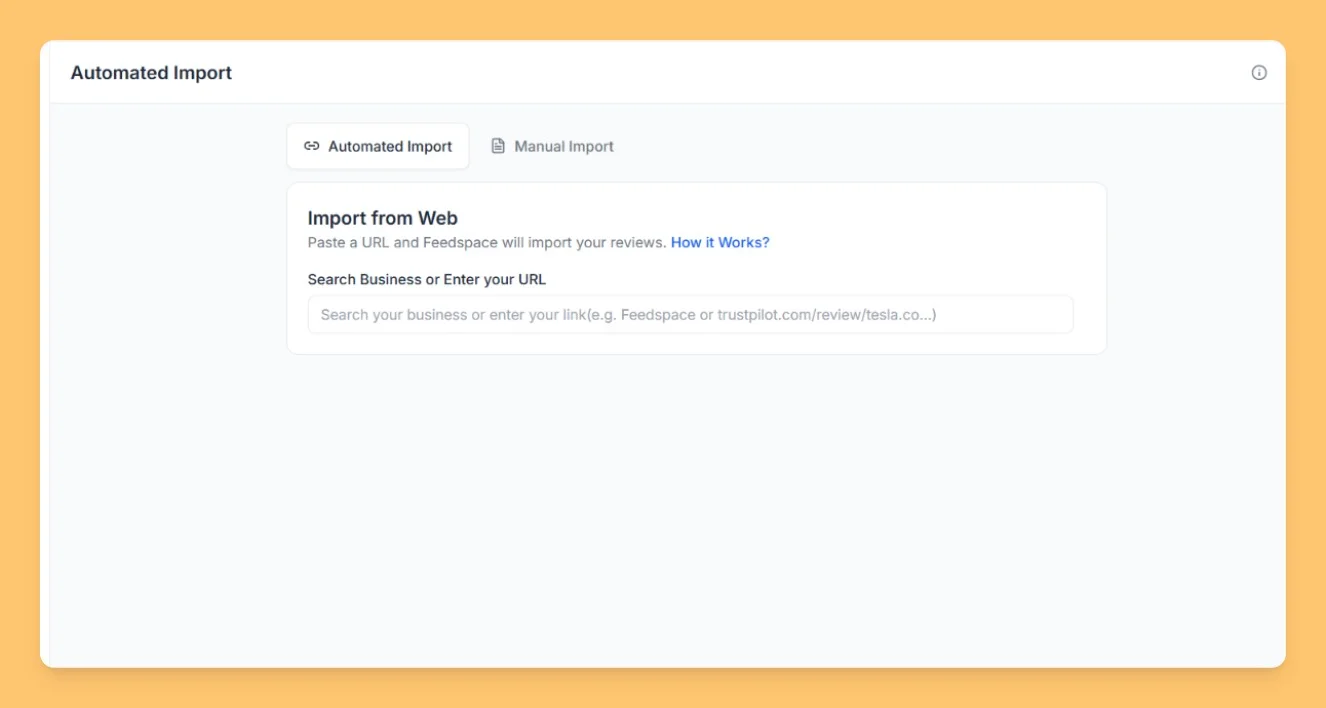
Feedspace Home Dashboard

How to Import SoundCloud Reviews into Feedspace

Last updated on May 21, 2026

Overview

SoundCloud reviews can significantly enhance your brand’s credibility, helping you gain the trust of potential customers. By importing SoundCloud reviews into Feedspace, you can easily showcase user feedback and build social proof. Here’s a quick guide on how to import SoundCloud reviews into Feedspace:

Steps to Import Reviews from SoundCloud

Step 1 – Log into Feedspace

Access your Feedspace account and log in using your credentials.

Step 2 – Select Workspace

Choose the workspace where you want to import the SoundCloud reviews.

Step 3 – Navigate to the Import Page

Next, Click on Import in the left sidebar to start the review import process.

Step 4 – Enter Your SoundCloud URL

Paste your SoundCloud URL in the search input field to start importing your reviews.

Step 5 – Add the Valid SoundCloud Link

Paste the valid link of your SoundCloud profile or track into the provided text box.

Import Reviews in Feedspace

Step 6 – Import SoundCloud Reviews

After adding the link, click on Import Reviews to fetch the reviews from your SoundCloud account.

Displaying SoundCloud Reviews on Your Website

Once imported, you can easily showcase your SoundCloud reviews using Wall of Love. This feature allows you to display reviews in a stylish and customizable manner on your website. Whether you want to change the layout, design, or colors, Feedspace gives you full control to match your website’s aesthetic.

Need Help? Book a Demo!

If you need further assistance, feel free to book a demo with our expert. We’re here to guide you through the process and help you get the most out of Feedspace.

You might also find helpful

How to Import Reviews from YouTube Comments

Overview The Feedspace Chrome Extension makes it simple to import YouTube comments as testimonials or reviews directly into your Feedspace workspace. Follow the steps below to get started: Step 1 – Select the YouTube Comment Open the YouTube video containing the comment you want to import. Highlight or select the...

How to Import Social Platform Reviews in Feedspace

Overview Bringing your reviews into Feedspace is quick and simple. Step 1 – Log in Open your Feedspace account and go to your workspace. Step 2 – Select Platform Click on Import from the sidebar and choose the platform you want to bring reviews from (Google, YouTube, X Twitter, LinkedIn,...

How to Import Videos from YouTube into Feedspace

Overview YouTube is the world’s leading video platform. Importing videos from YouTube into Feedspace allows you to highlight customer testimonials, demos, or brand stories on your website. Steps to Import Videos from YouTube Step 1 – Log into Feedspace Log in using your account credentials. Step 2 – Select Workspace...