Feedspace lets you import videos from YouTube and display them as testimonials on your website. You can use this to highlight customer video reviews, product demos, or brand stories without asking customers to re-submit anything.
For example, if a customer published a video review of your product on YouTube, you can import that video into Feedspace and add it to a Wall of Love on your site.
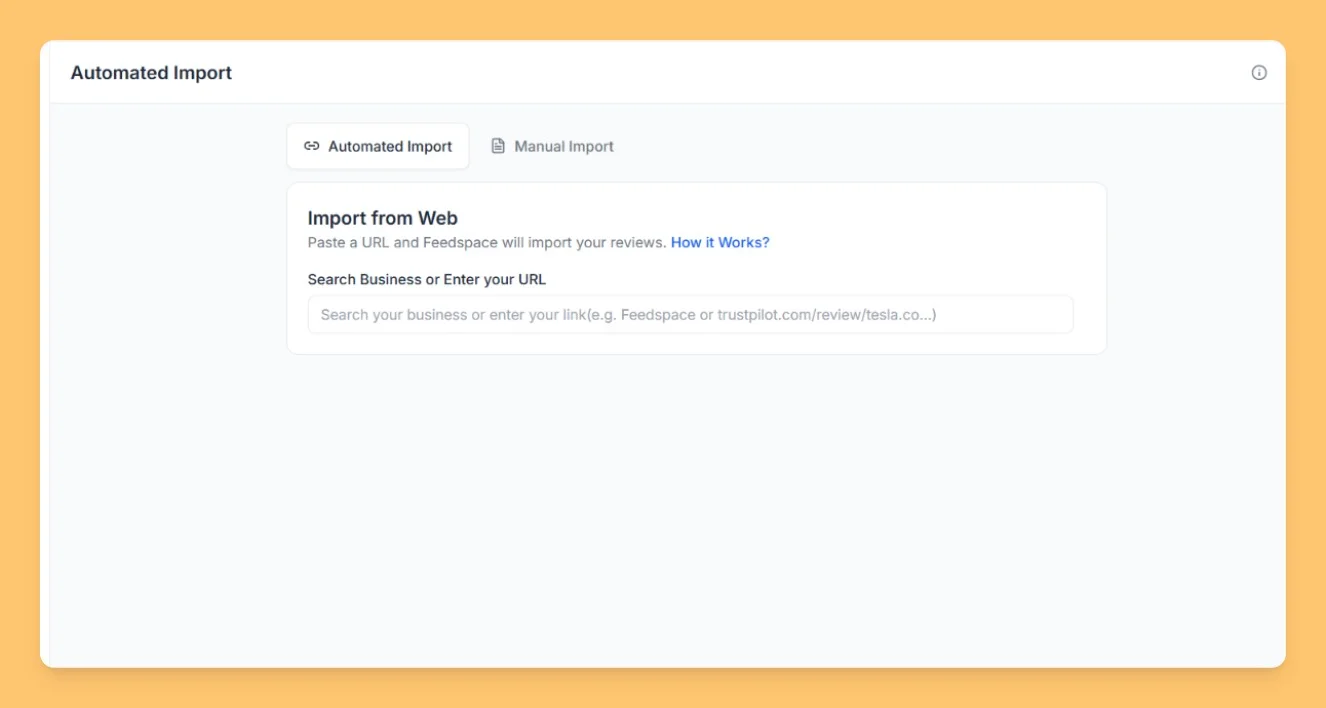
Click Import in the left sidebar. Then click the Automated Import tab.
Step 3: Paste your YouTube URL
Paste the URL of the YouTube video into the URL input field. Feedspace detects YouTube automatically as you type.
Step 4: Click Import Video
Once the URL is detected, action buttons appear. Click Import Video to fetch the video into Feedspace.
Step 5: Select and import
Click the row for the video you want to import, or click Select All. A sticky footer bar shows the count. Click Import Review in the footer bar to save the video into your workspace.
What’s next
After importing, you can display your YouTube videos using a Feedspace widget or add them to a Wall of Love. Click Create Wall of Love on the success screen to go directly to the Pages module, or click Import More Reviews to import another video.
Common questions
Why isn’t my YouTube URL importing?
Make sure the video is publicly available. Feedspace can only import videos that are visible without logging in to YouTube. Copy the URL directly from your browser’s address bar and paste it into the URL input field.
Can I import a full YouTube channel or playlist?
Feedspace imports individual videos by URL. Paste the URL of each video you want to import separately.
Can I also import comments from a YouTube video?
Yes. After pasting a YouTube URL, a Fetch Comments button also appears alongside Import Video. Click Fetch Comments to import comments from that video instead. See how to import YouTube comments into Feedspace for the full steps.
You might also find helpful
How to Import Reviews from YouTube Comments
Overview The Feedspace Chrome Extension makes it simple to import YouTube comments as testimonials or reviews directly into your Feedspace workspace. Follow the steps below to get started: Step 1 – Select the YouTube Comment Open the YouTube video containing the comment you want to import. Highlight or select the...
How to Import Comments from YouTube into Feedspace
Overview YouTube is a widely used platform for video content, and the comments section often contains valuable feedback from viewers. Importing these comments into Feedspace allows you to display real user opinions directly on your website. This can be helpful for showing engagement, feedback, or testimonials from your audience. Here’s...
How to Import Social Platform Reviews in Feedspace
Overview Bringing your reviews into Feedspace is quick and simple. You import from one platform at a time. If your reviews are spread across Google, Facebook, Fresha, and Tripadvisor, import each one separately and they all collect together in your Feedbox. From there you can show them side by side...