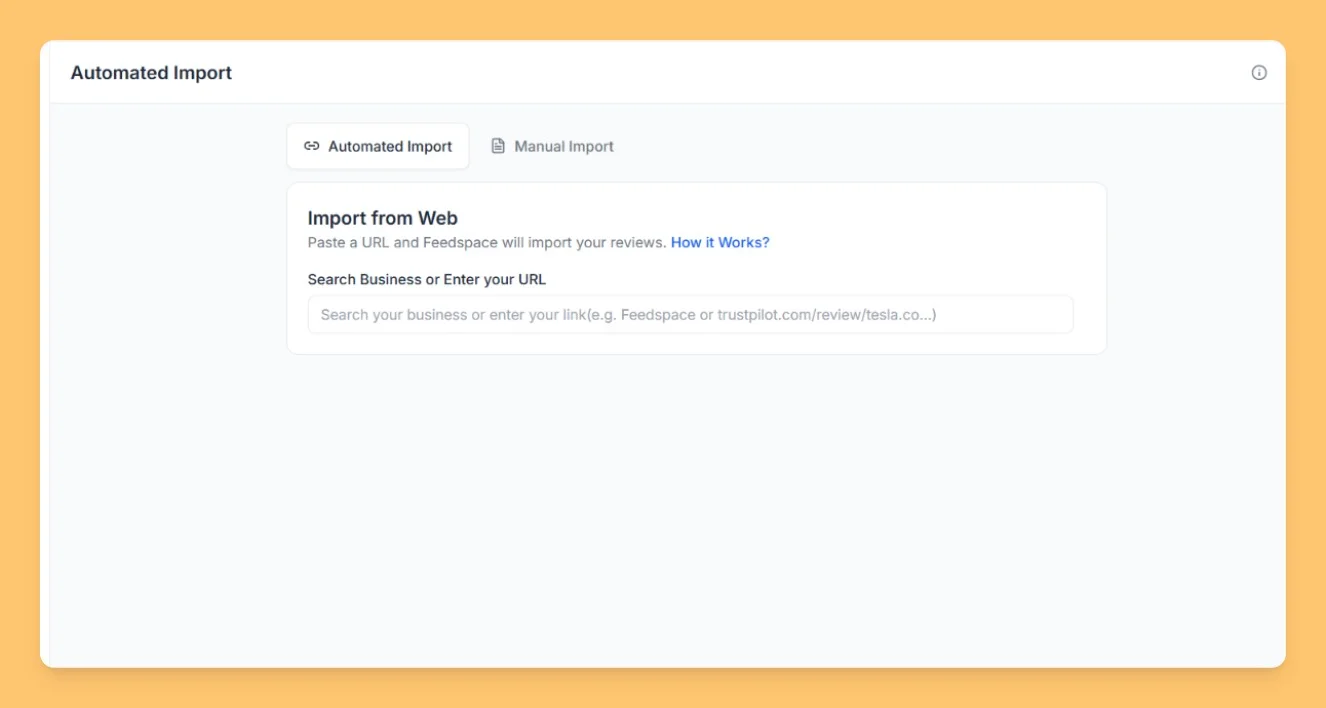
YouTube is a widely used platform for video content, and the comments section often contains valuable feedback from viewers. Importing these comments into Feedspace allows you to display real user opinions directly on your website. This can be helpful for showing engagement, feedback, or testimonials from your audience. Here’s a step-by-step guide to importing YouTube comments into Feedspace.
Steps to import reviews from YouTube
Step 1: Log into Feedspace
Sign in to your Feedspace account using your email and OTP to access your workspace.
Step 2: Navigate to the import page
Next, Click on Import in the left sidebar to start the review import process.
Step 3: Enter your YouTube URL
Paste the link of the YouTube video whose comments you want to import into the URL input field. Feedspace detects the platform automatically and shows an action button.
Step 4: Fetch the comments
Click Fetch Comments. Feedspace pulls the comments from the video and shows them in a selectable list.
Step 5: Select the comments to import
Tick the comments you want to bring in, or use Select All to choose them all. If the platform supports sorting, use the sort dropdown to reorder the list before selecting.
Step 6: Import the selected comments
Click Import Review in the footer bar. Feedspace imports the selected comments into your workspace, where you can manage and display them.
You might also find helpful
How to Import Reviews from YouTube Comments
Overview The Feedspace Chrome Extension makes it simple to import YouTube comments as testimonials or reviews directly into your Feedspace workspace. Follow the steps below to get started: Step 1 – Select the YouTube Comment Open the YouTube video containing the comment you want to import. Highlight or select the...
How Do I Import Videos from YouTube into Feedspace?
Overview Feedspace lets you import videos from YouTube and display them as testimonials on your website. You can use this to highlight customer video reviews, product demos, or brand stories without asking customers to re-submit anything. For example, if a customer published a video review of your product on YouTube,...
How to Import Social Platform Reviews in Feedspace
Overview Bringing your reviews into Feedspace is quick and simple. You import from one platform at a time. If your reviews are spread across Google, Facebook, Fresha, and Tripadvisor, import each one separately and they all collect together in your Feedbox. From there you can show them side by side...