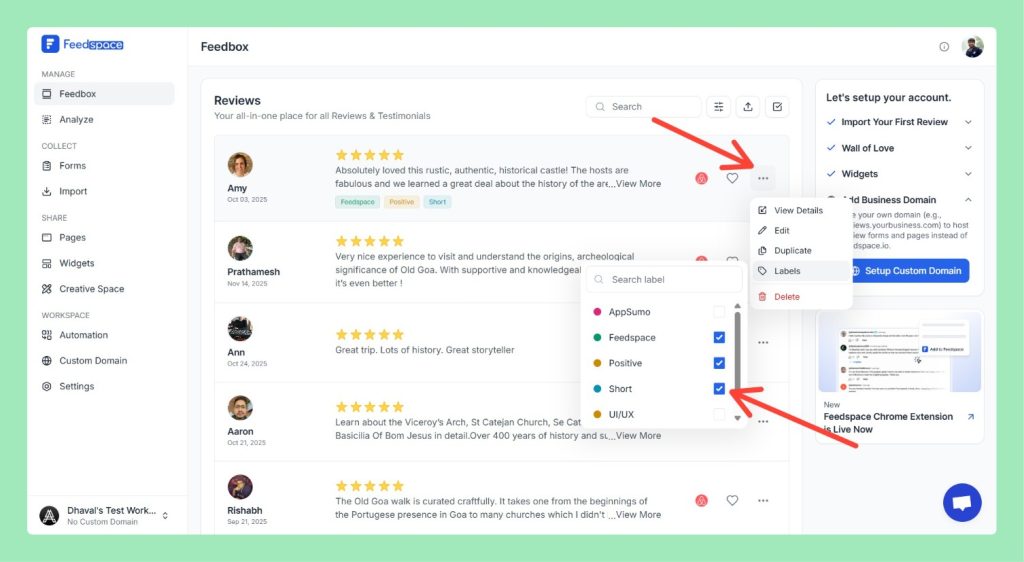
Labels allow you to better organize and categorize your reviews in Feedspace. By adding labels to your reviews, you can quickly filter and search for specific reviews, streamlining your management process. You can add multiple labels to a review and remove them at any time.
Step 1 – Log in to Feedspace
Start by logging into your Feedspace account.
Step 2 – Navigate to the Feedbox Page
From the left panel, click on Feedbox to access all your reviews.
Step 3 – Open the Review Menu
Hover over the review you want to add or remove labels from. You will see a menu icon (three dots) appear next to the review.
Step 4 – Click on the Menu Icon
Click on the menu icon to open a drop-down menu. From the menu options, hover on Labels.
Step 5 – Add or Remove Labels
If No Labels Are Available: If there are no labels yet, you can add a new label by typing the label name and clicking Create label.
If Labels Are Available: If labels are already available, you can select the label you want to assign to the review. A checked checkbox indicates that the label has been added to the review.
To remove a label, simply uncheck the checkbox next to the label name.
Tips
Multiple Labels: You can assign multiple labels to a review for better categorization.
Filtering: Use labels as filters to easily search for reviews in your Feedbox.
Need Help?
If you need further assistance or a more detailed walkthrough, the Feedspace team is ready to help. For a personalized demo, book a session with one of our experts today!
You might also find helpful
How to Add and Remove Labels for Reviews in Feedspace
Overview Labels allow you to better organize and categorize your reviews in Feedspace. By adding labels to your reviews, you can quickly filter and search for specific reviews, streamlining your management process. You can add multiple labels to a review and remove them at any time. Step 1 – Log...
How to Bulk Manage Review Labels in Feedspace
Overview The Bulk Review Label feature in Feedspace allows you to apply labels to multiple reviews at once, making it easier to organize and manage your reviews. Labels can also be used as filters to streamline review search and analysis. Step 1 – Log in to Feedspace Start by logging...
Easily Find Your Favorite Testimonials in Feedspace
Feedspace allows you to mark testimonials as favorites so you can quickly find and highlight the ones that matter most. How to Mark a Testimonial as Favorite: How to Find Your Favorite Testimonials: This makes it simple to keep track of the most impactful feedback for quick sharing and showcasing.