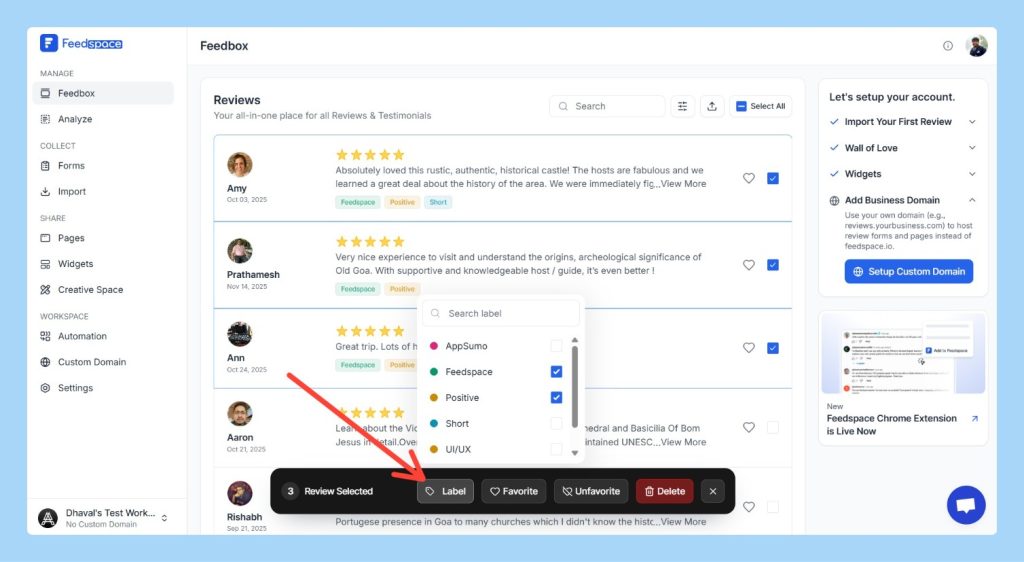
The Bulk Review Label feature in Feedspace allows you to apply labels to multiple reviews at once, making it easier to organize and manage your reviews. Labels can also be used as filters to streamline review search and analysis.
Step 1 – Log in to Feedspace
Start by logging into your Feedspace account.
Step 2 – Navigate to the Feedbox Page
From the left panel, click on Feedbox to access your reviews.
Step 3 – Select Multiple Reviews
Select the reviews you want to manage by clicking the checkboxes next to each review. You can select multiple reviews at once for bulk actions.
Step 4 – Hover Over the Label Option
After selecting the reviews, hover over the Label option in the black strip at the bottom of the screen. A dropdown menu will appear showing the available labels.
Step 5 – Apply or Remove Labels
Apply Labels: To apply labels, check the boxes next to the labels you want to assign to the selected reviews.
Remove Labels: To remove a label, simply uncheck the corresponding box.
Create a New Label: If the label you need is not available, you can type the label name in the dropdown and click Create to add the new label.
Once you’ve selected or unselected labels, the changes will be applied to the selected reviews automatically.
Tips
Multiple Labels: You can apply multiple labels to a single review to categorize it in different ways.
Efficient Organization: Use bulk label management to quickly organize large numbers of reviews for better filtering and analysis.
Need Help?
If you need further assistance or a more detailed walkthrough, the Feedspace team is ready to help. For a personalized demo, book a session with one of our experts today!
You might also find helpful
How to Add and Remove Labels for Reviews in Feedspace
Overview Labels allow you to better organize and categorize your reviews in Feedspace. By adding labels to your reviews, you can quickly filter and search for specific reviews, streamlining your management process. You can add multiple labels to a review and remove them at any time. Step 1 – Log...
How to Manage Review Labels in Feedspace
Overview Feedspace allows you to manage your review labels at the workspace level. This includes options to rename and delete existing labels, ensuring that any changes made will apply to all reviews within the workspace that are assigned those labels. Step 1 – Log in to Feedspace Start by logging...
Easily Find Your Favorite Testimonials in Feedspace
Feedspace allows you to mark testimonials as favorites so you can quickly find and highlight the ones that matter most. How to Mark a Testimonial as Favorite: How to Find Your Favorite Testimonials: This makes it simple to keep track of the most impactful feedback for quick sharing and showcasing.