Feedspace lets you export your reviews, both form-submitted and imported, directly from Feedbox. You can download them as an Excel file to share, analyse, or back up your testimonials.
The export gives you a spreadsheet of your review data, including the reviewer name, rating, review text, source, and dates. It does not include the actual video or audio files. To save the media file for a single video or audio review, open that review in Feedbox and use the Download option in its dropdown menu.
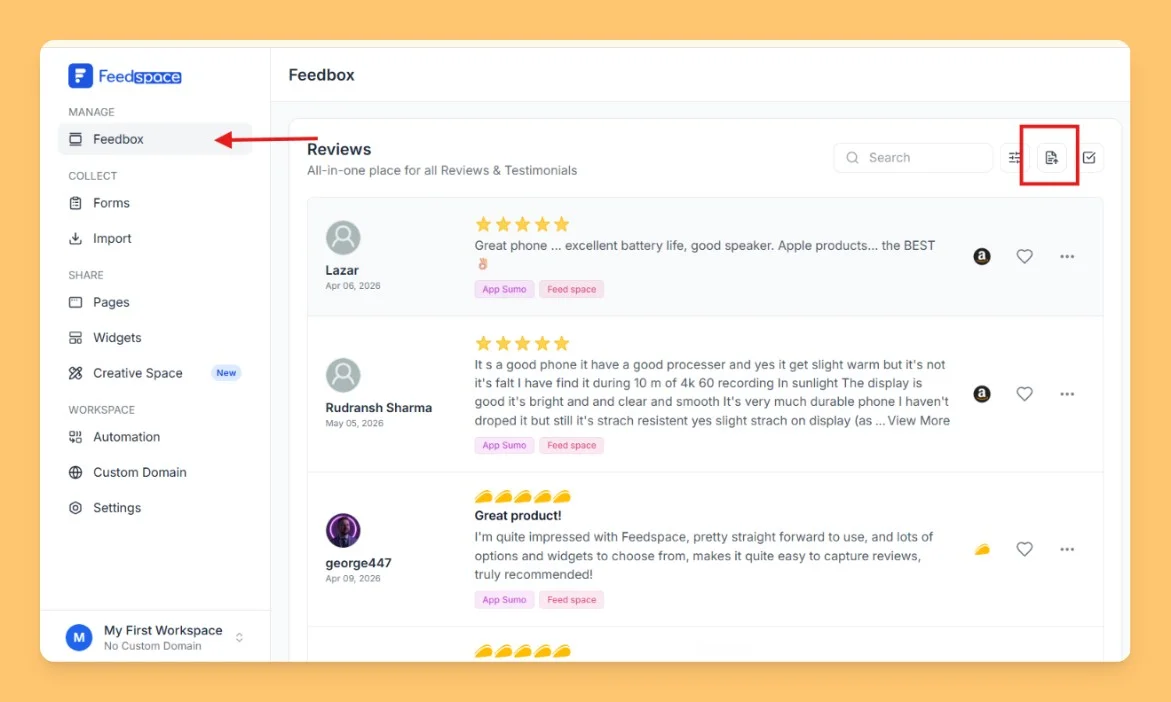
From the left sidebar, click Feedbox under the Manage section.
You’ll see all your reviews listed, both manually added and imported ones.
Step 2: Open Export Reviews
At the top of the reviews section, click the export icon.
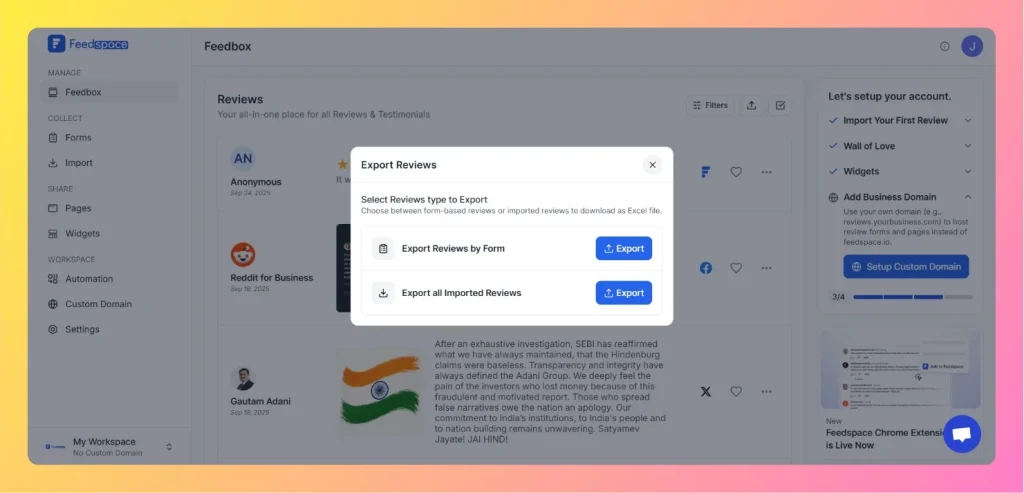
The Export Reviews window opens.
Step 3: Choose the export type
You will see two export options:
Export Reviews by Form: exports reviews submitted through Feedspace forms.
Export all Imported Reviews: exports reviews imported from external platforms (like Google, Facebook, or Trustpilot).
Choose the export type that fits your need.
Step 4: Download the file
Click the Export button next to your selected option.
Feedspace generates an Excel file (.xlsx) of your reviews and downloads it to your device.
Step 5: Review your file
Open the downloaded Excel file to confirm your data. It includes details such as:
Source
Source URL
Review Date
Rating
Reviewer Name
Review Text
Entry Date
Review URL
Common questions
Can I download my video or audio files this way?
No. The export is a spreadsheet of your review text and details, so it does not contain the video or audio files themselves. To save a media file, open the review in Feedbox and click Download in its dropdown menu.
Is the exported file a CSV or an Excel file?
It downloads as an Excel file (.xlsx), not a CSV. You can open it in Excel, Google Sheets, or Numbers, and save it as a CSV from there if you need that format.
You might also find helpful
How Do You Capture Client Testimonials?
Overview Feedspace makes it super easy to collect client testimonials in the format you prefer – video, audio, or text. Here are the four simple ways you can share your Review Form. 1. Share Link Copy your Review Form link and share it directly on social media, chat apps, or...
How to Create a Carousel Widget in Feedspace
Overview The Carousel widget in Feedspace lets you display multiple reviews in a continuously sliding format. You can enable autoplay, customize speed, and fine-tune design elements such as border, background color, and text colors. It’s a great way to keep your testimonials engaging and visually dynamic. How to Access Step...
How to Create a Wall of Love Page in Feedspace
Steps to Create a Page Log into Feedspace Sign in with your account credentials. Go to Pages From the left sidebar, click Pages. Create Page Click Create Page. This opens the creation screen with some reviews auto-selected in the space. Select Reviews Go to the Select Review page and choose...