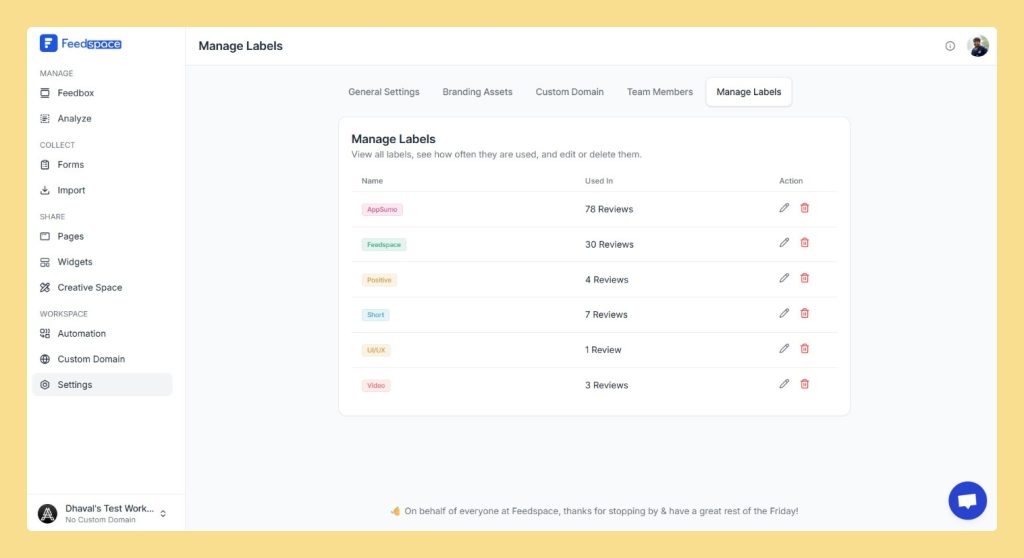
Feedspace allows you to manage your review labels at the workspace level. This includes options to rename and delete existing labels, ensuring that any changes made will apply to all reviews within the workspace that are assigned those labels.
Step 1 – Log in to Feedspace
Start by logging into your Feedspace account.
Step 2 – Navigate to Settings
From the left panel, click on Settings under the Workspace section.
Step 3 – Access Manage Labels
In the Settings page, click on Manage Labels. This will display all the labels created in your workspace.
Step 4 – Edit or Delete a Label
Edit a Label: To rename a label, click on the pencil icon next to the label name. Update the label name in the provided field and click Update Label to save the changes.
Delete a Label: To delete a label, click on the trash icon next to the label. A confirmation dialog will pop up asking if you’re sure you want to delete the label. Click Yes, Delete Label to confirm.
Step 5 – Apply Changes to All Reviews
Once you update or delete a label, the changes will automatically apply to all reviews within the workspace that have this label assigned.
Tips
Workspace-Wide Changes: Any changes you make to labels at the workspace level will impact all reviews in that workspace, making it easier to manage labels in bulk.
Label Organization: Organize your labels effectively to improve review categorization and filtering.
Need Help?
If you need further assistance or a more detailed walkthrough, the Feedspace team is ready to help. For a personalized demo, book a session with one of our experts today!
You might also find helpful
How to Add and Remove Labels for Reviews in Feedspace
Overview Labels allow you to better organize and categorize your reviews in Feedspace. By adding labels to your reviews, you can quickly filter and search for specific reviews, streamlining your management process. You can add multiple labels to a review and remove them at any time. Step 1 – Log...
How to Bulk Manage Review Labels in Feedspace
Overview The Bulk Review Label feature in Feedspace allows you to apply labels to multiple reviews at once, making it easier to organize and manage your reviews. Labels can also be used as filters to streamline review search and analysis. Step 1 – Log in to Feedspace Start by logging...
How to Invite a Team Member to Feedspace
Inviting team members to your Feedspace workspace is an essential part of collaborating with others. Follow the simple steps below to add new teammates and manage their access. Steps to Invite a Team Member Step 1 – Log in to Feedspace Start by logging into your Feedspace account using your credentials....