Inviting team members to your Feedspace workspace lets other people help collect and manage your reviews. You send an invitation to their email address and choose what they are allowed to do once they are in.
An agency taking on a new client is the usual case: the account manager needs to build forms and walls of love, so they go in as an Editor, while the client who only wants to watch the reviews arrive goes in as a Viewer.
Once logged in, choose the workspace where you want to invite your team member. Invites are sent per workspace, so the person you add gets access only to the workspace you invite them from. To give someone access to more than one workspace, switch to each workspace and repeat the invite there.
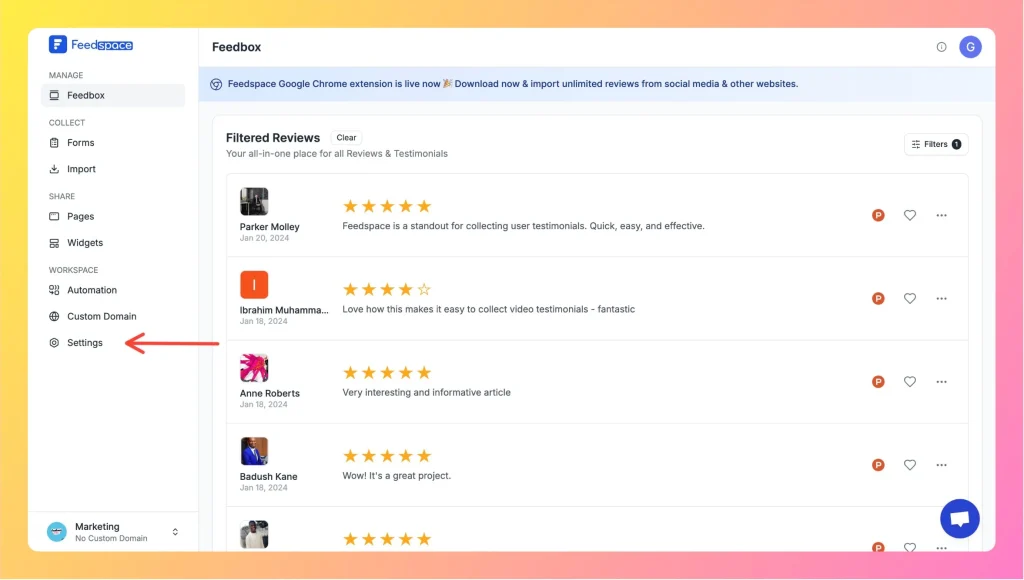
Step 3: Go to Settings
Click Settings within your selected workspace. This is where you manage team members and adjust workspace settings.
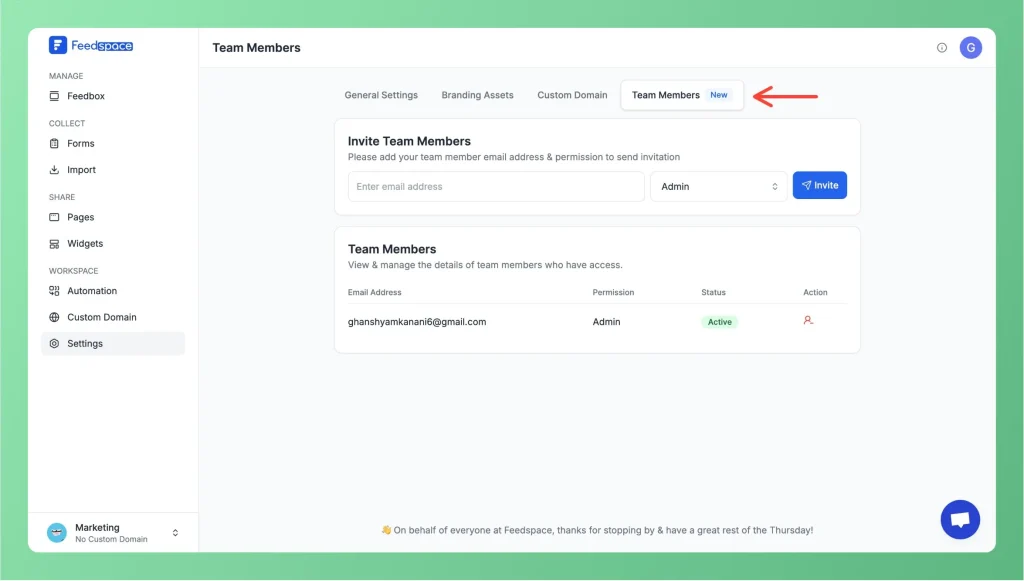
Step 4: Open the Team Members section
In the settings menu, open Team Members to see the list of current team members and to invite new ones.
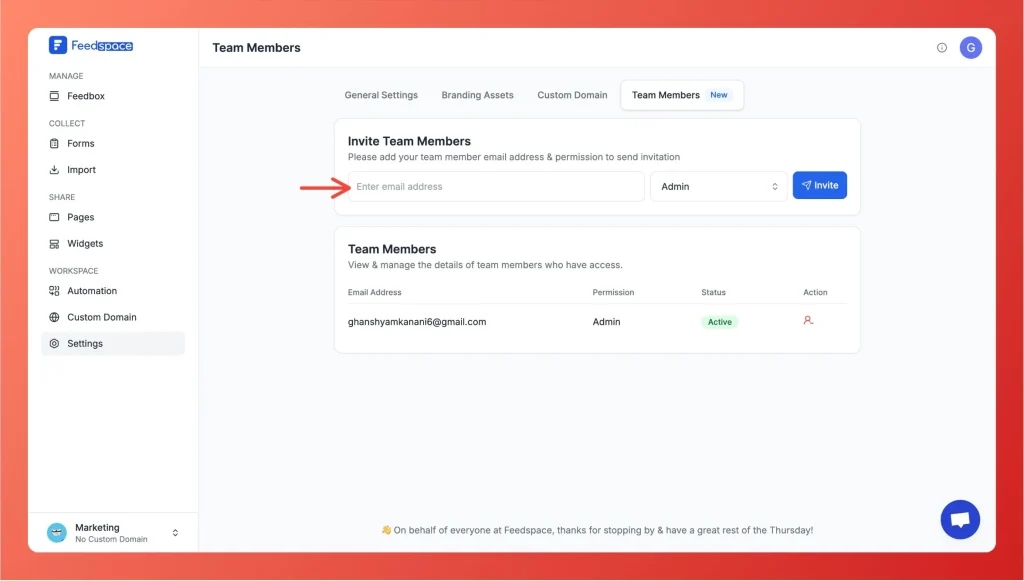
Step 5: Add the email and set the role
Enter the email address of the person you want to invite, then select a role from the role dropdown. The dropdown defaults to Editor. You can choose from three access levels:
Admin: Full access to manage team members and workspace settings.
Editor: Can add, edit, and delete forms, pages, and widgets.
Viewer: Can view and share forms, pages, and widgets.
Step 6: Click Invite
Once you’ve added the email and selected the role, click Invite. Your teammate receives an email invitation to join your workspace, and they appear in the team members table with a Sent status until they accept.
Step 7: Manage team member access
The table lists each person with their email address, role, and status. For a teammate who has not yet accepted, click Re-Invite to send the invitation again. To take someone off the workspace, click the bin icon on their row and confirm with Yes, Revoke Access.
What’s next
Your teammate appears in the list with a Sent status until they accept, and then it turns to Active. See how to view your team members for what the rest of that table tells you.
Common questions
Can I invite someone to all my workspaces at once?
No. Each invite applies to a single workspace. To give a teammate access to multiple workspaces, switch to each workspace, click Settings, open Team Members, and send a separate invite from each one.
My teammate did not get the invite email. What can I do?
Open the Team Members tab and find their row, which still reads Sent. Click Re-Invite to send the invitation again, and ask them to check their spam folder.
You might also find helpful
How to Remove Team Members in Feedspace
Overview Feedspace makes it easy to collaborate by allowing you to invite team members to your workspace with different roles. You can also remove members when access is no longer needed. Removing Team Members Once revoked, the member will no longer have access. You can re-invite them later if needed....
How to signup on Feedspace?
Signing up for Feedspace is quick and straightforward. Just follow these steps. Step 1: Visit the Feedspace website Navigate to Feedspace using your web browser. Step 2: Go to the sign-up page Once on the home page, click on the “Sign Up for Free” button. Step 3: Create your account...
How to Update Your Profile in Feedspace
Overview Updating your profile on Feedspace ensures your information is accurate and personalized. Follow the steps below to manage your profile. Step 1: Go to My Account Once logged into your dashboard, click on your profile icon (top right corner) and select My Account from the menu. Step 2: Open...