
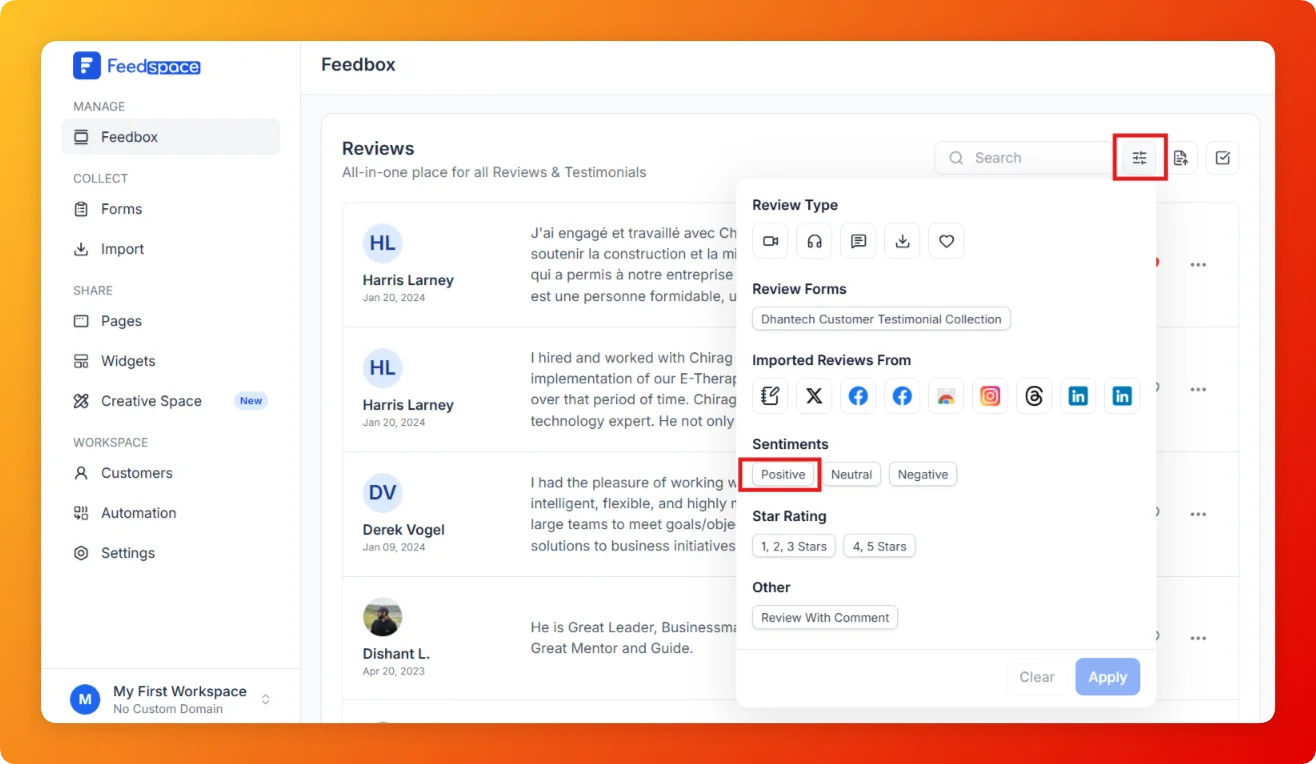
Feedspace Home Dashboard

How to Show Only Positive Reviews in Feedspace

Last updated on June 5, 2026

Overview

If you want to see only your positive reviews for example, to pick testimonials for marketing the Positive sentiment filter in Feedbox shows you only reviews that have been tagged as positive.

Steps

  1. Open Feedbox from the sidebar under Manage.
  2. Click the Filter icon (sliders icon) at the top right of the Reviews list.
  3. Under Sentiments, click Positive.
  1. Click Apply.
  2. The list now shows only reviews tagged as Positive sentiment.
  3. To remove the filter, click Clear and then Apply.

Tips

  • Sentiment is assigned automatically by Feedspace based on review content.
  • Combine the Positive filter with a platform filter (e.g., Google) to find the best Google reviews.
  • Use this filter when building Wall of Love pages or widgets to quickly shortlist strong testimonials.

You might also find helpful

How to Show Only Neutral Reviews in Feedspace

Overview Neutral reviews are those that are neither clearly positive nor negative they offer balanced or mixed feedback. The Neutral sentiment filter in Feedbox lets you view only these reviews so you can understand areas that need attention. Steps Tips

How to Show Only Negative Reviews in Feedspace

Overview Monitoring negative reviews helps you identify problems and respond before they affect your reputation. The Negative sentiment filter in Feedbox surfaces only reviews tagged as negative so you can address them quickly. Steps Tips

How to Use Sentiment in Feedspace

Overview Feedspace automatically analyzes each review and assigns a sentiment tag Positive, Neutral, or Negative based on the review’s content. This helps you quickly understand the overall tone of your reviews without reading each one individually. Step 1 Go to Feedbox Log in to your Feedspace account. From the left...