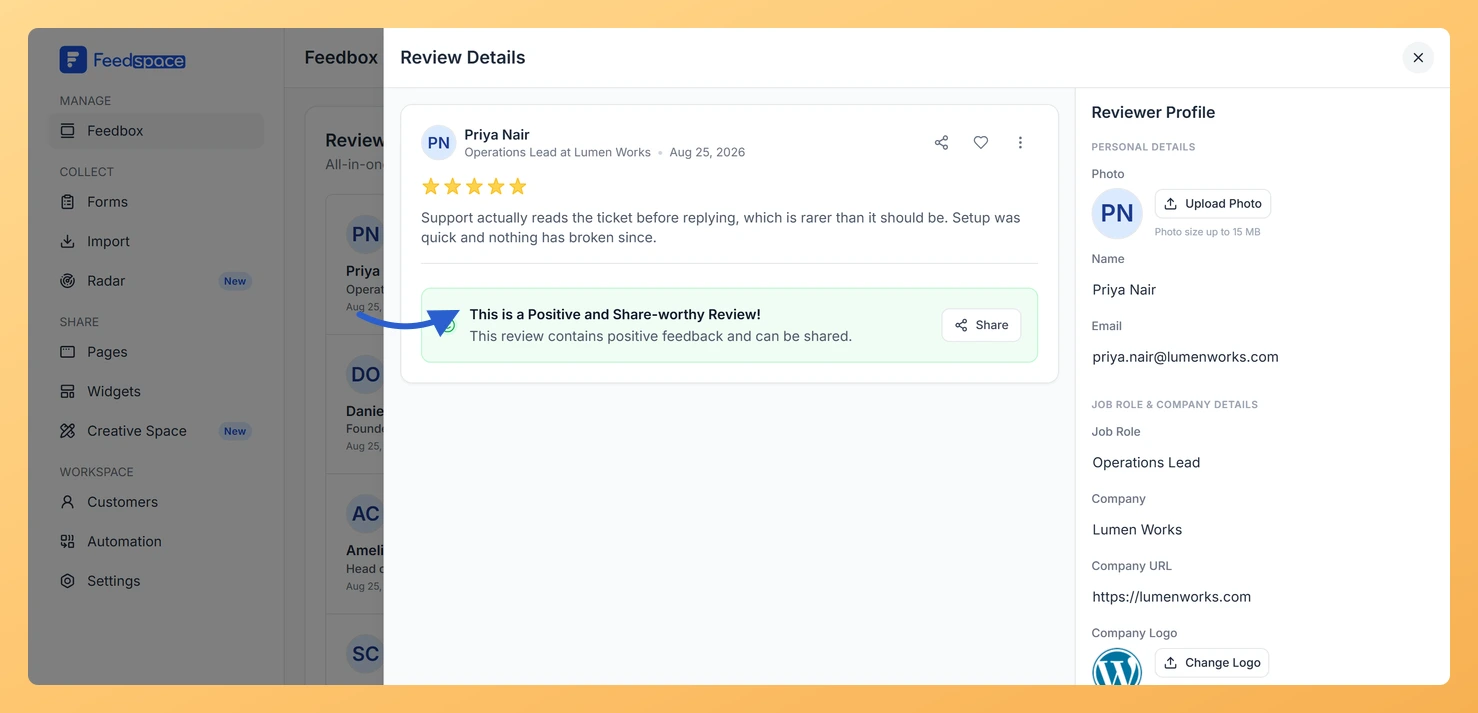
Feedspace reads each review as it arrives and tags it Positive, Neutral, or Negative based on what the reviewer wrote. You get a sense of the mood of your feedback without opening every review.
The tag earns its keep when you are building a Wall of Love. Rather than reading a hundred reviews to find the warm ones, you filter Feedbox to Positive and work from what comes back.
Steps to use sentiment
Step 1: Open Feedbox
Log in to your Feedspace dashboard and click Feedbox in the left sidebar to see all your reviews.
Step 2: Open a review to see its sentiment
Click a review card. The Review Details window opens. When Feedspace has read the review as positive, a green banner sits below it reading This is a Positive and Share-worthy Review!, with a Share button beside it so you can pass it on straight away. Reviews tagged neutral or negative carry their tag quietly, with no banner in this window.
Step 3: Filter the list by sentiment
Close the review and click the filter icon, the sliders icon to the right of the Search box. Under Sentiments, click Positive, Neutral, or Negative, then click Apply. Feedbox shows only the reviews with that tag. Clear puts every filter back.
Step 4: Put the positive ones to work
With the Positive filter on, open the three-dot menu on a review you like and choose Add to Page / Widget to send it straight to a Wall of Love page or a widget.
What’s next
Sentiment is one filter among several, and they stack. Narrow to positive four and five star video reviews from a single form in one go: see how to use filters in Feedspace.
Common questions
Can I change the sentiment on a review myself?
Feedspace sets the sentiment from the review text when the review arrives, so there is no control to change it by hand. If a review is not where you expect it, filter by star rating instead, which comes straight from what the reviewer scored you.
Why do some reviews show no sentiment banner?
The banner is reserved for positive reviews, because it is there to prompt you to share one. A review with no banner still carries its tag, and the Sentiments filter finds it.
You might also find helpful
How to Use Filters in Feedspace
Overview Feedspace provides advanced filtering options so you can quickly find and manage the reviews that matter most. Step 1: Go to Feedbox Step 2 Apply Filters You can filter reviews using the following categories: Filters Review Based On Type Of Content
How Do I Find a Specific Review in Feedspace?
Overview If you have many reviews and need to locate one quickly, the Search bar in Feedbox lets you find any review by typing the reviewer’s name or a keyword from the review text no scrolling required. Steps Tips
Where Are All My Reviews? Getting Started with Feedbox in Feedspace
Overview Feedbox is the hub inside Feedspace where every review you have collected sits together in one list, whether it arrived through a form, came in from an import, or you added it by hand. If you are wondering where your reviews went, Feedbox is the answer. This is the...