
Feedspace Home Dashboard

How to Create a Text Testimonial Form in Feedspace

Last updated on June 22, 2026

Follow these steps to quickly set up a text testimonial form in Feedspace:

1. Open the Forms Section

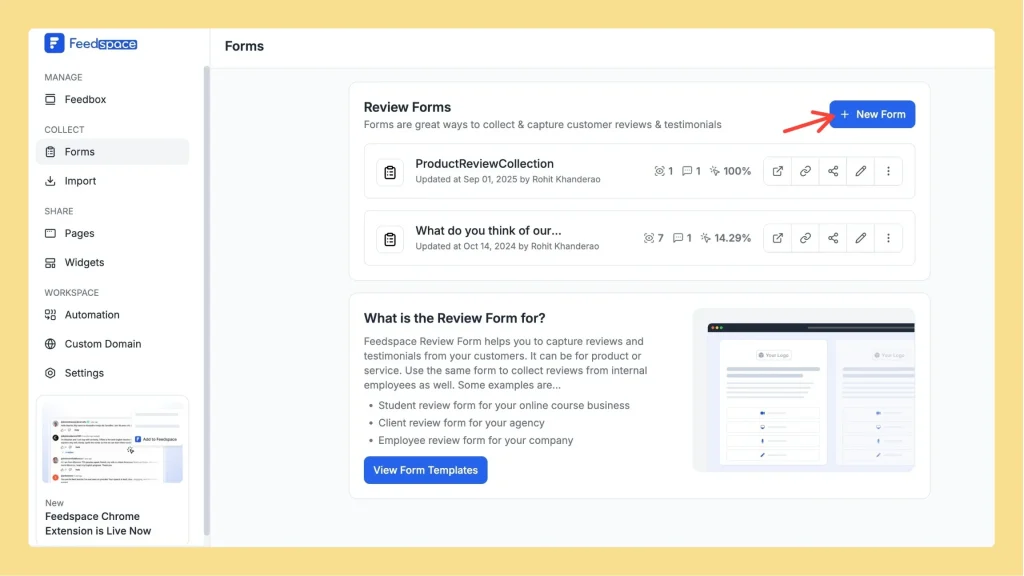
  • From the left-side menu, click Forms.
  • You’ll see a list of already created forms and a CTA button to create a new one.
Feedspace dashboard with the Forms section highlighted in the left menu.

2. Create a New Form

Click New Form in the top right. The Create Form window opens with Feedspace AI.

  • In Enter form prompt to Feedspace AI, describe the form you want, for example “Make a video and text review form for my online tutoring business”.
  • Optionally, enter your website address in Fetch Brand Asset so the AI matches your logo, colours, and fonts.
  • Click Generate form. Feedspace AI builds the form fields for you.

⏱ It takes a few seconds to generate.

3. Review & Customize the Form

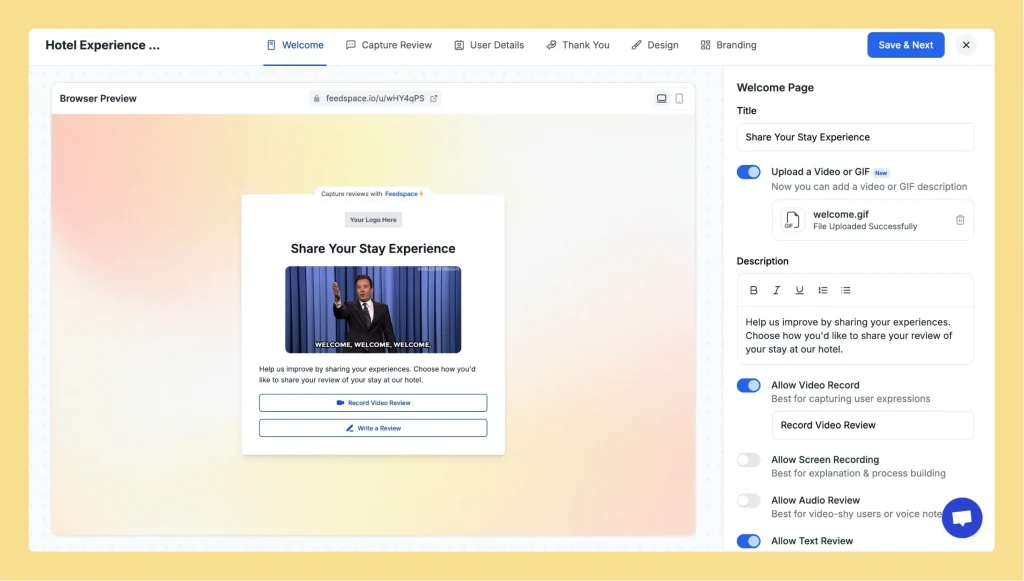
  • Once created, you’ll be taken to the Review Screen.
  • Here, you can edit fields, update text, and customize the form layout.
Feedspace form editor with editable text fields and layout customization options.

4. Enable Text Review

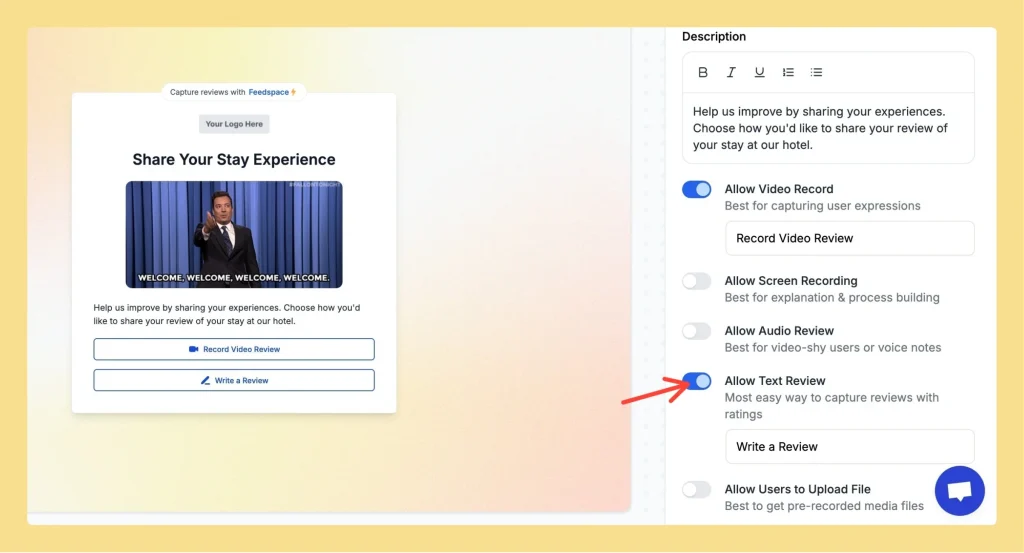
  • On the right side, under the Welcome Page section, you’ll find toggle buttons to enable review formats.
  • Turn on Text Review.
  • Add placeholder text that will appear on the text review CTA.
Toggle button in Feedspace form settings to enable text reviews under the Welcome Page section.

5. Configure Text Review Settings

You can now fine-tune the form with the following options:

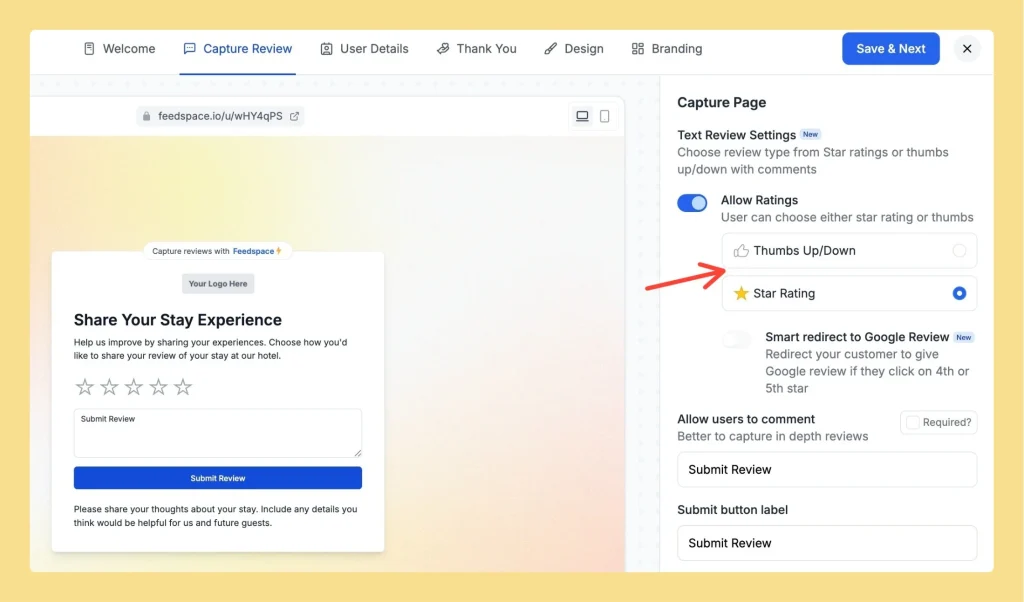
Choose Review Type

  • ⭐ Star Ratings
  • 👍 Thumbs Up/Down
Feedspace form settings panel showing star ratings, thumbs up/down, Google review redirect, and comment options.

Smart Redirect to Google Review (New) – Redirect users to Google Reviews if they select 4 or 5 stars.

Allow Users to Comment – Capture more detailed feedback.

Required? – Make ratings/comments mandatory.

Submit Button Label – Example: “Submit Your Review.”

User Instructions – Add helpful guidelines for users.

6. Save & Launch

Once done, click Save and Next.

Your Text Testimonial Form is now ready! 🎉

Final confirmation screen in Feedspace with the Save and Next button highlighted.

You might also find helpful

What Are Text Testimonials?

Overview Text testimonials in Feedspace allow businesses to collect, manage, and showcase written feedback from users. This includes customer reviews, user testimonials, and other text-based content, providing valuable insights and helping boost user engagement and brand credibility. Purpose of Text Testimonials 1. Gain Insightful Feedback Collect detailed user feedback to...

How Easy Is It to Get Video Testimonials?

Overview Collecting video testimonials might sound complicated – but with Feedspace, it’s actually very simple. Here’s how it works step by step: 1. Share a Link Just share your “Share Form Link” to customers. 2. Record in Seconds When someone clicks the link: 3. Collect & Organize Easily Once they’re...

How Do I Ask Clients for Video Testimonials?

Asking clients for video testimonials doesn’t have to feel awkward. Follow these easy steps to make the process smooth and friendly: With Feedspace, you can collect video testimonials directly in one place.