
Feedspace Home Dashboard

How to Set a Custom URL Slug for Your Review Form

Last updated on May 25, 2026

Overview

Feedspace lets you replace the default form URL with a memorable, branded slug — making your form link easier to share and recognize. For example, you can change a long random URL into something like yourworkspace.feedspace.io/your-brand-name.

Step 1 – Open the Share Tab

  • Access your Feedspace account and navigate to the Forms section from the left sidebar.
  • Select the form you want to update.
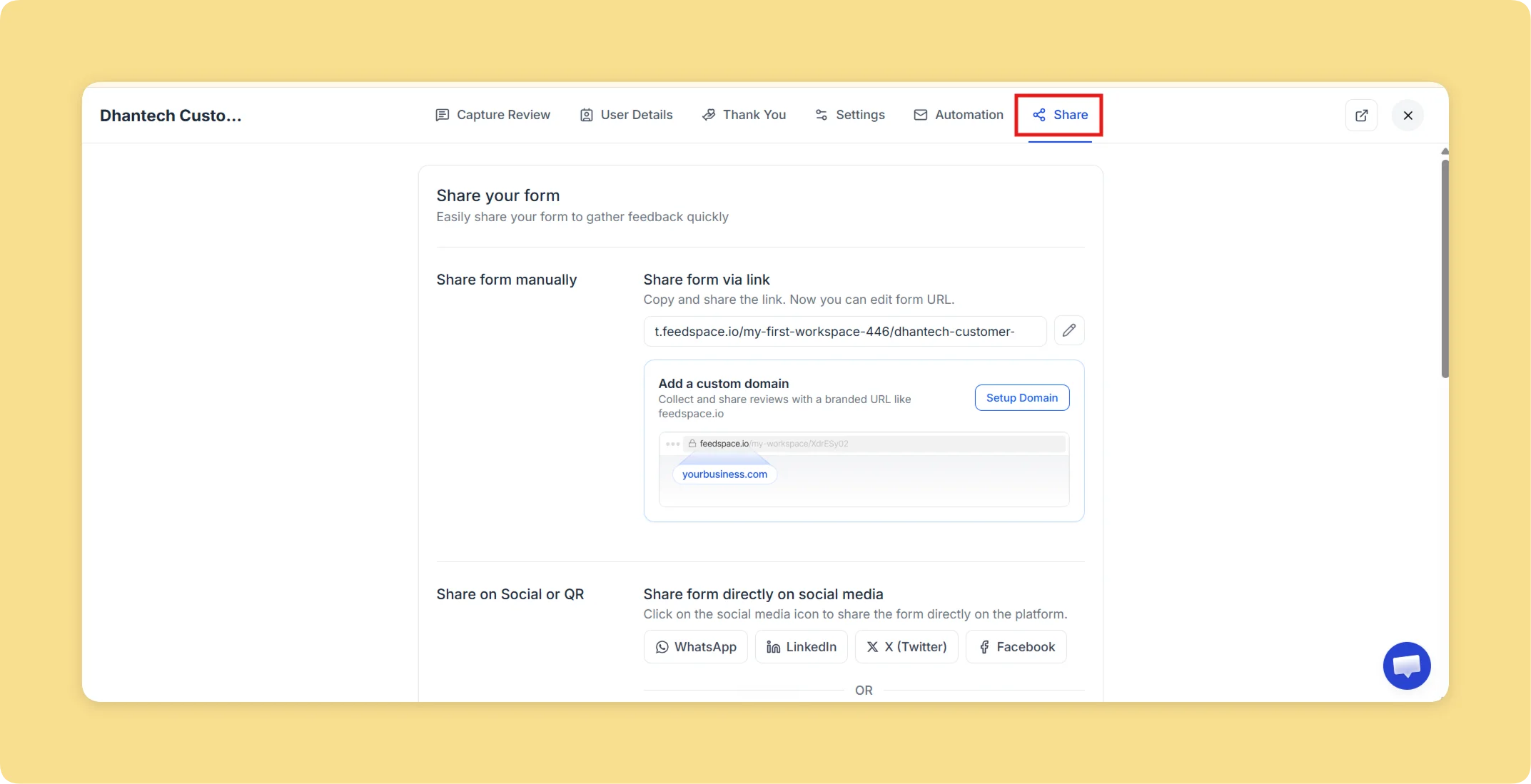
  • Click the Share tab at the top of the form editor.

Step 2 – Find the Form Link

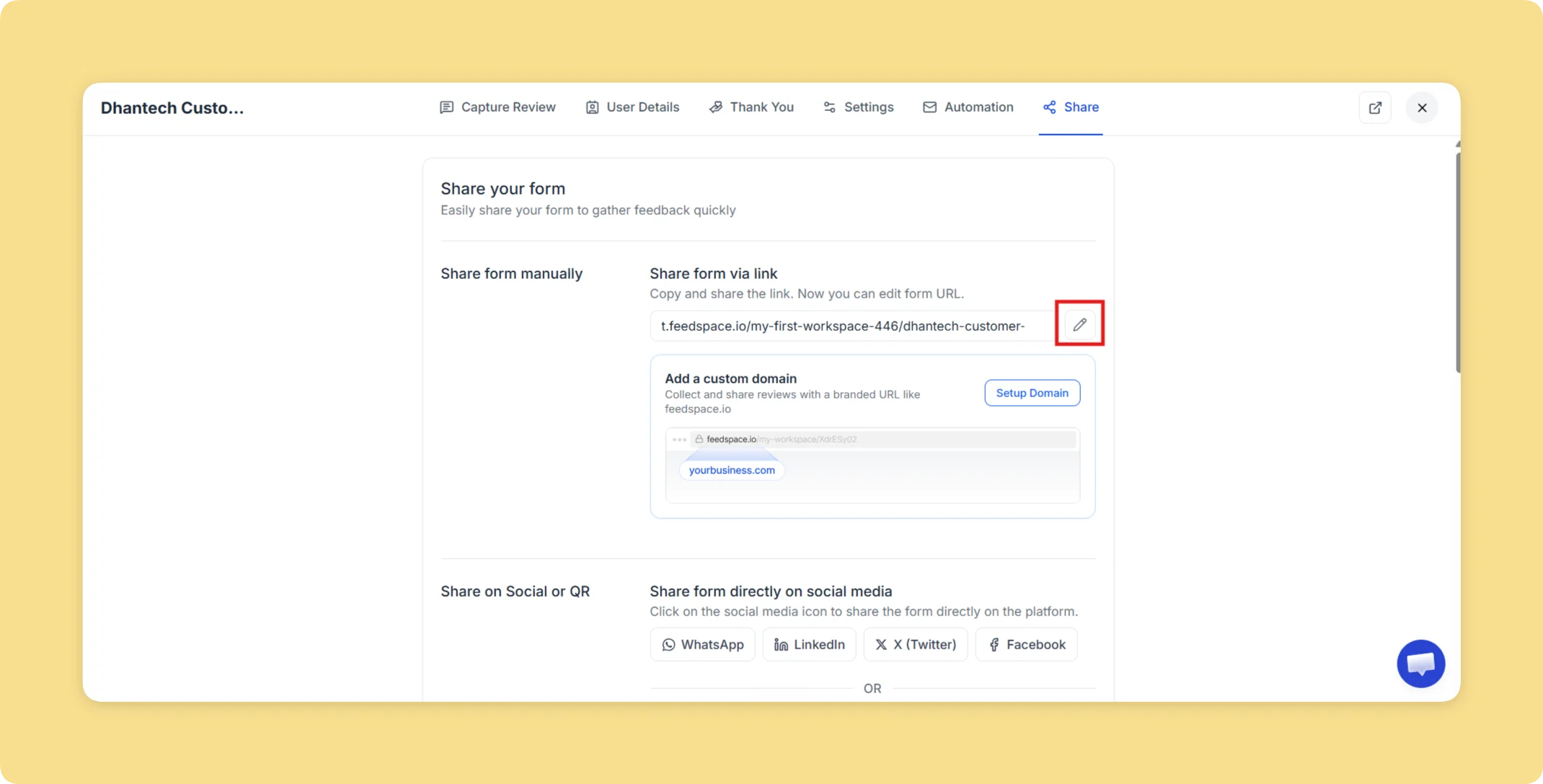
  • In the Share Form Manually section, locate the form link input showing your current form URL.
  • Click the pencil (edit) icon on the right side of the URL input to open the slug editor.

Step 3 – Enter Your Custom Slug

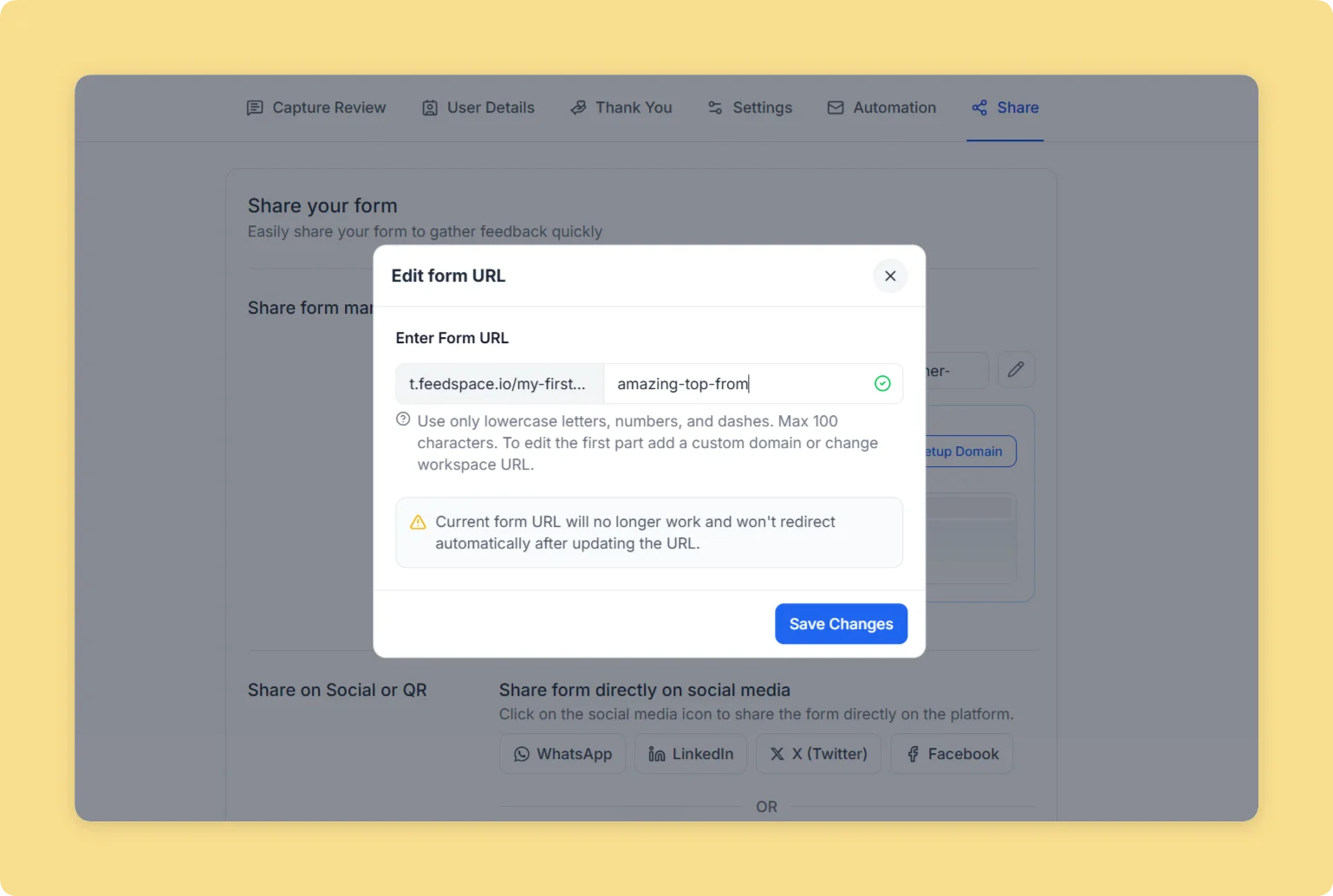
  • A dialog opens showing the current URL with an editable slug field at the end.
  • Type your desired slug in the editable field (e.g. my-brand-feedback).
  • Feedspace checks availability in real time:
    • A green checkmark means the slug is available.
    • A red warning icon means the slug is already taken or invalid.
  • Slugs may only contain lowercase letters, numbers, and hyphens.

Step 4 – Save the Slug

  • Once the green checkmark appears, click Save Changes.
  • Your form link updates immediately in the Share tab.

Step 5 – Share the New Link

  • Copy the updated URL and share it via email, social media, QR code, or embed it on your website.

Tips

  • Update Old Links: Changing your slug will break any previously shared links — update them everywhere after saving.
  • Full White-Label: For a completely branded URL, set up a custom domain under Settings → Domain.
  • Slug Rules: Only the last segment of the URL can be changed from this editor — the workspace domain prefix stays the same.

That’s it! Your Feedspace review form now has a clean, branded URL that’s easy to share and remember.

You might also find helpful

How to Share Form Link via Email

Overview Feedspace makes it easy to share audio, video, and text forms across your network. You can easily collect reviews by sharing your review form via email. Customize the subject line and message, then send a professional-looking invitation that directs recipients straight to your feedback form. Step 1 – Log...

How to Share Form Link via QR Code

Overview Feedspace makes it easy to share audio, video, and text forms across your network. Providing a QR code for your review or feedback form makes it easy for users to access it directly – ideal for print, offline events, and quick mobile access. In Feedspace, you can generate and...

How to Integrate Review Forms Into Your Website

Overview Feedspace makes it easy to share audio, video, and text forms across your network. To integrate your review form into your website, follow these steps: Step 1 – Log into Feedspace Start by logging into your Feedspace account. Step 2 – Go to the Forms Page Navigate to the Forms page on Feedspace....