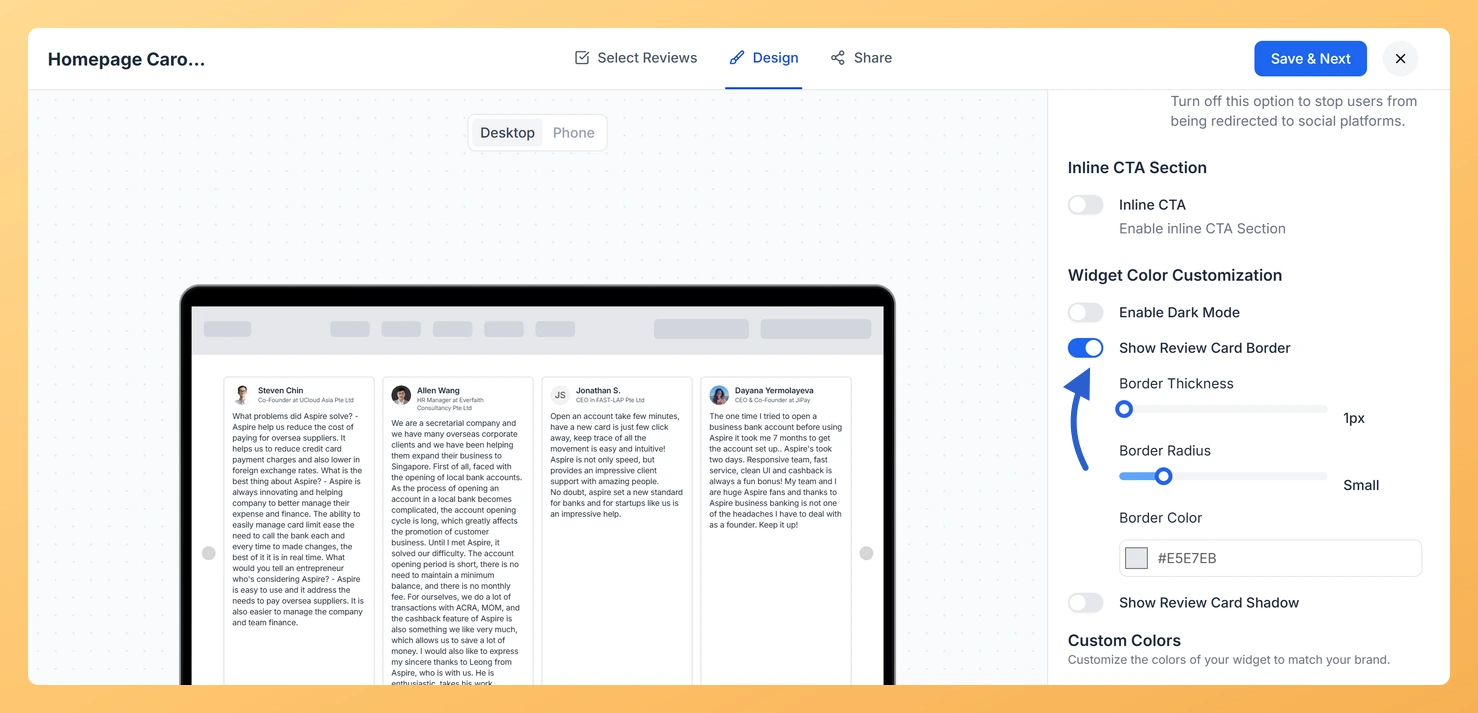
The Carousel widget displays your review cards in a horizontal sliding layout, showing one or a few cards at a time as they loop continuously across the screen. Because each card is prominently framed in this format, adding a visible border helps each review stand out as a distinct, self-contained unit, giving the carousel a polished and structured appearance.
The Show Review Card Border toggle is found in the Widget Color Customization section of the Design tab. When enabled, it reveals three sub-options: Border Thickness (1px to 12px), Border Radius (None to XX-Large for rounded corners), and Border Color (color picker). Together these controls let you define exactly how the boundary of each sliding review card looks, whether you want a thin subtle outline, a bold framed edge, or softly rounded corners that match your site’s visual style.
How to add a border to review cards on your Carousel widget
Step 1: Open the Widgets section
Log in to your Feedspace account. In the left sidebar, click Widgets to open the list of all your widgets.
Step 2: Open your Carousel widget
Find the Carousel widget you want to update. Click the Edit (pencil) icon on the widget card to open the widget editor.
Step 3: Go to the Design tab
Inside the widget editor, click the Design tab at the top of the panel. This tab contains all visual customization options for your Carousel widget.
Step 4: Find Widget Color Customization
Scroll down within the Design tab until you reach the Widget Color Customization section. This section contains color and border controls that apply to the individual review cards displayed in the carousel.
Step 5: Turn on Show Review Card Border
Locate the Show Review Card Border toggle and turn it on. The toggle will highlight to indicate the border is active, and three additional controls will appear below it.
Step 6: Set the border thickness
Use the Border Thickness slider or input to choose a value between 1px and 12px. A lower value creates a subtle outline around each card, while a higher value produces a bold, clearly visible frame that emphasizes each review as the carousel slides.
Step 7: Set the border radius
Use the Border Radius control to choose the corner style of each card. The options range from None (sharp square corners) to XX-Large (heavily rounded corners). Select the level that best fits the visual tone of your site.
Step 8: Choose a border colour
Click the Border Color swatch to open the color picker. Select a color that complements your brand palette or your site’s background. You can enter a hex code directly for precise color matching.
Step 9: Save and preview the widget
Click Save & Next to apply your changes. The widget picks the change up wherever it is already embedded, so there is no need to paste the embed code again. Use the preview panel to check how the border appears on each review card as the carousel loops. Adjust the thickness, radius, or color as needed until the result matches your design goals.
What’s next
Add a shadow to your review cards to complement the border and give each card more depth as it slides through the carousel.
Adjust the background color of each review card in the Widget Color Customization section so the border and card background work together visually.
Try different Border Radius values alongside your chosen thickness to find a card style that matches your site’s overall design language.
Refresh the page where the widget is embedded to check the border against your own background colour.
Common questions
Can I give one card a different border from the rest?
The border settings apply to every card in the carousel, which is what keeps the cards looking like a set as they slide. Style the cards once and the whole loop stays consistent.
You might also find helpful
How Do I Add a Shadow to Review Cards on My Carousel Widget in Feedspace?
Overview The Carousel widget displays your review cards in a horizontal sliding layout, showing one or a few cards at a time as they loop continuously across the screen. Because each card is presented individually and in close focus, visual depth plays an important role in how polished the widget...
How to Create a Carousel Widget in Feedspace
Overview The Carousel widget in Feedspace lets you display multiple reviews in a continuously sliding format. You can enable autoplay, customize speed, and fine-tune design elements such as border, background color, and text colors. It’s a great way to keep your testimonials engaging and visually dynamic. How to Access Step...
How Do I Customize the Design of My Widget in Feedspace?
Overview Feedspace widgets come with a powerful Design tab that lets you tailor every visual aspect of your widget. From card colors and fonts to dark mode and call-to-action buttons, you can fully customize the look to match your website’s brand without writing any code. How to Customize the Widget...