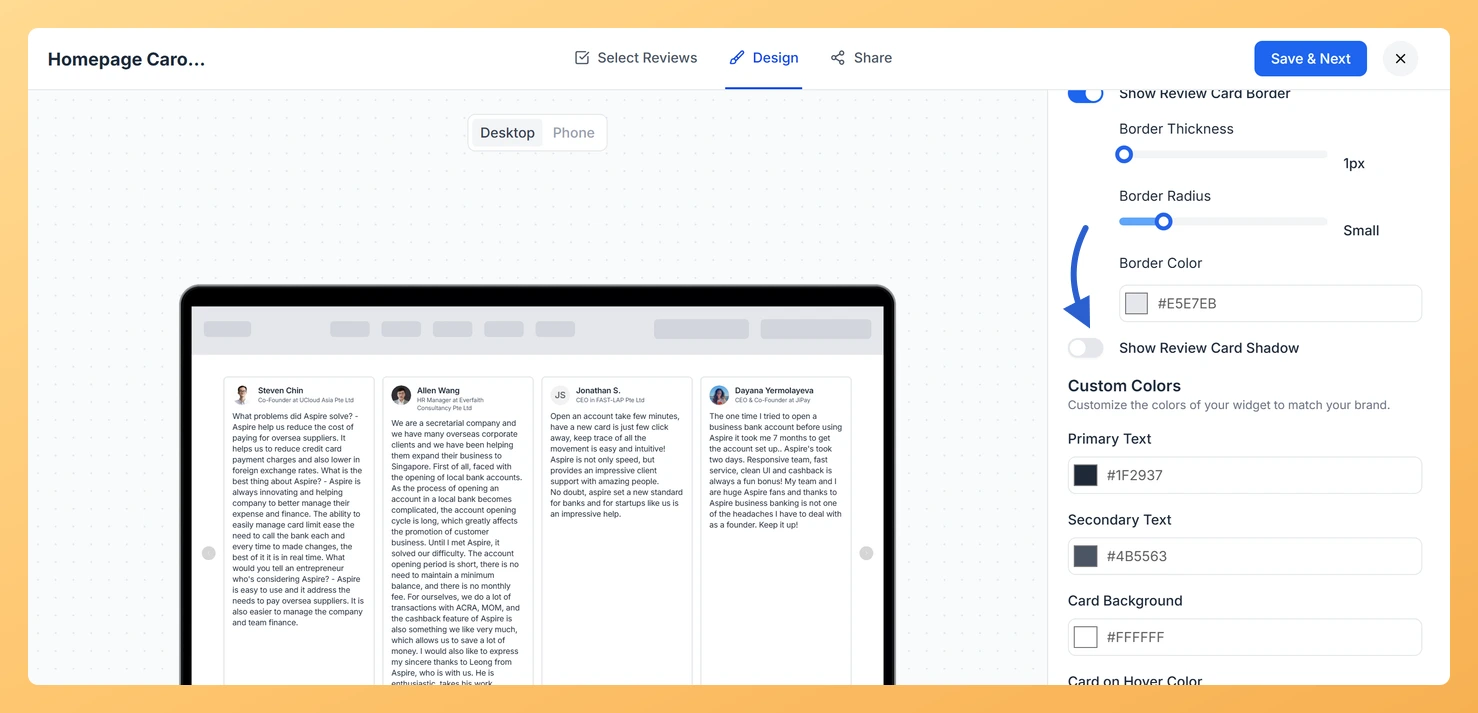
The Carousel widget displays your review cards in a horizontal sliding layout, showing one or a few cards at a time as they loop continuously across the screen. Because each card is presented individually and in close focus, visual depth plays an important role in how polished the widget looks on your page.
The Show Review Card Shadow toggle, found in the Widget Color Customization section of the Design tab, lets you add a drop shadow beneath each review card in the Carousel. When enabled, you can choose a Shadow Style (Blurred or Solid), a Shadow Size (Small, Medium, Large, or X-Large), and a Shadow Color using the color picker. Together these controls let you match the shadow to your brand palette and give each sliding card a sense of lift that draws visitor attention as the carousel animates.
How to add a shadow to review cards on your Carousel widget
Step 1: Open the Widgets section
Log in to your Feedspace account. In the left navigation panel, click Widgets to open your list of saved widgets.
Step 2: Open your Carousel widget
Find the Carousel widget you want to update. Click the Edit icon (pencil) next to that widget to open the widget editor.
Step 3: Go to the Design tab
Inside the widget editor, click the Design tab at the top of the panel. This tab contains all visual customization options for your Carousel widget, including layout, colors, and card styling controls.
Step 4: Find Widget Color Customization
Scroll down within the Design tab until you reach the Widget Color Customization section. This section groups all color and shadow options that apply to the individual review cards displayed in your Carousel.
Step 5: Turn on Show Review Card Shadow
Locate the Show Review Card Shadow toggle and switch it on. Three additional controls will appear beneath it:
Shadow Style, where you choose Blurred for a soft, diffused shadow or Solid for a sharp, hard-edged shadow.
Shadow Size, which lets you select Small, Medium, Large, or X-Large to control how far the shadow extends from the card edge.
Shadow Color, where you use the color picker to set a shadow color that complements your brand or page background.
Adjust each sub-option until the shadow looks right for your design. The preview panel will update as you make changes.
Step 6: Save your changes
Once you are happy with the shadow settings, click Save & Next to apply the changes. The widget picks the change up wherever it is already embedded, so there is no need to paste the embed code again.
Create a new Carousel widget from scratch if you want to set up a second carousel with a different shadow style for another page or brand. See How to Create a Carousel Widget in Feedspace?
Refresh the page where the widget is embedded to check the shadow against your own background colour.
Common questions
Can I use a shadow and a border at the same time?
Yes. Show Review Card Border and Show Review Card Shadow are separate toggles in the same section, so a card can carry both an outline and a lift.
You might also find helpful
How Do I Add a Border to Review Cards on My Carousel Widget in Feedspace?
Overview The Carousel widget displays your review cards in a horizontal sliding layout, showing one or a few cards at a time as they loop continuously across the screen. Because each card is prominently framed in this format, adding a visible border helps each review stand out as a distinct,...
How to Create a Carousel Widget in Feedspace
Overview The Carousel widget in Feedspace lets you display multiple reviews in a continuously sliding format. You can enable autoplay, customize speed, and fine-tune design elements such as border, background color, and text colors. It’s a great way to keep your testimonials engaging and visually dynamic. How to Access Step...
How Do I Customize the Design of My Widget in Feedspace?
Overview Feedspace widgets come with a powerful Design tab that lets you tailor every visual aspect of your widget. From card colors and fonts to dark mode and call-to-action buttons, you can fully customize the look to match your website’s brand without writing any code. How to Customize the Widget...