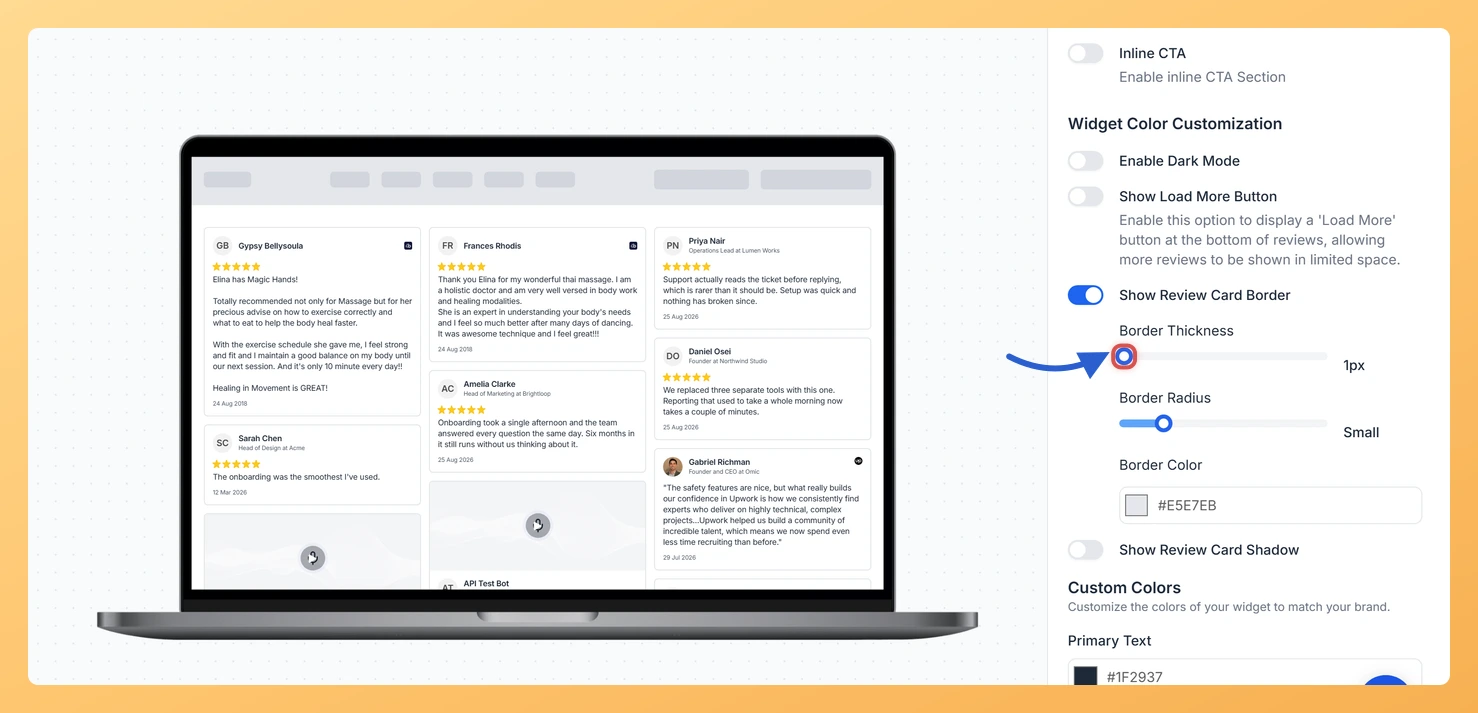
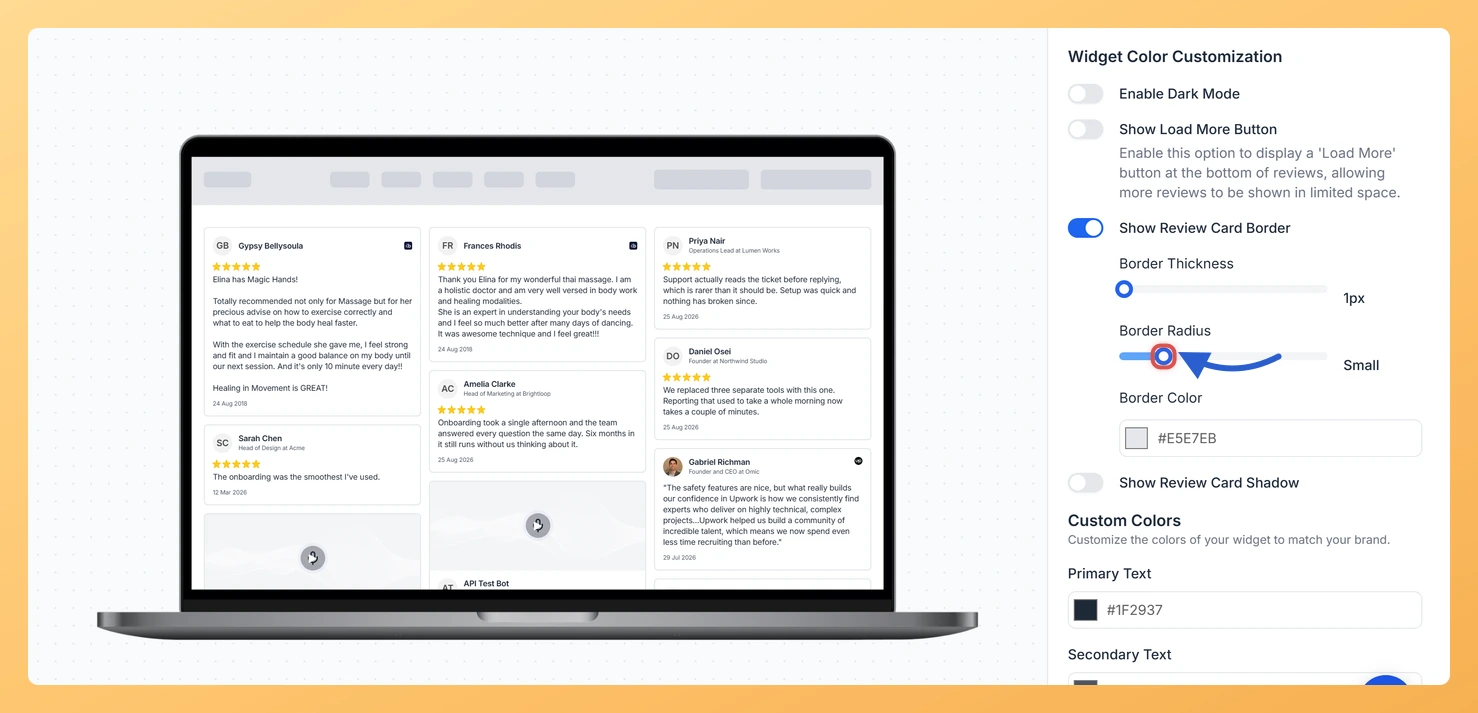
The Masonry widget displays your reviews in a Pinterest-style staggered grid, where multiple columns of varying heights show many cards at once. Because cards sit closely together across the grid, adding a visible border to each card helps separate individual reviews clearly, giving visitors an easy way to distinguish one testimonial from another at a glance.
The Show Review Card Border toggle is found in the Widget Color Customization section of the Design tab. When you turn it on, three sub-options appear: Border Thickness (1px to 12px), Border Radius (None to XX-Large for rounded corners), and Border Color (a color picker). Together these controls let you create a border style that matches your brand, from a thin, sharp-edged line to a thick, fully rounded frame in any color.
How to add a border to review cards on your Masonry widget
Step 1: Open the Widgets section
Log in to your Feedspace account and navigate to the Widgets section from the left-hand sidebar. You will see a list of all the widgets you have created.
Step 2: Edit your Masonry widget
Find the Masonry widget you want to update and click the Edit (pencil) icon on its card. The editor opens on the Select Reviews tab, showing the widget as it stands.
Step 3: Go to the Design tab
Inside the widget editor, click the Design tab at the top of the panel. This tab contains all visual customization options for your Masonry widget, including layout, colors, typography, and card styling.
Step 4: Locate the Widget Color Customization section
Scroll down within the Design tab until you reach the Widget Color Customization section. This section groups together all color and border-related controls for the review cards displayed in your Masonry widget.
Step 5: Enable the Show Review Card Border toggle
Find the Show Review Card Border toggle and switch it on. Three sub-options will appear immediately below the toggle.
Step 6: Set the Border Thickness
Use the Border Thickness control to choose how thick the border line should be. The available range is 1px (a hairline border) to 12px (a bold, prominent frame). A value of 1px to 2px works well for a subtle separation, while 4px or more makes the border a visible design feature across the staggered Masonry columns.
Step 7: Set the Border Radius
Use the Border Radius control to choose the corner style for each card. Select None for sharp square corners, or increase the value up to XX-Large to give cards a strongly rounded appearance. Rounded corners are popular in Masonry layouts because they soften the visual weight of densely packed cards.
Step 8: Choose the Border Color
Click the Border Color picker and select the color you want for the card borders. You can enter a hex code, use the color spectrum, or pick from saved brand colors. Choose a color that provides enough contrast against both the card background and the page background so the border is clearly visible throughout the Masonry grid.
Step 9: Save your changes
Once you are happy with the border settings, click Save & Next to apply your changes. If the widget is already embedded on your website, the updated border style will appear automatically without requiring you to re-embed the widget code.
What’s next
Add a shadow to your Masonry review cards for extra depth alongside the border, using the shadow customization option in the same Design tab.
Adjust the card background color in the Widget Color Customization section so the border color and card background work together as a cohesive visual style.
Preview how the bordered Masonry grid looks at different screen sizes by resizing your browser or using your browser’s responsive design tools before publishing.
Explore other Design tab settings for your Masonry widget, such as the font, the star colour and the card colours, to complete the overall look of your review display.
Common questions
Do I need to re-embed the widget after changing the border?
No. An embedded widget is loaded from Feedspace every time someone opens your page, so the new border appears on your site as soon as you save. The embed code on your site never changes.
You might also find helpful
How Do I Add a Shadow to Review Cards on My Masonry Widget in Feedspace?
Overview The Masonry widget displays your reviews in a Pinterest-style staggered grid, arranging cards across multiple columns of varying heights. Because cards sit side by side in a tightly packed layout, adding a shadow to each card gives them visual lift and clearly separates them from adjacent cards and the...
How to Create a Masonry Widget in Feedspace
Overview The Masonry widget in Feedspace arranges your reviews in an elegant grid layout of varying card sizes, similar to Pinterest-style walls. It’s perfect for showcasing multiple reviews together while maintaining a modern, responsive design that automatically adjusts across devices. How to Access Step 1 – Log in to Feedspace...
How Do I Customize the Design of My Widget in Feedspace?
Overview Feedspace widgets come with a powerful Design tab that lets you tailor every visual aspect of your widget. From card colors and fonts to dark mode and call-to-action buttons, you can fully customize the look to match your website’s brand without writing any code. How to Customize the Widget...