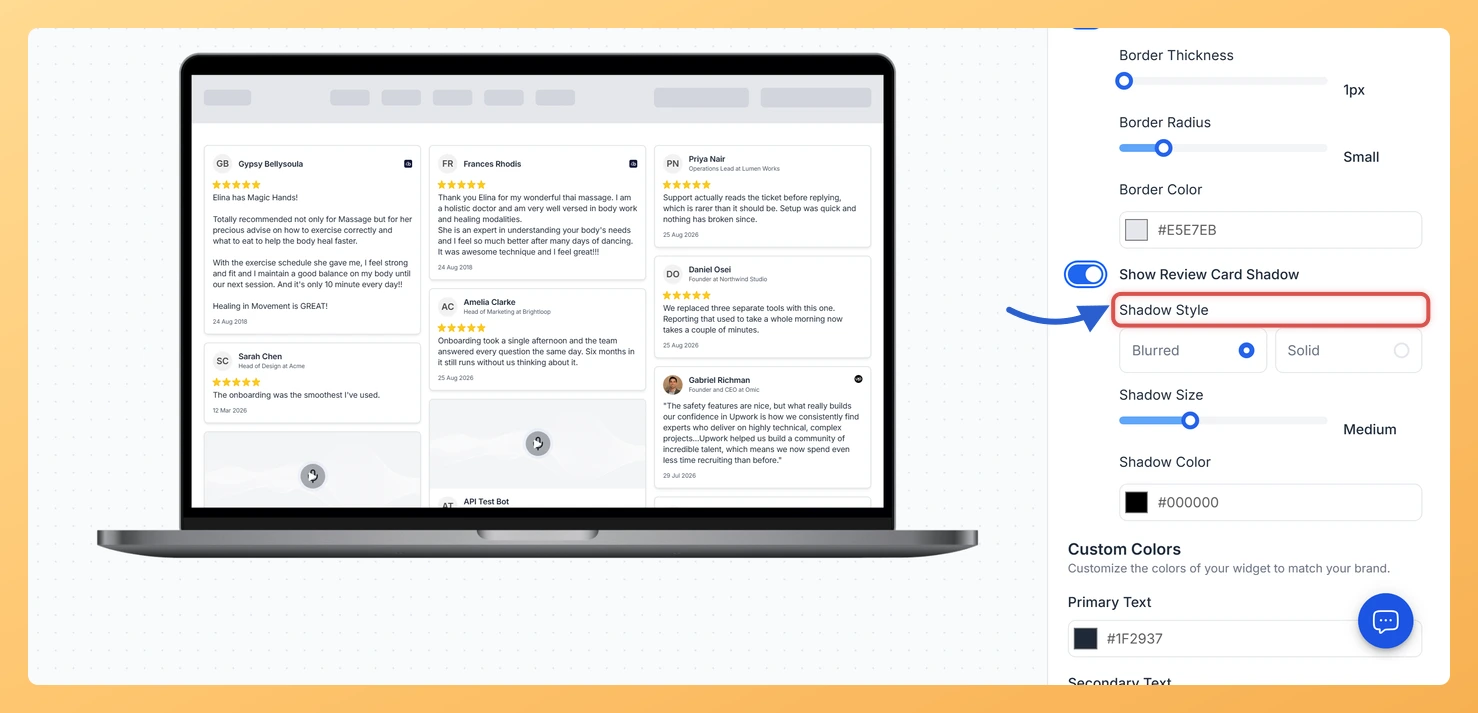
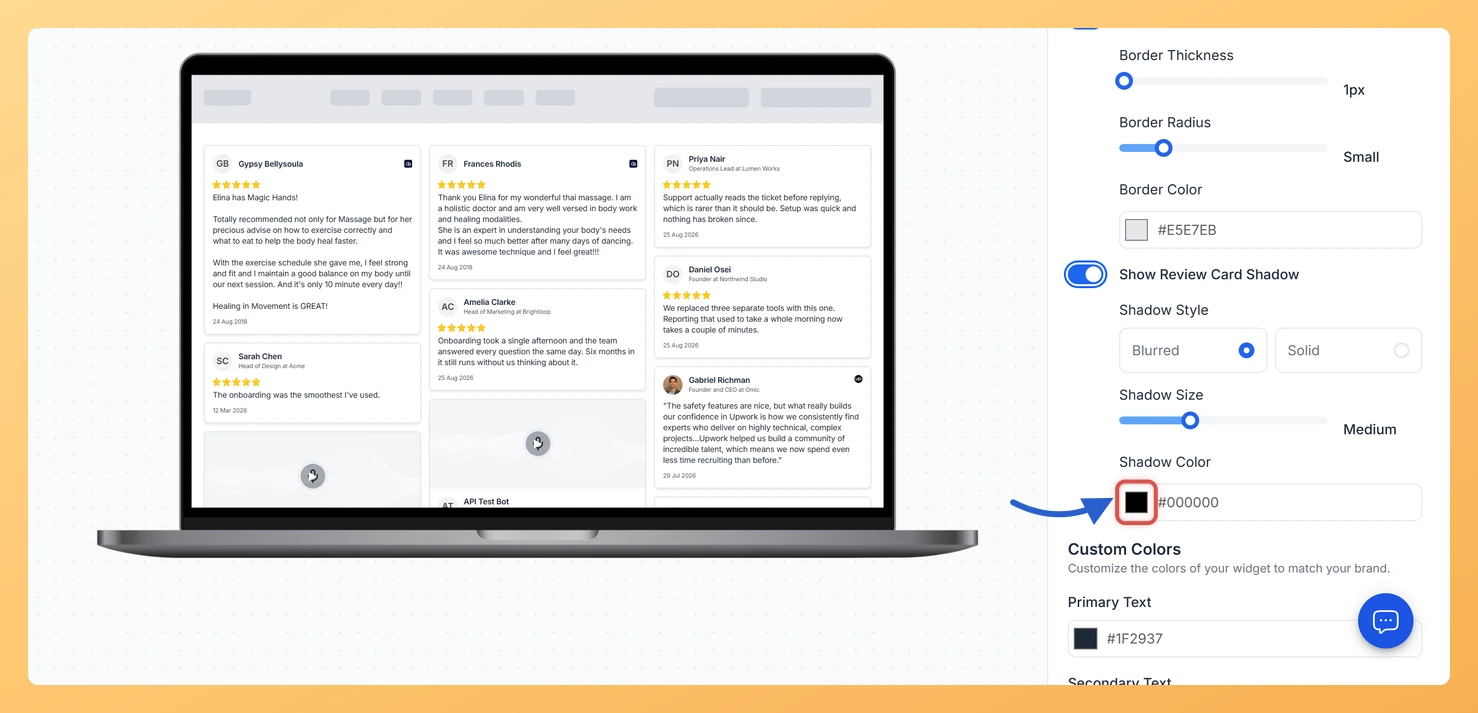
The Masonry widget displays your reviews in a Pinterest-style staggered grid, arranging cards across multiple columns of varying heights. Because cards sit side by side in a tightly packed layout, adding a shadow to each card gives them visual lift and clearly separates them from adjacent cards and the background. Without a shadow, cards in a dense Masonry grid can visually merge, making the layout harder to scan. The Show Review Card Shadow toggle, found in the Widget Color Customization section of the Design tab, lets you apply a shadow to every card in the grid at once. Once enabled, three sub-options give you precise control: Shadow Style (Blurred for a soft glow or Solid for a hard edge), Shadow Size (Small, Medium, Large, or X-Large), and Shadow Color (a color picker so the shadow matches your brand palette). Together these controls let you fine-tune the depth and separation of cards across the entire Masonry layout.
How to add a shadow to review cards on your Masonry widget
Step 1: Open the Widgets section
Log in to your Feedspace account and navigate to the Widgets section from the main sidebar. You will see a list of all widgets you have created.
Step 2: Edit your Masonry widget
On the card for the Masonry widget you want to restyle, click the Edit (pencil) icon. The editor opens for that widget on its Select Reviews tab.
Step 3: Go to the Design tab
Inside the widget editor, click the Design tab at the top of the panel. This tab contains all visual customization options for your Masonry widget, including colors, fonts, and card styling.
Step 4: Find the Widget Color Customization section
Scroll down within the Design tab until you reach the Widget Color Customization section. This section groups together all card-level visual options, including background color, border settings, and shadow controls.
Step 5: Enable the Show Review Card Shadow toggle
Toggle on the Show Review Card Shadow option. Once enabled, three additional sub-options appear below the toggle for you to configure.
Step 6: Choose a Shadow Style
Under Shadow Style, select either Blurred or Solid. Blurred produces a soft, diffused shadow that gives cards a floating appearance, which works well with light backgrounds in a Masonry layout. Solid produces a hard-edged shadow that creates a bold, graphic look.
Step 7: Set the Shadow Size
Under Shadow Size, choose from Small, Medium, Large, or X-Large. For a Masonry grid with many tightly packed cards, a Small or Medium shadow keeps the layout clean. A Large or X-Large shadow works well when cards have more spacing or when you want a more dramatic depth effect.
Step 8: Pick a Shadow Color
Use the Shadow Color color picker to set the shadow color. A neutral dark color such as black or dark grey works in most cases. If your Masonry widget uses a colored background, you can match the shadow to a darker shade of that accent color for a cohesive look.
Step 9: Save and preview your widget
Click Save & Next to apply your changes. Use the live preview panel to check how the shadow looks across the staggered card columns. Adjust the style, size, or color as needed, then save again once you are satisfied.
What’s next
Add a border to your Masonry review cards alongside the shadow to create a more defined card frame across the staggered grid columns.
Adjust the card background color in the Widget Color Customization section so the shadow color and card color work together as a cohesive combination.
Experiment with the card spacing settings on your Masonry widget so the shadow from each card has room to display without overlapping adjacent cards.
Copy the embed code for your updated Masonry widget and replace the existing snippet on your website so visitors immediately see the new shadow styling.
Common questions
Why did the shadow controls disappear after I turned on Enable Dark Mode?
Dark Mode takes over the card styling, so switching it on hides the whole border, shadow and custom colors block and leaves only Dark Mode itself visible. Turn Dark Mode off and the shadow controls come straight back.
You might also find helpful
How Do I Add a Border to Review Cards on My Masonry Widget in Feedspace?
Overview The Masonry widget displays your reviews in a Pinterest-style staggered grid, where multiple columns of varying heights show many cards at once. Because cards sit closely together across the grid, adding a visible border to each card helps separate individual reviews clearly, giving visitors an easy way to distinguish...
How to Create a Masonry Widget in Feedspace
Overview The Masonry widget in Feedspace arranges your reviews in an elegant grid layout of varying card sizes, similar to Pinterest-style walls. It’s perfect for showcasing multiple reviews together while maintaining a modern, responsive design that automatically adjusts across devices. How to Access Step 1 – Log in to Feedspace...
How Do I Customize the Design of My Widget in Feedspace?
Overview Feedspace widgets come with a powerful Design tab that lets you tailor every visual aspect of your widget. From card colors and fonts to dark mode and call-to-action buttons, you can fully customize the look to match your website’s brand without writing any code. How to Customize the Widget...