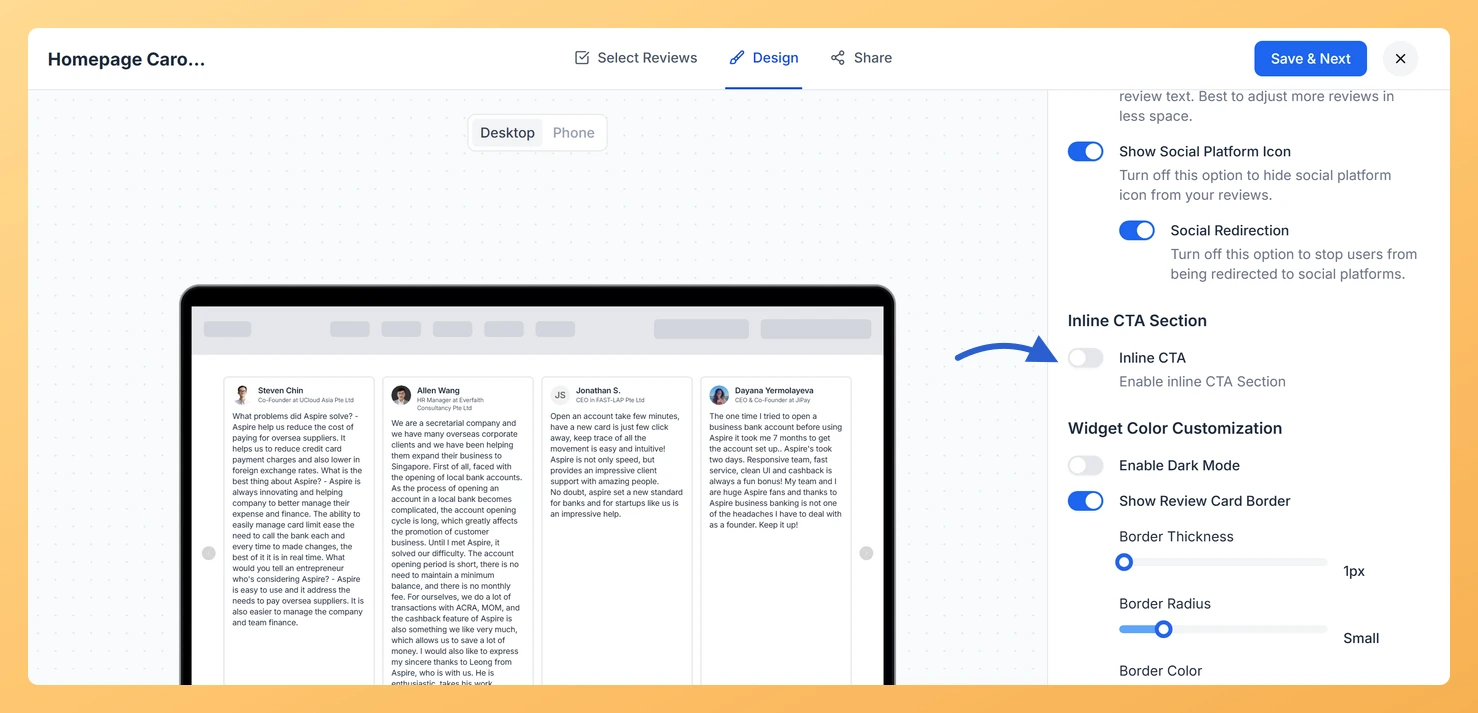
The Carousel widget displays your reviews as a horizontal sliding sequence, showing one or a few cards at a time as they loop continuously. The Inline CTA option, found in the Design tab, lets you insert a dedicated call-to-action card directly into that sliding loop alongside your review cards. Instead of placing a CTA banner above or below the widget, this card appears as part of the carousel rotation itself, so visitors encounter your prompt to take action while they are already engaged reading reviews.
You can customise the CTA card’s heading text, body text, button label, button URL, button color, card background color, and card border to match your brand. Because the CTA travels with the carousel flow, it reaches every visitor who browses through the review sequence without requiring any additional page layout changes.
How to add an inline CTA to your Carousel widget
Step 1: Open the Widgets section
Log in to your Feedspace account and navigate to the Widgets section from the main sidebar. You will see a list of all the widgets you have created.
Step 2: Open your Carousel widget
Locate the Carousel widget you want to update and click the Edit (pencil) icon on the widget card. This opens the widget editor where you can adjust all settings for that widget.
Step 3: Go to the Design tab
Inside the widget editor, click the Design tab. This tab contains all visual and layout options for the Carousel widget, including the Inline CTA section.
Step 4: Turn on Inline CTA
Scroll down within the Design tab until you find the Inline CTA section. Click the toggle to enable it. Once enabled, a CTA card will be inserted into the carousel’s sliding loop and additional configuration fields will appear below the toggle.
Step 5: Fill in the CTA card fields
Fill in the fields to define how your CTA card looks and what it says. The available fields are:
CTA Heading Text: the main headline displayed at the top of the CTA card.
CTA Body Text: a short supporting message that appears below the heading.
CTA Button Label: the text shown on the action button, for example “Get Started” or “Leave a Review”.
CTA Button URL: the destination URL that opens when a visitor clicks the button.
CTA Button Color: the background color of the button.
CTA Card Background: the background color of the entire CTA card.
CTA Card Border: the border style and color applied to the CTA card.
Step 6: Save and preview the widget
Once you have configured all the CTA card fields, click Save & Next to apply your changes. The widget picks the change up wherever it is already embedded, so there is no need to paste the embed code again. Use the widget preview to confirm that the CTA card appears in the carousel rotation alongside your review cards, and verify that the button color, background, and border match your intended design.
What’s next
Adjust the carousel speed and autoplay settings in the Design tab so the CTA card appears at a comfortable pace for your visitors.
Update the CTA Button URL to point to your review collection form, a product page, or a sign-up link to match your current campaign goal.
Refine the CTA card colors and border to match your website’s brand palette and ensure the card blends naturally with your review cards.
Refresh the page where the widget is embedded to see the CTA card come round in the rotation.
Common questions
Can I use the CTA to ask for another review?
Yes. Put your review form link in CTA Button URL and the card invites readers to add their own review while they are still reading everyone else’s.
You might also find helpful
How Do I Customize the Design of My Widget in Feedspace?
Overview Feedspace widgets come with a powerful Design tab that lets you tailor every visual aspect of your widget. From card colors and fonts to dark mode and call-to-action buttons, you can fully customize the look to match your website’s brand without writing any code. How to Customize the Widget...
How to Create a Carousel Widget in Feedspace
Overview The Carousel widget in Feedspace lets you display multiple reviews in a continuously sliding format. You can enable autoplay, customize speed, and fine-tune design elements such as border, background color, and text colors. It’s a great way to keep your testimonials engaging and visually dynamic. How to Access Step...
How Do I Add an Inline CTA to My Wall of Love Page?
Overview An inline CTA is a call-to-action card that appears within the review grid on your Wall of Love page. Instead of placing a single button at the top, inline CTAs appear between reviews so visitors see your offer while they are actively reading testimonials, at the moment their trust...