


Feedspace Home Dashboard

How Do I Add an Inline CTA to My Wall of Love Page?

Last updated on June 11, 2026

Overview

An inline CTA is a call-to-action card that appears within the review grid on your Wall of Love page. Instead of placing a single button at the top, inline CTAs appear between reviews so visitors see your offer while they are actively reading testimonials, at the moment their trust in your product is highest.

Steps to Add an Inline CTA

Step 1: Open the Design Tab

  1. Log in to your Feedspace account.
  2. Go to Pages and open the editor for your Wall of Love page.
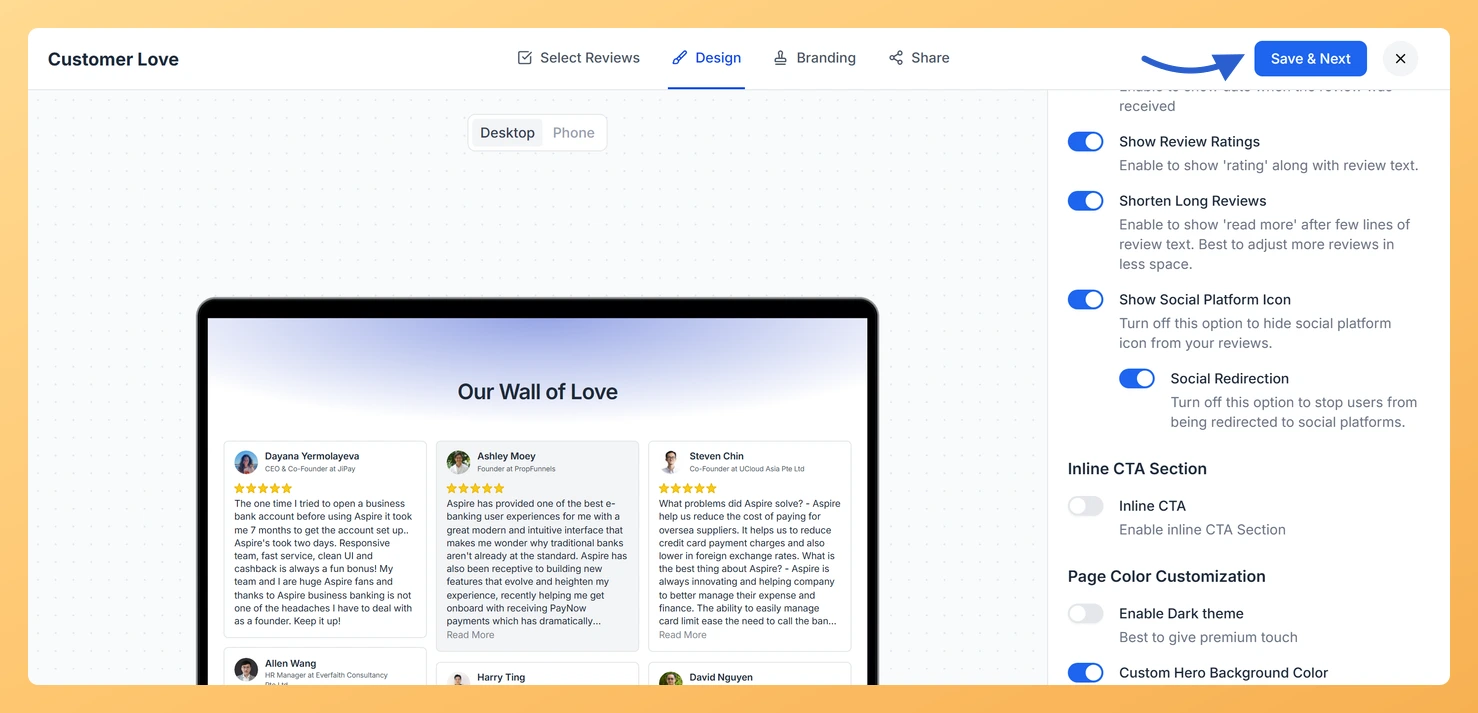
  3. Click the Design tab and scroll down the right panel to find the Inline CTA section.

Step 2: Enable Inline CTA Cards

Toggle Enable Inline CTA Cards on. Additional fields will appear to configure the content and appearance of the CTA card.

Step 3: Write the CTA Content

  • CTA Heading: The bold title at the top of the CTA card. Keep it short and action-oriented, such as “Ready to get started?” or “Join thousands of happy customers.”
  • CTA Body Text: A short supporting sentence below the heading that gives context or adds urgency.
  • Button Label: The text on the CTA button, such as “Start Free Trial” or “Book a Demo.”
  • Button URL: The page visitors land on when they click the button.

Step 4: Style the CTA Card

  • Button Color: The background color of the CTA button.
  • Card Background Color: The fill color of the CTA card itself.
  • Card Border Color: The color of the border around the card.

Step 5: Set the CTA Position

Choose where the CTA card appears within the review grid:

  • Random: The CTA card is placed at a random position among the reviews each time the page loads.
  • Interval: The CTA card appears after every set number of reviews. Use the slider to choose an interval between 4 and 15 reviews.

Step 6: Save Your Changes

Click Save & Next to apply the inline CTA. Check the live preview to see how the CTA card looks inside the review grid.

What You Can Do with Inline CTAs

  • Convert visitors at the peak moment of trust, right when they are reading positive reviews about your product.
  • Drive sign-ups, demo bookings, or purchases without sending visitors to a separate landing page.
  • Use interval positioning to show the CTA card repeatedly for visitors who scroll through many reviews.
  • Style the card to match your brand so it feels like a natural part of the page rather than an ad.

You might also find helpful

How to Create a Wall of Love Page in Feedspace

Steps to Create a Page Log into Feedspace Sign in with your account credentials. Go to Pages From the left sidebar, click Pages. Create Page Click Create Page. This opens the creation screen with some reviews auto-selected in the space. Select Reviews Go to the Select Review page and choose...

How Do I Customize the Content Section of My Wall of Love Page?

Steps to Customize the Content Section Step 1: Open the Design Tab Step 2: Set the Page Title The Page Title field is required. This text appears as the main heading at the top of your Wall of Love page, usually the first thing visitors read. Keep it concise and...

How Do I Customize Review Display Settings on My Wall of Love Page?

Steps to Customize Review Display Settings Step 1: Open the Design Tab Step 2: Toggle Review Dates Use the Show Review Date toggle to control whether the date a review was submitted appears on each card. Showing dates signals that your reviews are recent. Hiding them keeps the card layout...